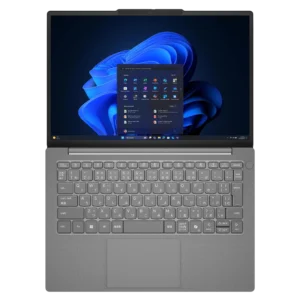
| Field | Details |
| Document Title | Lenovo J13 i User Guide |
| Document Type | User Guide |
| Brand Name | Lenovo |
| Product Name | J13 i |
| Model Number(s) | Lenovo J13 IRL, Machine Type 83NV |
| PDF File Size | 3.10 MiB |
| Number of Pages | 58 |
| Languages Covered | English |
Lenovo J13 i 83NV
The Lenovo J13 i is a 13.3-inch notebook computer designed for everyday computing, business productivity, online communication, and multimedia applications. The Lenovo J13 IRL, machine type 83NV, features a WUXGA display, DDR5 memory, M.2 PCIe solid-state storage, and Windows 11.
The computer includes a 1920 × 1200 display with a 60 Hz refresh rate, a 48 Wh rechargeable battery, and a 65 W USB-C power adapter. It supports Wi-Fi 6E, Bluetooth 5.3, Gigabit Ethernet, HDMI output, and USB Type-C connections for external displays and compatible accessories.
The built-in keyboard provides function keys, Lenovo shortcuts, and a dedicated Copilot key. Its touchpad supports multi-finger Windows gestures for scrolling, zooming, switching applications, and opening frequently used functions.
For security, the computer includes a camera privacy shutter, UEFI/BIOS password controls, and Windows Hello authentication. Supported configurations also include fingerprint authentication through the Power button and facial recognition using the integrated infrared camera system.
Lenovo Vantage provides hardware settings, battery charging controls, system updates, and diagnostic functions. Additional software includes Lenovo Smart Meeting for video conferencing and Smart Connect for connecting compatible smartphones and tablets.
The Lenovo J13 i User Guide provides instructions for setting up Windows 11, managing power, connecting external devices, using keyboard shortcuts, changing BIOS settings, creating recovery media, protecting personal data, and obtaining Lenovo support.
Product Overview and Features
| Feature | Description |
| Product Type | Notebook computer |
| Model | Lenovo J13 IRL |
| Machine Type | 83NV |
| Display Size | 13.3 inches |
| Display Resolution | 1920 × 1200 (WUXGA) |
| Refresh Rate | 60 Hz |
| Operating System | Windows 11 |
| Memory | DDR5 |
| Memory Slots | 2 |
| Storage | M.2 PCIe SSD |
| Battery Capacity | 48 Wh |
| AC Power Adapter | 65 W |
| Wireless LAN | Wi-Fi 6E |
| Bluetooth | Bluetooth 5.3 |
| Wired Network | Gigabit Ethernet |
| Camera | Integrated, with privacy shutter |
| Facial Recognition | Infrared camera system |
| Fingerprint Sensor | In Power button, on select configurations |
| Keyboard | Integrated, with hotkeys and Copilot key |
| Touchpad | Supports multi-finger gestures |
| USB Type-A | 2 ports |
| USB Type-C | 2 ports |
| HDMI | 1 port |
| Memory Card Reader | microSD |
| Audio | Built-in speakers and combo audio jack |
| Security | Windows Hello, firmware passwords, security lock |
| Recovery | Windows 11 Recovery and USB recovery drive |
| Lenovo Software | Lenovo Vantage, Lenovo Smart Meeting, Smart Connect |
Technical Specifications
Physical Specifications
| Specification | Details |
| Width | 300 mm (11.81 inches) |
| Depth | 206.93 mm (8.15 inches) |
| Thickness Values | 16.95 mm and 17.95 mm |
| Display Size | 337.31 mm (13.3 inches) |
| Display Resolution | 1920 × 1200 pixels |
| Refresh Rate | 60 Hz |
The source specification table reverses the expected thinnest/thickest labels for the two thickness measurements. The values above are retained without assigning them to specific edges.
Processor and Memory
| Component | Specification |
| Product Platform | Lenovo J13 IRL |
| Memory Technology | DDR5 |
| Physical Memory Slots | 2 |
Storage Specifications
| Specification | Details |
| Storage Type | Solid-state drive |
| Form Factor | M.2 2242 |
| Interface | PCIe Gen4 × 4 |
Power Specifications
| Specification | Details |
| AC Adapter Input | 100–240 V AC |
| Input Frequency | 50–60 Hz |
| AC Adapter Output | 20 V DC, 3.25 A |
| Adapter Power | 65 W |
| Battery Capacity | 48 Wh |
| Battery Cells | 3 |
| Normal Full Charging Time | Approximately 2–4 hours |
| Rapid Charging to 80% | Less than 1 hour |
| Rapid Charging to 100% | Less than 2 hours |
| Recommended Charging Temperature | 10–35°C (50–95°F) |
Battery charging time depends on the selected charging mode, operating conditions, and battery temperature.
Networking Specifications
| Connection | Specification |
| Wired Ethernet | 1 Gbps |
| Wireless LAN | Wi-Fi 6E |
| Bluetooth | Bluetooth 5.3 |
USB Specifications
| Feature | Details |
| USB Type-A Ports | 2 |
| USB Type-C Ports | 2 |
| USB 2.0 Signaling | Up to 480 Mbps |
| SuperSpeed USB Signaling | Up to 5 Gbps |
| USB-C Maximum Power Input | 65 W |
| USB-C Maximum Power Output | 5 V, 3 A |
| USB-C Display Output | DisplayPort Alt Mode, DisplayPort 1.4 compliant |
| USB-C Power Delivery | Supported |
Actual USB transfer speeds depend on connected devices, cables, file characteristics, and system conditions.
USB Type-A Power Output
| Port Location | Maximum Output |
| Left USB Type-A | 5 V, 2 A |
| Right USB Type-A | 5 V, 1 A |
Display Connections
| Connection | Details |
| HDMI | Up to 3840 × 2160 at 60 Hz |
| HDMI Signaling | FRL and TMDS |
| USB-C Display Output | DisplayPort Alt Mode |
| Wireless Display | Miracast on compatible devices |
Audio and Memory Card Specifications
| Component | Details |
| Combo Audio Jack | 3.5 mm |
| Supported Audio Plugs | 3-pole TRS and 4-pole TRRS |
| TRRS Compatibility | CTIA and OMTP |
| Supported Memory Cards | microSD, microSDHC, microSDXC |
Parts and Components
The Lenovo J13 i includes components on its front, keyboard base, left side, right side, and underside.
Front Components
| Component | Function |
| Microphones | Capture voice and ambient sound |
| Infrared LED | Supports facial recognition |
| Camera Shutter | Covers the camera lens |
| Camera | Captures video and supports facial authentication |
| Camera Light | Indicates camera activity |
| Screen | Displays Windows, applications, images, and videos |
Built-in Microphones
The microphones capture sound for video conferencing, voice recording, and other supported applications.
Infrared LED
The infrared LED emits near-infrared light that can be detected by the camera system.
This supports facial recognition for Windows sign-in.
Camera Privacy Shutter
The camera shutter is a sliding cover that physically blocks the camera lens.
When the shutter covers the lens, the camera cannot capture an image.
Integrated Camera
The camera supports:
- Video recording
- Video conferencing
- Windows facial recognition on supported configurations
Camera Indicator Light
| Camera Light | Meaning |
| On | Camera activated |
| Off | Camera not activated |
Keyboard Base Components
| Component | Function |
| Power Button | Turns on the computer |
| Fingerprint Sensor | Verifies identity on supported configurations |
| Keyboard | Provides typing and shortcut functions |
| Touchpad | Controls the pointer |
| Antennas | Support wireless communication |
Power Button
Press the Power button to turn on the computer.
By default, pressing the Power button while Windows is running puts the computer into Sleep Mode.
Fingerprint Sensor
On supported models, the fingerprint sensor is integrated into the Power button.
It can be used for Windows Hello authentication after fingerprints have been enrolled.
Keyboard
The keyboard includes:
- Standard typing keys
- Function keys
- Lenovo hotkeys
- Fn key
- Windows logo key
- Copilot key
Keyboard layouts may differ by country or language.
Touchpad
The touchpad controls the pointer and supports Windows multi-finger gestures.
Wireless Antennas
The antennas transmit and receive wireless signals for Wi-Fi and Bluetooth.
They are installed inside the computer.
Left-Side Ports and Connections
| Component | Function |
| USB Type-C Power Connector | Connects the AC adapter and compatible devices |
| Charging Light | Displays charging status |
| USB Type-A Connector | Connects USB peripherals |
| HDMI Connector | Connects external displays |
| Multi-Purpose USB Type-C Connector | Connects USB devices, displays, and Thunderbolt-enabled equipment |
| Combo Audio Jack | Connects headphones, headsets, or speakers |
| State Light | Shows computer power status |
USB Type-C Power Connector
The first USB Type-C connector serves as the computer’s power input.
Connect the supplied AC power adapter here to charge the battery and operate the computer.
When the AC adapter is disconnected, this connector can also be used with compatible USB storage devices, peripherals, or displays.
USB Type-A Connector
The left USB Type-A port connects compatible storage and peripheral devices.
HDMI Connector
The HDMI connection supports external monitors, televisions, and projectors.
Second Multi-Purpose USB Type-C Connector
The second USB Type-C connector supports:
- USB data devices
- External displays
- Compatible Thunderbolt-enabled docks and devices
Appropriate cables or adapters may be required.
Combo Audio Jack
The 3.5 mm jack supports compatible headphones, single-plug headsets, and external speakers.
Charging Indicator
The charging indicator shows whether the laptop is connected to AC power and the approximate battery charge range.
| Charging Light | AC Power | Battery Charge |
| Off | Disconnected | — |
| Solid Amber | Connected | 1–90% |
| Solid White | Connected | 91–100% |
Power State Indicator
| State Light | Computer State | Battery |
| Solid White | Powered on | 21–100% |
| Solid Amber | Powered on | 1–20% |
| Slowly Blinking White | Sleep Mode | — |
| Off | Powered off or hibernating | — |
Right-Side Ports and Connections
| Component | Function |
| microSD Card Slot | Accepts supported memory cards |
| USB Type-A Connector | Connects USB devices |
| Ethernet Connector | Connects a wired network |
| Security Lock Slot | Accepts a compatible security cable |
microSD Card Slot
The memory card slot supports:
- microSD
- microSDHC
- microSDXC
Ethernet Connector
The Ethernet port connects the computer to a wired network using an Ethernet cable.
Security Lock Slot
The laptop includes a Kensington Nano Security Slot for a compatible cable lock.
A cable lock can be attached to a stationary object to help prevent unauthorized removal.
Bottom Components
| Component | Function |
| Air Intake Vents | Draw cooling air into the computer |
| Speakers | Produce audio output |
| Novo Button Hole | Opens startup and firmware options |
Air Intake Vents
The air vents allow cooling air to circulate through the computer.
Do not place the laptop on soft surfaces that block airflow.
Speakers
The integrated speakers provide sound output.
Novo Button Hole
The Novo button is recessed to prevent accidental activation.
When the computer is turned off, it can be pressed with a straightened paper clip.
The Novo Button Menu provides access to firmware settings, boot devices, and Windows startup options.
Important Safety Instructions
Electrical Safety
Use the supplied compatible power adapter and follow the instructions in the Safety and Warranty Guide.
Ventilation Safety
Place the computer on a stable, hard, flat surface.
Avoid operating it on:
- Beds
- Sofas
- Carpets
- Other soft surfaces that can obstruct ventilation
Blocked vents can cause overheating, reduced performance, system instability, or shutdown.
Heat Safety
The underside may become warm during operation.
Avoid prolonged direct skin contact with the bottom surface.
Battery Safety
The built-in rechargeable battery must be replaced only according to Lenovo’s authorized service instructions.
Liquid Spill Safety
If liquid enters the computer:
- Disconnect the AC power adapter carefully.
- Turn off the computer immediately.
- Do not turn the computer upside down to drain the liquid.
- Wait until all liquid has dried before attempting to turn it on.
Keeping the computer powered on after a spill can increase the risk of electrical damage.
Data Protection
Back up important files before:
- Resetting Windows
- Using Lenovo Secure Wipe
- Performing storage replacement
- Erasing system partitions
Before First Use
The Lenovo J13 i comes with Windows 11 preinstalled.
During the initial setup process, Windows guides the user through essential configuration steps.
Windows 11 Initial Setup
- Turn on the computer.
- Follow the Windows setup screens.
- Select language and regional settings.
- Connect to an available wireless network.
- Create or sign in to a Microsoft account.
- Complete the remaining instructions.
When setting up Windows for personal use, a Microsoft account is required during the initial setup. A local account can be selected afterward.
Connecting to Wi-Fi
Wireless Network Setup
- Select the network icon in the lower-right corner of Windows.
- Choose an available Wi-Fi network.
- Select Connect.
- Enter the network password if requested.
- Follow the on-screen instructions.
Select Connect automatically if the computer should reconnect to that network when available.
Connecting to Ethernet
Wired Network Setup
- Connect one end of an Ethernet cable to the laptop’s Ethernet port.
- Connect the other end to a compatible router or network wall outlet.
Setting Up Windows Hello Facial Recognition
Supported configurations include an infrared camera system for facial authentication.
Facial Recognition Setup
- Open Start → Settings → Accounts → Sign-in options.
- Select Facial recognition.
- Click Set up → Get started.
- Follow the instructions to register a face.
When using a local Windows account, a password must be created before facial recognition can be enabled.
Setting Up the Fingerprint Reader
On models with a fingerprint reader, Windows Hello can authenticate the user through the Power button.
Fingerprint Enrollment
- Open Start → Settings → Accounts → Sign-in options.
- Under Ways to sign in, select Fingerprint recognition (Windows Hello).
- Follow the instructions to enroll fingerprints.
A Windows PIN must be configured before fingerprint recognition can be enabled.
Registering multiple fingerprints is recommended.
Using the Camera Privacy Shutter
The camera shutter physically covers the camera lens.
Closing the Camera
Slide the shutter to the left.
Opening the Camera
Slide the shutter to the right.
During a video call, closing the shutter stops the camera from showing an image.
Keyboard Hotkeys
The Lenovo J13 i provides hotkeys for frequently used Windows and system functions.
Hotkey Functions
| Hotkey Function | Description |
| Mute | Turns sound off or on |
| Volume Down | Decreases audio volume |
| Volume Up | Increases audio volume |
| Microphone | Enables or disables the microphone |
| Brightness Down | Decreases display brightness |
| Brightness Up | Increases display brightness |
| Display Selection | Opens external display settings |
| Airplane Mode | Enables or disables Airplane Mode |
| Settings | Opens Windows Settings |
| Screen Lock | Locks Windows |
| Smart Connect | Opens Smart Connect |
| Calculator | Opens Calculator |
| Lenovo Vantage | Opens Lenovo Vantage |
| Screenshot | Captures a screenshot |
The hotkey function is identified by the icon printed on the corresponding keyboard key.
Using Fn Lock
Fn Lock determines whether the top-row keys perform hotkey functions or F1–F12 functions by default.
Turning Fn Lock On or Off
Press Fn + Esc.
The Esc key includes an LED that indicates the Fn Lock state.
| Fn Lock | Esc LED | Hotkey Alone | Fn + Hotkey |
| Off | Off | Primary function | Secondary function |
| On | On | Secondary function | Primary function |
Fn Key Combinations
| Shortcut | Function |
| Fn + Q | Switch system operation mode |
| Fn + M | Enable or disable touchpad |
| Fn + N | Display key device information |
| Fn + B | Break |
| Fn + P | Pause |
| Fn + S | System Request |
| Fn + K | Scroll Lock |
| Fn + I | Insert |
| Fn + Left Arrow | Home |
| Fn + Right Arrow | End |
| Fn + Up Arrow | Page Up |
| Fn + Down Arrow | Page Down |
Windows Keyboard Shortcuts
| Shortcut | Function |
| Windows | Open or close Start |
| Windows + A | Open Quick Settings |
| Windows + D | Show desktop |
| Windows + E | Open File Explorer |
| Windows + I | Open Settings |
| Windows + L | Lock screen |
| Windows + M | Minimize windows |
| Windows + N | Open Notification Area |
| Windows + P | Change display mode |
| Windows + W | Open Widgets |
| Windows + ; | Open emoji panel |
| Windows + Tab | Open Task View |
| Windows + PrtSc | Capture and save a screenshot |
Using the Copilot Key
The keyboard includes a Copilot key.
When Copilot is available and enabled, pressing the key opens Copilot in Windows.
Otherwise, it opens Windows Search.
Availability depends on Windows version, installed software, and region.
Using Touchpad Gestures
The Lenovo J13 i supports Windows multi-finger touchpad gestures.
Touchpad Gesture Guide
| Gesture | Action |
| Two-Finger Vertical Swipe | Scroll |
| Two-Finger Pinch | Zoom out |
| Two-Finger Spread | Zoom in |
| Two-Finger Tap | Open context menu |
| Three-Finger Swipe Up | Show open windows |
| Three-Finger Swipe Down | Show desktop |
| Three-Finger Swipe Left or Right | Switch applications |
| Three-Finger Tap | Open Windows Search |
Changing Touchpad Gesture Functions
- Open Settings → Bluetooth & devices → Touchpad.
- Locate Three-finger gestures.
- Use the available menus to change swipe and tap actions.
Connecting an External Display
The Lenovo J13 i supports wired and compatible wireless displays.
Connecting an HDMI Display
- Connect one end of an HDMI cable to the laptop’s HDMI port.
- Connect the other end to the monitor, television, or projector.
- Configure display settings in Windows.
Connecting a USB-C Display
- Connect a compatible cable to a USB Type-C connector.
- Connect the other end to the external display.
- Use an appropriate adapter if required.
Connecting a Wireless Display
Both devices must support Miracast.
The display must be discoverable and connected to the same Wi-Fi network as the computer.
- Press Windows + K.
- Select the required wireless display.
- Follow the connection instructions.
Changing Display Settings
- Right-click an empty area of the desktop.
- Select Display settings.
- Select the connected display.
- Adjust the settings.
Changing Display Mode
Press Windows + P or the display hotkey.
Select the required mode.
Using Night Light
Night Light adjusts the display to warmer colors to reduce blue-light exposure.
Enabling Night Light
- Open Windows Quick Settings using Windows + A.
- Select Night light.
Adjusting Color Temperature
- Open Start → Settings → System → Display.
- Select Night light settings.
- Move the slider to adjust color temperature.
Using Lenovo Vantage
Lenovo Vantage provides tools for managing and maintaining the laptop.
Available Functions
- Device driver updates
- Firmware updates
- Hardware configuration
- Battery charging settings
- Hardware diagnostics
- Warranty information
- Personalized support
Opening Lenovo Vantage
- Open Windows Search.
- Enter Vantage.
- Select Lenovo Vantage.
The application can also be downloaded from Microsoft Store.
Using Lenovo Smart Meeting
Lenovo Smart Meeting provides video conferencing features.
Opening Lenovo Smart Meeting
- Open Windows Search.
- Enter Lenovo Smart Meeting.
- Select the application.
Lenovo Smart Meeting Features
| Feature | Function |
| Video Enhancer | Automatically adjusts video brightness |
| Face Framing | Keeps the user’s face centered |
| Customized Background | Blurs or changes the video background |
| Dual Camera Fusion | Supports additional camera collaboration functions |
| Temporary Avatar | Displays a temporary portrait while the user is away |
To apply supported effects in Microsoft Teams or Zoom, select Lenovo Virtual Camera in the conferencing application’s camera settings.
Available features depend on the installed software and hardware configuration.
Using Smart Connect
Smart Connect allows compatible Motorola smartphones and Lenovo tablets to work with the computer.
Smart Connect Functions
- Access mobile apps on the laptop.
- Share content between devices.
- Mirror a smartphone screen.
- Copy and paste between connected devices.
- Use a smartphone or tablet camera as a webcam.
- Control connected devices using the laptop’s keyboard and mouse.
- Extend or mirror the laptop display onto a compatible tablet.
Opening Smart Connect
Use Windows Search or the keyboard hotkey assigned to Smart Connect.
Battery and Power Management
The Lenovo J13 i includes a built-in 48 Wh rechargeable battery.
The battery charges when the computer is connected to its USB-C power adapter.
Checking Battery Status
The remaining battery percentage appears in Windows.
Lenovo Vantage also provides battery information and charging controls.
Normal Charging Mode
Normal Mode provides standard charging behavior.
The battery typically charges from 0% to 100% in approximately 2–4 hours.
Rapid Charging Mode
Rapid Charge reduces charging time.
| Charging Level | Typical Time |
| 0–80% | Less than 1 hour |
| 0–100% | Less than 2 hours |
Conservation Mode
Conservation Mode is intended for computers that remain connected to AC power for long periods.
In this mode, charging is maintained at approximately 75–80%.
To obtain a full charge before travel, switch to Normal or Rapid Charge Mode.
Overnight Charge Optimization
On supported configurations, Lenovo Vantage can adjust overnight charging according to the user’s routine.
The battery remains within a selected charge range for part of the night and later charges toward 100%.
Charging Temperature
The recommended charging temperature is:
10–35°C (50–95°F)
Recharge Threshold
After the battery reaches full charge, it must discharge to 94% or lower before charging starts again.
Recovering Full Battery Charging Capacity
If the laptop remains connected to AC power for extended periods and the battery no longer reaches its previous charging capacity:
- Disconnect the AC adapter.
- Use the computer until the battery falls below 20%.
- Reconnect the adapter.
- Charge the battery to 100%.
System Operation Modes
The laptop supports different performance and power-saving configurations.
Press Fn + Q to change the operation mode.
| Mode | Recommended Use |
| High Performance | Demanding tasks while connected to AC power |
| Auto / Balance | Regular use with changing workloads |
| Power Saving / Quiet | Battery operation or quieter performance |
High Performance Mode
This mode prioritizes performance and may increase fan noise.
Auto / Balance Mode
The computer automatically adjusts performance and power consumption according to the running workload.
Power Saving / Quiet Mode
This mode reduces power consumption and is suitable for battery operation or quieter environments.
Changing Power Button Behavior
The Power button puts the computer into Sleep Mode by default.
Procedure
- Open Windows Search.
- Search for Control Panel.
- Open Power Options.
- Select Choose what the power button does.
- Adjust the settings.
Windows Power-Saving Settings
Shutting Down
Select Start → Power → Shut down.
Entering Sleep Mode
Select Start → Power → Sleep.
Changing Screen and Sleep Timeouts
- Open Start → Settings → System → Power & battery.
- Open Screen, sleep, & hibernation timeouts.
- Adjust the settings.
Default Timeouts
| Power-Saving Action | Plugged In | Battery |
| Turn Off Screen | 5 minutes | 3 minutes |
| Enter Sleep Mode | 5 minutes | 3 minutes |
To wake the laptop, press the Power button or any keyboard key.
Using the Novo Button
The Novo Button Menu provides access to system startup and recovery functions.
Opening the Novo Button Menu
- Turn off the computer.
- Open the display.
- Press the recessed Novo button using a straightened paper clip.
Alternatively, press Fn + Power while the computer is turned off.
Novo Menu Options
| Option | Function |
| UEFI/BIOS Setup | Opens firmware settings |
| Boot Menu | Selects a startup device |
| Windows Startup Options | Opens Windows recovery options |
Accessing UEFI/BIOS Setup
UEFI/BIOS initializes hardware and starts the operating system.
Entering BIOS
- Turn on or restart the computer.
- Press F1 repeatedly when the Lenovo logo appears.
Alternatively, open the Novo Button Menu and select UEFI/BIOS Setup.
Changing the Boot Device
Temporary Boot Selection
- Turn on or restart the computer.
- Press F12.
- Select the desired boot device.
Permanent Boot Order
- Open BIOS Setup.
- Select the Startup menu.
- Locate Boot Order.
- Move the required device to the top.
- Save the changes.
Changing Function Key Behavior in BIOS
- Open UEFI/BIOS Setup.
- Select Config → Keyboard → F1-F12 as Primary Function.
- Choose Enabled or Disabled.
- Select Restart → Exit Saving Changes.
UEFI/BIOS Password Security
The laptop supports multiple firmware passwords.
Password Types
| Password | Function |
| Supervisor Password | Restricts BIOS configuration access |
| User Password | Provides limited BIOS access |
| Master Hard Disk Password | Protects access to storage |
| User Hard Disk Password | Provides authorized storage access |
| Power-On Password | Requires authentication during startup |
Setting a Supervisor Password
- Open BIOS Setup.
- Select Security → Password → Set Supervisor Password.
- Enter an alphanumeric password.
- Confirm the password.
- Select Restart → Exit Saving Changes.
Changing or Removing a Supervisor Password
- Open BIOS using the supervisor password.
- Select Security → Password → Set Supervisor Password.
- Enter the current password.
- Enter a new password and confirm it.
To remove the supervisor password, leave both new-password fields empty.
Save the changes.
Removing the supervisor password also removes the user password.
Setting a User Password
A supervisor password must already be configured.
- Open BIOS using the supervisor password.
- Select Security → Password → Set User Password.
- Enter a password different from the supervisor password.
- Confirm it.
- Save the changes.
Enabling the Power-On Password
- Open BIOS Setup.
- Select Security → Password → Power on Password.
- Change the setting to Enabled.
- Save the changes.
Setting Hard Disk Passwords
- Open BIOS Setup using supervisor privileges.
- Select Security → Password → Set Hard Disk Password.
- Follow the instructions to configure master and user hard disk passwords.
- Save the settings.
Master and user hard disk passwords must be configured together.
Important: Forgotten supervisor or hard disk passwords can require hardware replacement. Lenovo service personnel cannot reset or recover them through the documented service procedure.
Setting a Strong BIOS Password
- Open BIOS Setup.
- Select Security → Password → Set Strong Password.
- Change the setting to Enabled.
- Save the changes.
When enabled, passwords must:
- Contain 8–128 characters.
- Include at least one uppercase letter.
- Include at least one lowercase letter.
- Include at least one number.
Windows 11 Recovery
Windows 11 provides several recovery options.
| Problem | Recovery Option |
| Windows slows after installing an application | System Restore |
| Windows has persistent problems | Reset while keeping files |
| Windows fails to start | Startup Repair |
| Startup Repair fails | USB recovery drive |
Resetting Windows 11
- Open Settings → System → Recovery.
- Under Recovery options, select Reset PC.
- Choose Keep my files or Remove everything.
- Follow the on-screen instructions.
Creating a Windows Recovery USB
A recovery drive can restore Windows when normal startup fails.
Requirements
Use an empty USB drive with at least 32 GB of storage.
Recovery Drive Creation
- Connect a USB drive with 32 GB or more storage.
- Search Windows for Create a recovery drive.
- Open the application.
- Select Back up system files to the recovery drive.
- Click Next.
- Select the USB drive.
- Click Create.
Restoring Windows With a Recovery USB
- Turn off the laptop.
- Connect the recovery USB drive.
- Press the Novo button.
- Select Boot Menu.
- Choose the USB recovery drive.
- Wait for the Windows Recovery Environment.
- Follow the instructions to restore Windows.
Secure Data Erasure
The laptop provides data-erasure functions for removing information before resale, donation, or recycling.
Available Erasure Methods
| Method | Reinstalls Windows | Supports Formal Data Erasure Standards |
| Windows Reset | Yes | No |
| Lenovo Secure Wipe | No | Yes |
Using Windows Reset to Erase Data
- Open Start → Settings → System → Recovery.
- Select Reset PC.
- Choose Remove everything.
- Open Change settings.
- Enable Clean data.
- Confirm the settings.
- Select Reset.
Warning: Back up all important files before starting. Resetting removes data and can take several hours.
Using Lenovo Secure Wipe
Lenovo Secure Wipe provides storage-erasure functions through the firmware setup utility.
A supervisor password must be configured before this feature can be used.
Secure Wipe Procedure
- Disconnect external storage devices.
- Open BIOS Setup.
- Select Boot → Wipe Storage Devices.
- Select the target drive.
- Choose whether to erase the whole device or selected partitions.
- Select an available erasure standard.
- Confirm the operation.
Warning: Secure Wipe can erase Windows and make the computer unbootable. After erasing the operating system partitions, Windows must be installed again.
Secure Wipe Standards
| Erasure Standard | Overwrite Stages | Verification |
| Single Pass Zeros | 1 | No |
| DoD 5220.22-M | 3 | Yes |
| US Navy and Air Force | 3 | Yes |
| CSE Canada ITSG-06 | 3 | No |
| British HMG Infosec Standard 5 | 3 | Yes |
| German VSITR | 7 | No |
| Russian GOST P50739-95 Level 1 | 1 | No |
| Russian GOST P50739-95 Level 4 | 4 | No |
| RCMP TSSIT OPS-II | 7 | Yes |
Troubleshooting Guide
Common Problems and Solutions
| Problem | Recommended Action |
| Computer stops responding | Hold Power until shutdown, then restart |
| Windows will not start | Use Startup Repair or a recovery drive |
| Battery does not recharge above 94% | Normal recharge threshold behavior |
| Laptop starts when lid opens | Check Flip to Start settings |
| Fingerprint sign-in unavailable | Check Windows Hello enrollment and PIN |
| Facial recognition unavailable | Check infrared camera and Windows sign-in settings |
| Camera does not show an image | Check camera privacy shutter |
| No Wi-Fi connection | Check network selection and credentials |
| External display not connected | Check cable, adapter, and display settings |
| USB recovery drive not detected | Select it through the Novo Boot Menu |
| Touchpad disabled | Press Fn + M |
| Copilot key does not work | Check Windows version and updates |
| Laptop overheats | Check ventilation openings |
| Password forgotten | Contact Lenovo-authorized service |
Computer Stops Responding
If the computer becomes unresponsive:
- Hold the Power button until the computer turns off.
- Restart the computer.
Windows Does Not Start
Use Windows Startup Repair.
If repair fails, restore Windows using a previously created recovery USB.
Copilot Key Does Not Open Copilot or Search
The guide identifies an outdated Windows version as a possible cause.
Update Windows 11 to version 24H2 or later when the update is available for the computer.
Laptop Turns On When the Lid Opens
Flip to Start may be enabled.
The feature can be enabled or disabled through Lenovo Vantage or the firmware setup utility.
Camera Does Not Capture Video
Check that the camera privacy shutter is open.
Slide the shutter to the right to expose the camera lens.
Touchpad Does Not Respond
Press Fn + M to enable or disable the touchpad.
Battery Charging Stops Before 100%
If Conservation Mode is enabled, the battery remains at approximately 75–80%.
Switch to Normal or Rapid Charge Mode when a full charge is required.
Computer Overheats
Check that the bottom ventilation openings are not blocked.
Move the computer to a hard, flat surface.
Avoid operating it on soft materials that restrict airflow.
Maintenance and Care
Ventilation Maintenance
Keep all air intake openings clear.
Avoid using the computer on soft surfaces that can block cooling.
Battery Maintenance
Use Lenovo Vantage to select a charging mode appropriate for normal usage.
Conservation Mode can be used during extended AC power operation.
Software Maintenance
Use Lenovo Vantage or Lenovo Support to obtain:
- Device driver updates
- Firmware updates
- Hardware diagnostics
- Product support information
Data Protection
Create a recovery USB drive after completing the initial Windows setup.
Back up important personal files before resetting or erasing the computer.
Operating and Storage Conditions
| Condition | Specification |
| Maximum Unpressurized Altitude | 3048 m (10,000 ft) |
| Operating Temperature Up to 2438 m | 5–35°C (41–95°F) |
| Storage Temperature | 5–43°C (41–109°F) |
| Maximum Operating Temperature Above 2438 m | 31.3°C (88°F) |
| Operating Relative Humidity | 8–95% at 23°C wet-bulb temperature |
| Storage Relative Humidity | 5–95% at 27°C wet-bulb temperature |
| Minimum Battery Charging Temperature | 10°C (50°F) |
Replacement Parts and Accessories
Lenovo identifies several Customer Replaceable Units (CRUs).
Customer Replaceable Units
| Part | CRU Type |
| AC Power Adapter | Self-Service |
| Power Cord | Self-Service |
| Memory Module | Optional-Service |
| Memory Module Shield | Optional-Service |
| Lower Case | Optional-Service |
| Solid-State Drive | Optional-Service |
The built-in rechargeable battery should be replaced by a qualified technician or according to specific Lenovo-authorized replacement instructions.
CRU Returns
When Lenovo requires a defective component to be returned, return instructions and packaging are supplied.
A defective part may need to be returned within 30 days after the replacement is received.
Failure to return a required part may result in a charge.
Warranty Information
The Lenovo J13 i is subject to the Lenovo Limited Warranty.
Warranty terms and available services depend on the product and purchase region.
Services Available During Warranty
- Hardware problem determination
- Authorized Lenovo hardware repair
- Applicable engineering changes
Services Outside Standard Warranty Coverage
Examples include:
- Nonwarranted parts
- Software problem diagnosis
- BIOS configuration during upgrades
- Driver changes and upgrades
- Network operating system installation
- Application installation and maintenance
Additional Lenovo support services may be purchased separately.
Customer Support Information
| Support Information | Details |
| Brand | Lenovo |
| Product | J13 i |
| Model | J13 IRL |
| Machine Type | 83NV |
| Official Support | https://support.lenovo.com |
| Support Phone Directory | https://pcsupport.lenovo.com/supportphonelist |
| Drivers and Software | Lenovo Support or Lenovo Vantage |
| Warranty Information | https://www.lenovo.com/warranty/llw_02 |
| Warranty Upgrades | https://pcsupport.lenovo.com/warrantyupgrade |
| Accessories | https://www.lenovo.com/accessories |
| Authorized Repair | https://support.lenovo.com/partnerlocator |
| Lenovo Community | https://forums.lenovo.com |
| Accessibility Support | https://www.lenovo.com/accessibility |
Preparing to Contact Lenovo Support
Prepare the following information:
- Product name
- Machine type
- Serial number
- Operating system version
- Description of the problem
- Error messages or codes
- Software running when the issue occurred
- Whether the problem can be reproduced
The serial number and machine information are typically located on the underside of the computer.
Windows 11 Accessibility Features
The Lenovo J13 i supports Windows 11 accessibility tools.
Available Accessibility Features
| Feature | Function |
| Narrator | Reads screen content aloud |
| Magnifier | Enlarges screen content |
| Contrast Themes | Changes display contrast |
| Text Size | Increases on-screen text size |
| Sticky Keys | Allows sequential modifier-key input |
| Windows Hello | Provides biometric sign-in on supported models |
Opening Accessibility Settings
Press Windows + U.
Starting Narrator
Press Windows + Ctrl + Enter.
Enabling Magnifier
Press Windows + Plus (+).
Disabling Magnifier
Press Windows + Esc.
Enabling Sticky Keys
Press Shift five times and follow the on-screen prompt.
Frequently Asked Questions
1. What are the specifications of the Lenovo J13 i 83NV?
The Lenovo J13 i 83NV features a 13.3-inch 1920 × 1200 display, DDR5 memory with two physical slots, M.2 2242 PCIe Gen4 × 4 storage, a 48 Wh battery, 65 W USB-C charging, Wi-Fi 6E, Bluetooth 5.3, Gigabit Ethernet, HDMI, two USB Type-A ports, and two USB Type-C ports.
2. How do I enter BIOS on the Lenovo J13 i?
Restart the computer and press F1 repeatedly when the Lenovo logo appears. Alternatively, turn off the computer, press the recessed Novo button, and select UEFI/BIOS Setup.
3. How do I factory reset the Lenovo J13 i?
Open Settings → System → Recovery, select Reset PC, and choose Keep my files or Remove everything. Follow the on-screen instructions. Back up important data before performing a reset.
4. How do I enable or disable the touchpad on the Lenovo J13 i?
Press Fn + M to switch the touchpad on or off.
5. How long does the Lenovo J13 i battery take to charge?
Normal charging typically takes two to four hours. In Rapid Charge Mode, the battery can reach 80% in less than one hour and 100% in less than two hours under the specified conditions.
6. How do I set up fingerprint authentication on the Lenovo J13 i?
Open Start → Settings → Accounts → Sign-in options. Select Fingerprint recognition (Windows Hello) and follow the enrollment instructions. A Windows PIN must be configured before fingerprint authentication can be enabled.
7. How do I boot the Lenovo J13 i from a USB drive?
Connect the bootable USB drive, restart the computer, and press F12. Select the USB drive from the Boot Menu. The Novo Button Menu also provides access to boot-device selection.
8. What should I do if the Lenovo J13 i does not start Windows?
Use Windows Startup Repair. If the problem cannot be repaired, connect a previously created recovery USB drive, open the Novo Button Menu, select Boot Menu, and start from the USB drive. Follow the Windows Recovery Environment instructions to restore the operating system.