| Document Detail | Information |
| Document Title | SMART Thermostat Installation Manual |
| Document Type | Installation Manual |
| Brand Name | ecobee |
| Product Name | SMART Thermostat |
| Model Number(s) | — |
| PDF File Size | 2 MB |
| Number of Pages | 20 |
| Languages | English |
ecobee SMART Thermostat
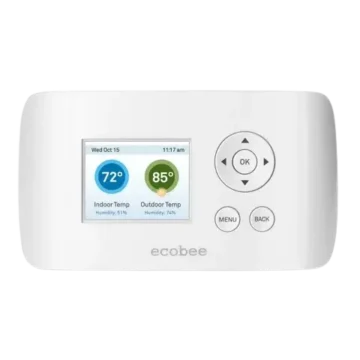
The ecobee SMART Thermostat is a touchscreen heating and cooling controller designed for compatible residential HVAC systems. It uses a separate Equipment Interface Module to connect the wall-mounted thermostat to the heating, cooling, ventilation, and accessory equipment.
The system supports up to three stages of conventional heating, two stages of cooling, and compatible heat pump configurations with up to four heating stages. It can also control supported humidifiers, dehumidifiers, heat recovery ventilators (HRVs), energy recovery ventilators (ERVs), and other compatible accessories.
Unlike thermostats that connect directly to the HVAC control terminals, the ecobee SMART Thermostat uses four wires between the wall thermostat and the Equipment Interface Module. The Equipment Interface handles HVAC connections, accessory relays, sensor inputs, and power distribution.
Installation requires mounting the Equipment Interface, connecting the HVAC wiring, installing the wall thermostat, connecting the four communication and power wires, and restoring electrical power. The installer then configures the connected equipment using the touchscreen Installation Wizard or manual settings.
Important: The ecobee SMART Thermostat is intended for installation by trained service professionals. Disconnect electrical power before installation to prevent electric shock or equipment damage.
Product Overview
The ecobee SMART Thermostat provides touchscreen temperature control and configurable HVAC system management.
The thermostat communicates with the Equipment Interface Module, which operates the connected heating, cooling, and ventilation equipment.
The system includes automatic equipment staging, configurable compressor protection, temperature and humidity controls, accessory relay assignments, equipment testing, maintenance reminders, and alert notifications.
Main Features
- Touchscreen interface: Allows temperature adjustment and system configuration.
- Equipment Interface Module: Connects the thermostat to HVAC equipment and accessories.
- Four-wire thermostat connection: Uses +12V, GND, D+, and D- terminals.
- Multi-stage heating: Supports up to three conventional heating stages.
- Multi-stage cooling: Supports up to two cooling stages.
- Heat pump compatibility: Supports compatible heat pumps with auxiliary heating.
- Accessory relays: Three configurable relay pairs for compatible equipment.
- Humidity control: Supports compatible humidifiers and dehumidifiers.
- Ventilation control: Supports HRV, ERV, and other compatible ventilator equipment.
- Sensor inputs: Provides two dry-contact inputs and support for an optional remote sensor module.
- Installation Wizard: Guides the installer through equipment configuration.
- Automatic staging: Selects equipment stages using operating conditions and past performance.
- Compressor protection: Provides adjustable compressor minimum off time.
- Temperature correction: Adjusts the difference between measured and displayed temperature.
- Maintenance reminders: Provides notifications for HVAC service and filter replacement.
- Equipment alerts: Identifies power, communication, heating, cooling, and humidity problems.
- Contractor information: Displays service provider contact details on the thermostat.
- Reset functions: Supports hardware reboot and restoration of installation or all settings.
HVAC System Compatibility
The ecobee SMART Thermostat operates with compatible low-voltage heating and cooling systems.
It is not designed for line-voltage or millivolt equipment.
Supported HVAC Equipment
| Equipment Type | Compatibility |
| Gas Heating | Up to 3 Stages |
| Oil Heating | Up to 3 Stages |
| Electric Heating | Up to 3 Stages |
| Conventional Cooling | Up to 2 Stages |
| Heat Pump With Auxiliary Heat | Up to 4 Heating Stages |
| Geothermal Heat Pump | Supported |
| Dual-Fuel Systems | Supported |
| Boilers | Supported |
| Central Humidifiers | Supported |
| Central Dehumidifiers | Supported |
| Heat Recovery Ventilators | Supported |
| Energy Recovery Ventilators | Supported |
| Sensors With Dry-Contact Outputs | Supported |
| Line-Voltage Systems | Not Compatible |
| Millivolt Systems | Not Compatible |
Conventional Heating and Cooling
The thermostat supports compatible gas, oil, and electric heating systems with up to three heating stages.
Conventional cooling equipment can be configured with up to two stages.
Additional equipment stages may require assignment of an accessory relay.
Heat Pump Systems
The ecobee SMART Thermostat supports compatible air-to-air and geothermal heat pumps.
Heat pump configurations can include auxiliary heating and dual-fuel operation.
HVAC Accessories
The Equipment Interface includes three accessory relay pairs.
These can be configured to control supported accessories or additional heating and cooling stages.
Technical Specifications
| Specification | Details |
| Brand | ecobee |
| Product Name | SMART Thermostat |
| Product Type | Touchscreen HVAC Thermostat |
| Main Components | SMART Thermostat, Equipment Interface Module |
| Conventional Heating Stages | Up to 3 |
| Conventional Cooling Stages | Up to 2 |
| Heat Pump Heating Stages | Up to 4 |
| Power Supply | 24 VAC, 3 VA Minimum |
| Optional Power Adapter | EB-PS-01 |
| Optional Adapter Input | 120V, 50/60 Hz |
| Optional Adapter Output | 12V DC, 1 A |
| Battery Type | CR2032 3V Lithium Coin Cell |
| Heating Temperature Range | 45°F–79°F |
| Cooling Temperature Range | 58°F–92°F |
| Temperature Display Range | 40°F–100°F |
| Temperature Sensitivity | ±1°F |
| Thermostat Operating Temperature | 32°F–130°F |
| Equipment Interface Operating Temperature | -40°F–160°F |
| Humidification Range | 20%–50% RH |
| Dehumidification Range | 30%–60% RH |
| Humidity Display Range | 0%–90% RH |
| Humidity Sensitivity | ±2% RH |
| Operating Humidity | 5%–95% RH, Non-Condensing |
| Thermostat Dimensions (W × H × D) | 5.5 × 3.25 × 1 Inches |
| Equipment Interface Dimensions (W × H × D) | 4.6 × 10 × 1.3 Inches |
| Accessory Relay Pairs | 3 |
| Dry-Contact Inputs | 2 |
| Thermostat Connection | 4-Wire |
| HVAC Terminal Rating | 30 VAC, 3 A Maximum |
| Thermostat Power Terminal | 8–14V DC, 600 mA |
| Compressor Minimum Off Time | 240–900 Seconds |
| Warranty | 3-Year Limited Warranty |
| FCC ID | WR9EBSTAT |
| IC ID | 7981A-EBSTAT |
Parts and Components
The ecobee SMART Thermostat installation consists of two main devices.
SMART Thermostat
The wall-mounted thermostat provides the touchscreen interface and system controls.
Equipment Interface Module
The Equipment Interface connects the wall thermostat to the HVAC equipment.
It contains electrical terminals, accessory relays, sensor inputs, power connections, and status indicator lights.
Main Components
| Component | Function |
| SMART Thermostat | Controls the HVAC system through the touchscreen |
| Touchscreen Display | Shows temperature, menus, equipment settings, and alerts |
| Thermostat Backplate | Secures the wall-mounted thermostat |
| Home Button | Returns to the Home screen |
| Equipment Interface Module | Connects HVAC equipment and accessories |
| Equipment Interface Cover | Protects the module’s wiring and electronics |
| HVAC Terminals | Connect heating, cooling, fan, and transformer wiring |
| Accessory Relay Terminals | Connect compatible accessories or additional equipment stages |
| Sensor Inputs | Accept compatible dry-contact signals |
| Power Terminals | Supply power to the thermostat |
| Communication Terminals | Transfer data between the thermostat and Equipment Interface |
| Status LEDs | Display power, system, line, and communication conditions |
| CR2032 Battery | Factory-installed thermostat coin-cell battery |
| Hardware Reset Button | Restarts the thermostat without deleting saved settings |
Important Safety Instructions
The ecobee SMART Thermostat uses low-voltage HVAC control wiring, but the connected heating and cooling equipment may contain higher-voltage electrical components.
Electrical Safety
- Disconnect electrical power before beginning installation.
- Do not connect or disconnect wires while the HVAC system is energized.
- Use the thermostat only with compatible low-voltage equipment.
- Do not connect it directly to line-voltage heating or cooling equipment.
- Do not use it with millivolt systems.
- Follow applicable local electrical codes.
- Use the appropriate wiring diagram for the equipment.
- Confirm transformer and accessory voltage requirements.
- Do not leave exposed copper conductors on unused wires.
- Install the Equipment Interface in a suitable protected location.
- Have electrical installation performed by trained service professionals.
Touchscreen Safety
Do not use sharp objects, including pens, to operate the touchscreen.
Use a finger to select buttons, menu items, and settings.
Compressor Protection Warning
Warning: Compressor protection and minimum runtime features are not enforced during the Test Equipment function.
Avoid rapidly switching the compressor on and off while testing.
Mercury Disposal
The ecobee SMART Thermostat does not contain mercury.
If replacing an older thermostat containing mercury, contact the local waste-management authority for proper disposal instructions.
Do not dispose of the old mercury-containing thermostat in regular household waste.
Radio Frequency Exposure
Maintain a minimum separation distance of 20 cm (8 inches) between the device and people to comply with the stated FCC/IC requirements.
Installation Overview
The ecobee SMART Thermostat installation has five main stages.
| Step | Installation Task |
| 1 | Install the Equipment Interface |
| 2 | Connect the Equipment Interface to HVAC Equipment |
| 3 | Mount the SMART Thermostat |
| 4 | Connect the Thermostat to the Equipment Interface |
| 5 | Connect Power to Both Devices |
The Equipment Interface is installed near the HVAC equipment, while the thermostat is mounted on a suitable interior wall.
Step 1: Install the Equipment Interface
The Equipment Interface should be mounted in the utility room or basement.
Selecting the Installation Location
Choose a suitable location:
- On a wall.
- On the cold-air return plenum.
- On a relatively flat mounting surface.
If using the optional power adapter, an electrical outlet must be available within approximately 5 feet of the Equipment Interface.
Mounting Instructions
- Select a suitable installation location.
- Remove the front cover of the Equipment Interface.
- If necessary, insert a flathead screwdriver into one of the cover slots.
- Gently twist the screwdriver to release the cover.
- Position the back of the enclosure against the mounting surface.
- Mark the mounting-hole locations using the enclosure as a template.
- Move the enclosure aside.
- Prepare the mounting holes.
- Install suitable drywall plugs or wall anchors.
- Secure the enclosure using appropriate screws.
The mounting holes accommodate #6 pan-head screws.
The wall anchors and mounting screws for this installation are not included.
Important: Leave the Equipment Interface front cover off until installation and wiring are complete.
Step 2: Wire the Equipment Interface
The Equipment Interface connects to the heating, cooling, ventilation, and accessory equipment.
Wiring Instructions
- Disconnect electrical power to the HVAC equipment.
- Disconnect the wires going to the existing thermostat.
- Identify the correct wiring configuration.
- Connect the HVAC equipment to the Equipment Interface terminals.
- Connect any supported accessory equipment.
- Check the factory R/H to R/C jumper.
- Remove the jumper when required for the installed system.
- Check all terminal connections.
Do not restore power until the wall thermostat has also been installed and connected.
Equipment Interface Wiring Terminals
The Equipment Interface includes terminals for HVAC control, accessories, sensors, power, and communications.
HVAC Terminals
| Terminal | Function | Electrical Rating |
| Y | First-Stage Cooling | 30 VAC, 3 A |
| W (O/B) | First-Stage Heating or Heat Pump Changeover | 30 VAC, 3 A |
| G | Fan | 30 VAC, 3 A |
| W2 (AUX) | Second-Stage Heating or First Auxiliary Heat | 30 VAC, 3 A |
| R/H | Heating Transformer Return | 30 VAC, 3 A |
| R/C | Cooling Transformer Return | 30 VAC, 3 A |
| ACC1 / ACC1r | First Accessory Relay | 30 VAC, 3 A |
| ACC2 / ACC2r | Second Accessory Relay | 30 VAC, 3 A |
| ACC3 / ACC3r | Third Accessory Relay | 30 VAC, 3 A |
Sensor Input Terminals
| Terminal | Function |
| IN1+ | First Dry-Contact Input Positive |
| IN1- | First Dry-Contact Input Negative |
| IN2+ | Second Dry-Contact Input Positive |
| IN2- | Second Dry-Contact Input Negative |
The IN1 and IN2 connections are for dry-contact inputs only.
Thermostat Power and Communication Terminals
| Terminal | Function |
| +12V | Supplies DC Power to the SMART Thermostat |
| GND | Ground Connection |
| D+ | Positive Data Communication |
| D- | Negative Data Communication |
The +12V terminal is rated for 8–14V DC with a maximum current of 600 mA.
Supported Equipment Interface Wiring Configurations
The installation diagrams cover several conventional and heat pump arrangements.
| HVAC Configuration | Additional Equipment |
| Single-Stage Heat and Cool | Three Accessories |
| Two-Stage Heat and Single-Stage Cool | Three Accessories |
| Two-Stage Heat and Cool | Two Accessories |
| Three-Stage Heat and Two-Stage Cool | One Accessory |
| Single-Stage Heat Pump With Two-Stage Auxiliary Heat | Humidifier |
| Two-Stage Heat Pump With Single-Stage Auxiliary Heat | Two Accessories |
| Two-Stage Heat Pump With Two-Stage Auxiliary Heat | One Accessory |
| Two-Stage Furnace With Two-Stage Heat Pump | Dehumidifier and Other Illustrated Accessories |
| Single-Stage Cooling With Boiler | Dual-Transformer Configuration |
| Two-Stage Cooling With Boiler | Dual-Transformer Configuration |
Factory Transformer Jumper
The Equipment Interface has a factory-installed jumper between R/H and R/C.
For dual-transformer installations, remove the jumper as shown in the wiring diagrams.
Non-Powered Accessories
The wiring diagrams identify jumper connections from R/H or R/C to accessory relays when a non-powered accessory requires a 24V feed.
These connections depend on the accessory and HVAC equipment.
Humidifier Power
Some illustrated humidifier installations use a 24V humidifier terminal.
If the furnace control board does not provide the required terminal, the illustrated installation requires an appropriate 110V-to-24V step-down transformer.
Important: Transformer and accessory wiring must follow the applicable equipment diagram and be completed by a qualified installer.
Conventional Heating and Cooling Wiring
Single-Stage Heating and Cooling
The Equipment Interface provides:
- Y for first-stage cooling.
- W for first-stage heating.
- G for fan control.
- R/H and R/C for transformer connections.
Accessory relay terminals may be used for compatible humidifiers, dehumidifiers, and ventilators.
Two-Stage Heating
The second heating stage is connected through the appropriate equipment terminal or configured accessory relay.
Two-Stage Cooling
The second cooling stage requires an accessory relay assignment.
During installer configuration, select Compressor/AC Stage 2 for the relay connected to the second-stage cooling terminal.
Three-Stage Heating
For a three-stage conventional heating system, the third heating stage must be assigned to an accessory relay.
Select Heat Stage 3 and connect the third heating stage according to the wiring diagram.
Heat Pump and Auxiliary Heat Wiring
The Equipment Interface supports compatible heat pump systems with auxiliary heating.
Main Heat Pump Connections
| Terminal | Function |
| Y | First-Stage Compressor |
| W (O/B) | Reversing Valve Changeover |
| G | Fan |
| W2 (AUX) | Auxiliary Heating |
| Accessory Relay | Additional Compressor or Auxiliary Heat Stage |
Second-Stage Compressor
A second compressor stage uses an accessory relay configured as Compressor/AC Stage 2.
Second-Stage Auxiliary Heat
When a second auxiliary heating stage is required, configure an accessory relay as Auxiliary Heat Stage 2.
Dual-Fuel Systems
The wiring diagrams include dual-fuel arrangements involving a furnace and a heat pump.
The installer must configure the heat pump, auxiliary heating equipment, and appropriate accessory relays.
Boiler Wiring
The installation diagrams include boiler systems with separate heating and cooling equipment.
The examples cover:
- Single-stage cooling with a boiler.
- Two-stage cooling with a boiler.
For the illustrated dual-transformer arrangements, the factory-installed R/H and R/C jumper must be removed.
Step 3: Install the SMART Thermostat
The thermostat should be mounted approximately 5 feet (1.5 meters) above floor level in the main living area.
Recommended Mounting Location
Install the thermostat where it can measure the ambient indoor temperature without interference.
Locations to Avoid
Do not install the thermostat:
- Near incandescent lighting or heat sources.
- Near heating or cooling registers.
- In direct sunlight.
- On exterior or poorly insulated walls.
- In kitchens or areas with unusually high heat or humidity.
- In areas with restricted airflow.
Wall Mounting Instructions
- Insert a flathead screwdriver into one of the thermostat cover slots.
- Gently twist to release the front cover.
- Position the thermostat backplate on the wall.
- Pass the existing wiring through the backplate opening.
- Mark the mounting holes using the backplate as a template.
- Move the backplate aside.
- Prepare the mounting holes.
- Install suitable drywall plugs or anchors.
- Secure the backplate using appropriate screws.
The mounting holes accommodate #6 pan-head screws.
The screws and anchors for this installation are not included.
Step 4: Connect the Thermostat to the Equipment Interface
The SMART Thermostat connects to the Equipment Interface using four wires.
Existing thermostat wiring may be used when suitable.
Four-Wire Connection
| SMART Thermostat Terminal | Equipment Interface Terminal |
| D- | D- |
| D+ | D+ |
| GND | GND |
| +12V | +12V |
Connection Instructions
- Confirm that electrical power is disconnected.
- Identify the four thermostat wires.
- Connect D- to D-.
- Connect D+ to D+.
- Connect GND to GND.
- Connect +12V to +12V.
- Check that all connections are secure.
- Make sure unused wires have no exposed bare copper conductors.
Reattach the Thermostat Cover
- Align the four pins on the thermostat circuit board with the terminal block on the backplate.
- Position the front cover.
- Press it into place.
The pins must align correctly with the terminals.
Step 5: Connect Power
Once the thermostat and Equipment Interface are wired, electrical power can be connected.
Two Equipment Interface power options are described.
Option 1: Hardwired 24 VAC Power
The Equipment Interface can be powered using a 24 VAC source rated for at least 3 VA.
Option 2: Optional Power Adapter
An optional power adapter can be used.
| Specification | Details |
| Adapter Model | EB-PS-01 |
| Input | 120V, 50/60 Hz |
| Output | 12V DC, 1 A |
| Included | No |
Power Adapter Connection
- Connect the adapter to a standard electrical outlet.
- Connect the adapter’s barrel connector to the Equipment Interface.
- Restore power to the HVAC equipment.
CR2032 Battery Replacement
The SMART Thermostat has a factory-installed CR2032 lithium coin-cell battery.
Battery Specifications
| Specification | Details |
| Battery Type | CR2032 |
| Voltage | 3V |
| Chemistry | Lithium |
| Factory Installed | Yes |
How to Replace the Battery
- Access the thermostat battery holder.
- Remove the existing battery.
- Position the replacement CR2032 battery with the positive (+) side facing outward.
- Slide the battery beneath the holder contacts.
- Push the battery firmly until it snaps into place.
Important: Keep the battery contacts upright. Do not bend them beneath the battery.
Equipment Interface Status Lights
The Equipment Interface contains four LEDs that show power, system, line voltage, and communication conditions.
Under normal operation, only the Power LED should be illuminated.
Status LED Guide
| Indicator | LED On | LED Off |
| Power | Power Is Connected and Within the Required Voltage Range | Power Is Disconnected or Below 9V |
| System | Equipment Interface Fault | Equipment Interface Operating Normally |
| Line | Thermostat Supply Voltage Has Fallen Below 7V | Adequate Power Supplied to Thermostat |
| Communication | Thermostat and Equipment Interface Are Not Communicating | Communication Operating Normally |
Power LED
The Power LED monitors the Equipment Interface power supply.
When illuminated, it indicates that power is connected and within the required operating range.
System LED
When the System LED is illuminated, it indicates a fault with the Equipment Interface.
Line LED
The Line LED monitors voltage supplied to the wall thermostat.
If the LED is illuminated, voltage between the +12V and GND terminals has fallen below 7V.
Communication LED
The Communication LED monitors the connection through D+ and D-.
An illuminated Communication LED indicates that the thermostat and Equipment Interface are not communicating.
Touchscreen and Menu Controls
The ecobee SMART Thermostat uses touchscreen controls.
Basic Navigation
| Control | Function |
| Done | Save Changes and Advance |
| Cancel | Return Without Saving |
| Home | Cancel Current Action and Return to Home Screen |
| List Item | Select or Change an Option |
| Right Arrow | Opens Additional Choices |
| Caps | Switches to Capital Letters |
| 123@ | Switches to Numbers and Symbols |
How to Select Settings
- Touch the required menu item.
- Select the preferred option.
- Tap Done to save changes.
For settings with only two available values, touching the list item switches between the options.
On-Screen Keyboard
When entering names or other information:
- Touch the required text field.
- Use the on-screen keyboard.
- Select Caps for uppercase letters.
- Select 123@ for numbers and symbols.
- Save the entered information.
Configuring Installer Settings
Installer Settings control the HVAC equipment, accessories, operating thresholds, sensors, and other installation parameters.
How to Open Installer Settings
- From the Home screen, select More.
- Select Settings.
- Open Installation Settings.
Installer Code
A four-digit installer code can be enabled to restrict configuration changes.
The preprogrammed code is:
3262
Installation Wizard
The Installation Wizard guides the installer through selecting and configuring connected HVAC equipment.
How to Use the Wizard
- Open Installation Settings.
- Select Installation Wizard.
- Answer the equipment configuration questions.
- Tap Next to continue.
- Review the generated wiring diagram.
- Select Back if changes are required.
- Select Done when the configuration is correct.
The displayed wiring diagram reflects the equipment settings selected in the wizard.
Manual Equipment Configuration
The Equipment menu allows the installer to configure connected devices without using the Installation Wizard.
Equipment Options
- Heat pump.
- Furnace or auxiliary heat.
- Air conditioner.
- Accessory relays.
Heat Pump Settings
| Setting | Function |
| Geothermal/Ground Source Heat Pump | Selects Geothermal or Air-to-Air Heat Pump Defaults |
| O/B Energize on Cool | Sets Reversing Valve Activation |
| Minimum Cycle Off Time | Sets Compressor Protection Interval |
| Minimum Outdoor Temperature | Disables Compressor Below Selected Outdoor Temperature |
| Allow Heat Pump/Auxiliary Heat Simultaneously | Controls Combined Heat Pump and Auxiliary Heat Operation |
Geothermal Heat Pump
Select Yes when the thermostat controls a geothermal or ground-source heat pump.
Select No for an air-to-air heat pump.
O/B Energize on Cool
| Setting | Operation |
| Yes | Reversing Valve Activates During Cooling |
| No | Reversing Valve Activates During Heating |
Compressor Minimum Off Time
The compressor minimum off time is adjustable from 240 to 900 seconds.
Minimum Outdoor Temperature
The compressor can be disabled when outdoor temperature reaches a selected minimum.
The adjustable range is 0°F–65°F.
The function may also be disabled.
An internet connection is required for this setting to operate properly.
Heat Pump With Auxiliary Heat
The simultaneous operation setting controls how auxiliary heating assists the heat pump.
| Setting | Operation |
| Yes | Auxiliary Heat Can Assist After 30 Minutes if the Setpoint Is Not Reached |
| No | Heat Pump Can Run for Up to 2 Hours Before Switching to Auxiliary Heat |
When No is selected, the heat pump is shut down before auxiliary heat is activated under the described conditions.
Furnace Configuration
The furnace settings support conventional heating systems with up to three stages.
Furnace Settings
| Setting | Function |
| Furnace Type | Identifies the Heating Equipment Type |
| Heat Stages | Configures Installed Heating Stages |
| Heat Fan Control | Selects Thermostat or HVAC Equipment Fan Control |
Third-Stage Heating
When a third heating stage is installed, assign an accessory relay to Heat Stage 3.
Heat Fan Control
This setting determines whether the thermostat or the HVAC system controls fan operation during heating.
The HVAC equipment normally controls the fan during heating cycles.
Air Conditioner Configuration
The Smart Thermostat supports up to two cooling stages.
For two-stage cooling, configure an accessory relay as Compressor/AC Stage 2.
Multi-Stage HVAC Operation
The SMART Thermostat uses equipment performance and calculated operating times to determine which stage should operate.
Automatic Stage Selection
The thermostat estimates the time required to reach the setpoint at different equipment stages.
It selects a stage expected to operate for at least approximately 10 minutes.
When the selected stage does not reach the setpoint within the described period, additional stages may be activated.
Staging Behavior
| Condition | Operation |
| First Stage Can Meet Demand | First Stage Operates |
| First Stage Requires More Than 10 Minutes | Second Stage May Activate |
| Second Stage Cannot Meet Demand After 10 Minutes | Third Stage May Activate |
| Heat Pump With Auxiliary Heat | Auxiliary Heat Follows Configured Settings |
Accessory Relay Configuration
The Equipment Interface provides three accessory relay pairs.
Each relay can be configured for a supported function.
Available Accessory Relay Functions
| Function | Purpose |
| Heat Stage 3 | Controls Third-Stage Conventional Heating |
| Auxiliary Heat Stage 2 | Controls Second-Stage Auxiliary Heating |
| Compressor/AC Stage 2 | Controls Second-Stage Cooling or Compressor |
| Humidifier | Controls Compatible Humidification Equipment |
| Dehumidifier | Controls Compatible Dehumidification Equipment |
| Ventilator | Controls Compatible Ventilation Equipment |
Humidifier Settings
The SMART Thermostat supports compatible humidifiers through an accessory relay.
Humidifier Control Options
| Setting | Function |
| Humidify Only While Heating | Restricts Humidification to Heating Calls |
| Window Efficiency | Configures Window Characteristics for Frost Control |
| Minimum Runtime Delta | Adjusts Operation to Reduce Short Cycling |
Humidify Only While Heating
When Yes is selected, humidification activates when:
- Indoor humidity is below the setpoint.
- Heating is requested.
When No is selected, the thermostat can activate the humidifier and system fan when humidity is below the setpoint.
This setting supports compatible steam-type humidifiers.
Window Efficiency
The available settings are:
- Low.
- Medium.
- High.
The setting is used for the thermostat’s frost-control function.
Dehumidifier Settings
The dehumidifier relay activates according to the configured humidity conditions.
Dehumidification Options
| Setting | Function |
| Fan During Dehumidification | Selects Whether the System Fan Operates |
| Minimum Runtime Delta | Adjusts Dehumidifier Cycling |
| Dehumidify in Heat Mode | Allows Dehumidification During Heating |
| AC Overcool Maximum | Allows Additional Cooling for Dehumidification |
| Dehumidifier Active | Configures Relay Active State |
Fan During Dehumidification
Select Yes when using the air-conditioning system for dehumidification.
Select No when using a standalone dehumidifier that controls its own fan.
AC Overcool Maximum
This setting determines how far below the cooling setpoint the air conditioner may operate to reach the humidity target.
Ventilator Control
The Ventilator accessory relay activates when Ventilator Max is selected from the Details screen.
The system fan also turns on when Ventilator Max is engaged.
HVAC Threshold Settings
Thresholds control when the heating and cooling equipment starts, how long it runs, and when additional stages activate.
Main Threshold Settings
| Setting | Function |
| Allow Auto Heat/Cool | Enables Automatic Heating/Cooling Changeover |
| Heat/Cool Minimum Delta | Sets Minimum Separation Between Heat and Cool Setpoints |
| Compressor Minimum Off Time | Prevents Rapid Compressor Restarting |
| Compressor Minimum Outdoor Temperature | Limits Compressor Operation at Low Outdoor Temperatures |
| Auxiliary Heat Maximum Outdoor Temperature | Restricts Auxiliary Heat Operation |
| Heat Differential | Controls Heating Activation |
| Cool Differential | Controls Cooling Activation |
| Heat Dissipation Time | Runs Fan After Heating Ends |
| Cool Dissipation Time | Runs Fan After Cooling Ends |
| Reverse Staging | Reduces Higher Stages as Setpoint Is Approached |
| Stage Maximum Runtime | Limits Runtime Before Higher Stage Activation |
| Stage Temperature Delta | Controls Stage Activation by Temperature Difference |
| Temperature Correction | Adjusts Displayed Temperature |
Compressor Minimum Off Time
The compressor minimum off time is adjustable between:
240 and 900 seconds.
Stage Maximum Runtime
The stage runtime settings include:
- Auto.
- 10–120 minutes.
Stage Temperature Delta
The stage temperature delta settings include:
- Auto.
- 1°F–10°F.
Compressor to Auxiliary Runtime
Available settings include:
- Auto.
- 10–180 minutes.
Compressor to Auxiliary Temperature Delta
Available settings include:
- Auto.
- 1°F–10°F.
Reverse Staging
Reverse Staging allows the thermostat to reduce operating stages as the temperature approaches the selected setpoint.
When enabled:
- The HVAC equipment begins operating in first stage.
- Additional stages activate when the configured conditions are met.
- Higher stages disengage as the temperature approaches the setpoint.
- First-stage equipment continues operating until the setpoint is reached.
Temperature Correction
Temperature Correction allows the installer to adjust the relationship between the measured temperature and the displayed temperature.
This can compensate when the thermostat’s mounting location does not represent the desired room temperature.
Testing Connected Equipment
The Test Equipment menu allows manual activation of connected HVAC components.
Testing Instructions
- Open Installation Settings.
- Select Test Equipment.
- Choose the equipment to test.
- Turn the component on or off.
- Check the equipment response.
- Select Done to exit.
The equipment turns off when Done is selected.
Warning: Compressor protection and minimum runtime controls are not active during testing.
Sensor Configuration
The Equipment Interface supports two dry-contact inputs.
The inputs can be used with compatible sensors, including flood or leak-detection devices.
Dry-Contact Input Settings
Each input can be configured as:
- Normally Open.
- Normally Closed.
Normally Open Input
A short circuit between the corresponding input terminals activates the configured alert.
Normally Closed Input
An open circuit activates the configured alert.
Enabling an Input
- Open the Sensors settings.
- Select the required input.
- Enter a name.
- Configure the sensor type.
- Save the settings.
To disable an input, delete its assigned name.
Optional Remote Sensor Module
The SMART Thermostat supports an optional remote sensor module, identified as EB-RSM.
Remote Sensor Functions
| Sensor Usage | Function |
| Control Sensor | Contributes to HVAC Temperature Control |
| Monitoring Sensor | Monitors an Area Independently of HVAC Control |
| Outdoor Sensor | Supplies Outdoor Temperature Information |
The remote sensor module supports 10K NTC temperature sensors.
Control Sensor
A control sensor can be configured to replace or contribute to the thermostat’s temperature measurement.
Monitoring Sensor
A monitoring sensor can track temperature in another area without controlling the HVAC system.
Outdoor Sensor
An outdoor sensor can provide outdoor temperature readings for control algorithms instead of using the internet weather feed.
The thermostat continues using the internet weather service for its five-day forecast.
Viewing the Wiring Diagram
The SMART Thermostat can display its configured Equipment Interface wiring connections.
How to View Connections
- Open Installation Settings.
- Select View Wiring Diagram.
- Review the terminal connections generated from the selected equipment settings.
Contractor Information
The thermostat allows installer contact information to be stored.
Available Contractor Details
- Company name.
- Phone number.
- Email address.
- Website address.
The information can appear on the thermostat, in alerts, and through the customer’s web portal.
Registered ecobee contractors can also enter installed thermostat serial numbers through the Contractor Portal.
Reset Instructions
The SMART Thermostat provides different reset options.
Reset Installation Settings
This restores installation settings to factory defaults without changing unrelated user settings.
Reset All Settings
This restores the thermostat system to its original factory settings.
Hardware Reset
The hardware reset button is located through an opening at the top-left corner of the thermostat.
Pressing the button restarts the thermostat without changing its programming or configuration.
Maintenance Reminders
The SMART Thermostat provides reminders for connected HVAC equipment.
Available Reminders
| Reminder | Purpose |
| HVAC Maintenance | Scheduled Equipment Servicing |
| Furnace Air Filter | Furnace Filter Cleaning or Replacement |
| Humidity Filter | Humidifier Filter Maintenance |
| Dehumidifier Filter | Dehumidifier Filter Maintenance |
| Ventilator Filter | Ventilator Filter Maintenance |
| UV Lamp | UV Lamp Cleaning or Replacement |
HVAC Maintenance
The HVAC Maintenance reminder can be enabled or disabled.
The service reminder interval is adjustable between 1 and 12 months.
Furnace Air Filter
The reminder can be configured using runtime hours or calendar months.
Accessory Filters
Humidity, dehumidifier, and ventilator filter reminders appear when the corresponding accessories have been configured.
UV Lamp
The UV Lamp reminder uses calendar-month intervals.
Temperature and Humidity Alerts
The SMART Thermostat can report conditions outside configured temperature and humidity limits.
Alert Thresholds
| Alert | Adjustable Range |
| Low Temperature | 35°F–68°F |
| High Temperature | 76°F–104°F |
| Low Humidity | 5%–95% RH |
| High Humidity | 5%–95% RH |
Humidity alert settings are adjustable in 5% increments.
Each alert can be disabled.
Alert Messages and Meanings
| Alert | Meaning |
| Low Battery | Thermostat Battery Requires Replacement Soon |
| Furnace Air Filter | Furnace Filter Requires Maintenance |
| Ventilator Filter | Ventilator Filter Requires Maintenance |
| UV Lamp | UV Lamp Requires Replacement |
| Humidifier Filter | Humidifier Pad Requires Maintenance |
| Comms Fault | Thermostat and Equipment Interface Are Not Communicating |
| Low Temp Alert | Indoor Temperature Is Too Low |
| High Temp Alert | Indoor Temperature Is Too High |
| Low Humidity Alert | Indoor Humidity Is Too Low |
| High Humidity Alert | Indoor Humidity Is Too High |
| Heat Not Responding | Heating Equipment Failed to Heat the Home |
| Cool Not Responding | Cooling Equipment Failed to Cool the Home |
| Input 1 | Configured First Sensor Input Has Triggered |
| Input 2 | Configured Second Sensor Input Has Triggered |
| Maintenance Reminder | Regular HVAC Maintenance Is Due |
| Auxiliary Heat Run Time | Auxiliary Heat Is Operating Too Frequently |
| Auxiliary Outdoor Temperature | Auxiliary Heat Is Operating Above the Expected Outdoor Temperature |
Alert Notifications
When registered, supported alerts can be shown through the ecobee web portal and delivered by email.
The thermostat can be configured to hide alerts from its touchscreen while continuing web portal and email notifications.
Troubleshooting Guide
The following troubleshooting information is based on the Equipment Interface status indicators, supported reset functions, and documented alerts.
| Problem | Possible Cause | Recommended Action |
| Equipment Interface Has No Power LED | Power Disconnected or Below 9V | Check the Power Supply |
| System LED Is On | Equipment Interface Fault | Contact ecobee Technical Support |
| Line LED Is On | Thermostat Supply Voltage Below 7V | Have the Power Connection Checked |
| Communication LED Is On | Thermostat and Equipment Interface Are Not Communicating | Check the Four-Wire Connection |
| Comms Fault Appears | Communication Failure | Check D+ and D- Connections |
| Low Battery Alert | Coin-Cell Battery Requires Replacement | Replace the CR2032 Battery |
| Heat Not Responding | Heating Equipment Failed to Respond | Have the HVAC System Inspected |
| Cool Not Responding | Cooling Equipment Failed to Respond | Have the HVAC System Inspected |
| Low Temperature Alert | Temperature Below Configured Limit | Check Heating Equipment |
| High Temperature Alert | Temperature Above Configured Limit | Check Cooling Equipment |
| Humidity Alert | Humidity Outside Configured Limit | Check Humidity Equipment and Settings |
| Thermostat Operation Is Interrupted | Static Electricity or Power Disturbance | Perform Hardware Reset |
| Installer Configuration Is Incorrect | Equipment Settings Need Correction | Review Installation Settings |
SMART Thermostat Not Turning On
If the SMART Thermostat does not power on:
- Check the Equipment Interface Power LED.
- Confirm that the Equipment Interface receives the correct power supply.
- Check the Line LED.
- Have a qualified technician inspect the +12V and GND connections.
- Check that the four thermostat wires are securely connected.
Equipment Interface Communication Fault
If the Communication LED is illuminated or Comms Fault appears:
- Check the connection between the thermostat and Equipment Interface.
- Verify D+ and D- wiring.
- Check the GND and +12V connections.
- Make sure the wiring is secure.
Electrical inspection should be performed with the equipment power disconnected.
Heating or Cooling Not Responding
If Heat Not Responding or Cool Not Responding appears, the connected HVAC equipment has failed to provide the expected temperature response.
Arrange inspection of the heating or cooling equipment by a qualified technician.
Rebooting the SMART Thermostat
A hardware reboot can be used when operation is interrupted by static electricity or a power disturbance.
Press the reset button through the opening at the top-left corner of the thermostat.
This does not delete saved programming or configuration.
FCC and Regulatory Information
The ecobee SMART Thermostat complies with applicable FCC requirements for Class B digital devices under Part 15 of the FCC Rules.
Regulatory Identifiers
| Identifier | Details |
| FCC ID | WR9EBSTAT |
| IC ID | 7981A-EBSTAT |
| FCC Classification | Class B Digital Device |
| FCC Rules | Part 15 |
| RoHS Compliance | Directive 2002/95/EC |
Radio Interference
If interference occurs:
- Reorient or relocate the receiving antenna.
- Increase the distance between the thermostat and receiver.
- Connect the affected equipment to a different electrical circuit.
- Consult an experienced radio or television technician.
RF Exposure
Maintain at least 20 cm separation between the device and people.
Unauthorized modifications may void the user’s authority to operate the equipment.
Warranty Information
The ecobee SMART Thermostat includes a three-year limited warranty.
The warranty covers qualifying defects in materials and workmanship during normal use and service.
The battery is excluded from warranty coverage.
Warranty Coverage
| Warranty Detail | Information |
| Warranty Provider | ecobee |
| Warranty Period | 3 Years |
| Warranty Begins | Consumer Purchase Date |
| Covered Defects | Materials and Workmanship |
| Battery Coverage | Excluded |
| Available Remedy | Repair or Replacement |
| Eligible Repair or Replacement Cost | No Charge for Labor or Materials |
| Replacement Warranty | Remaining Original Warranty or 90 Days, Whichever Is Longer |
| Warranty Support | 1-877-932-6233 |
Warranty Service
If the thermostat develops a covered defect during the warranty period, ecobee may repair or replace the defective product.
Repaired or replacement devices remain covered for the longer of:
- The remaining original warranty.
- 90 days.
How to Request Warranty Service
- Contact ecobee Customer Service at 1-877-932-6233.
- Explain the product problem.
- Follow the return or replacement instructions.
- Complete the warranty service process.
Warranty Service Through a Contractor
If the thermostat was purchased through a third-party contractor, the customer may contact that contractor to request an equivalent replacement.
The contractor must determine that the thermostat is defective and eligible for warranty service.
Advanced Replacement
ecobee may arrange an advance replacement.
A temporary credit card hold may apply until the defective product is received.
Warranty Exclusions
The warranty does not cover removal or reinstallation costs.
It also excludes damage caused by:
- Abnormal operation or storage conditions.
- Improper maintenance.
- Abuse or neglect.
- Electrical faults.
- Improper handling.
- Accidents.
- Natural events.
- Unauthorized repairs or modifications.
- Improper installation.
- Installation not performed by a licensed HVAC contractor.
Important: Warranty coverage excludes products not installed by a licensed Heating, Ventilating, and Air Conditioning contractor.
Warranty Limitations
The stated warranty remedies are limited to repair or replacement under the applicable terms.
Additional rights and limitations may vary by jurisdiction.
Customer Support Information
ecobee provides technical support for SMART Thermostat installation, Equipment Interface wiring, HVAC configuration, and warranty service.
| Contact Detail | Information |
| Brand | ecobee |
| Official Website | https://www.ecobee.com |
| Support Email | support@ecobee.com |
| Toll-Free Support | 1-877-932-6233 |
| Customer Service Address | 477 Richmond Street West, Suite 210, Toronto, Ontario M5V 3E7, Canada |
Frequently Asked Questions
How do I install the ecobee SMART Thermostat?
Install the Equipment Interface near the HVAC system, connect the heating and cooling wiring, and mount the SMART Thermostat approximately five feet above the floor in a suitable interior location. Connect D-, D+, GND, and +12V between the thermostat and Equipment Interface. Restore power only after completing the wiring. Finish installation using the touchscreen Installation Wizard.
How many wires connect the ecobee SMART Thermostat to the Equipment Interface?
Four wires connect the wall thermostat to the Equipment Interface. They are D-, D+, GND, and +12V. The corresponding terminals must be connected directly between the two devices.
Why is the ecobee Equipment Interface Communication LED on?
The Communication LED illuminates when the thermostat and Equipment Interface are not communicating. This indicates a problem with the communication connection. The D+ and D- wiring should be checked by a qualified technician.
How do I power the ecobee SMART Thermostat?
The Equipment Interface can use a 24 VAC source rated for at least 3 VA. Alternatively, the optional EB-PS-01 power adapter provides 12V DC from a standard 120V electrical outlet. The Equipment Interface supplies power to the wall thermostat through its +12V and GND connections.
What battery does the ecobee SMART Thermostat use?
The thermostat contains a factory-installed CR2032 3V lithium coin-cell battery. When replacing it, position the positive side outward and insert it beneath the holder contacts until it snaps into place.
How do I reset the ecobee SMART Thermostat?
The hardware reset button is accessible through an opening at the top-left corner of the thermostat. Pressing it reboots the thermostat without changing saved programming or configuration. Reset Installation Settings and Reset All Settings are separate options for restoring stored settings.
What HVAC systems work with the ecobee SMART Thermostat?
The thermostat supports compatible gas, oil, and electric heating systems with up to three heating stages, conventional cooling with up to two stages, heat pumps with auxiliary heating, geothermal systems, dual-fuel systems, and boilers. It can also control compatible humidifiers, dehumidifiers, and ventilators. It does not support line-voltage or millivolt systems.