
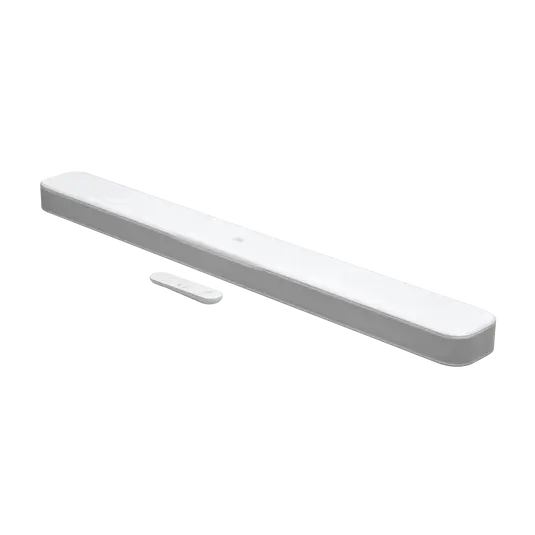
The JBL BAR 300MK2 is a one-piece 5.0-channel soundbar built to give a TV a bigger, more immersive sound without a separate subwoofer or rear speakers. It uses virtual Dolby Atmos to add height effects. Five racetrack drivers and four tweeters deliver 450 W of total output. It connects to a TV through HDMI eARC/ARC or optical, has an HDMI input for a streaming box or game console, and also plays audio over Bluetooth 5.3 and Wi-Fi. Through the JBL One app it supports Google Cast, AirPlay, and Spotify Connect, and it can join multi-room speaker groups. A built-in microphone calibrates the sound to your room.
Product Specifications
| Specification | Detail |
| Sound system | 5.0 channel |
| Total speaker power (Max. @ THD 1%) | 450 W (RMS @ THD 1%: 225 W) |
| Drivers | 5 × (42 × 80) mm racetrack drivers, 4 × 0.75″ (20 mm) tweeters |
| Frequency response | 50 Hz – 20 kHz (-6 dB) |
| Power supply | 100–240 V AC, 50/60 Hz |
| Networked standby power | <2.0 W |
| HDMI | 1 input, 1 output (eARC); HDCP 2.3 |
| HDR pass-through | HDR10+, Dolby Vision |
| Audio inputs | Optical, Bluetooth, USB |
| Bluetooth | v5.3; A2DP v1.3, AVRCP v1.5 |
| Wi-Fi | IEEE 802.11 a/b/g/n/ac/ax (2.4 GHz / 5 GHz) |
| USB | Type A, 5 V DC 0.5 A; MP3 playback on the US version only |
| Operating temperature | 0 °C – 45 °C |
| Soundbar dimensions (W × H × D) | 940 × 50.5 × 104 mm / 37″ × 2.0″ × 4.1″ |
| Soundbar weight | 2.9 kg / 6.5 lbs |
On versions sold outside the US, the USB port is for service only (p. 18).
What’s in the Box
- Soundbar
- Remote control with 2 AAA batteries
- Power cord (quantity and plug type vary by region)
- HDMI cable (1.2 m / 3.9 ft)
- Wall-mounting kit
- Product information and wall-mounting template
If anything is damaged or missing, don’t use the product. Contact your retailer or customer service.
Parts and Controls
Soundbar Buttons and Indicators
The top panel has – / + volume buttons and a Source button. Pressing any of them turns the soundbar on.
- – / +: Adjust the volume. Press both together to mute or unmute. Hold both for more than 10 seconds to enter Wi-Fi setup mode.
- Source: Switch between TV (the default), Bluetooth, and HDMI IN. Hold for more than 3 seconds to enter Bluetooth pairing mode.
- Microphone: Used for sound calibration.
- Status display: Shows messages such as “HELLO,” “BT PAIRING,” and “STDBY.”
The status indicator also reports system and network status:
| Indicator | Meaning |
| Regular pulsing white | System starting up |
| Fast pulsing white | Software update in progress |
| Solid amber | Restoring factory settings |
| Slow pulsing white | Wi-Fi setup mode, or network disconnected |
| Solid white | Network connected |
| Solid yellow | Weak Wi-Fi connection |
Back Panel Connectors
From left to right: the power input, the USB port, HDMI IN for a digital device, HDMI OUT (TV ARC / TV eARC) for the TV, and OPTICAL.
Remote Control
The remote has power, volume, and mute buttons, along with TV, Bluetooth, and HDMI source buttons. It also has a Dolby Atmos on/off button and bass controls with five levels (the default is 3). The CALIBR button starts room calibration. The Moment button opens a playlist or speaker settings you’ve personalized in the JBL One app.
Placement and Wall Mounting
Set the soundbar on a flat, stable surface and don’t place anything on top of it. The placement diagram suggests a seating distance of about 2.5–3.0 m (8.2–9.8 ft) from the soundbar (p. 8).
To wall-mount it:
- Stick the supplied template to the wall with adhesive tape. Mark the screw holder locations with a ballpoint pen tip, then remove the template.
- Drill a 4 mm / 0.16″ hole at each marked spot. The two bracket positions are 600 mm / 23.6″ apart.
- Install the supports for the wall-mounting brackets.
- Use the screws to fasten the brackets to the bottom of the soundbar.
- Mount the soundbar.
Mount it on a vertical wall only, and make sure the wall can hold its weight. Avoid places with high temperature or humidity. Before you mount it, check that all the cables will reach, and unplug the soundbar from power to avoid electric shock.
Connecting the Soundbar
TV Connection
HDMI is the best connection because one cable carries both digital audio and video. If you connect both HDMI and optical, the soundbar uses HDMI.
HDMI eARC (recommended for Dolby Atmos):
- Connect the soundbar’s HDMI OUT to your TV’s HDMI IN (eARC) port with the supplied cable.
- On your TV, turn on HDMI-CEC and HDMI eARC.
- Connect streaming devices, set-top boxes, players, or game consoles to the TV using an HDMI cable (V2.0 or later).
- In the audio output settings on the TV and your devices, choose “Bitstream” or “Raw data.”
HDMI ARC: Connect the soundbar to the TV’s HDMI ARC port and turn on HDMI-CEC and ARC on the TV. Then connect your digital device to the soundbar’s HDMI IN port, not to the TV. If you connect the device to the TV instead, Dolby Atmos information can’t pass through ARC to the soundbar.
Optical: Connect the soundbar to the TV with an optical cable (sold separately) and select the TV source.
Connecting Power
Make all your other connections first. Then plug in the supplied power cord. The display shows “LOAD” and then “HELLO.” Use only the supplied cord, and don’t use an extension cord.
Bluetooth Pairing
- Press the Source button on the soundbar or the Bluetooth button on the remote until “BT PAIRING” appears.
- Within three minutes, find “JBL BAR 300MK2” in your device’s Bluetooth settings and select it.
- “BT CONNECTED” appears and you hear a confirmation tone.
To pair a different device, hold Source on the soundbar or the Bluetooth button on the remote until “BT PAIRING” appears. If that device was paired before, unpair “JBL BAR 300MK2” on it first. Keep devices within 10 m / 33 ft, and keep microwaves and wireless LAN equipment away from the soundbar.
Wi-Fi Setup with the JBL One App
- Turn on the soundbar. If it has never been on a network, it shows “HELLO” and then “SETUP WIFI.”
- Connect your Android or iOS device to your home Wi-Fi and download the JBL One app.
- Open the app and follow its instructions.
When the indicator turns solid white, the soundbar is online. If the app can’t find it, hold – and + for more than 10 seconds to enter setup mode again.
Sound Settings
Room Calibration
- Press CALIBR on the remote. “CALIBRATION” appears.
- When “PRESS AGAIN TO CONFIRM” appears, press CALIBR again.
- A countdown runs from 5 to 1 and a test tone plays. “DONE” means calibration finished successfully.
All other remote buttons are disabled during calibration except the power button.
Dolby Atmos, Bass, and Audio Sync
- Dolby Atmos: Press the Atmos button to turn height effects on or off (on by default). It works only with Dolby Atmos content from the TV or HDMI IN source.
- Bass: Use the bass buttons to choose LVL1 through LVL5.
- Audio sync: Hold TV on the remote for more than 3 seconds, then press +. When “SYNC” appears, press + or – within 5 seconds to adjust the delay. You can also change this in the JBL One app.
Everyday Use
- Power and standby: Press any button to turn the soundbar on. After 10 minutes with no activity it goes to standby and shows “STDBY.” It wakes up automatically when the TV or an HDMI-connected device turns on, or when you stream audio to it over the network.
- TV remote: With HDMI-CEC, your TV remote controls the soundbar’s volume, mute, and power. If your TV doesn’t support CEC, hold Source and + until “LEARNING” appears. Then press each button the display asks for (POWER, VOL+, VOL–, MUTE) on your infrared TV remote. Learning mode exits after 30 seconds with no action.
- Streaming: Use Google Cast, AirPlay, or the JBL One app. The soundbar streams audio only, not video.
- Multi-room: Group the soundbar with other speakers in the Google Home app (up to 6 Google Cast soundbars, depending on network bandwidth) or through AirPlay in the iOS Control Center.
Factory Reset and Software Updates
To reset, hold Source, +, and – together for more than 5 seconds. “RESET” appears and the soundbar restarts when it’s done (p. 17).
Software updates install automatically whenever the soundbar is connected to your home network. “WAIT” means an update is in progress, and “DONE” means it’s finished.
Safety Instructions
- Use only 100–240 V, 50/60 Hz AC power.
- Use only the supplied power cord. Don’t run it under rugs or put heavy objects on it. A damaged cord should be replaced by an authorized service center.
- To disconnect, pull the plug, never the cord. Unplug the soundbar if you won’t use it for a long time.
- Don’t open the cabinet. There are no user-serviceable parts inside, and opening it can cause shock and voids the warranty. If water gets inside, unplug the soundbar immediately and contact an authorized service center.
Troubleshooting
| Problem | What to Try |
| Won’t turn on | Check that the power cord is plugged into both the outlet and the soundbar. |
| Buttons don’t respond | Do a factory reset. |
| No sound | Unmute, select the correct source, check the connections, or reset. |
| Distorted sound or echo | Mute the TV or turn off its built-in speakers. |
| Audio out of sync | Use the audio sync function. |
| No Dolby Atmos height effects | On an ARC-only TV, connect your device to the soundbar’s HDMI IN. Atmos isn’t supported over Bluetooth, Google Cast, or AirPlay. |
| Bluetooth won’t pair | Turn on Bluetooth on the device. Unpair it, then pair it again. |
| Bluetooth drops out or sounds poor | Move the device closer and remove any obstacles. |
| Wi-Fi won’t connect | Check the network name and password, make sure the router is in range, set router security to WPA2 or auto, and re-enter setup mode. |
| AirPlay can’t find the soundbar | Update to iOS 13.4+, macOS 10.15.4+, or tvOS 14.3, and use the same network. |
| Remote doesn’t work | Replace the batteries and move closer to the soundbar. |
| IR learning fails | Use an infrared TV remote. Bluetooth TV remotes aren’t supported. |
Frequently Asked Questions
Which TV connection gives the best Dolby Atmos sound?
HDMI eARC. Connect the soundbar to your TV’s eARC port with the supplied cable, then set the TV and your devices to “Bitstream” or “Raw data” audio output.
My TV only has HDMI ARC. Can I still get Dolby Atmos?
Yes. Connect your streaming box, player, or console to the soundbar’s HDMI IN port instead of to the TV, then select the HDMI IN source.
How do I factory reset the JBL Bar 300MK2?
Hold Source, +, and – on the soundbar for more than 5 seconds. “RESET” appears and the soundbar restarts on its own.
Why does the soundbar turn off by itself?
It goes to standby after 10 minutes with no activity. When you turn it back on, it returns to the last source you used.
Can I control the soundbar with my TV remote?
Yes, through HDMI-CEC. If your TV doesn’t support CEC, use the IR learning feature to teach the soundbar your infrared TV remote’s power, volume, and mute buttons.
Does Dolby Atmos work over Bluetooth or AirPlay?
No. Atmos height effects only work with Dolby Atmos content played through the TV or HDMI IN source.
Can I play music from a USB drive?
Only on the US version, which plays MP3 files from USB. On other versions, the USB port is for service only.
Does the soundbar update its software automatically?
Yes. As long as it’s connected to your home network, it installs updates automatically when they’re available.