
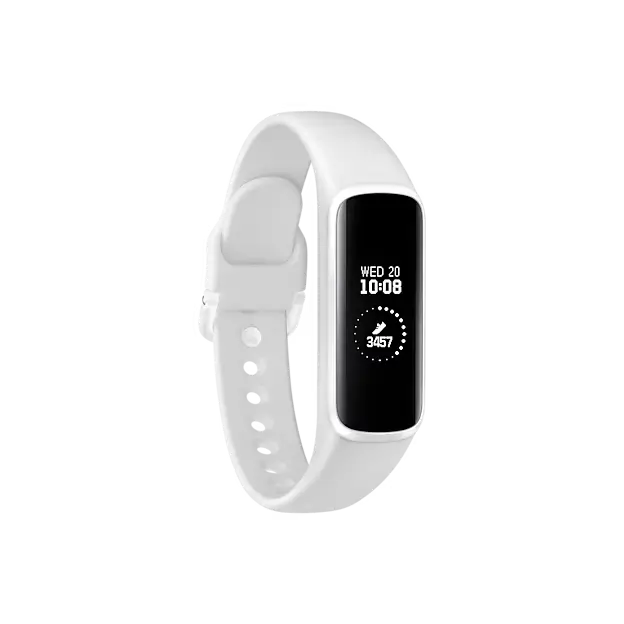
The Samsung Galaxy Fit e (SM-R375) is a lightweight fitness band that tracks steps, calories, sleep, and heart rate, and shows notifications, weather, and calendar events from a paired Android phone. It has no power key and no touchscreen. The screen wakes when you raise your wrist, and you move between screens by tapping, not swiping. Setup and almost every setting are handled in the Galaxy Wearable app on your phone, and your health data syncs to the Samsung Health app. The band is water resistant to 50 m under ISO 22810:2010 and dust resistant to IP6X, so you can wear it in shallow water.
Parts of the Band
- Screen: Shows the watch face and widgets. You control it by tapping.
- Heart rate sensor: On the back. It uses light to estimate your heart rate.
- Pressure vent: Helps the internal parts and sensors work correctly when air pressure changes. Never push sharp objects into it.
- Charging contacts: Located next to a small notch that lines up with the charger’s clasp.
- Band: Removable and replaceable.
The charger is not water resistant, so keep it dry. Package contents are listed in the separate quick start guide, not in this manual.
Charging and Turning On the Galaxy Fit e
Charge the band fully before you use it for the first time. The band turns on when you connect the charger, and it stays on as long as the battery has charge.
- Connect the charging cable to the USB power adapter.
- Line up the center of the charger with the band, and line up the charger’s clasp with the notch next to the charging contacts.
- Press the band and charger together until they click.
- When charging is done, pull the charger’s handle to detach it, then unplug the charger from the outlet.
Use only the supplied charger and Samsung-approved chargers and cables. The band won’t charge properly on a third-party charger, and unapproved accessories can cause the battery to explode or damage the band.
A few charging tips:
- If the battery is completely drained, let it charge for a few minutes before the band turns on.
- Charging from a computer or a multi-charger can take longer.
- Sweat, liquid, or dust between the band and charger can stop charging. Keep the contacts clean.
- It’s normal for the band to get warm while charging. If it gets hotter than usual, charging may pause. Take the band off the charger, let it cool, and then start again.
Wearing the Band
Open the buckle, wrap the band around your wrist, and push the pin into a hole. Use the hole one step looser than you normally would, because the band can tighten if the end gets pulled inward. To take it off, pull down on the buckle and slide the strap out.
For accurate heart rate and sleep tracking, wear the band snugly on your lower arm just above your wrist. If it’s too tight, your skin can get irritated. If it’s too loose, it can rub. Don’t bend the band too far.
Replacing the Band
- Hold the band steady and gently pull up one band connection. Pull close to the screen, not at the end of the strap.
- Fit one side of the new band into the device, gently pull out the other side of the band connection, and fit it onto the other side of the device.
Pairing With Your Phone
Install the Galaxy Wearable app first. On Samsung Android phones you can get it from Galaxy Store or Play Store, and on other Android phones from Play Store. The app won’t install on phones that don’t support Galaxy Fit e syncing.
- Connect the band to its charger.
- Turn on Bluetooth on your phone.
- Open the Galaxy Wearable app and update it if needed.
- Tap Start the journey.
- Select your device. If it isn’t listed, tap Mine’s not here.
- Follow the on-screen instructions. A watch face appears on the band when pairing is complete.
To get every feature, update the Samsung Health app to the latest version as well.
Switching phones: In Galaxy Wearable, tap the more options menu and then Disconnect. Then open Galaxy Wearable on the new phone and connect. The band resets when it pairs with a new phone. A phone that is already paired with another Galaxy Fit e can’t connect until you disconnect it from that band.
Using the Screen and Widgets
The screen turns on when you raise your wrist and turns off on its own after a period without use. To wake it by double-tapping instead, open Galaxy Wearable and go to Home → Advanced → Screen wake-up → Double tap.
From the Watch screen, tap to move through the widgets: Steps, Calories, Sleep, Weather, Calendar, and Heart rate. The widgets you see and their order depend on your software version. You can manage them under Home → Widgets.
- Steps: Counts your steps. Distance shows up in Samsung Health. The count may appear after a short delay, and riding in a car or train can add false steps. Set a daily goal under Home → Health settings → Step target.
- Calories: Shows calories burned for the day, including your basal metabolism based on your profile.
- Sleep: Wear the band to bed and it records your sleep time. After you wake up, tap to the sleep screen to see it.
- Heart rate: When you add the heart rate widget, or choose a watch face that shows heart rate, the band measures your heart rate automatically at regular intervals.
- Automatic exercise recognition: After about ten minutes of activity, the band starts recording the workout type, duration, and calories. It stops after you’ve been inactive for more than one minute.
The band only keeps the last 7 days of records. Older data is saved in Samsung Health on your phone.
Heart Rate Accuracy Tips
- Take readings while sitting still and relaxed. Don’t talk, yawn, or breathe deeply.
- Cold weather, smoking, and alcohol can all change your readings.
- If you have thin wrists, move the sensor around or turn the band so the sensor sits firmly against the inside of your wrist.
- Wipe the sensor clean, and make sure nothing (like hair or dirt) is between the sensor and your skin.
- Don’t look straight into the sensor lights, and keep children from looking at them.
Samsung Health features are for fitness and wellness only. They aren’t meant to diagnose or treat any medical condition.
Key Galaxy Wearable Settings
| Setting | Path in the Galaxy Wearable app | What it does |
| Notifications | Home → Notifications | Choose which apps send alerts, and whether alerts turn on the screen |
| Alarm | Home → Alarm → Add alarm | Silent vibrating alarms. Tap the band screen twice to stop one |
| Find My Band | Home → Find My Band | Makes the band vibrate and turn on its screen |
| Vibration | Home → Vibration | Turns vibration on or off |
| Do not disturb | Home → Advanced | Mutes everything except alarms |
| Weather | Home → Weather → Settings | Temperature unit, update interval, current location |
| Backup | Home → Account and backup → Back up and restore | Back up or restore with Samsung Cloud, with optional auto backup |
| Software update | Home → About band → Update band software | Downloads and installs firmware over the air |
| Watch face | Watch faces | Changes the Watch screen design |
To save battery, change your notification settings or turn off vibration.
Water Resistance and Safety
- Keep the band away from forceful or fast-moving water. Don’t wear it while diving, snorkeling, or doing water sports in fast-moving water, and don’t wear it in a sauna.
- After freshwater, dry it with a soft, clean cloth. After salt water, pool water, soap, sunscreen, or similar liquids, rinse it with fresh water and then dry it.
- Avoid sudden temperature changes, and never use a hair dryer to dry it.
- A drop, an impact, or taking the band apart can weaken its water resistance.
- If the band gets too hot, it shows a warning and turns off its features until it cools down. If it keeps heating up, it shuts down. Remove it right away if it feels uncomfortably hot.
- The band contains a small amount of nickel, below EU REACH limits. Take care if you’re sensitive to nickel.
- Never try to remove the battery yourself. Contact an authorized service center (p. 45).
Cleaning and Maintenance
After you exercise or sweat, rinse the band with fresh water, wipe it with a little rubbing alcohol, and dry it completely. Use a soap-free detergent to remove sunscreen, lotion, or oil, and then rinse and dry. For stains on the strap, scrub gently with a damp soft-bristle toothbrush. Don’t use soap, abrasive cleaners, compressed air, ultrasonic cleaners, or heat.
Troubleshooting
| Problem | What to try |
| Screen won’t turn on | The battery may be empty. Charge it fully. |
| Screen is slow or unresponsive | Wear the band a bit looser and tap firmly, restart it, update the software, or get a damaged screen serviced. |
| Tapping doesn’t wake the screen | Turn on Double tap under Home → Advanced → Screen wake-up. |
| Band is frozen | Connect the charger for more than 3 seconds to force a restart. |
| Still has errors | Back up your data, then go to Home → About band → Reset band. |
| Bluetooth won’t connect | Turn Bluetooth on, clear any obstacles, stay within 10 m, update Galaxy Wearable, and restart both devices. |
| Heart rate isn’t tracked | Wear the band just above your wrist, and add the heart rate widget or choose a watch face that shows heart rate. |
| Battery drains quickly | Very hot or cold temperatures, heart rate tracking, and tap-to-wake all use more power. The battery also wears down over time. |
| Small gap around the case | This is normal. It’s part of how the band is built. |
Frequently Asked Questions
How do I turn on the Galaxy Fit e?
Connect it to the charger. The band has no power key and turns on whenever it’s charging or has battery power.
Does the Galaxy Fit e have a touchscreen?
No. The screen responds to taps only, and swiping does nothing. Tap with your fingertip to move between screens.
Can I swim with it?
Yes, in shallow water. It meets 50 m water resistance under ISO 22810:2010. Avoid diving, fast-moving water, water sports in fast-moving water, and saunas.
How do I restart a frozen band?
Connect the charger for more than 3 seconds. If the band is still connected to your phone, you can also go to Home → About band → Restart band in Galaxy Wearable.
Will I lose my data if I pair it with a new phone?
The band resets when it connects to a new phone. Your past data stays in Samsung Health, and you can back it up to Samsung Cloud under Account and backup before switching.
Which phones work with it?
The manual covers Samsung and other Android phones that run the Galaxy Wearable app. Support varies by region and phone, and Samsung’s website lists compatible devices. iPhone compatibility isn’t covered.
Can I use the Galaxy Fit e as a heart rate monitor during workouts?
Yes. While the band is paired, start the exercise tracker in the Samsung Health app on your phone. Your heart rate appears on the exercise screen and in your results.
How long does the battery last?
The manual doesn’t give a battery life or charging time. It only lists what drains the battery faster, such as heart rate tracking, tap-to-wake, and extreme temperatures.