
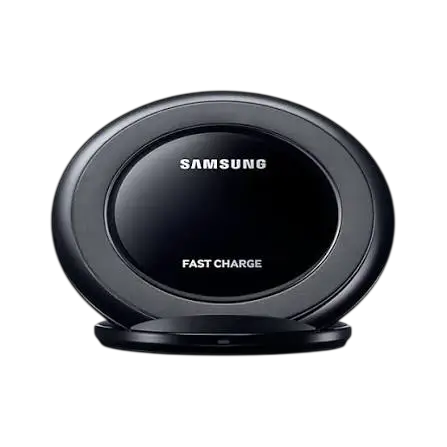
The Samsung EP-NG930 is a wireless charging stand. It charges a compatible phone without a cable plugged into the phone. You connect a separate Samsung-approved charger to the stand’s charger port, then set the phone on the phone support. The stand works with Wireless Power Consortium (WPC) certified devices. It also supports fast wireless charging on phones that offer it.
A small fan inside the stand runs during fast charging or after long charging sessions, so the stand has a vent that needs to stay clear. An indicator light shows whether the stand is powered, charging, finished, or having trouble.
What’s in the Box
The box contains the wireless charger and a quick start guide. The AC charger is not included with every purchase. Depending on the model you bought, you may need to buy one separately (p. 248). Wireless charging covers are also sold separately.
Items and accessories can vary by region or service provider. The supplied items are designed for this charger and may not work with other devices. Samsung recommends approved accessories only. Unapproved accessories can cause performance problems and malfunctions that the warranty does not cover (p. 245).
Parts and Layout
The stand has these parts (p. 246):
- Wireless charging surface: the area your phone rests against.
- Charger coil: two coil positions, one in the upper section and one in the lower.
- Phone support: the ledge or rest that holds the phone in place.
- Fan vent: the opening that lets the internal fan move air.
- Charger port: where you connect the charger.
- Indicator light: the status light on the front.
Compatible Chargers and Power
Use only Samsung-approved chargers rated 5 V/2 A, 5.3 V/2 A, or 9 V/1.67 A. Unauthorized chargers can damage the stand or make it malfunction (p. 247).
For fast wireless charging, use an approved fast-charging adapter from the EP-TA20 series rated 9 V/1.67 A (p. 249).
| Charging Mode | Charger Needed |
|---|---|
| Standard wireless charging | Samsung-approved 5 V/2 A, 5.3 V/2 A, or 9 V/1.67 A |
| Fast wireless charging | Samsung-approved EP-TA20 series, 9 V/1.67 A |
How to Charge Your Phone
- Connect an approved charger to the charger port on the stand. When the connection is good, the indicator light flashes blue, green, and cyan, then turns off.
- Place your phone on the phone support. Check the charging icon on the phone’s screen to confirm that charging has started.
- When the phone is fully charged, take it off the stand.
If your phone has no built-in wireless charging coil, attach a wireless charging cover to it first, then place it on the stand (p. 248).
Placement tips
- Center the phone on the charging surface. Charging may not work well if the phone is off-position or if its internal coil sits in an unusual spot.
- Remove a thick case before charging. Thick cases can interfere.
- If a headset is plugged into the phone, set the phone down in landscape orientation. In portrait orientation it may not charge.
- Keep metal objects, magnets, and magnetic stripe cards out from between the phone and the stand. They can stop charging or cause overheating and damage (p. 248).
Fast Wireless Charging
Fast wireless charging works with phones that support it and an EP-TA20 series charger. The fan inside the stand runs during fast charging. It does not run when the feature is turned off on the phone (p. 249).
The fast charging option appears in your phone’s settings the first time you place the phone on the stand. To turn it on or off:
- Place the phone on the wireless charger.
- On the phone’s Home screen, tap Apps → Settings → Accessories.
- Tap the Fast wireless charging switch.
Turning the feature off switches the phone to normal wireless charging, which takes longer (p. 250).
Indicator Light Meanings
| Color | Meaning |
|---|---|
| Blue → Green → Cyan | Connected to a power outlet |
| Blue | Charging |
| Green | Fully charged |
| Cyan | Charging at low power (less than 5 V/2 A) |
| Flashing blue | Not charging properly because of a general error |
| Off | Phone removed from the stand, or stand not connected to a power outlet |
The light can behave differently depending on your phone or wireless charging cover (p. 250).
Safety Warnings
- Never place a wireless charging cover alone on the stand. Doing so may overheat the stand and cause a fire, serious burns, or device malfunction (p. 248).
- Do not cover or block the fan vent. If a phone stays on the stand for a long time, the stand may overheat and the fan may start (p. 248).
- Use only approved chargers. Unauthorized chargers can damage the stand (p. 247).
- Keep foreign objects off the charging surface. Metal objects, magnets, and magnetic stripe cards can cause overheating (p. 248).
Care and Everyday Use Notes
- The stand has no power switch. Unplug the charger from the electrical outlet when you are not using it so it does not keep drawing power. Keep the charger close to the outlet and easy to reach while charging (p. 249).
- Using the stand where mobile signal is weak may cause you to lose network reception (p. 249).
- Connecting a charger directly to the phone during wireless charging makes wireless charging unavailable (p. 249).
Troubleshooting
The phone is not charging
Check these placement and setup items in order:
- Make sure the charger is firmly connected to the stand and the stand’s light flashed blue, green, and cyan at startup.
- Reposition the phone so it sits properly on the charging surface.
- Take off a thick case.
- If the phone has no wireless coil, confirm that a wireless charging cover is attached.
- If a headset is connected, switch the phone to landscape orientation.
- Remove any metal objects, magnets, or cards from the charging area.
- Make sure a charger is not plugged into the phone itself.
The indicator light is flashing blue
Flashing blue means the stand is not charging properly because of a general error. The manual does not list specific causes. Check the items above, then try the reset step below.
The indicator light is not behaving as described
Disconnect the charger from the stand and reconnect it (p. 250).
Charging is slower than expected
Charging may be in standard mode instead of fast mode. Check that fast wireless charging is turned on in the phone’s Accessories settings and that you are using an EP-TA20 series charger. A cyan light means the stand is charging at low power, below 5 V/2 A.
Frequently Asked Questions
Which chargers can I use with the EP-NG930?
Use Samsung-approved chargers rated 5 V/2 A, 5.3 V/2 A, or 9 V/1.67 A. For fast wireless charging, use an EP-TA20 series charger rated 9 V/1.67 A.
Does the EP-NG930 come with a charger?
The box lists only the wireless charger and a quick start guide. Depending on the model you bought, you may need to buy a charger separately.
Why is the fan running?
The fan runs during fast wireless charging. It may also turn on if a phone stays on the stand for a long time and the stand heats up. Do not block the fan vent.
How do I turn fast wireless charging off?
With the phone on the stand, go to Apps → Settings → Accessories and switch off Fast wireless charging. The phone will then charge in normal wireless mode, which is slower.
Can I charge a phone that has no built-in wireless charging?
Yes, if you attach a wireless charging cover to the phone first. These covers are sold separately. Never put a charging cover on the stand by itself.
Why won’t my phone charge when it has a thick case?
Thick cases can stop wireless charging from working properly. Remove the case before placing the phone on the stand.
What does a cyan light mean?
Cyan means the stand is charging at low power, which the manual defines as less than 5 V/2 A. The same colors also flash briefly at startup, which is normal.
Does the charger need to stay plugged in?
The stand has no power switch. To avoid wasting power, unplug the charger from the outlet when you are not charging a device.