| Field | Details |
| Document Title | Royal Kludge C84 Magnetic Mechanical Keyboard User Manual |
| Document Type | User Manual |
| Brand Name | Royal Kludge (RK) |
| Product Name | C84 Magnetic Mechanical Keyboard |
| Model Number | C84 |
| PDF File Size | 7.05 MB |
| Number of Pages | 36 |
| Languages | English, Traditional Chinese, German, Russian, French, Spanish, Italian, Japanese, Korean, Turkish, Thai, Arabic, Portuguese (Brazil), Polish |
Royal Kludge C84 Magnetic Mechanical Keyboard
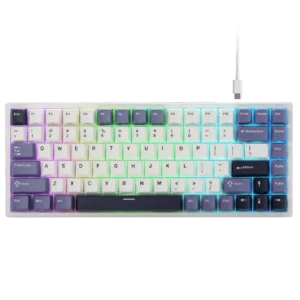
The Royal Kludge C84 is a wired magnetic mechanical keyboard featuring a compact 80% layout, adjustable backlighting, dedicated function keys, and Windows and Mac operating system modes.
The keyboard connects to a computer through a USB Type-C cable. Its compact layout provides standard typing keys, an F1–F12 function row, navigation keys, and directional arrow keys without a separate numeric keypad.
The C84 includes keyboard shortcuts for adjusting backlight brightness, changing lighting colors, switching lighting modes, adjusting lighting effect speed, and locking the Windows key. It also provides multimedia controls for Windows and Mac computers.
The keyboard uses magnetic switches that require correct magnetic pole orientation during replacement. After replacing a magnetic switch, calibration must be performed using the keyboard driver.
Product Overview and Technical Specifications
C84 Keyboard Specifications
| Specification | Details |
| Brand | Royal Kludge |
| Model | C84 |
| Product Type | Magnetic Mechanical Keyboard |
| Keyboard Layout | 80% |
| Switch Technology | Magnetic switches |
| Connection Type | Wired |
| Connection Interface | USB Type-C |
| Computer Connection | USB Type-C to USB-A |
| Keyboard Length | 316.67 mm |
| Keyboard Width | 126.27 mm |
| Keyboard Height | 41.5 mm |
| Dimension Tolerance | ±2 mm |
| Backlight Brightness Control | Supported |
| Backlight Color Switching | Supported |
| Backlight Mode Switching | Supported |
| Backlight Effect Speed Control | Supported |
| Windows Mode | Supported |
| Mac Mode | Supported |
| Windows Key Lock | Supported |
| Factory Reset | Fn + Spacebar, held for 3 seconds |
| Magnetic Switch Calibration | Through keyboard driver |
| Driver Website | https://drive2.rkgaming.com/ |
| Executive Standard | GB/T 14081-2010 |
| Manufacturing Country | China |
Main Keyboard Features
The Royal Kludge C84 provides the following functions:
- Compact 80% magnetic mechanical keyboard layout.
- USB Type-C wired connection.
- Dedicated F1–F12 function-key row.
- Adjustable keyboard backlight brightness.
- Multiple backlight modes.
- Backlight color switching.
- Adjustable backlight effect speed.
- Windows and Mac keyboard modes.
- Multimedia playback shortcuts.
- Audio volume controls.
- Screen brightness controls for Mac.
- Windows key locking.
- Additional Insert and Scroll Lock shortcuts.
- Factory reset through an Fn key combination.
- Magnetic switch replacement with driver-based calibration.
Keyboard Layout and Components
The C84 has an 80% keyboard layout with standard typing keys, a function-key row, navigation keys, and directional arrows.
Main Keyboard Components
| Component | Function |
| Alphanumeric Keys | Provide standard typing input |
| Fn Key | Activates secondary keyboard functions |
| Esc Key | Provides the Escape function |
| F1–F12 Keys | Provide standard function and multimedia commands |
| Print Screen Key | Provides Print Screen and Insert functions |
| Pause Key | Provides Pause and Scroll Lock functions |
| Home Key | Provides Home functionality and backlight mode switching |
| End Key | Provides End functionality and backlight color switching |
| Windows Key | Provides Windows functions and supports locking |
| Spacebar | Provides spacing input and factory reset |
| Arrow Keys | Provide directional navigation and lighting adjustments |
| USB Type-C Port | Connects the keyboard to a computer |
| Backlight | Illuminates the keys |
80% Keyboard Layout
The C84 includes the following key groups:
- A standard alphanumeric typing area.
- Dedicated F1–F12 function keys.
- Ctrl, Alt, Shift, Fn, and Windows modifier keys.
- Navigation keys, including Home, End, Page Up, and Page Down.
- Print Screen, Pause, and Delete keys.
- Four directional arrow keys.
- Backlighting and operating system shortcuts.
Secondary functions are accessed by pressing Fn together with the assigned key.
Before First Use
The C84 operates through its USB wired connection.
Initial Keyboard Setup
- Position the keyboard on a suitable working surface.
- Locate the USB Type-C connection port on the keyboard.
- Connect the USB Type-C end of the cable to the keyboard.
- Connect the USB-A end to an available USB port on the computer.
- Select Windows or Mac mode using the appropriate keyboard shortcut.
- Adjust the keyboard lighting if required.
The keyboard receives its connection through the USB cable.
Wired USB-C Connection
The Royal Kludge C84 connects directly to a compatible computer using a USB cable.
How to Connect the C84 Keyboard
- Locate the USB Type-C port on the keyboard.
- Insert the USB Type-C connector into the port.
- Connect the USB-A connector to an available USB port on the computer.
- Use the keyboard through the wired connection.
The USB cable provides the connection between the keyboard and the computer.
Magnetic Switch Replacement and Calibration
The C84 uses magnetic switches that require the correct orientation during replacement.
Magnetic Switch Orientation
A replacement magnetic switch must be installed with its N-pole facing downward.
The magnetic pole direction is important for the keyboard’s magnetic switch mechanism.
Installing and Calibrating a Replacement Magnetic Switch
When a magnetic switch is replaced:
- Identify the switch that requires replacement.
- Remove the existing switch.
- Position the replacement switch with its N-pole facing downward.
- Install the replacement switch in the appropriate position.
- Open the keyboard driver.
- Calibrate the replaced switch through the driver.
Calibration must be performed after replacing a magnetic switch.
Keyboard Driver for Switch Calibration
The C84 driver website is:
The driver provides the calibration function required after magnetic switch replacement.
Keyboard Backlight Controls
The C84 supports backlight brightness adjustment, lighting effect speed control, color switching, and lighting mode switching.
These functions are accessed through the Fn key.
Complete Backlight Shortcut Table
| Key Combination | Function |
| Fn + Up Arrow (↑) | Increase backlight brightness |
| Fn + Down Arrow (↓) | Decrease backlight brightness |
| Fn + Left Arrow (←) | Decrease backlight effect speed |
| Fn + Right Arrow (→) | Increase backlight effect speed |
| Fn + End | Switch backlight color |
| Fn + Home | Switch backlight mode |
Increasing Backlight Brightness
Press Fn + Up Arrow (↑) to increase the brightness of the keyboard backlight.
Decreasing Backlight Brightness
Press Fn + Down Arrow (↓) to decrease the backlight brightness.
Increasing Backlight Effect Speed
Press Fn + Right Arrow (→) to increase the speed of the selected lighting effect.
Decreasing Backlight Effect Speed
Press Fn + Left Arrow (←) to reduce the speed of the selected lighting effect.
Changing the Backlight Color
Press Fn + End to switch the keyboard’s backlight color.
Changing the Backlight Mode
Press Fn + Home to switch between the available backlight modes.
Windows Key Lock
The C84 includes a Windows key locking function.
Locking the Windows Key
Press Fn + Win.
This controls the Windows Lock function.
Unlocking the Windows Key
Press Fn + Win again to change the Windows key lock state.
Secondary Function Keys
The C84 provides additional navigation and system commands through Fn combinations.
Secondary Function Shortcut Table
| Key Combination | Function |
| Fn + Print Screen (PrtSc) | Insert (Ins) |
| Fn + Pause | Scroll Lock (ScrLk) |
| Fn + A | Switch to Windows mode |
| Fn + S | Switch to Mac mode |
| Fn + Win | Windows Lock |
| Fn + Spacebar, held for 3 seconds | Factory reset |
Insert Function
Press Fn + Print Screen to activate Insert.
The Print Screen key provides the Insert command through its secondary function layer.
Scroll Lock Function
Press Fn + Pause to activate Scroll Lock.
Windows and Mac Mode Switching
Press Fn + A to select Windows mode or Fn + S to select Mac mode.
Windows Keyboard Mode
The Royal Kludge C84 supports a Windows operating system mode.
Switching to Windows Mode
Press Fn + A.
This selects the Windows system layout.
Windows Mode Functions
Windows mode provides shortcuts for:
- Computer access.
- Web browser.
- Mailbox.
- Calculator.
- Media player.
- Playback stop.
- Previous and next track.
- Play and pause.
- Mute.
- Volume adjustment.
These functions are assigned to Fn combinations with the F1–F12 keys.
Windows Multimedia Shortcut Keys
The following shortcuts apply when the keyboard is operating in Windows mode.
Windows Multimedia Shortcut Table
| Key Combination | Function |
| Fn + F1 | Computer |
| Fn + F2 | Browser |
| Fn + F3 | Mailbox |
| Fn + F4 | Calculator |
| Fn + F5 | Player |
| Fn + F6 | Stop |
| Fn + F7 | Previous song |
| Fn + F8 | Play/Pause |
| Fn + F9 | Next song |
| Fn + F10 | Mute |
| Fn + F11 | Decrease volume |
| Fn + F12 | Increase volume |
Opening the Computer Shortcut
Press Fn + F1 to activate the Computer shortcut.
Opening the Browser
Press Fn + F2 to activate the browser shortcut.
Opening the Mailbox
Press Fn + F3 to activate the mailbox shortcut.
Opening the Calculator
Press Fn + F4 to activate the Calculator shortcut.
Opening the Media Player
Press Fn + F5 to activate the media player function.
Stopping Media Playback
Press Fn + F6 to stop playback.
Previous Track
Press Fn + F7 to select the previous media track.
Play or Pause
Press Fn + F8 to play or pause supported media playback.
Next Track
Press Fn + F9 to select the next track.
Muting Audio
Press Fn + F10 to activate the mute function.
Decreasing Volume
Press Fn + F11 to decrease system volume.
Increasing Volume
Press Fn + F12 to increase system volume.
Mac Keyboard Mode
The C84 also supports a Mac operating system layout.
Switching to Mac Mode
Press Fn + S.
This selects the Mac system layout.
Mac Mode Functions
Mac mode provides shortcuts for:
- Decreasing and increasing screen brightness.
- Adjusting keyboard backlight brightness.
- Selecting previous and next tracks.
- Playing and pausing media.
- Muting audio.
- Adjusting system volume.
Mac Multimedia Shortcut Keys
The following shortcuts apply when the keyboard is operating in Mac mode.
Mac Multimedia Shortcut Table
| Key Combination | Function |
| Fn + F1 | Decrease screen brightness |
| Fn + F2 | Increase screen brightness |
| Fn + F5 | Decrease keyboard backlight brightness |
| Fn + F6 | Increase keyboard backlight brightness |
| Fn + F7 | Previous song |
| Fn + F8 | Play/Pause |
| Fn + F9 | Next song |
| Fn + F10 | Mute |
| Fn + F11 | Decrease volume |
| Fn + F12 | Increase volume |
Decreasing Screen Brightness
Press Fn + F1 to reduce the computer screen brightness.
Increasing Screen Brightness
Press Fn + F2 to increase the computer screen brightness.
Decreasing Keyboard Backlight Brightness
Press Fn + F5 to reduce the keyboard backlight brightness.
Increasing Keyboard Backlight Brightness
Press Fn + F6 to increase the keyboard backlight brightness.
Previous Track
Press Fn + F7 to select the previous track.
Play or Pause
Press Fn + F8 to control media playback.
Next Track
Press Fn + F9 to select the next track.
Mute
Press Fn + F10 to mute audio.
Decreasing Volume
Press Fn + F11 to reduce system volume.
Increasing Volume
Press Fn + F12 to increase system volume.
Switching Between Windows and Mac Mode
The keyboard uses separate shortcuts for selecting the operating system layout.
System Mode Shortcut Table
| Key Combination | Function |
| Fn + A | Switch to Windows mode |
| Fn + S | Switch to Mac mode |
Changing to Windows Mode
Press Fn + A.
Changing to Mac Mode
Press Fn + S.
The operating system mode determines the multimedia functions assigned to the keyboard’s function-key combinations.
Factory Reset
The C84 includes a factory reset shortcut for restoring the keyboard’s default configuration.
How to Factory Reset the C84 Keyboard
- Keep the keyboard connected to the computer.
- Press and hold Fn + Spacebar.
- Continue holding both keys for 3 seconds.
- Release the keys after the reset command has been activated.
The keyboard restores its factory settings.
Japanese Keyboard Input Functions
The Japanese-language instructions describe additional key behavior for Japanese character input.
Japanese character entry depends on the selected system input mode, Caps Lock, and Shift.
Japanese Input Modes
| Input Setting | Function |
| Caps Lock enabled | Uses the corresponding numeric, alphabetic, or symbol assignments |
| Caps Lock enabled + Shift | Accesses shifted character assignments |
| Caps Lock disabled + Shift | Uses the corresponding shifted Japanese character assignments |
| Caps Lock disabled | Uses the applicable kana character assignments |
Japanese Input Requirements
The Japanese input method must be enabled in the computer’s operating system when Japanese kana input is required.
Certain character assignments use combinations of Shift and Fn.
The physical keyboard layout and selected input method determine the resulting character.
Complete C84 Keyboard Shortcut Reference
The following table summarizes the keyboard’s primary controls.
| Key Combination | Function |
| Fn + Up Arrow | Increase backlight brightness |
| Fn + Down Arrow | Decrease backlight brightness |
| Fn + Left Arrow | Decrease backlight effect speed |
| Fn + Right Arrow | Increase backlight effect speed |
| Fn + End | Switch backlight color |
| Fn + Home | Switch backlight mode |
| Fn + Win | Windows Lock |
| Fn + Spacebar (hold 3 seconds) | Factory reset |
| Fn + Print Screen | Insert |
| Fn + Pause | Scroll Lock |
| Fn + A | Windows mode |
| Fn + S | Mac mode |
| Fn + F1 (Windows) | Computer |
| Fn + F2 (Windows) | Browser |
| Fn + F3 (Windows) | Mailbox |
| Fn + F4 (Windows) | Calculator |
| Fn + F5 (Windows) | Player |
| Fn + F6 (Windows) | Stop |
| Fn + F7 | Previous song |
| Fn + F8 | Play/Pause |
| Fn + F9 | Next song |
| Fn + F10 | Mute |
| Fn + F11 | Decrease volume |
| Fn + F12 | Increase volume |
| Fn + F1 (Mac) | Decrease screen brightness |
| Fn + F2 (Mac) | Increase screen brightness |
| Fn + F5 (Mac) | Decrease keyboard backlight brightness |
| Fn + F6 (Mac) | Increase keyboard backlight brightness |
Keyboard Driver and Software
The Royal Kludge C84 uses driver software for magnetic switch calibration after replacement.
Driver Website
The driver address is:
Driver-Based Magnetic Switch Calibration
After replacing a magnetic switch:
- Confirm that the replacement switch is installed with its N-pole facing downward.
- Open the keyboard driver.
- Perform the required switch calibration.
The switch must be calibrated after replacement.
Customer Support Information
Royal Kludge provides customer support for product questions and operating issues.
Manufacturer Information
| Field | Details |
| Brand | Royal Kludge |
| Product | C84 Magnetic Mechanical Keyboard |
| Manufacturer | JingHeng TengWei (HuiZhou) Electronic Technology Co., Ltd. |
| Manufacturer Address | No. 8, Minying 1st Road, Yuanzhou Town, Boluo County, Huizhou City, Guangdong Province, China |
| Driver Website | https://drive2.rkgaming.com/ |
| Executive Standard | GB/T 14081-2010 |
| Manufacturing Country | China |
| Document Identification | 166-085707-001 |
For product questions or operating issues, customers can contact Royal Kludge through its customer support channels.
Frequently Asked Questions
1. How is the Royal Kludge C84 connected to a computer?
The C84 uses a wired USB connection. Connect the USB Type-C end of the cable to the keyboard and the USB-A end to an available USB port on the computer.
2. How can the C84 keyboard backlight be adjusted?
Press Fn + Up Arrow to increase backlight brightness or Fn + Down Arrow to decrease it. Fn + Left Arrow and Fn + Right Arrow adjust the lighting effect speed.
3. How can the backlight color and lighting mode be changed?
Press Fn + End to switch the backlight color. Press Fn + Home to change the backlight mode.
4. How is the Royal Kludge C84 factory reset?
Press and hold Fn + Spacebar for three seconds to restore the keyboard’s factory settings.
5. How is the Windows key locked on the C84?
Press Fn + Win to control the Windows Lock function. Press the same combination again to change the lock state.
6. How is the C84 switched between Windows and Mac mode?
Press Fn + A to select Windows mode or Fn + S to select Mac mode.
7. How should a replacement magnetic switch be installed?
A replacement magnetic switch must be installed with its N-pole facing downward. After installation, the switch must be calibrated through the keyboard driver.
8. Where can the Royal Kludge C84 driver be accessed?
The driver website is https://drive2.rkgaming.com/. The driver provides the calibration function required after magnetic switch replacement.