| Field | Details |
| Document Title | Royal Kludge RK M87 Mechanical Keyboard User Manual |
| Document Type | User Manual |
| Brand Name | Royal Kludge (RK) |
| Product Name | M87 Mechanical Keyboard |
| Model Number | M87 |
| PDF File Size | 6.45 MB |
| Number of Pages | 1 |
| Languages Covered in the Document | English |
Royal Kludge M87 Mechanical Keyboard
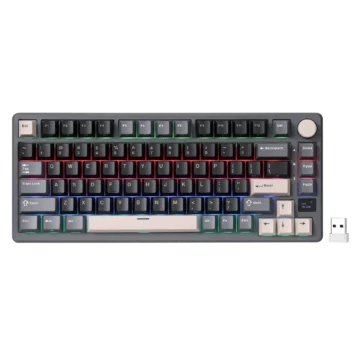
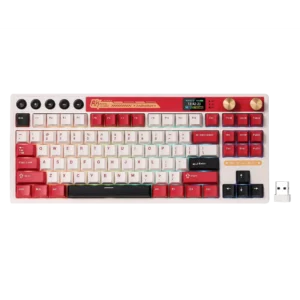
The Royal Kludge M87 is an 88-key mechanical keyboard featuring three connection modes, RGB backlighting, an integrated display, dedicated multimedia buttons, and two multifunction control knobs.
The keyboard supports USB Type-C wired operation, Bluetooth wireless connectivity, and 2.4GHz wireless connection through a USB receiver. It also provides three Bluetooth channels for connecting compatible computers and mobile devices.
The RK M87 includes a display for viewing connection status, adjusting keyboard settings, selecting lighting effects, and configuring the date and time. The display can also show a customizable GIF image when configured using compatible driver software.
The keyboard’s control knobs provide access to the settings menu, audio volume, display navigation, and time adjustments. Additional functions are available through Fn key combinations, including connection switching, RGB lighting controls, Windows and Mac modes, and factory reset.
This user manual provides instructions for setting up and operating the M87 keyboard, connecting through USB-C, Bluetooth, or 2.4GHz, managing the display, using keyboard shortcuts, adjusting backlighting, and accessing technical support.
Product Overview and Technical Specifications
M87 Keyboard Specifications
| Specification | Details |
| Brand | Royal Kludge |
| Model | M87 |
| Product Type | Mechanical Keyboard |
| Keyboard Layout | 88 keys |
| Switch Type | Mechanical switches |
| Connection Modes | USB wired, Bluetooth, 2.4GHz wireless |
| Wired Connection | USB Type-C |
| Wireless Receiver | 2.4GHz USB dongle |
| Bluetooth Channels | 3 |
| Backlighting | RGB |
| Integrated Display | Supported |
| Display Customization | Time interface and custom GIF images |
| Control Knobs | Left settings knob and right volume knob |
| Dedicated Multimedia Buttons | 5 |
| Keyboard Length | 364.3 mm |
| Keyboard Width | 155.8 mm |
| Keyboard Height | 40.7 mm |
| Dimension Tolerance | ±2 mm |
| Charging Input | 5V, 1A rated power supply |
| Windows Mode | Supported |
| Mac Mode | Supported |
| Custom Backlight Recording | Supported |
| Factory Reset | Fn + Spacebar, held for 3 seconds |
| Manufacturing Country | China |
| Executive Standard | GB/T 14081-2010 |
Main Features
The RK M87 provides the following functions:
- 88-key mechanical keyboard layout.
- USB Type-C wired connection.
- Bluetooth wireless connectivity with three channels.
- 2.4GHz wireless connection using a USB receiver.
- Integrated information and settings display.
- Left multifunction settings knob.
- Right audio volume control knob.
- Five dedicated multimedia buttons.
- Adjustable RGB backlighting.
- Customizable keyboard lighting.
- Adjustable backlight brightness and effect speed.
- Windows and Mac keyboard modes.
- Windows and Mac multimedia shortcuts.
- Windows key and Application key locking.
- Manual date and time configuration.
- Custom display GIF support through the keyboard driver.
- Factory reset using a keyboard shortcut.
What’s Included in the Box
The RK M87 package includes the following items.
| Item | Description |
| M87 Mechanical Keyboard | Main 88-key keyboard |
| User Manual | Operating and shortcut instructions |
| Switch and Keycap Puller | Tool for removing compatible switches and keycaps |
| USB Type-C Cable | Used for wired connection and charging |
| 2.4GHz Dongle | USB receiver for 2.4GHz wireless operation |
Keyboard Layout and Components
The M87 has an 88-key layout with a dedicated function-key row, navigation keys, directional arrow keys, and a top control section.
Main Components
| Component | Function |
| Mechanical Keys | Provide standard typing input |
| Fn Key | Activates additional keyboard functions |
| F1–F12 Keys | Provide standard function and multimedia commands |
| Power Button | Turns the keyboard on or off |
| Stop Button | Stops supported multimedia playback |
| Previous Track Button | Selects the previous track |
| Play/Pause Button | Controls multimedia playback |
| Next Track Button | Selects the next track |
| Left Knob | Opens settings, selects menu items, and confirms selections |
| Right Knob | Controls audio volume and mute |
| Integrated Display | Shows status information and configuration menus |
| USB Type-C Port | Connects the keyboard to a computer or charging power source |
| 2.4GHz Receiver Storage Area | Stores the wireless USB receiver |
| RGB Backlight | Illuminates the keyboard |
| Status Indicator Lights | Display Caps Lock, Scroll Lock, and Windows Lock status |
Dedicated Multimedia Buttons
The M87 has five dedicated multimedia buttons positioned in the upper-left section.
Multimedia Button Functions
| Button | Function |
| Power | Turns the keyboard on or off |
| Stop | Stops media playback |
| Previous | Plays the previous track |
| Play/Pause | Starts or pauses media playback |
| Next | Plays the next track |
Turning the Keyboard On or Off
Press and hold the Power button for 3 seconds to turn the keyboard on or off.
Controlling Media Playback
The dedicated multimedia buttons can be used to stop playback, select the previous track, play or pause media, and select the next track.
Indicator Lights and Control Knobs
The keyboard includes three status indicator lights and two multifunction control knobs.
Indicator Light Guide
| Indicator | Meaning |
| Caps Lock | Caps Lock status |
| Scroll Lock | Scroll Lock status |
| Win Lock | Windows key lock status |
Right Knob – Volume Control
The right control knob manages system audio volume.
Right Knob Functions
| Action | Function |
| Rotate clockwise | Increase volume |
| Rotate counterclockwise | Decrease volume |
| Press | Mute audio |
Increasing Volume
Rotate the right knob clockwise.
Decreasing Volume
Rotate the right knob counterclockwise.
Muting Audio
Press the right knob.
Volume Display Calibration
If the volume displayed on the keyboard is incorrect, the display is automatically calibrated when the keyboard driver is running.
The driver can be obtained through the Royal Kludge website:
Left Knob – Settings and Display Navigation
The left knob controls the integrated display and its settings menus.
Left Knob Functions
| Action | Function |
| Short press | Opens the settings menu or confirms a selection |
| Rotate | Opens the settings menu or changes the selected item |
| Rotate within a menu | Moves between available options |
| Press within a menu | Confirms the selected option |
The left knob is used for connection settings, display configuration, lighting adjustments, and manual time settings.
Before First Use
The keyboard should be prepared and charged before first use.
Initial Preparation
- Remove the keyboard and accessories from the packaging.
- Locate the USB Type-C port.
- Connect a compatible charging cable.
- Use a 5V, 1A rated power supply for charging.
- Allow the keyboard to charge.
- Turn on the keyboard using the Power button.
- Select the preferred connection method.
- Configure Windows or Mac mode if required.
Charging the M87 Keyboard
The M87 supports charging through its USB Type-C connection.
Charging Instructions
- Connect the USB Type-C end of the cable to the keyboard.
- Connect the other end to a suitable USB power source.
- Use a power supply rated at 5V, 1A.
- Allow the keyboard to charge.
Battery Safety
- The battery must not be exposed to excessive heat, direct sunlight, or fire.
- An incorrect replacement battery may defeat built-in safety protection.
- Batteries must not be disposed of in fire or a hot oven.
- Batteries must not be crushed or cut.
- Extremely high temperatures may cause an explosion or leakage of flammable liquid or gas.
- Extremely low air pressure may cause an explosion or leakage of flammable liquid or gas.
M87 Connection Modes
The M87 supports three connection methods.
| Mode | Connection Method | Shortcut |
| Wired | USB Type-C cable | Fn + R |
| Bluetooth Channel 1 | Bluetooth | Fn + Q |
| Bluetooth Channel 2 | Bluetooth | Fn + W |
| Bluetooth Channel 3 | Bluetooth | Fn + E |
| 2.4GHz Wireless | USB receiver | Fn + P |
The left control knob can also be used to select connection modes through the display.
USB-C Wired Connection
The M87 can be connected directly to a computer using the USB Type-C cable.
Method 1: Wired Connection Using the Display
- Connect the USB Type-C cable to the keyboard.
- Connect the other end to a USB port on the computer.
- Press the left knob to open the menu.
- Select the USB mode icon.
- Confirm the selection using the left knob.
The screen displays USB Success when the wired mode is selected successfully.
Method 2: Wired Connection Using a Shortcut
- Connect the USB cable between the keyboard and computer.
- Briefly press Fn + R.
The keyboard switches to wired mode.
Bluetooth Connection Setup
The M87 supports three Bluetooth channels, allowing compatible Bluetooth devices to be registered separately.
Bluetooth Channel Shortcuts
| Key Combination | Function |
| Fn + Q | Select Bluetooth channel 1 |
| Fn + W | Select Bluetooth channel 2 |
| Fn + E | Select Bluetooth channel 3 |
| Hold Fn + Q for 3 seconds | Pair Bluetooth channel 1 |
| Hold Fn + W for 3 seconds | Pair Bluetooth channel 2 |
| Hold Fn + E for 3 seconds | Pair Bluetooth channel 3 |
Connecting Bluetooth Using the Left Knob
Step 1: Turn On the Keyboard
Press and hold the Power button for 3 seconds.
Step 2: Open the Connection Menu
Press the left knob to open the settings menu.
Step 3: Select a Bluetooth Channel
Rotate the left knob and choose one of the following:
- BT1
- BT2
- BT3
Step 4: Enter Pairing Mode
Select the required Bluetooth channel, then press and hold the left knob.
The display shows BT1 Pairing when channel 1 enters pairing mode.
The equivalent pairing status is shown for the selected channel.
Step 5: Connect the Device
- Turn on Bluetooth on the computer, phone, or tablet.
- Search for available Bluetooth devices.
- Select RK M87.
- Complete the connection.
After pairing succeeds, the keyboard displays a success message and returns automatically to the Home screen.
Bluetooth Pairing Using Keyboard Shortcuts
Bluetooth pairing can also be completed without opening the settings menu.
Pairing Bluetooth Channel 1
- Press and hold the Power button for 3 seconds.
- Press and hold Fn + Q for 3 seconds.
- Wait for the display to show BT1 Pairing.
- Open the Bluetooth settings on the receiving device.
- Search for RK M87.
- Complete the connection.
Pairing Bluetooth Channels 2 and 3
Use the corresponding shortcut:
- Fn + W: Bluetooth channel 2.
- Fn + E: Bluetooth channel 3.
Hold the selected combination for 3 seconds to start pairing.
Reconnecting to a Bluetooth Device
A previously paired device can be reconnected by briefly pressing its assigned channel shortcut.
For example:
- Press Fn + Q briefly.
- The display shows BT1 Linking.
- The keyboard attempts to reconnect to the device assigned to channel 1.
The same method applies to Fn + W and Fn + E.
Switching Between Bluetooth Devices
The keyboard can store three groups of Bluetooth devices.
| Shortcut | Selected Channel |
| Fn + Q | BT1 |
| Fn + W | BT2 |
| Fn + E | BT3 |
After the devices have been paired, a short press of the required shortcut switches to its assigned channel.
2.4GHz Wireless Connection
The M87 supports wireless operation using its 2.4GHz USB receiver.
The receiver is stored in a dedicated compartment on the keyboard.
Connecting Through 2.4GHz Mode Using the Left Knob
- Press and hold the Power button for 3 seconds.
- Press the left knob to open the settings menu.
- Rotate the knob to select the 2.4GHz connection icon.
- Press the left knob briefly to switch to 2.4GHz mode.
- Wait for the screen to display 2.4G Linking.
- Connect the 2.4GHz receiver to the computer’s USB port.
After a successful connection, the screen displays 2.4G Success and returns to the Home screen.
Pairing the 2.4GHz Receiver
The M87 supports pairing or re-pairing the 2.4GHz receiver through the left knob or keyboard shortcut.
Method 1: Pairing Through the Left Knob
- Turn on the keyboard.
- Press the left knob to open the menu.
- Select the 2.4GHz icon.
- Press and hold the left knob until 2.4G Pairing appears.
- Insert the 2.4GHz USB receiver into the computer.
After pairing is successful, the display shows 2.4G Success.
Method 2: Pairing Using Fn + P
- Turn on the keyboard.
- Press and hold Fn + P for 3 seconds.
- Wait for the display to show 2.4G Pairing.
- Insert the USB receiver into the computer.
- Wait for the 2.4G Success message.
The keyboard and receiver are paired at the factory, so repeating the pairing procedure is normally unnecessary.
2.4GHz Receiver Storage
The 2.4GHz receiver has a designated storage area on the keyboard.
The receiver can be stored in this compartment when it is not being used.
Integrated Display and Screen Functions
The M87 has an integrated display that provides access to connection settings, status indicators, time settings, and lighting controls.
Display Status Indicators
| Display Indicator | Meaning |
| Volume | Audio volume adjustment |
| Caps Lock | Caps Lock status |
| Win Lock | Windows lock status |
| Win | Windows mode |
| Mac | Mac mode |
| Wired | USB wired mode |
| 2.4G | 2.4GHz wireless mode |
| BT | Bluetooth mode |
Home Screen and Display Settings
The display supports the following options:
- Time interface.
- Customizable GIF image with driver support.
- Windows and Mac layout selection.
- English and Chinese language selection.
- Backlight effects and colors.
- Backlight brightness and speed.
Changing the Display Interface
The integrated display can show a time interface or a customized GIF image.
Selecting the Time Interface
- Press the left knob to open the settings menu.
- Open Home/Layout/Language.
- Select the time interface.
Using a Custom GIF
The display supports a customizable GIF image through the keyboard driver.
The custom image must be configured using compatible driver software.
Changing the Display Language
The display supports English and Chinese menu languages.
Language Selection
- Open the settings menu using the left knob.
- Select Home/Layout/Language.
- Open the language selection option.
- Choose English or Chinese.
Manual Date and Time Setting
The integrated display supports manual date and time adjustment.
The time screen uses the following information:
| Field | Format |
| Date | YY/MM/DD |
| Time | HH/MM/SS |
Method 1: Open Time Settings Using the Left Knob
- Open the main time screen.
- Press and hold the left knob for approximately 5 seconds.
- Wait until the year begins flashing.
- The keyboard enters manual time adjustment mode.
Method 2: Open Time Settings Through the Menu
- Press the left knob to open the settings menu.
- Select Time Settings.
- Enter the manual adjustment interface.
Adjusting the Date and Time
- Press the left knob to move between date and time fields.
- Rotate the left knob to change the selected number.
- Rotate clockwise to increase a value.
- Rotate counterclockwise to decrease a value.
- Continue adjusting the required date and time fields.
Saving the Time Settings
After completing the adjustments, either:
- Press and hold the left knob for approximately 5 seconds to save and exit.
- Use the left knob to select Yes.
- Briefly press Fn + T to save and exit.
Backlight Effects and Color Settings
The display allows lighting effects and colors to be selected through the left knob.
Changing Backlight Effects
- Press the left knob to open the settings menu.
- Select Backlight Effects/Colour Settings.
- Select the backlight effect icon.
- Press the left knob to confirm.
- Rotate the knob to choose the required effect.
Changing Backlight Colors
- Open Backlight Effects/Colour Settings.
- Select the color icon.
- Press the left knob.
- Rotate the knob to choose the preferred color.
Backlight Brightness and Speed Through the Display
The integrated display provides additional controls for lighting brightness and effect speed.
Adjusting Backlight Brightness
- Open the settings menu.
- Select Backlight Brightness/Speed Settings.
- Choose the brightness icon.
- Press the left knob.
- Rotate the knob to adjust the brightness.
Adjusting Backlight Effect Speed
- Open Backlight Brightness/Speed Settings.
- Select the speed icon.
- Press the left knob.
- Rotate the knob to adjust the lighting effect speed.
RGB Backlight Keyboard Shortcuts
The M87 supports direct backlight adjustments through Fn key combinations.
Backlight Shortcut Table
| Key Combination | Function |
| Fn + Up Arrow | Increase backlight brightness |
| Fn + Down Arrow | Decrease backlight brightness |
| Fn + Left Arrow | Decrease backlight effect speed |
| Fn + Right Arrow | Increase backlight effect speed |
| Fn + Pause | Switch backlight color on RGB versions |
| Fn + Scroll Lock | Switch dynamic backlight effects |
| Fn + Spacebar (hold 3 seconds) | Restore factory settings |
| Fn + Win | Lock Windows key and Application key functions |
Increasing Backlight Brightness
Press Fn + Up Arrow.
Decreasing Backlight Brightness
Press Fn + Down Arrow.
Increasing Backlight Effect Speed
Press Fn + Right Arrow.
Decreasing Backlight Effect Speed
Press Fn + Left Arrow.
Changing RGB Backlight Color
Press Fn + Pause to switch the backlight color on RGB versions.
Switching Dynamic Lighting Effects
Press Fn + Scroll Lock to switch between the available dynamic lighting effects.
Custom Backlight Recording
The M87 supports customizing the keyboard backlight by recording selected keys.
How to Create a Custom Backlight Pattern
- Press Fn + 1 to select the custom backlight function.
- Press Fn + Print to enter backlight recording mode.
- When the keyboard backlight turns off, the recording mode is active.
- Press the keys that should be customized.
- Repeat the key selection for the required keys.
- Press Fn + Print again to save the configuration and exit recording mode.
The selected custom lighting pattern is saved when recording mode is exited.
Windows Mode
The RK M87 supports a Windows operating system layout.
Switching to Windows Mode
Press Fn + A.
The keyboard switches to Windows system mode.
Windows Mode Functions
Windows mode provides shortcuts for opening supported applications, controlling media playback, and adjusting audio.
Windows Multimedia Shortcuts
| Key Combination | Function |
| Fn + F1 | Computer |
| Fn + F2 | Browser |
| Fn + F3 | Mailbox |
| Fn + F4 | Calculator |
| Fn + F5 | Player |
| Fn + F6 | Stop |
| Fn + F7 | Previous song |
| Fn + F8 | Play/Pause |
| Fn + F9 | Next song |
| Fn + F10 | Mute |
| Fn + F11 | Decrease volume |
| Fn + F12 | Increase volume |
Opening the Computer Shortcut
Press Fn + F1.
Opening the Browser
Press Fn + F2.
Opening the Mailbox
Press Fn + F3.
Opening the Calculator
Press Fn + F4.
Controlling Media Playback
Use Fn + F5 through Fn + F9 for the supported player and media functions.
Adjusting Audio
- Fn + F10: Mute.
- Fn + F11: Decrease volume.
- Fn + F12: Increase volume.
Mac Mode
The keyboard includes a Mac operating system layout.
Switching to Mac Mode
Press Fn + S.
The keyboard switches to Mac system mode.
Mac Mode Functions
Mac mode provides shortcuts for adjusting screen brightness, keyboard backlight brightness, multimedia playback, and audio volume.
Mac Multimedia Shortcuts
| Key Combination | Function |
| Fn + F1 | Decrease screen brightness |
| Fn + F2 | Increase screen brightness |
| Fn + F5 | Decrease keyboard backlight brightness |
| Fn + F6 | Increase keyboard backlight brightness |
| Fn + F7 | Previous song |
| Fn + F8 | Play/Pause |
| Fn + F9 | Next song |
| Fn + F10 | Mute |
| Fn + F11 | Decrease volume |
| Fn + F12 | Increase volume |
Adjusting Mac Screen Brightness
Press Fn + F1 or Fn + F2.
Adjusting Keyboard Backlight Brightness
Press Fn + F5 or Fn + F6.
Controlling Media Playback
Use Fn + F7 through Fn + F9.
Adjusting Audio Volume
Use Fn + F10 through Fn + F12.
Switching Between Windows and Mac
The M87 can change operating system layouts using the following shortcuts.
| Shortcut | Function |
| Fn + A | Windows mode |
| Fn + S | Mac mode |
The selected operating system is also shown through the display’s layout settings.
Windows and Application Key Lock
The M87 provides a shortcut to lock the Windows key and Application key functions.
Activating the Lock
Press Fn + Win.
The Win Lock indicator displays the lock status.
Factory Reset
The M87 includes a factory reset shortcut for restoring the keyboard’s default configuration.
How to Factory Reset the M87
- Turn on the keyboard.
- Press and hold Fn + Spacebar.
- Continue holding both keys for 3 seconds.
- Release the keys after the reset command has been activated.
This restores the keyboard’s factory settings.
Keyboard Driver and Software
The M87 supports additional functions through Royal Kludge driver software.
The driver is used for supported display customization and automatic volume display calibration.
Driver Access
| Resource | Address |
| Official Royal Kludge Website | www.rkgaming.com |
| Driver Download Page | www.rkgaming.com/Download/1 |
Driver-Dependent Functions
The manual identifies driver support for:
- Custom GIF images on the keyboard display.
- Automatic volume display calibration.
Connection and Settings Troubleshooting
The following checks use the keyboard’s documented setup, pairing, and reset procedures.
Bluetooth Device Does Not Connect
- Turn on the keyboard.
- Select the required Bluetooth channel.
- Press and hold Fn + Q, Fn + W, or Fn + E for 3 seconds.
- Wait for the pairing status to appear.
- Open Bluetooth settings on the receiving device.
- Search for RK M87.
- Complete the pairing process.
Reconnecting a Previously Paired Bluetooth Device
Briefly press the shortcut assigned to the required Bluetooth channel.
The display shows the corresponding Linking status while reconnecting.
2.4GHz Receiver Needs to Be Paired Again
- Turn on the keyboard.
- Press and hold Fn + P for 3 seconds.
- Wait for 2.4G Pairing.
- Insert the receiver into the computer.
- Wait for the success message.
Wired Mode Needs to Be Selected
- Connect the USB Type-C cable.
- Press Fn + R briefly.
- The keyboard switches to wired mode.
Volume Display Is Incorrect
Run the keyboard driver so that the volume display can be calibrated automatically.
Backlight Settings Need to Be Restored
Press and hold Fn + Spacebar for 3 seconds to restore the keyboard’s factory settings.
Cleaning and Care Instructions
The M87 must be kept clean and used carefully to support long-term performance.
Keyboard Care
- Maintain proper posture when using the keyboard.
- Avoid excessive force when pressing the keys.
- Take regular breaks to reduce hand fatigue.
- Clean the keyboard regularly to remove dust and dirt.
- Avoid exposing the keyboard to liquids.
- Keep the keyboard in a suitable environment away from extreme temperatures and humidity.
Warranty Information
The Royal Kludge M87 includes a 12-month warranty for non-human damage, as described in the manual.
| Warranty Detail | Information |
| Warranty Period | 12 months |
| Warranty Coverage Description | Non-human damage |
| Brand | Royal Kludge |
Customer Support Information
Royal Kludge provides customer support for product questions and technical issues.
| Field | Details |
| Brand | Royal Kludge |
| Product | M87 Mechanical Keyboard |
| Technical Support Email | rkgaming@rkgaming.com |
| Official Website | www.rkgaming.com |
| Driver Download | www.rkgaming.com/Download/1 |
| Manufacturing Country | China |
| Executive Standard | GB/T 14081-2010 |
| Document Identification | 166-77201-01 |
For product-related questions or technical assistance, contact rkgaming@rkgaming.com.
Frequently Asked Questions
1. How is the Royal Kludge M87 connected through Bluetooth?
Turn on the keyboard, then press and hold Fn + Q, Fn + W, or Fn + E for 3 seconds to enter pairing mode. Open Bluetooth settings on the receiving device, search for RK M87, and complete the connection.
2. How is the M87 switched to wired mode?
Connect the USB Type-C cable between the keyboard and computer, then briefly press Fn + R. Wired mode can also be selected through the left knob and display menu.
3. How is the RK M87 connected through 2.4GHz wireless mode?
Turn on the keyboard and select the 2.4GHz mode through the display, or hold Fn + P for 3 seconds to enter pairing mode. Insert the 2.4GHz USB receiver into the computer and wait for the successful connection message.
4. How is the time set on the M87 display?
From the main time screen, press and hold the left knob for approximately 5 seconds until the year flashes. Use the knob to select and adjust date and time values. Save using the knob controls or press Fn + T.
5. How can the M87 RGB backlight be customized?
Press Fn + 1 to select custom backlighting, then press Fn + Print to enter recording mode. Press the required keys to customize their lighting, then press Fn + Print again to save the settings.
6. What do the two knobs on the M87 do?
The right knob controls volume and mute. The left knob opens and controls the settings menu, confirms selections, and adjusts display and configuration options.
7. How is the Royal Kludge M87 factory reset?
Press and hold Fn + Spacebar for 3 seconds to restore the keyboard’s factory settings.
8. How is the M87 switched between Windows and Mac mode?
Press Fn + A to select Windows mode or Fn + S to select Mac mode. The selected layout can also be managed through the integrated display.