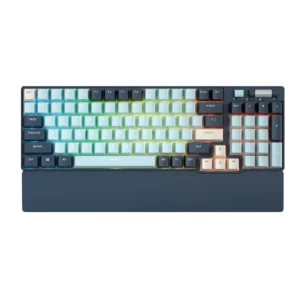
| Field | Details |
| Document Title | Mechanical Wireless Keyboard User Manual |
| Document Type | User Manual |
| Brand Name | Royal Kludge (RK) |
| Product Name | Mechanical Wireless Keyboard |
| Model Number(s) | RK96 (identified from the PDF filename) |
| PDF File Size | 4.89 MiB |
| Total Number of Pages | 1 |
| Languages Covered in the Document | English |
Royal Kludge Mechanical Wireless Keyboard RK96
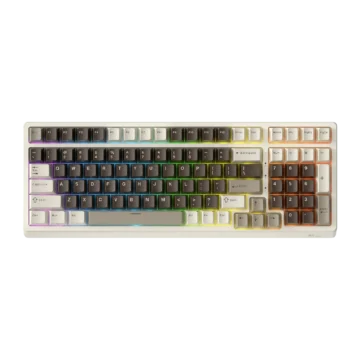
The Royal Kludge RK96 is a mechanical wireless keyboard with three connection options: USB wired, Bluetooth, and 2.4GHz wireless. It includes a full function-key row, numeric keypad, multimedia shortcuts, rechargeable battery, adjustable backlighting, and a rotary wheel for volume control.
The keyboard supports Windows and Mac operating modes, with additional compatibility for Bluetooth-enabled mobile devices. Three Bluetooth channels allow switching between saved devices using the Fn key combinations.
The RK96 also includes customizable backlight profiles, battery level indicators, and dedicated shortcuts for lighting effects, brightness, animation speed, and restoring factory settings.
The keyboard is operated through physical connection switches, function-key combinations, and status indicators.
Product Features
The Royal Kludge RK96 includes the following features:
- Mechanical keyboard with numeric keypad.
- USB Type-C wired connectivity.
- Bluetooth wireless connectivity.
- 2.4GHz wireless connectivity through a USB receiver.
- Three Bluetooth connection channels.
- Rechargeable internal battery.
- Battery level checking through keyboard shortcuts.
- Backlight charging and battery status indicators.
- Adjustable keyboard backlighting.
- Multiple backlight modes.
- Adjustable backlight brightness.
- Adjustable lighting effect speed.
- Monochrome and RGB backlight controls.
- Three custom backlight configurations.
- Windows and Mac operating modes.
- Multimedia shortcuts.
- Dedicated special-function shortcuts.
- Rotary volume control wheel.
- Mute control.
- Windows key locking.
- Factory reset function.
- USB 2.0 connection functionality on applicable versions.
Technical Specifications
| Specification | Details |
| Brand | Royal Kludge (RK) |
| Model | RK96 |
| Product Type | Mechanical Wireless Keyboard |
| Keyboard Type | Mechanical |
| Connection Modes | USB wired, Bluetooth, 2.4GHz wireless |
| Wired Connection | USB Type-C |
| Wireless Receiver | 2.4GHz USB dongle |
| Bluetooth Channels | Three |
| Bluetooth Channel Shortcuts | Fn + Q, Fn + W, Fn + E |
| Bluetooth Device Requirement | Bluetooth 5.1 or later |
| Operating System Modes | Windows and Mac |
| Backlight Controls | Mode, color, brightness, and speed |
| Custom Backlight Configurations | Three |
| Volume Control | Rotary wheel |
| Battery Status Check | Fn + Enter |
| Additional USB Function | USB 2.0, depending on product version |
| Factory Reset Shortcut | Fn + Spacebar |
What’s Included in the Box
The product illustration identifies the following package contents.
| Item | Description |
| RK96 Mechanical Wireless Keyboard | Main keyboard unit |
| USB Type-C Cable | Used for wired connection and charging |
| User Manual | Setup and operating instructions |
The keyboard diagrams also identify a 2.4GHz USB receiver used for wireless connection.
Parts and Components
The RK96 includes a key layout with standard typing keys, a numeric keypad, function keys, indicator lights, switches, and a volume wheel.
Main Components
| Component | Function |
| Mechanical Keys | Enter text and commands |
| Fn Key | Activates secondary keyboard functions |
| Function Keys F1–F12 | Standard and multimedia functions |
| Numeric Keypad | Numeric input and secondary functions |
| Volume Wheel | Adjusts sound volume |
| Mute Button | Mutes audio |
| Power Switch | Turns wireless power on or off |
| B/G Mode Switch | Selects Bluetooth or 2.4GHz wireless operation |
| USB Type-C Port | Wired connection and battery charging |
| USB 2.0 Ports | Additional USB connections on applicable product versions |
| Num Lock Indicator | Shows numeric keypad lock status |
| Caps Lock Indicator | Shows Caps Lock status |
| Win Lock Indicator | Shows Windows key lock status |
| Battery/Charging Indicator | Shows charging and low-battery conditions |
Rotary Volume Wheel
The RK96 includes a rotary wheel near the upper-right area of the keyboard.
The wheel controls sound volume.
- Rotate toward the volume-up direction to increase volume.
- Rotate toward the volume-down direction to decrease volume.
Mute Button
A dedicated Mute button is positioned near the volume wheel.
Press the button to mute audio.
Power Switch and Wireless Mode Selector
The RK96 uses separate switches for power and wireless mode selection.
Power Switch
| Position | Function |
| ON | Enables wireless operation |
| OFF | Turns wireless power off |
For USB wired operation, the manual instructs that the Power switch should be set to OFF.
Wireless Mode Selector
| Position | Function |
| B | Bluetooth wireless connection |
| G | 2.4GHz wireless connection |
The B/G switch is used together with the Power switch to select the required wireless connection method.
Connection Modes
The keyboard supports three operating connections.
| Connection Mode | Required Connection |
| USB Wired | USB Type-C cable |
| Bluetooth | Power switch ON and B/G switch set to B |
| 2.4GHz Wireless | Power switch ON, B/G switch set to G, and USB receiver connected |
The appropriate connection method should be selected before using the keyboard.
How to Connect the RK96 Using USB
Wired mode uses the supplied USB Type-C cable to connect the keyboard to a computer.
Wired Connection Instructions
- Locate the keyboard’s Power switch.
- Move the Power switch to OFF.
- Connect the USB Type-C cable to the keyboard.
- Connect the other end of the cable to an available USB port on the computer.
- Use the keyboard through the wired connection.
The manual’s wired connection diagram also identifies USB 2.0 functionality, depending on the actual product version.
USB 2.0 Connection Function
The keyboard illustration shows USB 2.0 ports near the USB Type-C connection.
The manual states that this function depends on the actual product configuration.
How to Connect the RK96 via Bluetooth
The RK96 supports Bluetooth connections through three selectable channels.
Bluetooth Channel Selection
| Shortcut | Function |
| Fn + Q | Bluetooth Channel 1 |
| Fn + W | Bluetooth Channel 2 |
| Fn + E | Bluetooth Channel 3 |
Each channel can be selected using the corresponding shortcut.
Bluetooth Pairing Instructions
- Set the keyboard’s Power switch to ON.
- Move the wireless mode selector to B.
- Press and hold Fn + Q, Fn + W, or Fn + E to enter pairing mode for the selected channel.
- Enable Bluetooth on the computer, tablet, or mobile device.
- Open the device’s Bluetooth settings.
- Select the keyboard from the available Bluetooth devices.
- Complete the pairing process.
Switching Between Bluetooth Channels
After Bluetooth devices have been paired:
- Keep the keyboard in Bluetooth mode.
- Briefly press the shortcut for the required channel.
- Use Fn + Q for Channel 1.
- Use Fn + W for Channel 2.
- Use Fn + E for Channel 3.
The short-press function selects the Bluetooth channel, while pressing and holding the shortcut enters pairing mode.
Bluetooth Shortcut Functions
| Shortcut Action | Function |
| Short press Fn + Q | Select Bluetooth Channel 1 |
| Long press Fn + Q | Enter Channel 1 pairing mode |
| Short press Fn + W | Select Bluetooth Channel 2 |
| Long press Fn + W | Enter Channel 2 pairing mode |
| Short press Fn + E | Select Bluetooth Channel 3 |
| Long press Fn + E | Enter Channel 3 pairing mode |
How to Connect the RK96 Using 2.4GHz Wireless
The RK96 supports wireless operation through its 2.4GHz USB receiver.
2.4GHz Connection Instructions
- Move the keyboard’s Power switch to ON.
- Set the B/G mode selector to G.
- Locate the 2.4GHz USB receiver.
- Insert the receiver into an available USB port on the computer.
- Use the keyboard through the 2.4GHz wireless connection.
The 2.4GHz mode diagram identifies the Power switch, G position, and USB receiver connection.
Battery Charging Instructions
The RK96 contains a rechargeable battery for wireless operation.
The USB Type-C connection is used for charging.
Charging the Keyboard
- Connect the USB Type-C cable to the keyboard.
- Connect the other end to an appropriate USB power source.
- Observe the charging indicator.
- Allow the battery to charge.
- Check the indicator to identify when charging is complete.
Charging Indicator States
| Indicator Behavior | Meaning |
| Breathing light | Battery is charging |
| Fast flashing light | Battery level is low |
| Steady light | Battery is fully charged |
Understanding the Charging Indicators
Breathing state: The charging indicator gradually brightens and dims while the internal battery is charging.
Fast flashing state: The indicator flashes rapidly when the battery level is low.
Steady light state: The indicator remains steadily illuminated when the battery is fully charged.
How to Check the RK96 Battery Level
The RK96 includes a battery level reminder that uses the keyboard’s number-row backlighting.
Battery Level Shortcut
Press and hold Fn + Enter.
The keyboard illuminates the number-row keys to indicate the approximate remaining battery percentage.
Battery Level Indicator Guide
| Illuminated Number-Row Keys | Battery Level |
| Key 1 | 10% |
| Keys 1–2 | 20% |
| Keys 1–3 | 30% |
| Keys 1–4 | 40% |
| Keys 1–5 | 50% |
| Keys 1–6 | 60% |
| Keys 1–7 | 70% |
| Keys 1–8 | 80% |
| Keys 1–9 | 90% |
| Keys 1–0 | 100% |
The illuminated keys increase in increments of approximately 10%, showing the battery level.
Checking Battery Status
- Press and hold Fn + Enter.
- Look at the illuminated keys on the number row.
- Count the illuminated positions to determine the battery percentage.
- Release the keys after checking the battery level.
Backlight Controls and Keyboard Shortcuts
The RK96 includes shortcut controls for selecting lighting effects and adjusting their appearance.
Backlight Control Shortcuts
| Shortcut | Function |
| Fn + PrtSc | Switch backlight mode |
| Fn + Del | Switch monochrome/backlight color |
| Fn + ↑ | Increase backlight brightness |
| Fn + ↓ | Decrease backlight brightness |
| Fn + → | Increase backlight effect speed |
| Fn + ← | Decrease backlight effect speed |
| Fn + Win | Lock or unlock Windows key |
| Fn + Spacebar | Restore factory settings |
Switching Backlight Modes
Press Fn + PrtSc to switch between available backlight effects.
Adjusting Backlight Brightness
Press Fn + ↑ to increase brightness.
Press Fn + ↓ to decrease brightness.
Changing Backlight Color
Press Fn + Del to switch the monochrome backlight color.
The manual identifies this shortcut as applicable to RGB versions as well.
Adjusting Backlight Speed
Press Fn + → to increase the animation speed.
Press Fn + ← to decrease the animation speed.
Custom Backlight Settings
The RK96 supports three custom backlight configurations.
Each configuration allows selected keys to be assigned to a custom lighting arrangement.
Selecting a Custom Backlight Profile
Press the Fn key together with one of the number keys from 1 to 3.
| Shortcut | Function |
| Fn + 1 | Select Custom Backlight Profile 1 |
| Fn + 2 | Select Custom Backlight Profile 2 |
| Fn + 3 | Select Custom Backlight Profile 3 |
How to Create a Custom Backlight
- Press Fn + 1, Fn + 2, or Fn + 3 to select the required custom backlight profile.
- Press Fn + Backspace to enter custom backlight recording mode.
- The indicator lights begin blinking.
- Press the keys that should be included in the custom backlight arrangement.
- Repeat the key-selection process until the required keys have been configured.
- Press Fn + Backspace again.
- The custom settings are saved, and the keyboard exits recording mode.
Editing Another Custom Backlight Profile
To configure another profile:
- Select a different profile using Fn + 1, Fn + 2, or Fn + 3.
- Enter recording mode using Fn + Backspace.
- Select the required keys.
- Save and exit using Fn + Backspace.
Windows and Mac Operating Modes
The RK96 supports separate keyboard layouts for Windows and Mac operating systems.
Switching Operating Modes
| Shortcut | Function |
| Fn + A | Switch to Windows mode |
| Fn + S | Switch to Mac mode |
Windows Mode
Press Fn + A to activate the Windows keyboard layout.
The Windows multimedia shortcuts provide access to system tools, audio controls, and media playback.
Mac Mode
Press Fn + S to activate the Mac keyboard layout.
The Mac multimedia shortcuts provide media playback and audio controls.
Windows Multimedia Shortcut Keys
The following shortcuts apply when Windows mode is selected.
| Shortcut | Function |
| Fn + F1 | Computer |
| Fn + F2 | Browser |
| Fn + F3 | Mailbox |
| Fn + F4 | Calculator |
| Fn + F5 | Media Player |
| Fn + F6 | Stop |
| Fn + F7 | Previous Track |
| Fn + F8 | Play/Pause |
| Fn + F9 | Next Track |
| Fn + F10 | Mute |
| Fn + F11 | Volume Down |
| Fn + F12 | Volume Up |
Opening System Applications
In Windows mode:
- Fn + F1 opens Computer.
- Fn + F2 opens Browser.
- Fn + F3 opens Mailbox.
- Fn + F4 opens Calculator.
- Fn + F5 opens Media Player.
Media Playback Controls
- Fn + F6: Stop playback.
- Fn + F7: Previous track.
- Fn + F8: Play or pause.
- Fn + F9: Next track.
Audio Controls
- Fn + F10: Mute.
- Fn + F11: Decrease volume.
- Fn + F12: Increase volume.
Mac Multimedia Shortcut Keys
The following shortcuts apply when Mac mode is selected.
| Shortcut | Function |
| Fn + F7 | Previous Track |
| Fn + F8 | Play/Pause |
| Fn + F9 | Next Track |
| Fn + F10 | Mute |
| Fn + F11 | Volume Down |
| Fn + F12 | Volume Up |
Special Function Keys
The RK96 includes additional shortcuts for navigation and system functions.
Special Function Key Shortcuts
| Shortcut | Function |
| Fn + Y | Print Screen (PrtSc) |
| Fn + U | Scroll Lock (ScrLk) |
| Fn + I | Pause |
| Fn + K | Page Up (PgUp) |
| Fn + N | Delete (Del) |
| Fn + M | End |
| Fn + H | Insert |
| Fn + J | Home |
| Fn + , | Page Down (PgDn) |
The comma key is also labeled with the less-than symbol on the keyboard layout.
Using Print Screen
Press Fn + Y to activate Print Screen.
Using Scroll Lock
Press Fn + U to activate Scroll Lock.
Using Insert
Press Fn + H to activate Insert.
Using Navigation Shortcuts
| Shortcut | Navigation Function |
| Fn + J | Home |
| Fn + K | Page Up |
| Fn + , | Page Down |
| Fn + M | End |
Using Delete and Pause
Press Fn + N for Delete.
Press Fn + I for Pause.
Locking and Unlocking the Windows Key
The RK96 includes a Windows Lock function.
Windows Lock Shortcut
Press Fn + Win to switch the Windows Lock function.
The Win Lock indicator shows the lock status.
Press the same shortcut again to change the lock state.
Indicator Lights
The keyboard includes indicator lights for several operating functions.
Lock Indicator Guide
| Indicator | Function |
| Num | Num Lock |
| Caps | Caps Lock |
| Win | Windows Lock |
Battery Charging Indicators
| Light Behavior | Status |
| Breathing | Charging |
| Fast Flashing | Low Battery |
| Steady | Fully Charged |
The battery reminder function is separate from these status indicators and uses Fn + Enter to display the approximate battery level through the number-row keys.
How to Restore the RK96 Factory Settings
The RK96 includes a shortcut for restoring the keyboard’s factory settings.
Factory Reset Instructions
- Locate the Fn key.
- Press Fn + Spacebar together.
- Use the factory reset function to restore the keyboard settings.
The factory reset shortcut is identified in the Backlight Control section.
System Requirements and Compatibility
The RK96 has separate system requirements for Bluetooth and wired/2.4GHz operation.
Bluetooth Mode Requirements
| Platform | Requirement |
| Bluetooth Device | Bluetooth 5.1 or later |
| Windows PC | Windows 7 or later |
| Mac | macOS X 10.6 Snow Leopard or later |
| iOS | iPad or iPhone 5 or later |
| Android | Android 5.0 Lollipop or later |
Wired and 2.4GHz Mode Requirements
| Platform | Requirement |
| Computer Connection | Available USB port |
| Windows PC | Windows 7 or later |
| Mac | macOS X 10.6 Snow Leopard or later |
Troubleshooting Guide
The following instructions address common connection and setting issues using the procedures provided in the manual.
RK96 Troubleshooting Table
| Problem or Situation | Recommended Procedure |
| Keyboard needs a wired connection | Set Power to OFF and connect the USB Type-C cable |
| Bluetooth device needs to be paired | Turn Power ON, select B, and hold Fn + Q/W/E for the required channel |
| Need to switch Bluetooth devices | Briefly press Fn + Q, Fn + W, or Fn + E |
| 2.4GHz connection needs to be established | Turn Power ON, select G, and insert the USB receiver |
| Battery charge needs to be checked | Hold Fn + Enter |
| Charging indicator is flashing quickly | Recharge the keyboard |
| Need to change backlight mode | Press Fn + PrtSc |
| Need to adjust backlight brightness | Press Fn + ↑ or Fn + ↓ |
| Need to adjust animation speed | Press Fn + → or Fn + ← |
| Need to configure custom backlighting | Select Fn + 1/2/3 and use Fn + Backspace |
| Windows key is locked | Press Fn + Win |
| Incorrect Windows/Mac layout | Use Fn + A for Windows or Fn + S for Mac |
| Keyboard settings need to be restored | Press Fn + Spacebar |
Bluetooth Connection Troubleshooting
To enter Bluetooth pairing mode again:
- Move the Power switch to ON.
- Move the B/G switch to B.
- Select the required Bluetooth channel.
- Press and hold Fn + Q, Fn + W, or Fn + E.
- Open Bluetooth settings on the target device.
- Select the keyboard from the available Bluetooth devices.
2.4GHz Connection Troubleshooting
To set up the 2.4GHz connection:
- Move the Power switch to ON.
- Set the B/G selector to G.
- Insert the 2.4GHz receiver into an available computer USB port.
- Use the keyboard in the selected mode.
Checking a Low Battery
If the battery indicator flashes rapidly, the keyboard battery is low.
Connect the USB Type-C charging cable and recharge the battery.
The charging indicator shows a breathing effect while charging and a steady light at full charge.
Restoring Keyboard Settings
If the keyboard needs to be returned to its factory settings, use Fn + Spacebar.
Customer Support Information
Royal Kludge directs users with product problems or questions to contact the seller.
| Support Option | Details |
| Brand | Royal Kludge (RK) |
| Product | RK96 Mechanical Wireless Keyboard |
| Support Channel | Product seller |
| Support Purpose | Product issues and questions |
Frequently Asked Questions
1. How do I connect the Royal Kludge RK96 keyboard via Bluetooth?
Set the Power switch to ON and the B/G selector to B. Press and hold Fn + Q, Fn + W, or Fn + E to enter pairing mode for the corresponding Bluetooth channel. Open Bluetooth settings on the device and select the keyboard from the available devices.
2. How do I connect the RK96 using the 2.4GHz USB receiver?
Move the Power switch to ON, set the B/G switch to G, and insert the 2.4GHz USB dongle into the computer. The keyboard uses the receiver for its 2.4GHz wireless connection.
3. How do I check the battery percentage on the RK96?
Press and hold Fn + Enter. The number-row backlighting displays the approximate battery percentage in 10% increments. For example, the first key indicates 10%, while the full sequence from 1 through 0 indicates 100%.
4. What does a flashing battery indicator mean on the RK96?
A breathing light indicates that the battery is charging. A rapidly flashing light indicates low battery power. A steady light indicates that charging is complete.
5. How do I change the RK96 keyboard’s backlight color and effects?
Press Fn + PrtSc to switch backlight effects. Use Fn + Del to change monochrome/backlight color, Fn + ↑/↓ to adjust brightness, and Fn + ←/→ to change the lighting effect speed.
6. How do I create a custom backlight setting on the RK96?
Press Fn + 1, Fn + 2, or Fn + 3 to choose a custom profile. Press Fn + Backspace to enter recording mode, select the keys to illuminate, and press Fn + Backspace again to save and exit.
7. How do I switch the RK96 between Windows and Mac mode?
Press Fn + A to select Windows mode or Fn + S to select Mac mode. The available multimedia shortcuts correspond to the selected operating system layout.
8. How do I reset the Royal Kludge RK96 keyboard?
Press Fn + Spacebar to activate the factory reset function and restore the keyboard’s factory settings.