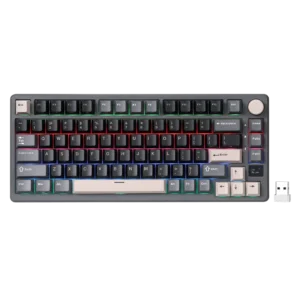
| Field | Details |
| Document Title | Mechanical Wireless Keyboard User Manual |
| Document Type | User Manual |
| Brand Name | Royal Kludge (RK) |
| Product Name | Mechanical Wireless Keyboard |
| Model Number(s) | RK-M75 (M75) |
| PDF File Size | 3.49 MiB |
| Total Number of Pages | 1 |
| Languages Covered in the Document | English, Russian |
Royal Kludge Mechanical Keyboard RK-M75
The Royal Kludge RK-M75 is an 81-key mechanical wireless keyboard featuring USB wired, Bluetooth, and 2.4GHz wireless connectivity. It includes a built-in display, clickable rotary knob, adjustable keyboard backlighting, and multifunction shortcut keys for controlling media playback and system functions.
The keyboard supports three Bluetooth device profiles and a 2.4GHz USB receiver. Its display shows connection status, battery level, Windows/Mac mode, and volume information. The rotary knob controls volume, switches between connection modes, and operates the on-screen menu.
The RK-M75 is available with single-color or RGB backlighting, depending on the product version. Its lighting controls allow brightness adjustment, effect switching, and animation speed changes.
The keyboard also supports Windows and Mac operating modes, multimedia shortcuts, Windows key locking, and a factory reset function.
Product Features
The Royal Kludge RK-M75 includes the following features:
- 81-key mechanical keyboard layout.
- USB Type-C wired connection.
- 2.4GHz wireless connectivity.
- Bluetooth connectivity with three device profiles.
- Built-in status display.
- Clickable rotary scroll knob.
- Volume adjustment through knob rotation.
- Battery percentage display.
- Windows and Mac operating modes.
- Single-color or RGB keyboard backlighting.
- Adjustable backlight brightness.
- Adjustable lighting effect speed.
- Backlight color switching on RGB versions.
- Multimedia shortcut keys.
- Windows key locking.
- Factory reset shortcut.
- USB receiver storage compartment.
- Driver software support for volume display functionality.
Technical Specifications
| Specification | Details |
| Brand | Royal Kludge (RK) |
| Model Number | RK-M75 |
| Product Type | Mechanical Wireless Keyboard |
| Keyboard Layout | 81 keys |
| Switch Type | Mechanical |
| Dimensions | 327.6 × 138.5 × 42 mm |
| Dimension Tolerance | ±2 mm |
| Wired Connection | USB Type-C |
| Wireless Connection | Bluetooth and 2.4GHz |
| Bluetooth Device Profiles | Three |
| Bluetooth Device Name | RK-M75 |
| Bluetooth System Requirement | Bluetooth 5.1 or later |
| Wireless Receiver | 2.4GHz USB dongle |
| Keyboard Backlighting | Single-color or RGB, depending on version |
| Display | Built-in status screen |
| Rotary Control | Clickable scroll knob |
| Operating System Modes | Windows and Mac |
| Recommended Charging Power | 5V, 1A |
| Factory Reset Shortcut | Fn + Spacebar |
| Driver Download | www.rkgaming.com/download/1 |
What’s Included in the Box
The product illustration identifies the following accessories and components.
| Item | Description |
| RK-M75 Mechanical Keyboard | Main keyboard unit |
| USB Type-C to USB-A Cable | Used for wired connection and charging |
| 2.4GHz USB Dongle | Wireless receiver stored in the keyboard’s designated compartment |
| User Manual | Product setup and operating instructions |
Parts and Components
The RK-M75 includes a compact mechanical key layout, connection controls, indicator lights, and a built-in display.
Main Keyboard Components
| Component | Function |
| Mechanical Keys | Provide keyboard input |
| Fn Key | Activates secondary keyboard functions |
| Function Keys F1–F12 | Provide standard and multimedia controls |
| Clickable Scroll Knob | Adjusts volume and operates connection settings |
| Display Screen | Shows battery, connection mode, volume, and system information |
| USB Type-C Interface | Provides wired connectivity and charging |
| 2.4GHz Dongle Storage Area | Stores the wireless USB receiver |
| Caps Lock Indicator | Displays Caps Lock status |
| Win Lock Indicator | Displays Windows key lock status |
| Scroll Lock Indicator | Displays Scroll Lock status |
| Arrow Keys | Provide directional input and backlight controls |
Keyboard Indicator Lights
The keyboard has three indicator lights near the right side of the main typing area.
| Indicator | Function |
| CAPS | Caps Lock |
| Win | Windows Lock |
| ScrLk | Scroll Lock |
These indicators provide information about the corresponding keyboard functions.
Connection Modes
The Royal Kludge RK-M75 supports three connection methods.
| Connection Mode | Connection Method |
| USB Wired | Connect the USB Type-C cable and select USB mode with the knob |
| Bluetooth | Select a Bluetooth profile and pair with a compatible device |
| 2.4GHz Wireless | Select 2.4G mode and connect the USB receiver |
The clickable scroll knob is used to select connection modes.
Using the Scroll Knob to Change Modes
- Briefly press the scroll knob to open the mode selection options.
- Rotate the knob to move through the available modes.
- Select USB, Bluetooth, or 2.4GHz.
- Briefly press the knob to confirm the selected option.
The display shows the selected connection mode and related status information.
How to Connect the RK-M75 in Wired Mode
The RK-M75 supports a wired connection using the supplied USB Type-C cable.
Wired Connection Instructions
- Locate the USB Type-C connection on the keyboard.
- Connect the Type-C end of the cable to the keyboard.
- Connect the USB-A end to an available USB port on the computer.
- Briefly press the scroll knob to open connection mode selection.
- Rotate the knob until USB mode is selected.
- Press the knob to confirm.
- Use the keyboard through the wired USB connection.
USB Interface and Charging
The manual identifies the keyboard’s Type-C hub interface for the wired connection.
It also recommends using a rated 5V, 1A power source for charging the keyboard.
How to Use the Clickable Scroll Knob
The RK-M75 includes a multifunction rotary knob at the upper-right corner of the keyboard.
The knob controls power, volume, and connection modes.
Scroll Knob Functions
| Knob Action | Function |
| Press and hold for 3 seconds on the Home screen | Turn keyboard power on or off |
| Rotate clockwise on the Home screen | Increase volume |
| Rotate counterclockwise on the Home screen | Decrease volume |
| Short press on the Home screen | Open connection mode selection |
| Rotate inside the mode menu | Select a mode |
| Short press inside the mode menu | Confirm the selection |
Turning the Keyboard On or Off
Press and hold the clickable scroll knob for approximately 3 seconds while on the Home screen.
This activates the keyboard’s power on/off function.
Adjusting Volume
On the Home screen:
- Rotate the knob clockwise to increase volume.
- Rotate the knob counterclockwise to decrease volume.
Selecting a Connection Mode
- Briefly press the knob.
- Rotate it to the required connection mode.
- Briefly press the knob again to confirm.
Built-In Display and Status Information
The RK-M75 screen displays keyboard operation and connection information.
Display Information
| Display Information | Function |
| Battery Level | Shows the remaining battery percentage |
| WIN/MAC | Shows the selected operating system layout |
| Wired Mode | Identifies USB connection |
| 2.4G Mode | Identifies 2.4GHz wireless connection |
| BT Mode | Identifies Bluetooth connection |
| Volume Level | Shows the volume setting when supported by the driver |
Battery Percentage
The display includes a battery icon and percentage indicator.
The battery status is shown directly on the keyboard screen.
Windows and Mac Status
The screen indicates whether Windows or Mac mode is selected.
The keyboard’s operating mode can also be changed using Fn shortcuts.
Volume Display
The manual specifies that the on-screen volume level function requires the keyboard driver.
The driver can be downloaded from the manufacturer’s website.
How to Connect the RK-M75 via Bluetooth
The RK-M75 supports three Bluetooth device profiles.
These profiles allow different Bluetooth devices to be saved and selected using the scroll knob.
Bluetooth Profiles
| Profile | Function |
| BT1 | First Bluetooth device |
| BT2 | Second Bluetooth device |
| BT3 | Third Bluetooth device |
Bluetooth Pairing Instructions
- Briefly press the scroll knob to open the connection mode menu.
- Rotate the knob until BT1 is selected.
- Press and hold the knob to enter Bluetooth pairing mode.
- The keyboard display shows BT Pairing.
- Turn on Bluetooth on the computer, smartphone, or other compatible device.
- Open the device’s Bluetooth settings.
- Search for the keyboard named RK-M75.
- Select RK-M75 to complete the connection.
After pairing is successful, the keyboard is ready for Bluetooth operation.
How to Pair Another Bluetooth Device
The same procedure can be repeated for BT2 and BT3.
- Open the connection mode menu.
- Rotate the knob to select BT2 or BT3.
- Press and hold the knob to enter pairing mode.
- Enable Bluetooth on the new device.
- Search for RK-M75.
- Complete the connection.
How to Switch Between Bluetooth Devices
After pairing the desired Bluetooth devices:
- Briefly press the scroll knob.
- Rotate it to the required Bluetooth profile.
- Press the knob to select the profile.
- Wait while the keyboard reconnects.
The display shows BT Re-Link during reconnection.
Important: The manual recommends pairing the intended Bluetooth devices before switching between the saved profiles.
How to Connect the RK-M75 Using 2.4GHz Wireless
The RK-M75 supports 2.4GHz wireless operation through its USB receiver.
The receiver is stored in a designated compartment on the keyboard.
2.4GHz Connection Instructions
- Locate the 2.4GHz USB dongle.
- Insert the receiver into an available USB port on the computer.
- Briefly press the keyboard’s scroll knob to open the connection mode menu.
- Rotate the knob to select 2.4G.
- Press the knob to confirm.
- Wait for the keyboard to connect through the receiver.
The display shows 2.4G Re-Link while attempting to reconnect.
How to Pair the 2.4GHz Dongle Again
The keyboard and receiver are paired at the factory.
If pairing needs to be performed again:
- Briefly press the scroll knob to open connection mode selection.
- Rotate the knob to 2.4G.
- Press and hold the knob to enter 2.4GHz pairing mode.
- The screen displays 2.4G Pairing.
- Insert the 2.4GHz USB receiver into the computer.
- Wait for the pairing process to complete.
- After successful pairing, the keyboard returns to its Home screen.
Note: The manual states that the receiver is factory-paired, so pairing is normally unnecessary during regular use.
Keyboard Backlight Controls
The RK-M75 supports adjustable backlight brightness and animation speed.
RGB versions also support color switching.
Backlight Shortcut Keys
| Shortcut | Function |
| Fn + ↑ | Increase backlight brightness |
| Fn + ↓ | Decrease backlight brightness |
| Fn + ← | Decrease backlight effect speed |
| Fn + → | Increase backlight effect speed |
| Fn + , | Switch backlight color on RGB versions |
| Fn + \ | Switch backlight mode |
| Fn + Spacebar | Restore factory settings |
| Fn + Win | Lock or unlock the Windows key |
How to Increase Backlight Brightness
Press Fn + ↑ to increase keyboard backlight brightness.
How to Decrease Backlight Brightness
Press Fn + ↓ to decrease backlight brightness.
How to Change Backlight Effects
Press Fn + \ to switch between the available backlight modes.
How to Change Backlight Color
On RGB versions, press Fn + , to change the keyboard backlight color.
How to Adjust Lighting Animation Speed
Press Fn + → to increase animation speed.
Press Fn + ← to decrease animation speed.
Windows and Mac Operating Modes
The keyboard supports Windows and Mac layouts.
Operating Mode Shortcuts
| Shortcut | Function |
| Fn + A | Switch to Windows mode |
| Fn + S | Switch to Mac mode |
Switching to Windows Mode
Press Fn + A to activate the Windows keyboard layout.
The keyboard’s display indicates the selected operating mode.
Switching to Mac Mode
Press Fn + S to activate the Mac keyboard layout.
Mac multimedia functions are accessed through the function keys according to the manual’s Mac layout.
Windows Multimedia Shortcut Keys
In Windows mode, the RK-M75 provides multimedia shortcuts through the Fn key and F1–F12 keys.
Windows Multimedia Functions
| Shortcut | Function |
| Fn + F1 | Computer |
| Fn + F2 | Browser |
| Fn + F3 | Mailbox |
| Fn + F4 | Calculator |
| Fn + F5 | Media Player |
| Fn + F6 | Stop |
| Fn + F7 | Previous Track |
| Fn + F8 | Play/Pause |
| Fn + F9 | Next Track |
| Fn + F10 | Mute |
| Fn + F11 | Volume Down |
| Fn + F12 | Volume Up |
Opening Windows Applications
The Windows multimedia shortcuts provide access to several commonly used applications.
| Action | Shortcut |
| Computer | Fn + F1 |
| Browser | Fn + F2 |
| Mailbox | Fn + F3 |
| Calculator | Fn + F4 |
| Media Player | Fn + F5 |
Windows Media Playback Controls
| Action | Shortcut |
| Stop Playback | Fn + F6 |
| Previous Track | Fn + F7 |
| Play/Pause | Fn + F8 |
| Next Track | Fn + F9 |
Windows Volume Controls
| Action | Shortcut |
| Mute | Fn + F10 |
| Decrease Volume | Fn + F11 |
| Increase Volume | Fn + F12 |
Mac Multimedia Shortcut Keys
In Mac mode, the manual assigns multimedia functions directly to the corresponding F1–F12 keys.
Mac Multimedia Functions
| Key | Function |
| F1 | Decrease screen brightness |
| F2 | Increase screen brightness |
| F5 | Decrease keyboard backlight brightness |
| F6 | Increase keyboard backlight brightness |
| F7 | Previous Track |
| F8 | Play/Pause |
| F9 | Next Track |
| F10 | Mute |
| F11 | Volume Down |
| F12 | Volume Up |
Mac Screen Brightness Controls
Press F1 to decrease screen brightness.
Press F2 to increase screen brightness.
Mac Keyboard Backlight Controls
Press F5 to decrease keyboard backlight brightness.
Press F6 to increase keyboard backlight brightness.
Mac Media Playback Controls
| Key | Function |
| F7 | Previous Track |
| F8 | Play/Pause |
| F9 | Next Track |
Mac Volume Controls
| Key | Function |
| F10 | Mute |
| F11 | Volume Down |
| F12 | Volume Up |
Special Function Keys
The RK-M75 provides additional system and navigation functions through Fn combinations.
Special Function Shortcut Table
| Shortcut | Function |
| Fn + Delete | Scroll Lock (ScrLk) |
| Fn + Home | Print Screen (PrtSc) |
| Fn + Page Up | Pause |
| Fn + Page Down | End |
| Fn + ] | Insert (Ins) |
| Fn + A | Windows mode |
| Fn + S | Mac mode |
Using Scroll Lock
Press Fn + Delete to activate Scroll Lock.
Using Print Screen
Press Fn + Home to activate Print Screen.
Using Pause
Press Fn + Page Up to activate Pause.
Using End
Press Fn + Page Down to activate End.
Using Insert
Press Fn + ] to activate Insert.
Windows Key Lock
The RK-M75 includes a Windows key locking function.
Windows Lock Shortcut
Press Fn + Win to lock or unlock the Windows key.
The Win indicator provides the keyboard’s lock status.
How to Factory Reset the RK-M75
The keyboard includes a shortcut for restoring its default settings.
Factory Reset Instructions
- Locate the Fn key.
- Press Fn + Spacebar together.
- The keyboard activates the restore-to-factory-settings function.
This shortcut is identified in the manual’s Backlight Control section.
System Requirements and Compatibility
The RK-M75 supports different system requirements for Bluetooth and wired/2.4GHz operation.
Bluetooth Mode Requirements
| Platform | Minimum Requirement |
| Bluetooth Device | Bluetooth 5.1 or later |
| Windows PC | Windows 7 or later |
| Mac | macOS X 10.6 Snow Leopard or later |
| iOS | iPad or iPhone 5 or later |
| Android | Android 5.0 Lollipop or later |
Wired and 2.4GHz Mode Requirements
| Platform | Minimum Requirement |
| Computer Connection | Available USB port |
| Windows PC | Windows 7 or later |
| Mac | macOS X 10.6 Snow Leopard or later |
The required system compatibility should be considered when selecting the connection method.
Driver Download and Software Support
Royal Kludge provides a driver download address for the RK-M75.
Driver Download Information
| Resource | Details |
| Brand | Royal Kludge |
| Driver Download | www.rkgaming.com/download/1 |
| Driver-Related Feature | Volume level display |
The manual specifies that the volume level display on the keyboard screen can only be used with the driver.
Connection Status and Display Messages
The screen displays connection information while selecting and pairing wireless modes.
Status Message Guide
| Display Message | Meaning |
| BT Pairing | Keyboard is in Bluetooth pairing mode |
| BT Re-Link | Keyboard is reconnecting to a Bluetooth device |
| 2.4G Pairing | Keyboard is in 2.4GHz receiver pairing mode |
| 2.4G Re-Link | Keyboard is reconnecting through the 2.4GHz receiver |
| USB | Wired connection mode |
| WIN | Windows operating mode |
| MAC | Mac operating mode |
Bluetooth Pairing Message
When a Bluetooth profile is selected and pairing is activated, the display shows BT Pairing.
Bluetooth Reconnection Message
When switching to a previously paired Bluetooth device, the display shows BT Re-Link.
2.4GHz Pairing Message
When the keyboard enters receiver pairing mode, the display shows 2.4G Pairing.
2.4GHz Reconnection Message
When the keyboard reconnects through its 2.4GHz receiver, the display shows 2.4G Re-Link.
Troubleshooting Guide
The following procedures address connection selection, pairing, display settings, and keyboard controls using the functions described in the manual.
RK-M75 Troubleshooting Table
| Problem or Situation | Recommended Procedure |
| Wired connection is required | Connect the USB Type-C cable and select USB mode using the knob |
| Bluetooth pairing is required | Select BT1, BT2, or BT3 and hold the knob to enter pairing mode |
| Need to switch Bluetooth devices | Select a previously paired Bluetooth profile with the knob |
| 2.4GHz connection is required | Insert the USB receiver and select 2.4G mode |
| 2.4GHz dongle needs pairing again | Hold the knob in 2.4G mode and insert the USB receiver |
| Volume display is not available | Use the Royal Kludge driver for volume level display functionality |
| Windows shortcuts are required | Press Fn + A |
| Mac shortcuts are required | Press Fn + S |
| Backlight is too dim | Press Fn + ↑ |
| Backlight animation is too fast | Press Fn + ← |
| Backlight animation is too slow | Press Fn + → |
| Windows key is locked | Press Fn + Win |
| Keyboard settings need to be restored | Press Fn + Spacebar |
Bluetooth Keyboard Not Connected
To enter Bluetooth pairing mode again:
- Briefly press the scroll knob.
- Select the required Bluetooth profile.
- Press and hold the knob.
- Wait for the BT Pairing message.
- Open Bluetooth settings on the computer or other device.
- Select RK-M75.
Switching to Another Bluetooth Device
- Briefly press the scroll knob.
- Rotate to the required saved Bluetooth profile.
- Confirm the selection.
- Wait while BT Re-Link is displayed.
The manual recommends pairing the three intended Bluetooth groups before switching between them.
2.4GHz Connection Needs to Be Paired Again
- Open the connection mode selection menu.
- Rotate the knob to 2.4G.
- Press and hold the knob to activate pairing.
- Confirm that 2.4G Pairing appears.
- Insert the USB receiver into the computer.
- Wait for the pairing process to complete.
The keyboard and receiver are normally paired at the factory.
Windows or Mac Shortcuts Not Matching the System
Select the correct keyboard layout:
- Fn + A: Windows.
- Fn + S: Mac.
Volume Level Not Displayed
The manual specifies that the on-screen volume level function requires the keyboard driver.
The software is available through the Royal Kludge download page.
Restoring the Default Keyboard Settings
Press Fn + Spacebar to activate the factory reset function.
FCC Compliance Information
The RK-M75 complies with Part 15 of the FCC Rules.
Operation is subject to two conditions:
- The keyboard must not cause harmful interference.
- The keyboard must accept any received interference, including interference that may cause undesired operation.
The manual identifies the device as meeting the Class B digital device limits under FCC Part 15.
Radio Interference Precautions
If the keyboard causes harmful interference to radio or television reception, the following actions may help:
- Reorient or relocate the receiving antenna.
- Increase the distance between the keyboard and receiving equipment.
- Connect the equipment to an outlet on a different circuit.
- Consult the dealer or an experienced radio/television technician.
FCC Radio-Frequency Exposure
The manual states that the device meets the general radio-frequency exposure requirements and can be used under portable exposure conditions without restriction.
Warning: Unauthorized modifications may void the user’s authority to operate the equipment.
Customer Support and Software Resources
Royal Kludge provides an official download page for keyboard driver software.
| Support Resource | Details |
| Brand | Royal Kludge (RK) |
| Product Model | RK-M75 |
| Driver Download | www.rkgaming.com/download/1 |
| Regulatory Compliance | FCC Part 15 |
Frequently Asked Questions
1. How do I connect the Royal Kludge RK-M75 using Bluetooth?
Briefly press the scroll knob, select BT1, BT2, or BT3, and press and hold the knob to enter pairing mode. When BT Pairing appears, enable Bluetooth on the computer or device, search for RK-M75, and complete the connection.
2. How do I connect the RK-M75 using the 2.4GHz USB receiver?
Insert the USB receiver into the computer, briefly press the scroll knob, and select 2.4G mode. The keyboard uses the factory-paired receiver for wireless operation. If pairing is required again, hold the knob in 2.4G mode until 2.4G Pairing appears.
3. How do I switch between Bluetooth devices on the RK-M75?
The keyboard supports three Bluetooth profiles: BT1, BT2, and BT3. Briefly press the scroll knob, rotate it to the required saved profile, and confirm. The display shows BT Re-Link during reconnection.
4. How do I adjust the volume using the RK-M75 scroll knob?
On the Home screen, rotate the knob clockwise to increase volume or counterclockwise to decrease volume. The manual specifies that displaying the volume level on the keyboard screen requires the Royal Kludge driver.
5. How do I change the RK-M75 keyboard backlight?
Press Fn + \ to change backlight effects. Use Fn + ↑/↓ to change brightness, Fn + ←/→ to adjust animation speed, and Fn + , to change the backlight color on RGB versions.
6. How do I switch the RK-M75 between Windows and Mac mode?
Press Fn + A to select Windows mode or Fn + S to select Mac mode. The keyboard screen displays the selected operating system layout.
7. How do I reset the Royal Kludge RK-M75 keyboard?
Press Fn + Spacebar to activate the restore-to-factory-settings function. This shortcut is identified in the manual’s keyboard backlight control section.
8. What are the minimum system requirements for the RK-M75?
Bluetooth mode requires a device with Bluetooth 5.1 or later. Supported systems include Windows 7 or later, macOS X 10.6 or later, iOS devices from iPhone 5 onward, and Android 5.0 or later. Wired and 2.4GHz operation require an available USB port and support Windows 7 or later or macOS X 10.6 or later.