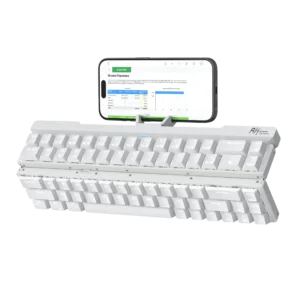
| Field | Details |
| Document Title | Mechanical Keyboard User Manual |
| Document Type | User Manual |
| Brand Name | Royal Kludge (RK) |
| Product Name | F68 Mechanical Keyboard |
| Model Number(s) | F68 |
| PDF File Size | 5.71 MB |
| Total Number of Pages | 1 |
| Languages Covered | English |
Royal Kludge F68 Mechanical Keyboard
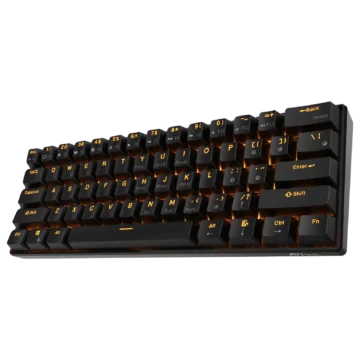
The Royal Kludge F68 is a compact 68-key mechanical keyboard featuring LED backlighting, Bluetooth wireless connectivity, and a USB Type-C wired connection. Its compact layout includes dedicated arrow keys, a number row, and secondary functions for navigation, multimedia playback, and system controls.
The F68 measures 306 × 119 × 21.6 mm and uses mechanical switches. It includes three Bluetooth device profiles, allowing the keyboard to pair with and switch between compatible devices using the Fn + Q, Fn + W, and Fn + E shortcuts.
The keyboard features three backlighting modes with adjustable brightness and effect speed. Fn shortcuts also provide F1–F12 functions, Windows and Mac multimedia controls, Windows key locking, and factory reset.
A built-in rechargeable battery powers wireless operation. The keyboard uses indicator lights to show charging, full battery, low battery, Bluetooth pairing, and reconnection status.
The following instructions cover the F68 keyboard’s components, wired connection, Bluetooth pairing, battery charging, LED backlighting, function-key combinations, Windows and Mac modes, system requirements, and regulatory information.
Technical Specifications
| Specification | Details |
| Brand | Royal Kludge (RK) |
| Model | F68 |
| Product Type | Mechanical Keyboard |
| Keyboard Layout | 68 Keys |
| Length | 306 mm |
| Width | 119 mm |
| Height | 21.6 mm |
| Dimension Tolerance | ±2 mm |
| Switch Type | Mechanical Switches |
| Backlighting | LED |
| Backlighting Modes | 3 |
| Connection Modes | USB Wired, Bluetooth |
| Wired Connection | USB Type-C |
| Bluetooth Profiles | 3 |
| Bluetooth Requirement | Bluetooth 3.0 or Later |
| Battery | Rechargeable |
| Recommended Charging Power | 5V, 1A |
| Operating System Layouts | Windows and Mac |
| Function Keys | F1–F12 Through Fn Combinations |
| Windows Key Lock | Supported |
| Factory Reset | Fn + Spacebar |
What’s Included in the Box
The Royal Kludge F68 package includes the keyboard and accessories shown in the product illustration.
| Item | Description |
| F68 Mechanical Keyboard | Main 68-key keyboard |
| USB Type-C Cable | Used for wired operation and charging |
| User Manual | Product setup and operating instructions |
Keyboard Parts and Components
The F68 uses a 68-key layout with a dedicated arrow-key section and several secondary functions.
Main Keyboard Components
| Component | Function |
| Mechanical Keys | Provide typing and command input |
| Fn Key | Activates secondary keyboard functions |
| Number Keys | Provide numerical input and F1–F12 functions |
| Q, W, and E Keys | Select Bluetooth profiles when used with Fn |
| Arrow Keys | Provide directional input and backlight adjustments |
| USB Type-C Port | Provides wired connection and charging |
| ON/OFF Switch | Controls wireless power |
| Indicator Light | Shows charging and Bluetooth connection status |
| Backlight Mode Key | Switches between three LED backlighting modes |
| Windows Key | Supports the Windows Lock function |
| Spacebar | Used with Fn to restore factory settings |
| Folding Brackets | Provide adjustable keyboard support |
Keyboard Layout
The F68 includes standard letter and number keys, modifier keys, dedicated arrow keys, and navigation keys.
Several keycaps show additional functions that can be activated using the Fn key.
Folding Brackets
The keyboard includes folding brackets on its underside.
The brackets can be used to adjust the keyboard’s position on a suitable surface.
Before First Use
The keyboard supports wired USB and Bluetooth wireless operation.
Initial Setup Instructions
- Remove the keyboard, USB Type-C cable, and user manual from the packaging.
- Place the keyboard on a stable surface.
- Locate the ON/OFF switch and USB Type-C port.
- Connect the USB cable if charging or wired operation is required.
- Select Bluetooth operation using the power switch when connecting wirelessly.
- Choose the appropriate Windows or Mac keyboard layout.
USB Wired Connection
The Royal Kludge F68 can connect directly to a computer through its USB Type-C port.
How to Connect the F68 in Wired Mode
- Locate the USB Type-C port on the keyboard.
- Connect the Type-C end of the supplied cable to the keyboard.
- Insert the USB-A end into an available USB port on the computer.
- Use the keyboard through the wired USB connection.
The USB Type-C connector is also used for charging the keyboard’s rechargeable battery.
Battery Charging Instructions
The F68 includes a rechargeable battery for wireless operation.
The manufacturer recommends using a 5V, 1A rated power source to charge the keyboard.
How to Charge the F68
- Connect the USB Type-C cable to the keyboard.
- Connect the opposite end to a suitable 5V, 1A power source.
- Check the keyboard’s charging indicator.
- Allow the keyboard to charge until the charging indicator turns off.
Charging and Battery Indicator Lights
| Indicator Behavior | Meaning |
| Solid Red Light | Battery Is Charging |
| Red Light Off | Battery Fully Charged |
| Flashing Red Light | Low Battery |
| Rapidly Flashing Blue Light | Bluetooth Pairing Mode |
| Slowly Flashing Blue Light | Bluetooth Reconnection Status |
Low-Battery Warning
When the battery becomes low, the keyboard indicator flashes red.
The keyboard can be connected to a suitable USB power source for charging.
Fully Charged Indicator
The charging indicator turns off when the battery reaches a full charge.
How to Connect the F68 Using Bluetooth
The F68 supports Bluetooth wireless operation with compatible computers, tablets, and mobile devices.
Three Bluetooth profiles are available through the Q, W, and E keys.
Bluetooth Profile Shortcuts
| Shortcut | Bluetooth Profile |
| Fn + Q | Bluetooth Profile 1 |
| Fn + W | Bluetooth Profile 2 |
| Fn + E | Bluetooth Profile 3 |
Bluetooth Pairing Instructions
- Move the keyboard’s ON/OFF switch to ON.
- Select one of the three Bluetooth profiles.
- Press and hold Fn + Q, Fn + W, or Fn + E to enter pairing mode.
- Confirm that the blue indicator light flashes rapidly.
- Enable Bluetooth on the computer, tablet, or other compatible device.
- Open the device’s Bluetooth settings.
- Search for the available keyboard connection.
- Select the keyboard and complete pairing through the host device.
Bluetooth Pairing and Reconnection
The three Bluetooth shortcuts have different functions depending on how they are pressed.
| Key Action | Function |
| Short Press Fn + Q | Switch to Bluetooth Profile 1 |
| Short Press Fn + W | Switch to Bluetooth Profile 2 |
| Short Press Fn + E | Switch to Bluetooth Profile 3 |
| Long Press Fn + Q | Enter Profile 1 Pairing Mode |
| Long Press Fn + W | Enter Profile 2 Pairing Mode |
| Long Press Fn + E | Enter Profile 3 Pairing Mode |
Bluetooth Pairing Indicator
A rapidly flashing blue light indicates that the keyboard is in wireless pairing mode.
A slowly flashing blue light indicates that the keyboard is attempting to reconnect.
Switching Between Three Bluetooth Devices
The F68 supports switching between three saved Bluetooth connections.
To switch between paired devices:
- Keep the keyboard powered on.
- Briefly press Fn + Q, Fn + W, or Fn + E.
- The keyboard switches to the corresponding Bluetooth profile.
The three Bluetooth profiles should be paired with their intended devices before switching between them.
LED Backlight Controls
The Royal Kludge F68 includes LED backlighting with adjustable brightness, animation speed, and three lighting modes.
Backlight Shortcut Table
| Shortcut | Function |
| Fn + Up Arrow | Increase Backlight Brightness |
| Fn + Down Arrow | Decrease Backlight Brightness |
| Fn + Right Arrow | Increase Backlight Effect Speed |
| Fn + Left Arrow | Decrease Backlight Effect Speed |
| Fn + Backslash (\) | Switch Between Three Backlighting Modes |
How to Adjust Backlight Brightness
The keyboard’s lighting brightness can be changed using the vertical arrow keys.
- Fn + Up Arrow: Increases the backlight brightness.
- Fn + Down Arrow: Decreases the backlight brightness.
How to Adjust Backlight Effect Speed
The horizontal arrow keys control the speed of the selected lighting effect.
- Fn + Right Arrow: Increases the lighting-effect speed.
- Fn + Left Arrow: Decreases the lighting-effect speed.
How to Switch Backlight Modes
Press Fn + Backslash (\) to switch between the keyboard’s three available backlighting modes.
Secondary Function Keys
The F68 includes additional system and navigation functions through Fn combinations.
Secondary Function Shortcut Table
| Shortcut | Function |
| Fn + Insert | Print Screen |
| Fn + Delete | Pause |
| Fn + Page Up | Home |
| Fn + Page Down | End |
| Fn + Right Bracket (]) | Scroll Lock |
| Fn + Esc | Grave Accent / Tilde |
| Fn + A | Switch to Windows Mode |
| Fn + S | Switch to Mac Mode |
Print Screen
Press Fn + Insert to activate the Print Screen function.
Pause
Press Fn + Delete to activate Pause.
Home and End
| Shortcut | Function |
| Fn + Page Up | Home |
| Fn + Page Down | End |
Scroll Lock
Press Fn + Right Bracket (]) to activate Scroll Lock.
Grave Accent and Tilde
Press Fn + Esc to access the grave accent or tilde function.
F1–F12 Function Keys
The F68 uses its number row to provide the standard F1–F12 functions.
Function Key Shortcut Table
| Shortcut | Function |
| Fn + 1 | F1 |
| Fn + 2 | F2 |
| Fn + 3 | F3 |
| Fn + 4 | F4 |
| Fn + 5 | F5 |
| Fn + 6 | F6 |
| Fn + 7 | F7 |
| Fn + 8 | F8 |
| Fn + 9 | F9 |
| Fn + 0 | F10 |
| Fn + Minus (-) | F11 |
| Fn + Equals (=) | F12 |
These shortcuts provide the standard function-key commands without a separate physical F1–F12 row.
Switching Between Number Keys and Function Keys
The F68 allows the first-row number keys and F1–F12 functions to be switched.
Function Switching Shortcut
Press Fn + Left Ctrl.
This changes the primary and secondary function arrangement of the number row.
The function is supported in both Windows and Mac keyboard modes.
Windows and Mac Keyboard Modes
The Royal Kludge F68 supports separate operating system layouts.
System Mode Shortcuts
| Shortcut | Function |
| Fn + A | Switch to Windows Mode |
| Fn + S | Switch to Mac Mode |
Switching to Windows Mode
Press Fn + A to select the Windows keyboard layout.
Switching to Mac Mode
Press Fn + S to select the Mac keyboard layout.
The selected mode determines the keyboard’s multimedia function assignments.
Windows Multimedia Shortcuts
When Windows mode is selected, the F68 provides application, playback, and volume controls.
The functions are assigned to F1–F12, which are accessed through the number-row combinations or the appropriate function-switching mode.
Windows Multimedia Function Table
| Function Key Shortcut | Function |
| Fn + F1 | Computer |
| Fn + F2 | Browser |
| Fn + F3 | Mailbox |
| Fn + F4 | Calculator |
| Fn + F5 | Media Player |
| Fn + F6 | Stop Playback |
| Fn + F7 | Previous Track |
| Fn + F8 | Play/Pause |
| Fn + F9 | Next Track |
| Fn + F10 | Mute |
| Fn + F11 | Decrease Volume |
| Fn + F12 | Increase Volume |
Windows Application Controls
The first five multimedia function assignments provide access to common computer applications.
| Function | Application |
| F1 Multimedia Function | Computer |
| F2 Multimedia Function | Browser |
| F3 Multimedia Function | Mailbox |
| F4 Multimedia Function | Calculator |
| F5 Multimedia Function | Media Player |
Windows Music Playback Controls
The keyboard provides playback commands through the F6–F9 multimedia functions.
| Function | Action |
| F6 Multimedia Function | Stop |
| F7 Multimedia Function | Previous Track |
| F8 Multimedia Function | Play/Pause |
| F9 Multimedia Function | Next Track |
Windows Volume Controls
The F10–F12 multimedia functions control audio.
| Function | Action |
| F10 Multimedia Function | Mute |
| F11 Multimedia Function | Decrease Volume |
| F12 Multimedia Function | Increase Volume |
Mac Multimedia Shortcuts
When Mac mode is selected, the F68 provides screen brightness, keyboard backlighting, media playback, and volume functions.
Mac Multimedia Function Table
| Function Key Shortcut | Function |
| Fn + F1 | Decrease Screen Brightness |
| Fn + F2 | Increase Screen Brightness |
| Fn + F5 | Decrease Keyboard Backlight Brightness |
| Fn + F6 | Increase Keyboard Backlight Brightness |
| Fn + F7 | Previous Track |
| Fn + F8 | Play/Pause |
| Fn + F9 | Next Track |
| Fn + F10 | Mute |
| Fn + F11 | Decrease Volume |
| Fn + F12 | Increase Volume |
Mac Screen Brightness
The first two multimedia function assignments control display brightness.
- F1: Decreases screen brightness.
- F2: Increases screen brightness.
Mac Keyboard Backlight Brightness
The F5 and F6 multimedia functions control keyboard illumination.
- F5: Decreases keyboard backlight brightness.
- F6: Increases keyboard backlight brightness.
Mac Music Playback and Volume
The F7–F12 multimedia functions provide previous track, play/pause, next track, mute, volume down, and volume up controls.
Windows Key Lock
The F68 includes a Windows key lock function.
How to Lock the Windows Key
Use the Fn + Win combination to control the Windows key lock function.
The Windows key includes a lock symbol to identify this secondary function.
How to Restore Factory Settings
The F68 supports restoring its default keyboard settings.
Factory Reset Instructions
- Locate the Fn key and Spacebar.
- Press Fn + Spacebar.
- The keyboard restores its factory settings.
| Function | Shortcut |
| Restore Factory Settings | Fn + Spacebar |
System Requirements and Compatibility
The F68 supports different operating systems depending on the selected connection method.
Bluetooth System Requirements
| Platform | Requirement |
| Bluetooth Hardware | Bluetooth 3.0 or Later |
| Windows PC | Windows 7 or Later |
| Mac | Mac OS X 10.6 Snow Leopard or Later |
| iOS | iPads / iPhone 5 or Later |
| Android | Android 5.0 Lollipop or Later |
Wired USB System Requirements
| Platform | Requirement |
| Computer | Available USB Port |
| Windows PC | Windows 7 or Later |
| Mac | Mac OS X 10.6 Snow Leopard or Later |
Connection and Indicator Troubleshooting
The keyboard’s indicator lights and Fn shortcuts can be used to identify Bluetooth connection and battery conditions.
Troubleshooting Guide
| Problem or Indicator | Relevant Action or Meaning |
| Bluetooth Device Needs Pairing | Turn the keyboard on and long-press Fn + Q, W, or E |
| Previously Paired Device Needs Reconnection | Briefly press Fn + Q, W, or E |
| Blue Indicator Flashes Rapidly | Wireless Pairing Mode |
| Blue Indicator Flashes Slowly | Reconnection Status |
| Red Indicator Remains On | Battery Charging |
| Red Indicator Turns Off After Charging | Battery Fully Charged |
| Red Indicator Flashes | Low Battery |
| Wired Mode Required | Connect the USB Type-C cable to the computer |
| Backlight Mode Needs Changing | Press Fn + Backslash |
| Keyboard Settings Need Restoring | Press Fn + Spacebar |
FCC Compliance and Safety Information
The F68 complies with Part 15 of the FCC Rules.
Operation is subject to two conditions:
- The device must not cause harmful interference.
- The device must accept received interference, including interference that may affect its normal operation.
The keyboard has been tested against the applicable Class B digital device limits.
Reducing Radio Interference
If the equipment causes interference to radio or television reception, the following actions may help:
- Reorient or relocate the receiving antenna.
- Increase the distance between the equipment and receiver.
- Connect the equipment to an outlet on a different electrical circuit.
- Consult a dealer or experienced radio/TV technician.
Radio-Frequency Exposure
The equipment has been evaluated against general radio-frequency exposure requirements.
It may be used under the portable exposure conditions described in the FCC regulatory statement.
Unauthorized changes or modifications may void the user’s authority to operate the equipment.
California Proposition 65 Warning
The product includes a California Proposition 65 warning about potential exposure to chemicals associated with cancer, birth defects, or other reproductive harm.
Additional information is available at:
https://www.p65warnings.ca.gov
Royal Kludge F68 Driver Download
Royal Kludge provides a driver download resource for compatible keyboard products.
Driver Download Address
https://www.rkgaming.com/download/1
Customer Support Information
Royal Kludge provides product support through its seller and official website.
Support Details
| Field | Information |
| Brand | Royal Kludge (RK) |
| Product | F68 Mechanical Keyboard |
| Official Website | www.rkgaming.com |
| Driver Download | www.rkgaming.com/download/1/ |
| Support Contact | Product Seller |
| Country of Manufacture | China |
| Executive Standard | GB/T 14081-2010 |
| Document Number | 166-92501-05 |
For product issues or questions, customers should contact the seller.
Frequently Asked Questions
1. How do I connect the Royal Kludge F68 using Bluetooth?
Move the power switch to ON, then press and hold Fn + Q, Fn + W, or Fn + E to enter the selected Bluetooth pairing mode. Enable Bluetooth on the host device and complete pairing through its Bluetooth settings.
2. How do I switch between Bluetooth devices on the F68?
The keyboard supports three Bluetooth profiles. Briefly press Fn + Q, Fn + W, or Fn + E to switch to the corresponding previously paired device.
3. How do I use the F68 in wired mode?
Connect the supplied USB Type-C cable to the keyboard and the USB-A end to an available USB port on the computer.
4. What do the F68 indicator lights mean?
A solid red light indicates charging, and the red light turns off when the battery is fully charged. A flashing red light indicates low battery. Rapid blue flashing indicates Bluetooth pairing, while slow blue flashing indicates reconnection.
5. How do I change the F68 keyboard backlight settings?
Press Fn + Backslash to switch between the three LED backlighting modes. Use Fn + Up/Down Arrow to adjust brightness and Fn + Right/Left Arrow to change lighting-effect speed.
6. How do I use F1–F12 on the Royal Kludge F68?
Press Fn with the corresponding number-row key. Fn + 1 through Fn + 0 provide F1–F10, while Fn + Minus provides F11 and Fn + Equals provides F12. Fn + Left Ctrl switches the number-row function arrangement.
7. How do I switch the F68 between Windows and Mac modes?
Press Fn + A to select Windows mode or Fn + S to select Mac mode.
8. How do I reset the Royal Kludge F68 keyboard?
Press Fn + Spacebar to restore the keyboard’s factory settings.