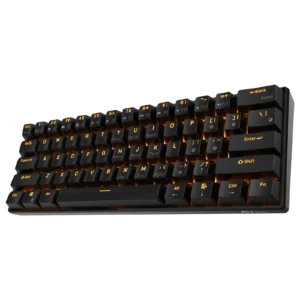
| Field | Details |
| Document Title | Mechanical Wireless Keyboard User Manual |
| Document Type | User Manual |
| Brand Name | Royal Kludge (RK) |
| Product Name | Mechanical Wireless Keyboard |
| Model Number(s) | RK61DE (identified by the supplied PDF filename; the document uses the general product name Mechanical Wireless Keyboard) |
| PDF File Size | 17.76 MB |
| Number of Pages | 1 |
| Languages Covered | English, German and Japanese |
Royal Kludge Mechanical Wireless Keyboard RK61DE
The Royal Kludge RK61DE is a compact 61-key mechanical wireless keyboard featuring LED backlighting and three connection modes: USB wired, Bluetooth and 2.4GHz wireless. Its 60% keyboard layout provides standard typing keys along with secondary functions for navigation, multimedia playback and system controls.
The RK61DE measures 291 × 101 × 39.5 mm and uses mechanical switches. It includes a USB Type-C connection for wired operation and charging, an ON/OFF switch for wireless power and a separate B/G switch for selecting Bluetooth or 2.4GHz wireless mode.
Bluetooth operation supports three device profiles, allowing the keyboard to switch between paired devices using Fn + Q, Fn + W and Fn + E. The 2.4GHz connection uses a compatible USB receiver connected to the host computer.
The keyboard also provides adjustable LED backlighting, with shortcuts for changing lighting modes, brightness and effect speed. RGB versions additionally support backlight color switching.
The RK61DE supports Windows and Mac keyboard layouts, F1–F12 function-key combinations, arrow-key mode, multimedia controls, Windows key locking and a factory reset shortcut.
Technical Specifications
| Specification | Details |
| Brand | Royal Kludge (RK) |
| Product | Mechanical Wireless Keyboard |
| Model Identifier | RK61DE |
| Keyboard Type | Mechanical |
| Keyboard Layout | 61 Keys |
| Length | 291 mm |
| Width | 101 mm |
| Height | 39.5 mm |
| Dimension Tolerance | ±2 mm |
| Switch Type | Mechanical Switches |
| Backlighting | LED |
| RGB Color Switching | RGB Version Only |
| Connection Modes | Wired USB, Bluetooth, 2.4GHz Wireless |
| Wired Connection | USB Type-C |
| Bluetooth Profiles | 3 |
| Bluetooth Requirement | Bluetooth 3.0 or Later |
| Wireless Receiver | 2.4GHz USB Receiver |
| Operating System Layouts | Windows and Mac |
| Function Keys | F1–F12 Through Fn Combinations |
| Arrow-Key Mode | Supported |
| Windows Key Lock | Supported |
| Factory Reset | Fn + Spacebar |
What’s Included in the Box
The RK61DE package illustration identifies the following items.
| Item | Description |
| Mechanical Wireless Keyboard | Main 61-key keyboard |
| USB Type-C Cable | Used for wired connection and charging |
| User Manual | Product setup and shortcut instructions |
Keyboard Parts and Components
The RK61DE uses a compact layout with a standard number row, main typing area and modifier keys.
Several keys provide additional functions when used with Fn.
Main Keyboard Components
| Component | Function |
| Mechanical Keys | Provide standard typing input |
| Fn Key | Activates secondary keyboard functions |
| Number Keys | Provide numeric input and F1–F12 functions |
| USB Type-C Port | Connects the keyboard to a computer or USB charging source |
| ON/OFF Switch | Controls wireless power |
| B/G Switch | Selects Bluetooth or 2.4GHz wireless mode |
| LED Backlighting | Illuminates the keys |
| Windows Key | Supports Windows Lock |
| Enter Key | Activates or exits arrow-key mode when used with Fn |
| Spacebar | Used with Fn to restore factory settings |
| Navigation Function Keys | Provide Print Screen, Scroll Lock, Insert, Home, End and other functions |
61-Key Layout
The keyboard provides F1–F12 functions through the number row and navigation functions through other keys.
Arrow-key mode uses the lower-right section of the keyboard for directional input.
Before First Use
The keyboard should be fully charged before its first use.
Initial Preparation
- Remove the keyboard, USB Type-C cable and user manual from the packaging.
- Place the keyboard on a stable surface.
- Connect the USB Type-C cable to the keyboard.
- Connect the other end to a suitable USB port.
- Allow the keyboard to charge fully before initial wireless operation.
- Select the required connection mode.
The keyboard can operate through its wired USB connection while connected to a compatible computer.
USB Wired Mode and Charging
The RK61DE uses a USB Type-C cable for wired operation and battery charging.
How to Connect the RK61DE in Wired Mode
- Move the keyboard’s ON/OFF switch to OFF.
- Connect the USB Type-C cable to the keyboard.
- Connect the USB-A end to an available USB port on the computer.
- Use the keyboard through the wired connection.
The OFF position selects wired mode when the USB cable is connected.
Charging Indicator Lights
The keyboard uses flashing light signals to identify the charging condition.
| Indicator Behavior | Meaning |
| Flashes Three Times After USB Connection | Charging |
| Flashes Five Times | Fully Charged |
| Fn Key Flashes | Low Battery |
Low-Battery Indicator
When the battery voltage becomes low, the Fn key flashes.
The keyboard should be charged when this indicator appears.
Wireless Connection Modes
The RK61DE supports Bluetooth and 2.4GHz wireless connections.
Two switches control wireless operation.
| Switch | Position | Function |
| Power Switch | ON | Enables wireless operation |
| Wireless Mode Switch | B | Bluetooth |
| Wireless Mode Switch | G | 2.4GHz wireless |
How to Connect the RK61DE Using Bluetooth
The RK61DE supports Bluetooth connections with compatible computers, tablets and mobile devices.
It provides three Bluetooth profiles through the Q, W and E keys.
Bluetooth Profile Shortcuts
| Shortcut | Profile | Function |
| Fn + Q | Bluetooth Profile 1 | Pair or switch to the first device |
| Fn + W | Bluetooth Profile 2 | Pair or switch to the second device |
| Fn + E | Bluetooth Profile 3 | Pair or switch to the third device |
Bluetooth Pairing Instructions
- Move the keyboard’s power switch to ON.
- Set the wireless mode switch to B.
- Select one of the three Bluetooth profiles.
- Press and hold Fn + Q, Fn + W or Fn + E to enter pairing mode.
- Enable Bluetooth on the host device.
- Open the device’s Bluetooth settings and select the keyboard from the available device list.
- Complete the pairing process through the host device.
Bluetooth Pairing and Reconnection
The Bluetooth profile shortcuts perform different actions depending on the key press.
| Key Action | Function |
| Short Press Fn + Q/W/E | Switch to the selected Bluetooth profile |
| Long Press Fn + Q/W/E | Enter pairing mode for the selected profile |
Switching Between Bluetooth Devices
After devices have been paired with the three Bluetooth profiles:
- Keep the keyboard powered on.
- Select B using the wireless mode switch.
- Briefly press the shortcut for the required Bluetooth profile.
- The keyboard switches to the selected profile.
A long press is used when the selected profile needs to enter pairing mode.
How to Connect the RK61DE Using 2.4GHz Wireless
The 2.4GHz wireless connection uses a USB receiver.
2.4GHz Connection Instructions
- Move the keyboard’s power switch to ON.
- Set the B/G wireless mode switch to G.
- Insert the 2.4GHz USB receiver into an available USB port on the computer.
- Use the keyboard through the 2.4GHz wireless connection.
The G switch position selects 2.4GHz wireless operation.
LED Backlight Controls
The RK61DE includes LED backlighting with adjustable modes, brightness and lighting-effect speed.
The RGB version additionally provides a shortcut for switching the backlight color.
Backlight Shortcut Table
| Shortcut | Function |
| Fn + Backslash (\) | Switch Backlight Mode |
| Fn + Right Bracket (]) | Increase Backlight Brightness |
| Fn + Left Bracket ([) | Decrease Backlight Brightness |
| Fn + Period (.) | Switch Backlight Color (RGB Version Only) |
| Fn + Apostrophe (‘) | Increase Backlight Effect Speed |
| Fn + Semicolon (;) | Decrease Backlight Effect Speed |
| Fn + Win | Windows Key Lock |
Changing the Backlight Mode
Press Fn + Backslash (\) to switch between the available backlight modes.
Adjusting Backlight Brightness
The keyboard uses the bracket keys for brightness adjustment.
- Fn + Right Bracket (]): Increases brightness.
- Fn + Left Bracket ([): Decreases brightness.
Changing the Backlight Color
On the RGB version, press Fn + Period (.) to switch the backlight color.
The color-switching function applies only to the RGB version.
Adjusting Backlight Effect Speed
The animation speed is controlled using the punctuation keys.
- Fn + Apostrophe (‘): Increases the lighting-effect speed.
- Fn + Semicolon (;): Decreases the lighting-effect speed.
Secondary Function Keys
The RK61DE provides navigation and system functions through Fn combinations.
Special Function Key Table
| Shortcut | Function |
| Fn + Y | Print Screen |
| Fn + U | Scroll Lock |
| Fn + I | Pause |
| Fn + H | Insert |
| Fn + J | Home |
| Fn + K | Page Up |
| Fn + N | Delete |
| Fn + M | End |
| Fn + Comma (<) | Page Down |
| Fn + Backspace | Delete |
Print Screen
Press Fn + Y to perform the Print Screen function.
Scroll Lock and Pause
| Shortcut | Function |
| Fn + U | Scroll Lock |
| Fn + I | Pause |
Insert, Home and End
| Shortcut | Function |
| Fn + H | Insert |
| Fn + J | Home |
| Fn + M | End |
Page Navigation
| Shortcut | Function |
| Fn + K | Page Up |
| Fn + Comma (<) | Page Down |
Arrow-Key Mode
The RK61DE includes an arrow-key mode that changes the functions of four keys in the lower-right section of the keyboard.
How to Enable Arrow Keys
Press Fn + Enter to enter arrow-key mode.
The following keys provide directional input.
| Key | Arrow Function |
| Slash/Question Mark (/?) | Up |
| Right Alt | Left |
| Menu Key | Down |
| Right Ctrl | Right |
How to Exit Arrow-Key Mode
Press Fn + Enter again.
The affected keys return to their normal functions.
F1–F12 Function Keys
The 61-key layout provides the standard F1–F12 functions through Fn combinations with the number row.
Function Key Shortcut Table
| Shortcut | Function |
| Fn + 1 | F1 |
| Fn + 2 | F2 |
| Fn + 3 | F3 |
| Fn + 4 | F4 |
| Fn + 5 | F5 |
| Fn + 6 | F6 |
| Fn + 7 | F7 |
| Fn + 8 | F8 |
| Fn + 9 | F9 |
| Fn + 0 | F10 |
| Fn + Minus (-) | F11 |
| Fn + Equals (=) | F12 |
Primary and Secondary Function Switching
The RK61DE provides a function-switching feature using Fn + Left Ctrl.
Function Switching Shortcut
Press Fn + Left Ctrl to change the operation of combination keys.
The function has three stages:
- The first press activates the secondary functions of the combination keys, excluding arrow keys.
- Pressing the combination again restores the primary functions of the nine keys Y, U, I, H, J, K, N, M and Comma, while other combination keys remain in their secondary-function state.
- Pressing the combination a third time restores the primary functions of all combination keys.
This function changes the keyboard’s primary and secondary key behavior without requiring a different physical key layout.
Windows and Mac Keyboard Modes
The RK61DE supports separate Windows and Mac keyboard layouts.
System Mode Shortcuts
| Shortcut | Function |
| Fn + A | Switch to Windows Mode |
| Fn + S | Switch to Mac Mode |
Switching to Windows Mode
Press Fn + A to select the Windows system layout.
Switching to Mac Mode
Press Fn + S to select the Mac system layout.
The multimedia shortcut functions depend on the selected operating system mode.
Windows Multimedia Shortcuts
When Windows mode is selected, the keyboard provides multimedia shortcuts for applications, playback and volume.
Windows Multimedia Function Table
| Shortcut | Function |
| Fn + F1 | Computer |
| Fn + F2 | Browser |
| Fn + F3 | Mailbox |
| Fn + F4 | Calculator |
| Fn + F5 | Media Player |
| Fn + F6 | Stop Playback |
| Fn + F7 | Previous Track |
| Fn + F8 | Play/Pause |
| Fn + F9 | Next Track |
| Fn + F10 | Mute |
| Fn + F11 | Decrease Volume |
| Fn + F12 | Increase Volume |
Windows Application Controls
The first five multimedia functions provide access to common computer applications.
| Shortcut | Application |
| Fn + F1 | Computer |
| Fn + F2 | Browser |
| Fn + F3 | Mailbox |
| Fn + F4 | Calculator |
| Fn + F5 | Media Player |
Windows Music Playback Controls
| Shortcut | Function |
| Fn + F6 | Stop |
| Fn + F7 | Previous Track |
| Fn + F8 | Play/Pause |
| Fn + F9 | Next Track |
Windows Volume Controls
- Fn + F10: Mutes audio.
- Fn + F11: Decreases volume.
- Fn + F12: Increases volume.
The F1–F12 functions are accessed through the number-row shortcuts or the applicable function-switching mode.
Mac Multimedia Shortcuts
After selecting Mac mode, the keyboard provides media playback and volume controls.
Mac Multimedia Function Table
| Shortcut | Function |
| Fn + F7 | Previous Track |
| Fn + F8 | Play/Pause |
| Fn + F9 | Next Track |
| Fn + F10 | Mute |
| Fn + F11 | Decrease Volume |
| Fn + F12 | Increase Volume |
Mac Music Playback Controls
The keyboard uses F7, F8 and F9 for previous track, play/pause and next track functions.
Mac Volume Controls
The F10, F11 and F12 functions provide mute, volume down and volume up controls.
Windows Key Lock
The RK61DE includes a Windows key lock function.
How to Lock the Windows Key
Press Fn + Windows Key.
The shortcut switches the Windows Lock function.
How to Restore Factory Settings
The keyboard supports a factory reset through an Fn shortcut.
Factory Reset Instructions
- Locate the Fn key and Spacebar.
- Press Fn + Spacebar.
- The keyboard restores its factory settings.
| Function | Shortcut |
| Restore Factory Settings | Fn + Spacebar |
Automatic Standby Mode
The RK61DE includes an automatic standby function for inactivity.
Standby Operation
If the keyboard receives no input for five minutes, it enters standby mode.
Waking the Keyboard
Press any key to wake the keyboard from standby.
| Condition | Behavior |
| No Keyboard Operation for 5 Minutes | Enters Standby |
| Any Key Pressed While in Standby | Wakes Keyboard |
System Requirements and Compatibility
Compatibility requirements differ between Bluetooth mode and wired/2.4GHz operation.
Bluetooth System Requirements
| Platform | Requirement |
| Bluetooth Hardware | Bluetooth 3.0 or Later |
| Windows PC | Windows 7 or Later |
| Mac | macOS X 10.6 Snow Leopard or Later |
| iOS | iPads and iPhone 5 or Later |
| Android | Android 5.0 Lollipop or Later |
Wired and 2.4GHz System Requirements
| Platform | Requirement |
| Host Computer | Available USB Port |
| Windows PC | Windows 7 or Later |
| Mac | macOS X 10.6 Snow Leopard or Later |
Connection and Indicator Troubleshooting
The keyboard’s switch positions, pairing controls and indicator lights can be used to identify common operating conditions.
| Problem or Indicator | Relevant Action or Meaning |
| Bluetooth Device Needs Pairing | Set switches to ON and B, then long-press Fn + Q/W/E |
| Switch Between Saved Bluetooth Profiles | Briefly press Fn + Q/W/E |
| Wired Mode Required | Set the power switch to OFF and connect the USB cable |
| 2.4GHz Mode Required | Set switches to ON and G, then connect the receiver |
| Fn Key Flashes | Battery Voltage Is Low |
| Charging Light Flashes Three Times | Charging |
| Charging Light Flashes Five Times | Fully Charged |
| Arrow Keys Need to Be Enabled or Disabled | Press Fn + Enter |
| Primary/Secondary Key Functions Need Changing | Press Fn + Left Ctrl |
| Keyboard Settings Need Restoring | Press Fn + Spacebar |
| Keyboard Enters Standby | Press Any Key to Wake |
Regulatory Information
FCC Compliance
The RK61DE complies with Part 15 of the FCC Rules.
Operation is subject to two conditions:
- The device must not cause harmful interference.
- The device must accept interference received, including interference that may affect normal operation.
The equipment has been tested against the applicable Class B digital device limits for residential installations.
Reducing Radio Interference
If the keyboard causes interference to radio or television reception, the recommended corrective measures include:
- Reorienting or relocating the receiving antenna.
- Increasing the distance between the equipment and receiver.
- Connecting the equipment to an outlet on a different electrical circuit.
- Consulting a dealer or experienced radio/TV technician.
Unauthorized changes or modifications may void the user’s authority to operate the equipment.
Radio-Frequency Exposure
The equipment has been evaluated against general radio-frequency exposure requirements.
It may be operated under the portable exposure conditions described in the regulatory notice.
Recycling and Disposal Information
The German ElektroG notice provides instructions for disposing of electrical and electronic equipment.
Disposal of Electrical Equipment
Electrical and electronic equipment should be collected separately from unsorted household waste.
Products marked with a crossed-out wheeled-bin symbol should be taken to an appropriate collection or return facility.
Batteries and Rechargeable Batteries
Batteries and rechargeable batteries that can be removed without damaging the equipment should generally be separated before the equipment is taken for collection, subject to applicable local requirements.
Returning Old Equipment
The German recycling notice describes collection options through public recycling facilities and qualifying retailers.
Protecting Personal Data
Users are responsible for removing personal data from electronic equipment before disposal.
Royal Kludge RK61DE Driver Download
The manual provides the following driver download address:
https://www.rkgaming.com/download/1
Driver availability and supported software functions depend on the keyboard version.
Manufacturer and Customer Support
Royal Kludge provides product information and software resources through its official website.
| Field | Details |
| Brand | Royal Kludge (RK) |
| Product | RK61DE Mechanical Wireless Keyboard |
| Official Website | www.rkgaming.com |
| Driver Download | www.rkgaming.com/download/1/ |
| Country of Manufacture | China |
| Executive Standard | GB/T 14081-2010 |
| Document Number | 166-83002-21 |
Frequently Asked Questions
1. How do I connect the Royal Kludge RK61DE using Bluetooth?
Move the power switch to ON and the wireless mode switch to B. Press and hold Fn + Q, Fn + W or Fn + E to enter the desired Bluetooth pairing profile. Complete pairing through the host device’s Bluetooth settings.
2. How do I connect the RK61DE using the 2.4GHz receiver?
Move the power switch to ON and the wireless mode switch to G. Insert the 2.4GHz USB receiver into an available USB port on the computer.
3. How do I use the RK61DE in wired mode?
Set the power switch to OFF and connect the keyboard to the computer using its USB Type-C cable.
4. How do I change the RK61DE backlight settings?
Press Fn + Backslash to switch lighting modes. Use Fn + Right/Left Bracket for brightness and Fn + Apostrophe/Semicolon for effect speed. RGB versions support color switching using Fn + Period.
5. How do I enable arrow keys on the RK61DE?
Press Fn + Enter to activate arrow-key mode. The Slash/Question Mark, Right Alt, Menu and Right Ctrl keys then operate as Up, Left, Down and Right. Press Fn + Enter again to exit.
6. How do I know when the RK61DE is fully charged?
The charging light flashes three times when charging starts and five times when the keyboard is fully charged. The Fn key flashes when the battery voltage is low.
7. How do I switch the RK61DE between Windows and Mac modes?
Press Fn + A to select Windows mode or Fn + S to select Mac mode.
8. How do I reset the Royal Kludge RK61DE keyboard?
Press Fn + Spacebar to restore the keyboard’s factory settings.