
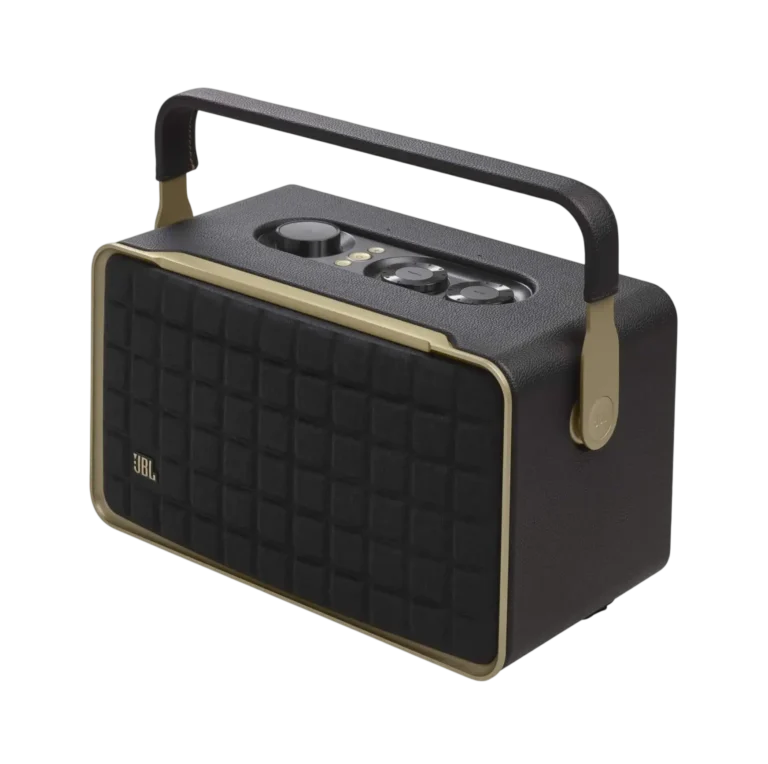
The JBL Authentics 300 is a retro-styled stereo speaker that connects over Wi-Fi and Bluetooth, and it runs on battery as well as AC power. It has Google Assistant and Amazon Alexa built in, and both can be active at once. It supports Chromecast built-in, AirPlay, Alexa Cast, Alexa Multi-Room Music, and Spotify Connect, and it also has wired inputs for Ethernet, a 3.5 mm AUX cable, and USB. Bass and treble knobs on the top panel let you shape the sound by hand. Each time the speaker is powered up and starts playing, its microphones tune the sound to your room automatically. You’ll use the JBL One app on Android or iOS for network setup, voice assistant setup, audio settings, and the customizable Moment button.
Product Specifications
| Specification | Detail |
| Sound system | Stereo 2.0 |
| Drivers | 2 x 25 mm tweeter + 5.25″ woofer |
| Total power output | 100W (Max @ THD 1%) |
| Frequency response | 45Hz – 20kHz (-6dB) |
| Power supply | 100–240V AC, 50/60Hz |
| Networked standby power | <2.0 W |
| Battery | Lithium, 3.6V, 4800mAh |
| Charge time | Under 3.5 hours |
| Play time | Up to 8 hours (depends on volume and content) |
| Bluetooth | Version 5.3; A2DP 1.3.2, AVRCP 1.5 |
| Wi-Fi | IEEE 802.11 a/b/g/n/ac/ax, 2.4GHz/5GHz |
| USB | Type-C, 5V DC 0.5A; MP3 and WAV |
| Operating temperature | 0 °C – 45 °C |
| Dimensions (W x H x D) | 342 x 195.6 x 180.3 mm / 13.46″ x 7.7″ x 7.1″ |
| Weight | 4.9 kg / 10.8 lbs |
USB music playback only works on the US version. On other versions, the USB port is for service only. Supported MP3 files run from 16–48 kHz and 80–320 kbps.
What’s in the Box
The box contains the speaker, a power cord, and product information. The number of power cords and the plug type depend on your region. Do not use any part that arrives damaged or is missing. Contact your retailer or customer service instead.
Parts and Controls
Top and Front Panel
- Power button: Press to switch the speaker on or off. Hold for more than 10 seconds to reset it.
- Play/pause and volume knob: Press once to play or pause, twice to go to the next track, and three times to go to the previous track. Turn the knob to change the volume.
- Moment button: Opens the playlist and speaker settings you’ve set up in the JBL One app.
- Bluetooth button: Puts the speaker into Bluetooth pairing mode.
- Treble and Bass knobs: Turn clockwise to raise the level or counterclockwise to lower it.
- Battery indicator: Flashing red means low battery. Flashing white means charging. Solid white shows the current battery level. Off means charging is complete.
- Microphones: Used for voice control and automatic self-tuning.
Back Panel
The back panel has the power socket, a USB-C port, a 3.5 mm AUX input, an Ethernet port, and a slider that turns the voice assistant microphone on or off.
Status Indicator Guide
| Indicator | Meaning |
| Regular pulsing white | System starting up |
| Fast pulsing white | Software update in progress |
| Solid amber | Restoring factory settings |
| Slow pulsing white | Wi-Fi setup mode, or network disconnected |
| Solid green | JBL One app has found the speaker |
| Solid white | Network connected |
| Solid yellow | Weak Wi-Fi connection |
The voice assistant LED shows red when the microphone is off. Google Assistant uses white light. Alexa uses cyan and blue for listening, thinking, and responding. To dismiss an Alexa alarm, timer, or notification, press play/pause on the speaker.
Power and Battery
Plug the speaker into power with the supplied cord and press the power button. The battery starts charging automatically whenever the speaker is plugged in.
On AC power, the speaker goes into standby after 10 minutes without activity. It wakes up when you press a button, when you control it from the JBL One app, when you use a voice assistant, when audio is streamed to it from an enabled service, or when music starts playing through a connected AUX cable.
On battery, the speaker switches off after 1 hour without activity to save power. You can change this auto power-off time in the JBL One app. If you won’t use the speaker for a long time, switch it off so the battery doesn’t drain.
Setup and Connections
Connect to Wi-Fi
- Press the power button. When the status indicator pulses white slowly, the speaker is in Wi-Fi setup mode.
- Connect your Android or iOS device to your home Wi-Fi network and download the JBL One app.
- Open the app and follow the steps to set up Wi-Fi and your voice assistants. The indicator turns solid green when the app finds the speaker, then solid white once it’s connected.
Your phone and the speaker must be on the same Wi-Fi network. If the app can’t find the speaker, hold play/pause and Bluetooth together for more than 10 seconds to go back into Wi-Fi setup mode. You can also use an Ethernet cable (not included) for a wired connection, then control playback from the JBL One app.
To use Chromecast built-in, Alexa Multi-Room Music, and Alexa Cast, register the speaker in the Google Home app and the Amazon Alexa app.
Pair a Bluetooth Device
- Press the Bluetooth button. Fast flashing white means the speaker is ready to pair.
- On your phone, tablet, or laptop, turn on Bluetooth and select “JBL Authentics 300” within three minutes. The light turns solid white once connected.
The speaker reconnects to the last device you used automatically. Multi-point is supported, so a second device can pair without disconnecting the first. To pair another device, press the Bluetooth button again while in Bluetooth mode. The range is 33 ft (10 m). Keep microwaves and wireless LAN devices away from the speaker, because they can cause interference. Voice commands don’t work in Bluetooth mode.
Connect an External Audio Device
Plug a 3.5 mm audio cable (sold separately) into the AUX socket and into your device’s audio output. Make sure nothing is playing over Wi-Fi or Bluetooth, then start playback on the external device. Track controls on the speaker don’t work in AUX mode. Set the volume on either the device or the speaker.
Using Voice Assistants
If you skipped voice assistant setup during Wi-Fi setup, open the JBL One app, select the speaker, and choose voice assistant setup. You can set up Google Assistant, Alexa, or both.
Before you start, make sure the speaker is on your home network and the microphone slider is on. Then say “Hey Google” or “Alexa,” followed by a request such as “set a timer for 15 minutes.” Slide the microphone off to pause the assistants. They won’t respond until you turn it back on. Turning the microphone off also turns off automatic self-tuning.
Streaming and Multi-Room Playback
- JBL One app: Pick music from the available streaming services and play it on the speaker. Some services may need a subscription.
- Chromecast built-in: Turn on Chromecast in the JBL One app, then tap the cast icon in a Chromecast-enabled app.
- AirPlay: Open Control Center on your iOS device, select the speaker, and start playing. AirPlay 2 control requires iOS 13.4 or later.
- Alexa Cast: Turn on Alexa in the JBL One app, then play Amazon Music using the same Alexa account.
For multi-room audio, you can group speakers in the Google Home app (up to 6 Chromecast speakers, depending on your network bandwidth), in AirPlay’s Control Center, or in the Amazon Alexa app. Every speaker in a group has to be on the same network and signed in to the same account. The speaker streams audio only, not video. If you start playback on a second device, the first one pauses.
Sound Settings and Software Updates
The Bass and Treble knobs stay in sync with the equalizer in the JBL One app, and both default to level 6. Self-tuning starts automatically every time the speaker is connected to power and begins playing. It takes three minutes. If playback stops before it finishes, tuning picks up again when music resumes.
When the speaker is online and the battery is above 30%, it updates its software automatically.
Reset Options
- Hard reset: If the buttons stop responding, hold the power button for more than 10 seconds. The speaker turns off and back on.
- Factory reset: Hold play/pause and Bluetooth together for more than 10 seconds. The indicator turns solid amber, and the speaker restarts once the reset is complete.
Safety Instructions
Use the speaker only on 100–240V, 50/60Hz AC power. Use only the supplied power cord, and avoid extension cords. Don’t run the cord under rugs or put heavy objects on it. Have an authorized service center replace a damaged cord with one that meets factory specifications. Pull the plug, not the cord, when you disconnect it. Unplug the speaker if you won’t use it for a long time.
There are no parts inside that you can service yourself. Opening the cabinet can cause electric shock and voids the warranty. If water gets inside, unplug the speaker right away and contact an authorized service center (page 2).
Troubleshooting
| Problem | What to Try |
| Won’t turn on | Check that the power cord is connected at both ends and that the battery has enough charge. |
| Buttons don’t respond | Hold the power button for more than 10 seconds to reset. |
| Bluetooth device won’t connect | Make sure Bluetooth is on. If the speaker is paired with another device, go back into pairing mode. |
| Poor Bluetooth sound | Move the device closer or clear any obstacles between it and the speaker. |
| Wi-Fi won’t connect | Check the network name and password, make sure the router is on and in range, set router security to WPA2 or auto, and use the same network as your phone. Hold play/pause and Bluetooth until the indicator pulses white slowly. |
| Voice commands ignored | Check the network connection and wake word. Make sure the microphones are on and not covered. Avoid noisy, windy, or echoey spots, and speak closer to the speaker. |
| AirPlay can’t find the speaker | Update to iOS 13.4, macOS 10.15.4, or tvOS 14.3 or later, and use the same network as the speaker. |
| Shows “Offline” in the Alexa app | Do a factory reset. |
| No sound after switching to AUX | Unplug the 3.5 mm cable and plug it back in. |
Frequently Asked Questions
How long does the battery last?
Up to 8 hours per charge, depending on volume and what you’re playing. A full charge takes less than 3.5 hours.
Can I use Alexa and Google Assistant at the same time?
Yes. You can set up both in the JBL One app and use either one by saying its wake word.
Why doesn’t the speaker respond to voice commands over Bluetooth?
Voice commands aren’t supported in Bluetooth mode. Voice control needs a home network connection, and the microphone must be on.
Can I connect two phones over Bluetooth?
Yes. With multi-point support, you can pair a second device without disconnecting the first.
Can I play music from a USB drive?
Only on the US version, which plays MP3 and WAV files. On other versions, the USB-C port is for service only.
How do I restore factory settings?
Hold play/pause and Bluetooth together for more than 10 seconds. The speaker turns off and restarts once the reset is finished.
Why did my speaker turn off on its own?
On battery, it switches off after 1 hour without activity. You can change this time in the JBL One app. On AC power, it goes into standby after 10 minutes.
Does the speaker update itself?
Yes. It updates automatically when it’s online and the battery is above 30%.