The Philips Café Aromis 8000 Series is a fully automatic bean-to-cup coffee machine that brews from whole beans or pre-ground coffee, supports hot and cold milk drinks through the LatteGo Pro system, and connects to the Philips HomeID app for remote control and personalization.
This manual covers first-time setup, AquaClean filter activation, daily brewing, LatteGo Pro use, cleaning routines, descaling, error codes, and technical specifications, all based on the official Philips documentation.
Parts Overview
Understanding the physical layout of this machine makes setup, cleaning, and troubleshooting significantly easier.
The official Philips manual identifies each part by name, and those same names appear throughout the error code and maintenance sections below.
Main Machine Parts
- Control panel
- Cup holder
- Pre-ground coffee compartment
- Bean hopper lid
- Adjustable coffee spout (height range: 88–145 mm)
- Power cord socket
- Grind setting knob
- Brew group
- Service door
- Water tank (1.9-liter capacity)
- Hot water spout
- Coffee grounds container (holds up to 12 pucks)
- Drip tray
- Drip tray full indicator
Included Accessories
Every unit ships with:
- Power cord
- AquaClean water filter
- Measuring scoop
- Water hardness test strip
- LatteGo Pro hot milk system
- LatteGo Pro cold milk system
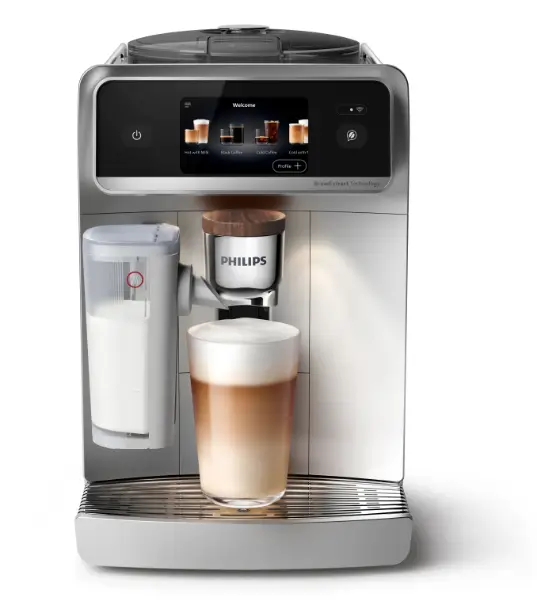
Control Panel Buttons
The control panel uses five main controls:
- On/Off
- Menu
- Drink categories
- Wi-Fi icon
- Barista assistant
Most daily interactions happen through the on-screen menu or the drink selection area. The layout is intentionally minimal.
Setup and Self-Adjustment
Before anything else, rinse all removable accessories that will contact water or milk under hot water. Then power on the machine and follow the on-screen setup instructions.
A few things to know before that first brew:
- The machine was tested with coffee during production, so a small amount of coffee residue may be present inside — this is normal
- The machine will not reach peak brewing consistency immediately; brew 5 coffees first to complete the automatic self-adjustment
- The default auto-off timer is set to 15 minutes
- Some water in the drip tray after setup is expected — the machine rinses its internal circuit automatically
Setting Water Hardness
During initial setup, the machine will prompt you to set the water hardness level. Philips includes a test strip for this purpose.
How to test water hardness:
- Dip the test strip into tap water for exactly 1 second
- Wait 1 minute
- Count the number of red squares that appear
- Match that number to the corresponding level on the machine screen
The default setting is 4 red squares, which Philips classifies as hard water. If your result is different, update it to match — this directly affects how often the machine will prompt for descaling.
Water Tank Rules
Always use fresh, cold tap water. The manual explicitly says do not use the following in the water tank:
- Demineralized water
- Distilled water
- Mineral water
These affect both coffee taste and the internal water circuit over time.
A relevant resource here would be our descaling guide for automatic coffee machines if you want to understand how water hardness connects to limescale buildup.
Connecting to the Philips HomeID App
The HomeID app is not required for basic coffee brewing, but it adds meaningful features that many users will find worth setting up from the start.
Requirements: A 2.4 GHz home Wi-Fi network. The machine does not support 5 GHz-only connections.
How to Connect
- Download the Philips HomeID app on your phone
- Open the app and tap Add Appliance
- Select your coffee machine model
- Confirm your phone’s Wi-Fi is active
- Follow the in-app pairing steps
The first user who completes the pairing becomes the machine owner and can invite additional users to share access through the app.
What the App Unlocks
| Feature | Available Through App |
| Remote drink brewing | Yes |
| Wake-up timer | Yes |
| 75+ coffee recipes | Yes |
| Firmware updates | Yes |
| Barista assistant | Yes |
| Profile personalization | Yes |
| Alexa support | Yes (select countries) |
| Support access | Yes |
AquaClean Water Filter
The AquaClean filter is one of the most misunderstood parts of this machine. Many users assume the machine detects a new filter automatically. It does not.
Every new AquaClean filter must be manually activated through the Maintenance menu. If this step is skipped, the machine will not recognize the filter and will continue counting toward a descaling prompt, even with a brand-new filter installed.
AquaClean Filter Rules at a Glance
| Rule | Detail |
| Automatic detection | No — manual activation required |
| Where to activate | Menu → Maintenance → Remove Limescale → AquaClean |
| Must soak filter first | Yes — dry installation causes air entry |
| Replace after | 95 liters of water |
| Minimum replacement interval | Every 3 months |
| Limescale-free required before first use | Yes |
How to Activate the AquaClean Filter
- Go to Menu
- Tap Maintenance
- Tap Remove Limescale
- Tap AquaClean
- Tap Install
- Follow the on-screen steps
Always soak the filter in water before inserting it. A dry filter allows air into the water circuit, which causes loud operational noise and can prevent coffee from brewing at all.
The machine must also be completely free of limescale before you begin using the AquaClean system. If limescale is present, descale first, then install and activate the filter.
Note: Brita filters are not compatible with this machine. The official Philips manual states this clearly, and using incompatible filters may affect the water circuit.
How to Brew Drinks
The general brewing process on the Philips Café Aromis 8000 Series is consistent across most drink types. Here is the standard sequence:
- Switch the machine on and follow any prompts
- Fill the water tank with fresh cold water
- Fill the bean hopper with fresh whole beans
- Place a cup under the adjustable coffee spout
- Tap a drink category and select your drink
- Tap the Customize icon to adjust settings if needed
- Tap the Play icon to start brewing
- Tap Stop if you want to end the brew early
Water Freshness Rules
- Use the water in the tank within 1 to 2 days
- If the machine has not been used for 3 or more days, empty the tank, rinse it, and refill with fresh water before brewing
Coffee Bean Restrictions
Do not use the following beans in this machine:
- Caramelized coffee beans
- Flavored coffee beans
Both can damage the grinder and internal components.
Using LatteGo Pro for Milk Drinks
The LatteGo Pro system is the core of the milk drink experience on this machine. It comes in two versions, one for hot milk drinks and one for cold, and both must be assembled correctly before use to prevent leaks.
How to Assemble LatteGo Pro
- Insert the top of the milk container under the hook at the top of the frame
- Press the bottom of the container into the frame until it clicks
- Tilt the assembled unit slightly and align it with the hot water spout
- Press it firmly into place until it locks
Make sure both the milk container and frame are clean before assembly.
How to Make a Milk Drink
- Fill the milk container with cold milk — do not go above the maximum line
- Use milk straight from the fridge for the best foam result
- Place a cup under both the coffee spout and the LatteGo Pro outlet
- Select your drink
- Adjust settings if wanted
- Tap Play
Milk Type Recommendations
| Drink Type | Recommended Milk |
| Cold drinks | Fully skimmed milk |
| Hot milk froth | Semi-skimmed milk |
| General use | Cold, full-fat or semi-skimmed |
Cold Drinks and Iced Drinks
The Philips Café Aromis 8000 Series can make both cold brew-style drinks and iced drinks. These are not the same thing.
Cold drinks are brewed slowly at low temperature without heat. The result is a smoother, sweeter, and less acidic cup compared to a standard hot brew.
Iced drinks are brewed at a lower temperature and a slower flow rate. The flavor profile is slightly sweeter and tangier than standard hot coffee.
For the best results with either:
- Fill the water tank with fresh cold water before starting
- Add ice cubes directly to the cup for iced drinks
- Pair iced drinks with cold milk froth for the closest café-style result
Special Brewing Features
ExtraShot
ExtraShot adds an extra Ristretto shot to any coffee or milk drink for a stronger, more concentrated result. When ExtraShot is active, the machine brews one coffee at a time only.
How to use ExtraShot:
- Select a drink
- Tap Customize
- Tap the ExtraShot icon
- Tap Play
Pre-Ground Coffee
The pre-ground coffee option is useful for decaf or specialty blends that the machine cannot grind from the hopper.
Rules from the official manual:
- One coffee at a time only
- Never add more than one level measuring scoop
- Use fine pre-ground coffee, not coarse
Steps:
- Open the pre-ground coffee compartment
- Add exactly one level measuring scoop
- Close the lid
- Select a drink
- Tap Customize → select the pre-ground coffee icon
- Tap Play
Hot Water
The machine dispenses hot water directly, but this function is not available through the HomeID app, it must be done at the machine.
- Remove LatteGo Pro if attached
- Place a cup under the hot water spout
- Select Hot water from the drink menu
- Adjust quantity and temperature if needed
- Tap Play
Personalizing Drinks and Profiles
Drink Customization
Most drinks on the Philips Café Aromis 8000 Series support individual adjustments for:
- Volume
- Strength
- Temperature
Available options vary by drink type.
Creating a User Profile
The machine supports personal profiles that store up to 8 favorite drinks each.
To create a profile:
- Tap Profile + on the home screen
- Select a profile color
- Tap Continue
- Choose up to 8 favorite drinks
- Save the profile
Without an active profile, the machine can still brew and customize drinks, but those preferences will not be saved between sessions.
Grinder Settings
The Philips 8000 Series grinder has 12 settings. The scale runs from finer (1) to coarser (12).
| Setting Range | Grind Level | Best For | Flavor Result |
| 1–6 | Finer | Espresso, Ristretto, Cappuccino, short drinks | Stronger, more bitter |
| 7–12 | Coarser | Coffee, Iced Coffee, Cold Brew, long drinks | Weaker, more sour |
Grinder Adjustment Rules
The manual is specific about how and when to change the grind setting:
- Do not adjust the grinder during the first 100 to 150 cups — the grinder needs time to break in
- Only adjust while the grinder is actively grinding
- Move only one notch at a time
- Brew 2 to 3 drinks after each adjustment before evaluating the result
See our guide on how grind size affects espresso taste for a deeper explanation of why these incremental changes matter.
Machine Settings Menu
The settings menu allows changes to:
- Water hardness
- Standby time: 15, 30, 60, or 180 minutes
- Display brightness and backlight
- Cup light
- Language
- Sound
- Measuring units
- Automatic rinsing
- Home screen layout
- Eco mode
- Factory reset
Factory Reset Note
A factory reset restores all settings to default but does not reset usage statistics. It also clears:
- Saved Wi-Fi credentials
- HomeID app pairing
You will need to reconnect to Wi-Fi and re-pair the HomeID app after a factory reset.
Brew Group Removal and Reinsertion
The brew group must be removed for weekly rinsing and monthly deep cleaning. Several error codes also require brew group removal as part of the fix.
To Remove the Brew Group
- Remove the water tank
- Open the service door
- Move the yellow handle to the right to unlock
- Slide the brew group out
To Reinsert the Brew Group
- Slide the brew group back in until it clicks into position
- Move the yellow handle to the left to lock
- Close the service door
- Replace the water tank
Cleaning and Maintenance Schedule
Skipping cleaning on an automatic coffee machine does not save time, it costs you in repair frequency and coffee quality. The Philips 8000 Series needs regular attention across several components.
| Component | Cleaning Frequency | Method |
| Brew group | Weekly | Rinse under tap |
| Brew group | Monthly | Clean with Philips coffee oil remover tablet |
| Pre-ground coffee compartment | Weekly check | Clear any clogs with spoon handle |
| Coffee grounds container | Empty when prompted / clean weekly | Rinse under tap or dishwasher |
| Drip tray | Empty daily / clean weekly | Rinse under tap or dishwasher |
| LatteGo Pro | After every use | Machine clean program, then rinse or dishwasher |
| Water tank | Before every refill | Rinse under tap |
| Machine exterior | Weekly | Wipe with a non-abrasive cloth |
Brew Group Cleaning Notes
- Rinse weekly under the tap — no soap needed
- Use a Philips coffee oil remover tablet monthly
- Do not dry the brew group with a cloth — fabric fibers collect inside and affect future brews
LatteGo Pro Cleaning
Quick clean (after every milk drink):
- Leave LatteGo Pro attached to the machine
- Place a cup under the hot water spout
- Go to Menu → Maintenance → Clean LatteGo Pro
- Start the program and follow the screen
Deep clean (regularly):
- Remove LatteGo Pro from the machine
- Empty any remaining milk
- Press the release button and disassemble the milk container
- Wash all parts under warm water with dishwashing liquid, or place in the dishwasher
Descaling the Philips 8000 Series
Descaling is the most critical maintenance task on this machine, and using the wrong product can permanently damage the water circuit.
Products You Must Not Use for Descaling
The official Philips manual explicitly prohibits descaling with products that contain:
- Sulfuric acid
- Hydrochloric acid
- Sulfamic acid
- Acetic acid
- Vinegar
Using any of these may void the warranty and damage internal components. Use only the official Philips descaling solution.
How to Start the Descaling Process
When the machine prompts for descaling:
- Go to Menu → Maintenance → Remove Limescale
- Tap Descale
- Follow the on-screen steps through the full cycle
If Descaling Gets Interrupted
If the descaling cycle stops before completion:
- Empty and rinse the water tank
- Refill the tank to the Calc/Clean level with fresh water
- Switch the machine on
- Manually run a rinse by dispensing approximately half a tank of hot water
- Brew several cups using the pre-ground coffee option without adding coffee
The machine will prompt for another descaling cycle soon if the previous one was not completed.
A relevant resource here would be our complete descaling guide for Philips automatic coffee machines.
Troubleshooting and Error Codes
Common Warning Screens
The machine displays these prompts during normal operation:
- Add water — refill the water tank
- Add beans — refill the bean hopper
- Empty coffee grounds container — remove and empty the grounds container
- Insert brew group — the brew group is not seated correctly
Error Code Reference Table
| Error Code | Meaning | How to Fix |
| 01 | Coffee funnel clogged | Clear the clog using the handle end of the measuring scoop |
| 03 | Brew group dirty | Remove and rinse the brew group under the tap |
| 04 | Brew group positioned incorrectly | Remove and reinsert the brew group until it clicks and locks |
| 05 | Air trapped in water circuit | Restart the machine and dispense hot water to clear the air |
| 05 | AquaClean filter installed dry or clogged | Soak the filter, reinstall it, and reactivate through the Maintenance menu |
| 11 | Machine adjusting to room temperature | Wait 30 minutes, then restart |
| 14 | Machine overheated | Switch off and allow 30 minutes to cool before restarting |
| 19 | Power cord not connected properly | Check the connection at the rear power socket |
Other Common Problems
Coffee tastes watery during early use
This is expected. The machine is completing its self-adjustment phase. Brew the first 5 coffees and the flavor consistency will improve.
Drip tray fills quickly
Normal operation. The machine flushes its internal circuit and brew group regularly, and that water goes into the drip tray. Empty it daily or whenever the red indicator appears.
Slow coffee flow
Common causes include: a clogged AquaClean filter, a grind setting that is too fine, a dirty brew group, or limescale buildup inside the circuit. Work through each cause in sequence.
Machine is loud during operation
Usually caused by trapped air in the water circuit, an AquaClean filter that was installed dry, or the water tank not sitting flush in its slot.
Wi-Fi will not connect
Confirm your router is broadcasting on 2.4 GHz, not 5 GHz only. Also check router signal strength near the machine and reset old network settings through Menu → Settings before attempting to reconnect.
Milk froth is poor quality
For hot froth, switch to semi-skimmed milk. For cold drinks, try fully skimmed milk. Always use milk straight from the fridge — room-temperature milk consistently produces weaker foam.
Technical Specifications
| Specification | Value |
| Dimensions | 251 × 389 × 452 mm |
| Weight | 8.5–9 kg |
| Power cord length | 800–1200 mm |
| Water tank capacity | 1.9 liters |
| Bean hopper capacity | 275 g |
| Coffee grounds container | Up to 12 pucks |
| LatteGo Pro milk capacity | 250 ml |
| Adjustable spout height range | 88–145 mm |
| Wi-Fi frequency | 2.4 GHz only |
The nominal voltage and power rating are printed on the data label, which is located inside the service door.
Support and Official Accessories
Philips directs users to two official resources for support, spare parts, and maintenance products:
- Support and help: www.home.id/support
- App registration and HomeID: www.home.id
Your model number is on the data label inside the service door. You will need this when ordering accessories or contacting support.
Official maintenance accessories:
- AquaClean water filter
- Philips descaling solution
- Philips coffee oil remover tablets
Frequently Asked Questions
How do you set up the Philips Café Aromis 8000 Series for the first time?
Rinse all accessories that contact water or milk under hot water, power on the machine, and follow the on-screen setup steps. Set the water hardness using the included test strip, then brew 5 coffees to complete the automatic self-adjustment process.
Can the Philips Café Aromis 8000 Series use pre-ground coffee?
Yes. Open the pre-ground coffee compartment, add one level measuring scoop of fine pre-ground coffee, select a drink, choose the pre-ground option through the Customize menu, and start brewing. The machine brews one cup at a time from pre-ground coffee.
How often should the AquaClean filter be replaced?
Replace the AquaClean filter after 95 liters of water, or at minimum every 3 months — even if the machine has not yet displayed a replacement reminder.
Can you use flavored or caramelized coffee beans in this machine?
No. The official Philips manual prohibits the use of caramelized or flavored beans. Both can damage the grinder and internal components over time.
Why does the drip tray fill up quickly?
The machine automatically rinses its internal circuit and brew group during normal operation. That rinse water drains into the drip tray. This is normal. Empty the tray daily or when the red indicator appears.
What milk works best with LatteGo Pro?
For cold drinks, fully skimmed milk gives the best result. For hot milk froth, semi-skimmed milk produces the best foam consistency. Always use milk directly from the fridge.
What kind of Wi-Fi does the machine support?
The Philips Café Aromis 8000 Series supports 2.4 GHz Wi-Fi only. It does not connect to 5 GHz-only networks.
Can Brita filters be used with this machine?
No. The official Philips manual clearly states that Brita filters are not compatible with this machine.
This manual is based on official Philips documentation and has been rewritten for clarity. For the most current product information, visitwww.home.id/support.
For additional Philips appliance manuals, browse the Philips Manuals section on ManualsPedia.