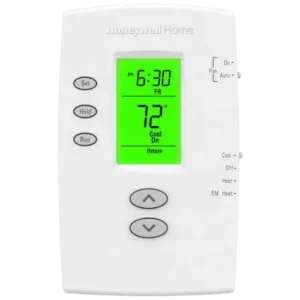
| Field | Details |
| Document Title | Honeywell Home PRO 2000 Series Programmable Thermostat Product Information |
| Document Type | Product Information / Quick Reference Guide |
| Brand Name | Honeywell Home |
| Product Name | PRO 2000 Series Programmable Thermostat |
| Model Number(s) | TH2110DV, TH2210DV |
| PDF File Size | 248.3 KB |
| Total Number of Pages | 4 |
| Languages Covered | English, French, Spanish |
Honeywell Home PRO 2000 Series Programmable Thermostat
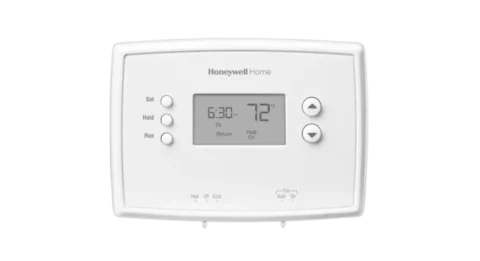
The Honeywell Home PRO 2000 Series is a programmable thermostat designed to control compatible residential heating and cooling systems. It uses a digital display, push-button temperature controls, system and fan switches, and programmable temperature schedules.
The thermostat provides direct control of heating and cooling temperatures through its Up and Down buttons. The SET, HOLD, and RUN buttons allow users to configure the clock, program temperature schedules, temporarily change settings, or maintain a selected temperature.
The PRO 2000 Series includes two models:
- TH2110DV: Designed for heating and cooling systems with one heating stage and one cooling stage (1 Heat/1 Cool).
- TH2210DV: Designed specifically for heat pump systems with two heating stages and one cooling stage (2 Heat/1 Cool).
The thermostat displays the measured room temperature during normal operation. It also shows the current time and day, scheduled operating period, system status, and low-battery warnings.
The heating and cooling schedule includes four daily periods: Wake, Leave, Return, and Sleep. Different times and temperatures can be configured for weekdays and weekends.
The thermostat also provides temporary and permanent temperature overrides, allowing manual changes without modifying the stored schedule.
Product Features
| Feature | Description |
| Programmable Temperature Control | Controls heating and cooling according to selected schedules |
| Digital Display | Shows temperature, time, day, and system information |
| Backlit Screen | Illuminates for 12 seconds after a button is pressed |
| Room Temperature Display | Shows the measured indoor temperature |
| Setpoint Temperature Display | Shows the selected temperature for five seconds |
| SET Button | Configures the time, day, and schedule |
| HOLD Button | Overrides the programmed temperature |
| RUN Button | Returns to the programmed schedule |
| Temperature Adjustment | Up and Down buttons |
| Heating and Cooling Modes | Heat, Cool, and Off |
| Emergency Heat | Available on compatible heat pump configurations |
| Fan Control | Auto and On settings |
| Weekday Programming | Monday through Friday |
| Weekend Programming | Saturday and Sunday |
| Daily Schedule Periods | Wake, Leave, Return, Sleep |
| Temporary Override | Maintains a manual temperature until the next scheduled period |
| Permanent Hold | Maintains a selected temperature continuously |
| Compressor Protection | Indicates when compressor protection is active |
| Low-Battery Warning | Displays Lo Batt when batteries need replacement |
Technical Specifications
| Specification | Details |
| Product Series | PRO 2000 |
| Product Type | Programmable Thermostat |
| Model TH2110DV | 1 Heat/1 Cool systems |
| Model TH2210DV | 2 Heat/1 Cool heat pump systems only |
| Display | Digital display with backlight |
| Backlight Duration | 12 seconds after a button press |
| Setpoint Display Duration | 5 seconds |
| System Settings | Cool, Off, Heat, Em Heat on select models |
| Fan Settings | Auto, On |
| Temperature Adjustment | Up and Down buttons |
| Programming | Weekday and weekend schedules |
| Program Periods | Wake, Leave, Return, Sleep |
| Battery Type | AAA alkaline |
| Battery Quantity | 2 |
| Low-Battery Warning | Approximately 60 days before depletion |
| Recommended Battery Replacement | Once per year |
| Cooling Operation Restriction | Do not operate cooling below 50°F (10°C) outdoor temperature |
| Manufacturer | Resideo Technologies, Inc. |
TH2110DV and TH2210DV Model Differences
| Model | Compatible HVAC System | Control |
| TH2110DV | Conventional single-stage heating and cooling | 1 Heat/1 Cool |
| TH2210DV | Heat pump system | 2 Heat/1 Cool |
The TH2210DV supports emergency and auxiliary heating functions when used with a compatible heat pump system.
Thermostat Parts and Components
The PRO 2000 Series has a digital display, push-button controls, system switch, fan switch, and removable body mounted on a wallplate.
Main Components
| Component | Function |
| Digital Display | Shows temperature, time, day, and operating status |
| SET Button | Opens time, day, and schedule settings |
| HOLD Button | Activates a permanent temperature override |
| RUN Button | Resumes scheduled operation |
| Up Button | Increases the selected temperature or setting |
| Down Button | Decreases the selected temperature or setting |
| SYSTEM Switch | Selects the heating or cooling operating mode |
| FAN Switch | Selects automatic or continuous fan operation |
| Wallplate | Holds the thermostat in position |
| Battery Compartment | Holds two AAA alkaline batteries |
Thermostat Control Layout
The thermostat has three programming buttons:
- SET
- HOLD
- RUN
The Up and Down temperature adjustment buttons are positioned separately from the programming buttons.
The FAN and SYSTEM switches are located on the side of the thermostat.
Wallplate and Battery Compartment
The thermostat can be removed from its wallplate to access the batteries.
The battery compartment is located on the rear of the thermostat.
Button and Control Functions
SET Button
The SET button is used to configure the thermostat’s time, day, and programmed temperature schedule.
Pressing SET moves through the available setting screens.
HOLD Button
The HOLD button overrides the programmed temperature schedule.
It allows the thermostat to maintain a selected temperature until the setting is manually changed or the RUN button is pressed.
RUN Button
The RUN button returns the thermostat to its programmed schedule.
It also saves changes when setting the clock and schedule.
Up and Down Buttons
The ▲ and ▼ buttons are used to:
- Increase or decrease the desired temperature.
- Set the clock.
- Choose the day of the week.
- Set program start times.
- Adjust scheduled temperatures.
Thermostat Display Guide
The digital display shows the current operating information and selected temperature settings.
Display Indicators and Messages
| Display Indicator | Meaning |
| Current Time | Shows the thermostat’s clock |
| Current Day | Displays the selected day of the week |
| Room Temperature | Shows the measured indoor temperature |
| Set | Indicates that the selected temperature is being displayed |
| Wake | Morning program period |
| Leave | Away-from-home program period |
| Return | Evening program period |
| Sleep | Overnight program period |
| Set Schedule | Schedule programming is active |
| Temporary | Temporary temperature override is active |
| Hold | Permanent temperature override is active |
| Heat On | Heating system is operating |
| Cool On | Cooling system is operating |
| Aux On | Auxiliary heating is active on supported heat pump systems |
| Lo Batt | Batteries are approaching depletion |
| Flashing Heat On | Compressor protection is active |
| Flashing Cool On | Compressor protection is active |
Room Temperature Display
During normal operation, the thermostat displays the measured indoor temperature.
Viewing the Setpoint Temperature
To check the selected temperature:
- Press the ▲ or ▼ button once.
- The thermostat displays the setpoint temperature.
- The Set indicator appears.
- The setpoint remains visible for approximately five seconds.
- The display returns to the measured room temperature.
Display Backlight
Pressing any button illuminates the display for approximately 12 seconds.
Important Safety Instructions
Compressor Damage Warning
CAUTION: EQUIPMENT DAMAGE HAZARD
To prevent possible compressor damage, do not operate the cooling system when the outdoor temperature is below 50°F (10°C).
This warning applies when selecting and operating the cooling mode.
Selecting the Correct Operating Mode
The SYSTEM switch must be positioned according to the required heating or cooling operation.
- Heat controls the heating system.
- Cool controls the cooling system.
- Off turns off heating and cooling.
- Em Heat controls emergency and auxiliary heating on supported systems.
Emergency Heat Precaution
On compatible heat pump systems, selecting Em Heat locks out the compressor.
This mode should only be used with a supported heating system configuration.
Before First Use
The PRO 2000 Series uses a programmable clock and temperature schedule.
Before beginning normal operation:
- Set the current time.
- Set the correct day of the week.
- Select the required heating or cooling mode.
- Select the fan setting.
- Review or configure the temperature schedule.
The clock and day must be set correctly for scheduled changes to occur at the intended times.
Setting the Time and Day
The thermostat uses the current time and day to determine the correct programmed temperature period.
How to Set the Clock
- Press SET.
- The display shows Set Time.
- Press ▲ or ▼ to adjust the clock.
- Continue until the correct time appears.
How to Set the Day of the Week
- Press SET again.
- The display shows Set Day.
- Press ▲ or ▼ to select the current day.
- Press RUN to save the changes and exit.
If the Clock Is Flashing
When the clock flashes, the thermostat follows the settings for the Monday Wake period until the time and day are configured again.
To restore correct scheduling, reset the clock and day using SET, then press RUN.
Selecting the Heating or Cooling System
The SYSTEM switch determines which heating or cooling function the thermostat controls.
SYSTEM Switch Settings
| Setting | Operation |
| Cool | Controls the cooling system |
| Off | Turns off heating and cooling |
| Heat | Controls the heating system |
| Em Heat | Controls emergency and auxiliary heating on compatible systems and locks out the compressor |
How to Select Heating Mode
- Move the SYSTEM switch to Heat.
- Press ▲ or ▼ to select the desired temperature.
- The thermostat controls the heating system according to the selected temperature and current operating conditions.
The display shows Heat On when heating operates.
How to Select Cooling Mode
- Move the SYSTEM switch to Cool.
- Press ▲ or ▼ to select the desired temperature.
- The thermostat controls the cooling system according to the selected settings.
The display shows Cool On when cooling operates.
Do not operate cooling when the outdoor temperature is below 50°F (10°C).
How to Turn Off Heating and Cooling
Move the SYSTEM switch to Off.
The thermostat turns off heating and cooling control.
Emergency Heat Mode
The Em Heat position is intended for compatible heat pump systems.
When selected:
- Emergency and auxiliary heating are controlled.
- The compressor is locked out.
This function applies only to supported thermostat and HVAC system configurations.
Selecting the Fan Setting
The FAN switch controls how the system fan operates.
Fan Modes
| Fan Setting | Operation |
| Auto | Fan runs only when the heating or cooling system is operating |
| On | Fan runs continuously |
Auto Fan Mode
Move the FAN switch to Auto.
The fan operates when the heating or cooling system runs.
Continuous Fan Mode
Move the FAN switch to On.
The fan continues running instead of operating only during heating or cooling cycles.
Understanding the Program Schedule
The PRO 2000 thermostat uses four daily schedule periods.
These periods allow different temperatures to be selected according to household activity.
Daily Program Periods
| Period | Purpose |
| Wake | Morning temperature setting |
| Leave | Temperature while occupants are away |
| Return | Temperature after occupants return home |
| Sleep | Overnight temperature setting |
Wake
The Wake period controls the desired temperature during the morning.
Leave
The Leave period controls the temperature while occupants are away from home.
Return
The Return period controls the temperature during the evening.
Sleep
The Sleep period controls the overnight temperature.
Weekday and Weekend Programming
The thermostat separates programming into:
- Weekdays: Monday through Friday (Mo–Fr)
- Weekends: Saturday and Sunday (Sa–Su)
Different start times and temperatures can be assigned to the two groups.
How to Program the Thermostat Schedule
The thermostat allows the start time and temperature for each programmed period to be changed.
Before Programming
Make sure the SYSTEM switch is set to the mode being programmed.
Select Heat to configure heating temperatures or Cool to configure cooling temperatures.
Programming the Weekday Schedule
- Press SET until Set Schedule appears on the display.
- The thermostat opens the weekday Wake period.
- Press ▲ or ▼ to set the Wake start time for Monday through Friday.
- Press SET.
- Press ▲ or ▼ to set the desired temperature for Wake.
- Press SET to move to the Leave period.
- Set the Leave time and temperature.
- Continue through Return and Sleep using the same procedure.
Programming the Weekend Schedule
After the weekday periods have been configured:
- Continue pressing SET to reach the weekend program.
- Select the desired Wake start time for Saturday and Sunday.
- Press SET to move to the temperature setting.
- Adjust the Wake temperature.
- Continue through Leave, Return, and Sleep.
- Press RUN to save the schedule and exit.
Programming Heating and Cooling Separately
Heating and cooling settings should be configured while the thermostat is in the corresponding operating mode.
For a heating schedule, move SYSTEM to Heat before programming.
For a cooling schedule, move SYSTEM to Cool before programming.
Saving the Schedule
Press RUN after completing the schedule settings.
The thermostat exits programming and resumes normal operation.
Temporarily Changing the Temperature
A temporary override allows the selected temperature to be changed without permanently altering the stored schedule.
How to Set a Temporary Override
- Make sure the SYSTEM switch is set to Heat or Cool.
- Press ▲ or ▼ to select a different temperature.
- The display shows Temporary.
- The current program period begins flashing.
The thermostat maintains the manually selected temperature until the next scheduled period begins.
Example of a Temporary Override
If the thermostat is operating in the Wake period, the selected temperature can be adjusted using the Up or Down button.
The thermostat follows the manually selected temperature for the remainder of Wake.
When the next programmed period begins, the thermostat resumes the stored schedule.
How to Cancel a Temporary Override
Press RUN.
The thermostat cancels the temporary temperature setting and returns to the programmed schedule.
Permanently Holding a Temperature
The HOLD function allows the thermostat to maintain a manually selected temperature instead of following the programmed schedule.
How to Activate Permanent Hold
- Make sure the SYSTEM switch is set to the desired heating or cooling mode.
- Press HOLD.
- Use ▲ or ▼ to set the required temperature.
- The display shows Hold.
The thermostat stops following the normal program schedule.
How Long Does Hold Remain Active?
The selected temperature is maintained continuously, 24 hours a day, until it is changed manually or Hold is cancelled.
How to Cancel Hold
Press RUN.
The thermostat cancels the permanent temperature override and resumes scheduled operation.
Temporary Override vs. Permanent Hold
| Function | Temporary Override | Permanent Hold |
| Activation | Press ▲ or ▼ | Press HOLD |
| Display Message | Temporary | Hold |
| Program Schedule | Temporarily overridden | Overridden continuously |
| Duration | Until next programmed period | Until manually changed or cancelled |
| Cancel Button | RUN | RUN |
Compressor Protection Indicator
The PRO 2000 thermostat includes a compressor protection function.
The display indicates when compressor protection is engaged.
Flashing Cool On
When Cool On flashes, compressor protection is active.
The display indicates that the cooling system is under compressor protection rather than ordinary cooling operation.
Flashing Heat On
On supported heat pump systems, Heat On may flash when compressor protection is active.
System Status Indicators
| Indicator | Meaning |
| Cool On | Cooling system operating |
| Heat On | Heating system operating |
| Aux On | Auxiliary heating operating on a compatible heat pump |
| Flashing Cool On | Compressor protection active |
| Flashing Heat On | Compressor protection active |
Battery Replacement
The thermostat uses two AAA alkaline batteries.
Low-Battery Warning
When the batteries are approaching depletion, Lo Batt flashes on the display.
The warning appears approximately 60 days before the batteries are completely depleted.
When to Replace Batteries
The batteries should be replaced:
- When Lo Batt begins flashing.
- Once each year.
- Before leaving home for more than one month.
How to Replace the Batteries
- Hold the thermostat securely.
- Pull gently from the bottom to remove it from the wallplate.
- Turn the thermostat over.
- Remove the existing batteries.
- Insert two fresh AAA alkaline batteries according to the polarity markings.
- Reinstall the thermostat on the wallplate.
- Reset the time and day if necessary.
Are the Settings Lost After Battery Replacement?
Most thermostat settings are stored in nonvolatile memory.
The stored programming settings are retained after the batteries are replaced.
Only the clock and day must be set again.
Troubleshooting Guide
The following checks explain the thermostat’s displayed operating states and the relevant adjustments.
Common Problems and Solutions
| Problem or Symptom | Explanation | Recommended Action |
| Clock is flashing | Time and day need to be set | Set the clock and day, then press RUN |
| Thermostat is following the Monday Wake period | Clock has not been reset | Configure the correct time and day |
| Lo Batt appears | Batteries are nearing depletion | Replace both AAA alkaline batteries |
| Thermostat keeps the same temperature | Hold may be active | Press RUN to resume the schedule |
| Temperature returns to the schedule after a manual change | Temporary override has ended | Use HOLD for a continuous temperature setting |
| Fan runs continuously | FAN switch is set to On | Select Auto if fan operation is needed only during heating or cooling |
| Fan runs only during heating or cooling | FAN switch is set to Auto | Select On for continuous operation |
| Cool On flashes | Compressor protection is active | Allow the protection function to complete |
| Heat On flashes | Compressor protection is active on a supported heat pump | Allow the protection function to complete |
| Schedule changes occur at the wrong time | Clock or day may be incorrect | Check and reset time and day |
| Display backlight turns off | Normal backlight operation | Press a button to illuminate the display |
| Desired temperature disappears after several seconds | Setpoint display has returned to room temperature | Press ▲ or ▼ once to view the setpoint again |
Thermostat Clock Keeps Flashing
A flashing clock means the thermostat requires the time and day to be set.
- Press SET.
- Adjust the time using ▲ or ▼.
- Press SET again.
- Select the correct day.
- Press RUN.
Thermostat Does Not Follow the Expected Schedule
Check that:
- The time and day are correct.
- The thermostat is using the required Heat or Cool mode.
- The program has been saved using RUN.
- Permanent Hold is not active.
Press RUN to return to the programmed schedule.
Thermostat Is Stuck on Hold
The Hold setting maintains the manually selected temperature continuously.
Press RUN to cancel Hold and resume the programmed schedule.
Thermostat Changes Temperature Automatically
A temporary temperature override ends when the next scheduled program period begins.
For a temperature that remains active continuously, use HOLD.
Fan Runs Continuously
Check the FAN switch.
If it is set to On, the fan operates continuously.
Move the switch to Auto to run the fan only when the heating or cooling system operates.
Cool On or Heat On Is Flashing
Flashing Cool On or Heat On indicates that compressor protection is active.
The flashing message identifies the protection state.
Thermostat Displays Lo Batt
The batteries are approaching depletion.
Replace both AAA alkaline batteries with fresh ones.
After replacement, reset the time and day.
Display Messages and Indicator Lights
| Message | Meaning |
| Set Time | Clock adjustment screen |
| Set Day | Day selection screen |
| Set Schedule | Schedule programming screen |
| Set | Selected temperature is displayed |
| Wake | Morning schedule period |
| Leave | Away-from-home schedule period |
| Return | Evening schedule period |
| Sleep | Overnight schedule period |
| Temporary | Temporary override active |
| Hold | Permanent override active |
| Heat On | Heating operating |
| Cool On | Cooling operating |
| Aux On | Auxiliary heating operating |
| Lo Batt | Low-battery warning |
| Flashing Heat On | Compressor protection engaged |
| Flashing Cool On | Compressor protection engaged |
Maintenance and Battery Care
The PRO 2000 Series is maintained through battery replacement and correct operation of its controls.
Routine Battery Maintenance
- Replace the batteries once each year.
- Replace batteries when Lo Batt appears.
- Use two fresh AAA alkaline batteries.
- Reset the clock and day after replacement.
- Replace the batteries before an absence longer than one month.
Checking Thermostat Operation
The thermostat’s normal operating information can be checked using its display and controls.
- The measured room temperature is displayed during normal operation.
- Press ▲ or ▼ once to check the setpoint.
- Use the SYSTEM switch to select heating or cooling.
- Use the FAN switch to select fan operation.
- Use RUN to return to the stored temperature schedule.
Customer Support Information
Honeywell Home thermostat support is provided through the support resources listed for this product.
| Support Information | Details |
| Brand | Honeywell Home |
| Manufacturer | Resideo Technologies, Inc. |
| Support Website | https://www.honeywellhome.com/support |
| Manufacturer Website | www.resideo.com |
| Manufacturer Address | 1985 Douglas Drive North, Golden Valley, MN 55422 |
| Product Series | PRO 2000 |
| Applicable Models | TH2110DV, TH2210DV |
Frequently Asked Questions
1. How do I set the time on a Honeywell PRO 2000 TH2110DV or TH2210DV thermostat?
Press SET and use the Up or Down button to adjust the clock. Press SET again to choose the correct day of the week, then press RUN to save the settings.
2. How do I program the Honeywell PRO 2000 thermostat?
Move the SYSTEM switch to Heat or Cool, then press SET until Set Schedule appears. Use the Up and Down buttons to configure the Wake time and temperature. Continue through Leave, Return, and Sleep for weekdays and weekends. Press RUN to save the schedule.
3. What does Hold mean on the Honeywell PRO 2000 thermostat?
Hold means the thermostat is maintaining a manually selected temperature continuously rather than following the programmed schedule. Press RUN to cancel Hold and resume scheduled operation.
4. How do I temporarily change the thermostat temperature?
Press the Up or Down button to select a different temperature. Temporary appears on the display, and the thermostat maintains the new setting until the next programmed period begins. Press RUN to cancel the override earlier.
5. What is the difference between Fan Auto and Fan On?
Auto runs the fan only when the heating or cooling system is operating. On runs the fan continuously.
6. Why is Cool On or Heat On flashing?
A flashing Cool On or Heat On message indicates that compressor protection is active. The Heat On message applies to compatible heat pump systems.
7. How do I replace the batteries in the Honeywell PRO 2000 thermostat?
Pull the thermostat gently from the bottom to detach it from the wallplate, turn it over, and replace the two AAA alkaline batteries. Reinstall the thermostat and reset the clock and day.
8. What is the difference between the Honeywell TH2110DV and TH2210DV?
The TH2110DV is designed for conventional 1 Heat/1 Cool systems. The TH2210DV is designed specifically for 2 Heat/1 Cool heat pump systems and supports emergency and auxiliary heating control on compatible equipment.