
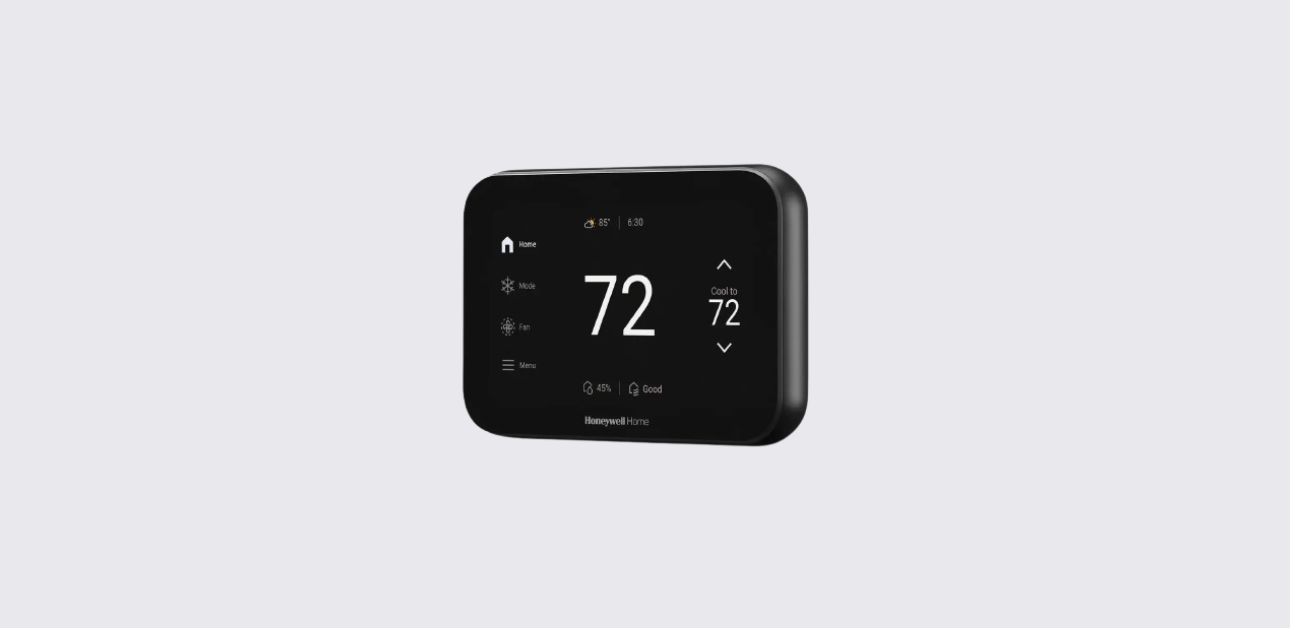
This Honeywell X8S Smart Thermostat getting started guide provides a simplified onboarding workflow to help users prepare, install, and configure the thermostat correctly.
The guide focuses on installation readiness, smart app setup, wiring compatibility checks, and initial troubleshooting, ensuring safe and efficient thermostat operation from day one.
According to the official documentation , the X8S thermostat installation process should always begin with system assessment and proper wiring verification to avoid performance issues or equipment damage.
Product Overview
The Honeywell X8S is a Wi-Fi enabled smart thermostat designed for modern smart homes. It integrates smart scheduling automation, wireless sensor compatibility, and mobile app control to enhance indoor climate management.
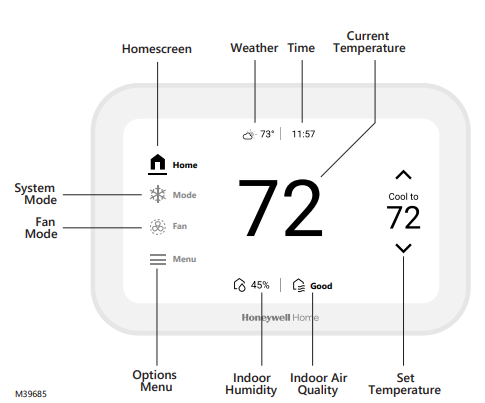
Key Capabilities
- Smart home climate automation
- Location-based comfort adjustments
- Remote control using mobile application
- Wireless room sensor support
- Energy savings program compatibility
- Dual-band Wi-Fi connectivity
These features allow homeowners to maintain consistent comfort and optimized HVAC efficiency.
Thermostat Models and Accessories
The X8S thermostat series includes multiple color and bundle variants.
Thermostat model variants
- White thermostat versions (U.S. and Canada)
- Black thermostat versions
- Models bundled with indoor room sensors
Compatible accessories
- Wireless indoor smart sensors
- Optional decorative wall cover plate
These accessories help expand comfort zoning and installation flexibility.
Package Contents
Before starting installation, confirm the following items are included:
- Honeywell X8S Smart Thermostat
- UWP universal wall mounting plate
- Mounting screws and anchors
- Thermostat literature documentation
Having all components ready helps streamline the installation process.
Step 1 — Assess the Installation Requirements
The first stage involves evaluating HVAC compatibility and wiring readiness.
Pre-installation checklist
- Identify heating and cooling system type
- Confirm thermostat voltage compatibility
- Inspect existing wiring configuration
- Determine if a C-wire adapter is required
Proper system assessment helps prevent installation errors and system malfunction.
Step 2 — Mount and Wire the Thermostat
Mounting and wiring instructions are provided in the complete installation manual accessible through online documentation.
General mounting workflow
- Turn OFF HVAC power at breaker panel
- Remove the old thermostat
- Label existing wires for reference
- Secure the UWP mounting plate to the wall
- Connect wires to the appropriate terminals
Using the C-Wire Adapter
If your previous thermostat wiring does not include a common wire:
- Use the supplied C-wire adapter
- Follow detailed adapter instructions from online documentation
- Ensure Y and G wire usage compatibility
This ensures stable thermostat power and smart feature functionality.
Step 3 — Connect Using the Mobile Application
The Honeywell X8S thermostat supports guided setup using the First Alert by Resideo mobile app.
App-based setup steps
- Download the First Alert smart home app
- Create or sign in to your account
- Add a new thermostat device
- Follow on-screen instructions to complete setup
The app simplifies configuration and enables remote thermostat control.
Local Thermostat Configuration
If you choose manual setup instead of mobile configuration:
- Tap Menu on the thermostat screen
- Select Advanced Settings
- Access installer configuration options
This allows HVAC professionals to fine-tune system behavior.
Enrolling in Energy Savings Programs
Users can participate in utility incentive programs to reduce energy costs.
Benefits of enrollment
- Access rebates for smart thermostat usage
- Receive personalized energy efficiency recommendations
- Improve long-term HVAC cost savings
Energy program availability depends on regional utility providers.
Frequently Asked Questions
Why does the screen display “Waiting for equipment”?
This message indicates compressor protection delay.
The system automatically waits approximately five minutes before restarting to avoid damage.
Why can’t I change the temperature setting?
Possible reasons include:
- Thermostat lockout mode enabled
- Incorrect heating or cooling mode selected
- Installer-configured temperature range restrictions
Why is the thermostat display blank?
Check the following:
- Circuit breaker power supply
- HVAC system power switch
- Furnace panel door closure
How to connect the thermostat to Wi-Fi?
- Open thermostat menu
- Select Wi-Fi settings
- Enter network SSID and password
Causes of unsuccessful Wi-Fi connection
- Incorrect password entry
- Router not assigning IP address automatically
- No internet connectivity
Restarting the router and repeating setup often resolves connection issues.
Wireless Connectivity Specifications
| Technology | Frequency Band |
| Bluetooth Low Energy | 2.4 GHz |
| Dual-Band Wi-Fi | 2.4 GHz & 5 GHz |
| RedLINK Wireless | 900 MHz |
These communication technologies support stable smart thermostat connectivity and sensor integration.
Safety and Installation Warnings
To ensure safe operation:
- Disconnect electrical power before installation
- Avoid rapid HVAC compressor cycling
- Follow environmental recycling regulations for old thermostats
- Dispose of electronic components responsibly
These precautions help prevent equipment damage and electrical hazards.
Support and Customer Assistance
For additional installation guidance or troubleshooting support, contact Honeywell Home / Resideo customer service:
Support Website:
https://www.honeywellhome.com
Customer Care Phone:
1-800-633-3991
Manufacturer Address:
Resideo Technologies Inc.
Scottsdale, Arizona, United States
Users can also access full installation manuals through official online documentation portals.