
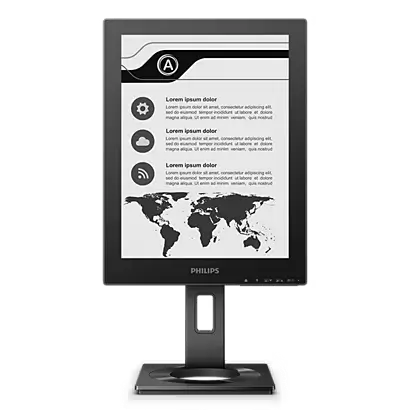
The Philips 13B1K3300 is a 13.3-inch electronic paper display (EPD) monitor from the Business Monitor 3000 Series. It uses a reflective, bi-stable panel instead of a backlit LCD, so it draws very little power and relies on room light to show content. The last image stays visible even after power is removed. That makes it well suited to reading documents, and less suited to fast-moving video or quick mouse work. It connects by HDMI, DisplayPort, or USB-C, includes a switchable front light, and works with Philips’ SmartRemote app for viewing files from a Windows laptop.
Product Specifications
| Feature | Detail |
| Panel type | EPD, 13.3″ (33.8 cm) |
| Native resolution | 1200 x 1600 |
| Aspect ratio | 3:4 |
| Pixel pitch | 0.169 x 0.169 mm |
| Display colors | 4-bit grayscale |
| Screen coating | Anti-glare 3H, haze 15% |
| Video inputs | 1x HDMI 1.4, 1x DisplayPort 1.2, 1x USB-C (DisplayPort Alt mode) |
| Audio | 1x audio out |
| Front light | White or warm |
| VESA mount | 100 x 100 mm (M4 screws) |
| Stand | Tilt -5° to +25°, swivel ±180°, pivot ±90°, height adjustment 100 mm |
| Power supply | External, 100-240V AC, 50/60Hz |
| Weight | 1.85 kg with stand, 1.06 kg without |
| Dimensions with stand (W x H x D) | 247 x 482 x 172 mm |
| Dimensions without stand (W x H x D) | 247 x 324 x 23 mm |
| Operating temperature and humidity | 0°C to 40°C, 20% to 80% RH |
| Non-operating temperature and humidity | -20°C to 60°C, 10% to 90% RH |
Typical power use is about 6.5 W in normal operation (6.7 W at 230V), 0.4 W in sleep, and 0.3 W when off. The housing is black with a textured finish. Specifications can change without notice.
What’s in the Box
The package includes the monitor, a base and stand, an AC/DC adapter, and a quick start guide. HDMI, DisplayPort, and USB-C to USB-C cables are included too, but which ones you get depends on your region. Use only the Philips ADPC1936 adapter (page 5).
Installation and Setup
Attaching the Base
- Place the monitor face down on a smooth surface, taking care not to scratch the screen.
- Hold the stand with both hands and gently attach the base to it.
- Tighten the screw at the bottom of the base by hand, then finish with a screwdriver so the base is secure.
- Gently attach the stand to the VESA mount area until the latch locks.
Connecting to Your Computer
The back panel has the AC/DC power input, HDMI, DisplayPort, USB-C, audio out, and a Kensington lock slot.
- Connect the power cord firmly to the back of the monitor.
- Turn off your computer and unplug its power cable.
- Connect the signal cable to the video connector on your computer.
- Plug the computer and monitor into a nearby outlet.
- Turn on both. If an image appears, installation is complete.
USB-C can carry both power and video. HDMI and DisplayPort carry video only and cannot charge a device. If the adapter is connected, the monitor takes its power from the adapter.
USB-C Power Delivery
With the adapter connected, the USB-C port can supply up to 15W (5V/3A) to charge a device. Philips cannot guarantee that this will meet every device’s needs, so check your device’s specifications. Without the adapter, the monitor can run from a USB-C source that supplies at least 15W, accepting up to 65W (5V/3A through 20V/3.25A). If you use a phone with the monitor, connect the adapter. The screen may flicker or go black when the phone’s battery runs low (page 7).
Controls and On-Screen Menu
Five front buttons (page 8) cover the main functions:
- Power/Menu: hold for 3 seconds to turn the monitor on or off. A press opens the OSD menu and moves between items.
- Gray scale levels: nine levels that adjust contrast and grayscale.
- Image mode presets: six presets. Video 1 and 2 suit video, and Text 1 through 4 suit reading documents.
- Front light selector: White, Warm, or Off, each with adjustable light levels.
- Clear image sticking: refreshes the screen to remove ghosting.
The OSD menu also includes SmartClean, Input, Reset, and Language. SmartClean offers six settings: Off, 10, 20, 30, 60, and 120 seconds. Input offers HDMI 1.4, DisplayPort, and USB-C. The menu supports 21 languages, including English, Spanish, French, German, and Japanese.
For best results, set your computer to the native 1200 x 1600 resolution. At any other resolution, the monitor shows an alert telling you to use 1200 x 1600. You can turn this alert off in the OSD Setup menu.
Adjusting the Stand and Mounting
The stand tilts from -5° to +25°, swivels 180° either way, pivots 90° either way, and raises or lowers by 100 mm. Hold only the bezel when you adjust it, and do not press on the screen. Do not tilt the monitor downward more than -5°. Going past that can peel the panel from the bezel and is not covered by warranty (page 10).
To use a VESA mount:
- Extend the base to its maximum height.
- Place the monitor face down on a smooth surface, then lift the stand.
- Hold the release button down, tilt the base, and slide it out.
The mounting interface is 100 x 100 mm with M4 screws. The manual says to contact the manufacturer for wall-mount installation (page 11).
Using SmartRemote
The EPD refreshes more slowly than an LCD, so Philips recommends the SmartRemote app for viewing files. Download it from www.philips.com/welcome. It works only with Philips EPD displays and only on Windows. macOS is not supported.
Drag Word, Excel, PowerPoint, or PDF files into the drop zone. You can page through files, zoom in and out, view a file at 100% size, and search for text. Zooming splits the page into quadrants, and you click a quadrant to zoom into that area. The app holds five files at once, and adding a sixth removes the oldest. It is for viewing only, so you cannot edit files in it.
To uninstall, open the Start menu, right-click SmartRemote, and select Uninstall.
Safety Instructions
- Keep the monitor away from strong direct sunlight, heat sources, and oil. Heat can discolor or damage it. Oil can damage the plastic cover and void the warranty.
- Keep the ventilation holes clear and make sure nothing can fall into them.
- Place the monitor so the power plug and outlet are easy to reach.
- After unplugging the power cable or DC cord, wait 6 seconds before reconnecting.
- Use only the approved Philips power cord and the specified power supply. The wrong voltage can cause malfunction, fire, or electric shock.
- Do not pull, bend, or place heavy objects on the cables.
- Avoid severe vibration, knocks, and drops during use and transport.
- Connect the USB-C port only to equipment with a fire enclosure that complies with IEC 62368-1 or IEC 60950-1.
- Only qualified service personnel should open the casing.
- Do not leave the monitor in a car or trunk in direct sunlight.
- Excessive volume through earphones or headphones can cause hearing loss.
The manual also suggests breaks to ease eye strain, such as 5 to 10 minutes after every 50 to 60 minutes of screen use.
Cleaning and Maintenance
Do not put pressure on the EPD. To move the monitor, lift it by the frame and keep your hands off the screen.
To clean it, unplug the monitor and use a slightly damp cloth. A dry cloth is fine when the power is off. Never use ammonia-based liquids or oil-based cleaners, which can damage the plastic and void the warranty.
The manual’s guidance on alcohol is mixed. The maintenance section warns against alcohol, while the FAQ allows isopropyl alcohol for extensive cleaning of the EPD surface and rules out ethyl alcohol, ethanol, acetone, and hexane. For normal cleaning, stick to a clean, soft cloth.
If water or a foreign object gets inside, turn the power off at once, disconnect the cord, remove the substance, and send the monitor to a service center. Unplug the monitor if you will not use it for a long time.
Troubleshooting
No picture, power LED off. Check that the power cord is secure at both the outlet and the monitor. Make sure the power button is off, then press it on.
No picture, power LED white. Make sure the computer is on and the signal cable is firmly connected. Check the cable for bent pins. The energy-saving mode may also be active.
Smoke or sparks. Do not troubleshoot. Disconnect the monitor from mains power right away and contact Philips customer service.
Distorted, fuzzy, or jagged text. Set the computer to 1200 x 1600. Then try a different image mode preset or gray scale level.
Ghost image. Press the Clear image sticking button.
After-image with the power off. This is normal. The display holds its last image without power.
Power Management and Warranty
If your computer supports VESA DPM, the monitor lowers its power use automatically when idle and wakes when it detects keyboard or mouse input. The LED is white when active, blinks white in sleep, and is off in Off mode.
Warranty length depends on your region. See the Warranty Statement in the separate Important Information manual. Philips also offers 1-, 2-, or 3-year extended warranty packages. You must buy one within 30 calendar days of your original purchase, and proof of both purchases is required (page 18).
Frequently Asked Questions
What resolution should I use?
Use the native 1200 x 1600. Other resolutions can cause fuzzy or jagged text and trigger an on-screen alert. If the screen says it cannot display the video mode, set your PC to 1200 x 1600 in Windows display settings, then restart.
Why does the monitor feel slow with a mouse?
It is a bi-stable reflective display with a lower refresh rate than an LCD, and it is built for reading text. SmartRemote gives a quicker way to view files.
How do I remove ghosting?
Press the Clear image sticking button on the display. You can also set the SmartClean option in the OSD menu.
Can I charge my phone or laptop from it?
Yes, through USB-C. With the adapter connected, it supplies up to 15W (5V/3A). HDMI and DisplayPort cannot charge devices.
What if I get lost in the OSD menu?
Open the menu, go to Reset, and select it to restore all factory settings.
Does it work with Mac computers?
The monitor is plug-and-play with Windows 11, 10, 8.1, and 8 and with Mac OS X. You may need a cable adapter for a Mac. SmartRemote runs on Windows only.
Can I use it in a wall mount?
It accepts a 100 x 100 mm VESA mount with M4 screws, but the manual tells you to contact the manufacturer about wall-mount installation.
Is the screen scratch resistant?
Protect the panel from shocks and from sharp or blunt objects. Do not apply pressure to the screen, since that can affect your warranty.