
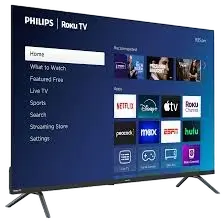
This Philips-branded Roku TV combines live broadcast channels from an antenna or cable connection with streaming channels delivered through a Roku account. Its Home screen holds your TV inputs and streaming channels, and you can rearrange, rename, or remove any of them. The TV has a built-in wireless adapter, and some models also offer a wired Ethernet jack. Guided Setup covers the first start. The instructions below follow Roku TV software version 12.0 (PDF p. 14), and some features vary by model.
Specifications and Key Limits
| Item | Detail |
| Antenna digital (ATSC) | VHF 2–13, UHF 14–69 |
| Cable digital (QAM) | Channels 2–135 |
| Analog (NTSC) | Antenna VHF 2–13, UHF 14–69; cable 2–135 |
| Operating temperature | 41°F (5°C) to 104°F (40°C) |
| Ventilation space | 4 in. (10 cm) or more around the TV |
| Wired network | 10 Base-T and 100 Base-T Ethernet (certain models) |
| Wall bracket (sold separately) | Skyworth L-WH02, M6 × 0.984 in. (25 mm) screws |
| Wall clearance | Top 11.8 in., sides 5.9 in., bottom 3.9 in. |
| Warranty | One year, limited |
The TV supports only its internal wireless adapter, so a USB network adapter will not work (PDF p. 23).
Connecting Your Devices
- Antenna or cable: Use a 75-ohm coaxial cable on the ANT/CABLE input. Twin-lead antenna cable needs a 300-to-75-ohm adapter.
- HDMI: This is the best option for set-top boxes, game consoles, and Blu-ray players. The HDMI (ARC) port can send audio to a receiver or soundbar, and HDMI (eARC) on certain models also passes through full-resolution formats such as Dolby Atmos and DTS:X.
- Composite AV: Certain models only, some with a breakout cable for the three RCA plugs.
- Digital audio: Connect a TOSLINK cable to the optical output, or use HDMI ARC.
- Headphones: Plugging into the headphone jack mutes the TV speakers. Keep volume low, because loud noise can damage hearing.
Connect everything before plugging in the power cord (PDF p. 5).
Remote and Panel Controls
Remotes with a VOICE or SEARCH button below the purple pad are Roku Voice Remotes. A headphone jack on the left edge identifies an Enhanced Voice Remote or Voice Remote Pro (PDF p. 24).
| Button | What it does |
| Directional pad | Moves the highlight. While watching TV, Up/Down changes channels and Left opens the Live TV Channel Guide. |
| OK | Selects an item. While watching TV, shows program information. |
| STAR (*) | Opens options and the TV settings menu. |
| HOME / BACK | Returns to the Home screen / steps back one screen. |
| REPLAY | Returns to the previous channel, or jumps back a few seconds with Live TV Pause on. |
Panel buttons are not a substitute for the remote. If you cannot find them, check behind the status light at bottom center or near the lower corners of the back panel (PDF p. 27).
The single status indicator stays lit in standby, blinks slowly while starting up or updating, and blinks twice repeatedly if a previously connected TV loses its network (PDF p. 51). Turn it off in standby under Settings > System > Power > Standby LED.
First-Time Setup
- Press POWER. A startup screen appears while the status light blinks.
- Pick your language, and your country if asked.
- Choose Set up for home use. Store mode limits features, and switching back requires a factory reset (PDF p. 32).
- Select Wireless or Wired, choose your network, enter the password, and select Connect. Some models let you connect later.
- Choose your time zone only if the TV cannot detect it.
- Enter your email address, then open Roku’s email on a phone or computer to link a new or existing Roku account. Roku does not charge for activation support, so beware of scams (PDF p. 38).
- Turn on your connected devices and label each input. Choose Nothing for unused inputs so they stay off the Home screen.
Watching Live TV
Select the Live TV input. On first use the TV scans for channels, which can take several minutes. Rescan whenever you change providers, move the antenna, or relocate. A rescan unhides any channels you hid.
The Live TV Channel Guide shows over-the-air and streaming channels, including the next 14 days of listings. Mark favorites or hide channels from the channel options menu (press STAR on a channel number).
Live TV Pause
On certain models, Live TV Pause lets you pause digital channels for up to 90 minutes. You need a Roku-connected TV and a USB 2.0 flash drive of at least 16 GB with 15 Mbps read/write speed. Enabling the feature erases the drive (PDF p. 60). Changing channels, leaving the Home screen, switching inputs, powering off, or removing the drive clears the buffer.
Picture, Sound, and Game Settings
Press STAR while watching to adjust settings for that input. The TV remembers separate picture settings for each input.
- Game mode: On HDMI and AV inputs it reduces image processing for lower input lag. Automatic low-latency mode and variable refresh rate are available on certain models.
- HDMI mode (4K models): Auto is recommended. Standard supports 60 Hz at full UHD and is required for HDR. Compatibility limits to 30 Hz but suits older devices (PDF p. 137).
- Audio output: Under Settings > Audio, choose Auto, ARC, TV speakers, or Optical. Optical turns off the TV speakers, and Dolby Digital Plus is not available over optical (PDF p. 147).
- Dolby Atmos: Decoding works only through the built-in speakers (PDF p. 96).
Parental Controls
Open Settings > Parental controls to create a four-digit PIN, then block broadcast programs by US TV, movie, or Canadian ratings, or block unrated shows. These controls apply only to the TV tuner, not to other inputs or streaming channels (PDF p. 123). Unblocking with the PIN lasts two hours or until the TV is turned off. Resetting parental controls erases the PIN.
Safety, Placement, and Care
- Use two people to carry or wall mount the TV, and hold the upper and lower frames.
- Place the TV on stable furniture that can support it, anchor it to the furniture or wall, and never let children climb on it.
- Keep it away from water, direct sunlight, dust, and heat sources, and do not place candles or liquid-filled objects on it.
- Do not block vents or install it in a closed cabinet.
- Mount the bracket on a sturdy vertical wall only, never a ceiling or slanted wall, and not while the TV is plugged in (PDF p. 3).
- Clean with a dry cloth only. Never use a gas duster (PDF p. 5).
- The TV has no user-serviceable parts. Refer repairs to qualified service personnel, because opening it voids the warranty.
- Unplug it during lightning storms. Pressing POWER only enters standby, so unplug the cord to turn it fully off.
Black or bright dots on the screen are a structural property of the display, not a malfunction (PDF p. 4).
Troubleshooting and Resets
| Problem | What to try |
| Missing or wrong channels | Rescan, and confirm your ZIP code and time zone under Settings > System. |
| Channel shows no picture or sound | Check whether parental controls blocked the program, then press OK and enter your PIN. |
| No sound from soundbar or receiver | Check Settings > Audio > Audio output matches the cable you used. |
| Sound out of sync | Use Adjust audio delay in the Roku mobile app. |
| Voice remote unresponsive | Replace batteries, stay within two to three feet, and re-pair by holding the pairing button three seconds (on some remotes, HOME and BACK for five seconds). |
| Wi-Fi will not connect | Run Settings > Network > Check connection, or Set up connection after changing your router name or password. |
| HDMI device misbehaves | Set that input’s HDMI mode to Compatibility. |
For a frozen TV, try Settings > System > Power > System restart, which works like unplugging it. Settings > System > Advanced system settings > Factory reset can reset only picture and audio settings, or erase everything and rerun Guided Setup. If menus will not open, hold the recessed RESET button with a straightened paper clip for about 12 seconds, release it, and turn the TV back on (PDF p. 153).
Frequently Asked Questions
How do I turn the TV completely off?
Pressing POWER on the remote only puts the TV in standby. To shut it off fully, unplug the AC power plug, which should stay easy to reach.
Does this TV support Apple AirPlay and HomeKit?
AirPlay 2 and HomeKit work on all Roku TVs except models beginning with 6 or 5. Your TV’s model appears as the Hardware ID under Settings > About, so check it there (PDF p. 16).
Can I use the TV without an internet connection?
Yes, for live TV and connected devices, though some models cannot work offline. You lose the Roku Store, streaming channels, voice features, the Live TV Channel Guide, and Live TV Pause (PDF p. 165).
Does the TV track what I watch?
Only if you opt in to the Smart TV experience, which uses automatic content recognition. You can turn it off under Settings > Privacy > Smart TV experience, but information already collected is kept (PDF p. 53).
How do I update the software without internet?
Go to Settings > System > Software update and choose the option for TVs that cannot connect. You download the update to a USB flash drive on a computer and enter on-screen codes (PDF p. 169).
What does the warranty cover?
The one-year limited warranty covers defects in materials and workmanship for the original purchaser. It excludes commercial use, unauthorized repair, and retained images from fixed content shown too long (PDF p. 174). Customer care is 1-833-978-3323.