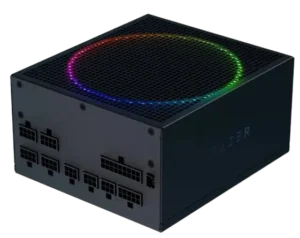
| Field | Details |
| Document Title | Razer Katana Chroma Master Guide |
| Document Type | Master Guide |
| Brand Name | Razer |
| Product Name | Katana Chroma |
| Model Number(s) | RC21-018402, RC21-018404 |
| PDF File Size | 586 KB |
| Number of Pages | 9 |
| Languages | English |
Razer Katana Chroma RC21-018402
The Razer Katana Chroma is a PC power supply unit (PSU) available in 850W and 1200W versions. It provides power connections for compatible computer components, including the motherboard, CPU, graphics card, SATA devices, and other supported hardware.
The Katana Chroma features a Platinum-rated or better power supply design and addressable RGB (aRGB) lighting compatible with Razer Chroma software. It also includes Zero RPM mode, which allows the cooling fan to operate automatically or remain continuously active according to the selected switch setting.
Product Overview
The Razer Katana Chroma is designed for installation inside a compatible desktop PC chassis. It provides multiple output rails and connections for supported computer components.
The two models share the same general product functions but differ in maximum continuous power output and some connector quantities.
| Model Number | Version | Total Continuous Power |
| RC21-018402 | Katana Chroma 850W | 850W |
| RC21-018404 | Katana Chroma 1200W | 1200W |
Main Features
- Available in 850W and 1200W configurations.
- Platinum-rated or better power supply design.
- Output rails for +12V, +5V, +3.3V, -12V, and +5V standby.
- Mainboard, CPU, PCIe, SATA, Molex, floppy, and ARGB connections.
- Zero RPM mode with automatic fan operation.
- Alternative setting for continuous fan operation.
- Addressable RGB lighting.
- Razer Chroma software compatibility.
- Razer Synapse support for lighting customization.
- Five-year limited warranty coverage.
What’s Included in the Box
The Razer Katana Chroma package includes the power supply, PC cables, and installation accessories.
| Item | Description |
| Razer Katana Chroma | 850W or 1200W power supply unit, depending on the purchased model |
| PC cables | Cables for supported motherboard, CPU, PCIe, SATA, Molex, floppy, and ARGB connections |
| Regional power cord | Connects the power supply to an appropriate external power source |
| Mounting screws | Used for securing the PSU during installation |
| Cable management | Supplied cable management accessory |
| Important Product Information Guide | Product information and safety guidance |
Included PC Cable Quantities
The supplied cable quantities vary between the 850W and 1200W models.
| Cable Type | 850W Model | 1200W Model |
| 24-pin mainboard | 1 | 1 |
| 8-pin CPU | 1 | 1 |
| 4+4-pin CPU | 1 | 1 |
| 6+2-pin PCIe (pigtail) | 2 | 3 |
| SATA | 2 | 3 |
| 4-pin Molex + Floppy | 2 | 2 |
| 3-pin & 4-pin ARGB | 1 | 1 |
The number of cable assemblies is different from the total number of individual connectors available on those cables. The connector quantities are listed in the next section.
Parts and Components
The Razer Katana Chroma includes power connections, a cooling fan, a power switch, and a Zero RPM mode switch.
Main Components
| Component | Function |
| Power supply unit | Provides electrical power to compatible PC components |
| Cooling fan | Provides cooling during operation |
| Power switch | Controls the PSU’s on/off state |
| Zero RPM mode switch | Selects automatic or continuous fan operation |
| Mainboard power connector | Provides the 24-pin connection for the motherboard |
| CPU power connectors | Provide 8-pin and 4+4-pin CPU power connections |
| PCIe power connectors | Provide 6+2-pin connections for supported graphics hardware |
| SATA connectors | Supply power to compatible SATA devices |
| Molex connectors | Supply power to compatible components using 4-pin Molex connections |
| Floppy connectors | Provide connections for compatible hardware requiring floppy power connectors |
| ARGB link | Provides the lighting connection for compatible RGB hardware |
Power Connector Quantities
The Master Guide identifies the total connector quantities for each power supply version.
| Connector Type | 850W Model | 1200W Model |
| 24-pin mainboard | 1 | 1 |
| 8-pin CPU | 1 | 1 |
| 4+4-pin CPU | 1 | 1 |
| 6+2-pin PCIe | 4 | 6 |
| SATA | 8 | 12 |
| 4-pin Molex | 8 | 8 |
| ARGB Link | 1 | 1 |
| Floppy | 2 | 2 |
The 850W model provides four 6+2-pin PCIe connectors and eight SATA connectors. The 1200W model increases these quantities to six PCIe connectors and twelve SATA connectors.
Both versions provide the same number of 24-pin mainboard, CPU, Molex, ARGB, and floppy connectors.
Technical Specifications
The Razer Katana Chroma is available in two electrical configurations.
General Specifications
| Specification | 850W Model | 1200W Model |
| Brand | Razer | Razer |
| Product | Katana Chroma | Katana Chroma |
| Model number | RC21-018402 | RC21-018404 |
| Product type | PC power supply unit | PC power supply unit |
| Total continuous power | 850W | 1200W |
| Power supply rating | Platinum or better | Platinum or better |
| +12V output | 70.8A maximum | 100.0A maximum |
| +5V output | 20.0A maximum | 25.0A maximum |
| +3.3V output | 20.0A maximum | 25.0A maximum |
| -12V output | 0.3A maximum | 0.3A maximum |
| +5V standby output | 3.0A maximum | 3.0A maximum |
| Cooling control | Zero RPM mode | Zero RPM mode |
| Lighting | Addressable RGB | Addressable RGB |
| Lighting software | Razer Synapse | Razer Synapse |
| Warranty | 5-year limited | 5-year limited |
Output Rail Specifications
The following table lists the electrical output ratings for both models.
| Output Rail | Output Voltage | Minimum Current | 850W Maximum Current | 1200W Maximum Current |
| V1 | +12V | 0.0A | 70.8A | 100.0A |
| V2 | +5V | 0.0A | 20.0A | 25.0A |
| V3 | +3.3V | 0.0A | 20.0A | 25.0A |
| V4 | -12V | 0.0A | 0.3A | 0.3A |
| V5 | +5Vsb | 0.0A | 3.0A | 3.0A |
The +12V rail provides the largest share of the power supply’s rated output.
The +5V and +3.3V rails have a combined maximum output limit that must also be considered when evaluating the power supply.
Combined Output Power
| Power Specification | 850W Model | 1200W Model |
| Total continuous power | 850W | 1200W |
| Maximum combined output of V1 (+12V) | 849.6W | 1200W |
| Maximum combined output of V2 and V3 (+5V and +3.3V) | 100W | 130W |
These are the rated output limits of the power supply. The individual rail limits and combined output limits must be observed when powering connected PC components.
System Requirements
The Razer Katana Chroma requires a compatible PC chassis and supported computer components.
Product Requirements
- Compatible PC chassis.
- Supported PC components.
The power supply must be installed with components compatible with its power connections and operating requirements.
Razer Synapse Requirements
Razer Synapse is used for the Katana Chroma’s supported lighting customization.
| Requirement | Details |
| Operating system | Windows 10 64-bit or higher |
| Internet connection | Required for software installation |
| Software | Razer Synapse |
Safety Instructions
The Razer Katana Chroma contains high-voltage electrical components. Proper safety precautions must be followed during installation, operation, and maintenance.
Electrical Safety
- Keep the power supply unplugged during installation to prevent electric shock.
- Do not attempt to service, repair, or open the power supply.
- The power supply contains high-voltage components and has no user-serviceable parts.
- Do not disassemble the device or attempt to operate it under abnormal current loads. Doing so may void the warranty.
- Switch off the device before relocating it, making modifications, or connecting or disconnecting any component.
- Disconnect the power supply if it cannot be operated correctly and troubleshooting does not resolve the issue.
- Contact Razer Support rather than attempting internal repairs.
Warning: High voltages are present inside the power supply. Users must not attempt to open or service the unit.
Installation Safety
The following precautions apply when installing the Katana Chroma or connecting PC components:
- Wear an antistatic wrist strap during installation to protect internal computer components from electrostatic discharge.
- Keep the power supply disconnected from the electrical outlet while making connections.
- Use only the included cables and connectors.
- Do not modify the supplied cables or connectors.
- Do not force a connector into a socket.
- Each connector is designed for a specific location and orientation.
- Follow the installation instructions and safety warnings provided by the manufacturers of the connected PC components.
- Handle accessories carefully and hold the plug or connector when connecting or disconnecting cables.
Important: Using incompatible cables or connectors may cause damage or serious harm to the connected components.
Environmental Safety
- The Katana Chroma is intended for indoor use only.
- Do not install or use the power supply near water or wet surfaces.
- Keep the unit away from liquids, humidity, moisture, and solvents.
- Avoid exposing the device or connected components to high temperatures.
- Keep the power supply away from direct sunlight.
Power Connection Precautions
Razer recommends connecting the power supply directly to a wall socket or power regulator.
Using an adapter or extension cord with the device is not recommended.
Before First Use
Before installing the Razer Katana Chroma, prepare the required PC components and identify the power connections.
- Identify whether the power supply is the 850W or 1200W version.
- Check that the PC chassis is compatible with the power supply.
- Confirm that the connected PC components are supported.
- Identify the supplied mainboard, CPU, PCIe, SATA, Molex, and ARGB cables.
- Keep the power supply disconnected from the electrical outlet.
- Prepare an antistatic wrist strap for handling the computer’s internal components.
- Review the installation and safety instructions for the motherboard and other connected hardware.
- Identify the PSU’s power switch and Zero RPM mode switch.
Warning: The power supply must remain unplugged while components and cables are being installed or connected.
Setup and Installation Instructions
The Razer Katana Chroma provides separate power connections for the motherboard, processor, graphics hardware, and other supported devices.
Preparing the Power Supply for Installation
- Switch off the computer and its connected components.
- Disconnect the power supply from the electrical outlet.
- Use an antistatic wrist strap when handling internal PC components.
- Position the power supply for installation in the compatible PC chassis.
- Use the supplied mounting screws as appropriate for the chassis, following the chassis manufacturer’s installation instructions.
- Identify the required power cables before connecting the components.
All components must be installed according to their manufacturer’s instructions and safety warnings.
Connecting the 24-Pin Mainboard Cable
The 24-pin mainboard connector provides the power connection for a compatible motherboard.
Both the 850W and 1200W models include one 24-pin mainboard cable.
When making this connection:
- Keep the power supply unplugged.
- Identify the supplied 24-pin mainboard cable.
- Locate the corresponding power connection on the supported motherboard.
- Follow the motherboard manufacturer’s instructions for the connection.
- Do not force the connector into an incompatible socket.
Connecting CPU Power Cables
Both Katana Chroma models include:
- One 8-pin CPU cable.
- One 4+4-pin CPU cable.
These cables provide CPU power connections for supported motherboards.
The required connections depend on the motherboard’s design and manufacturer instructions.
Only the appropriate supplied CPU power cables should be used.
Connecting PCIe Power Cables
The Katana Chroma includes 6+2-pin PCIe connectors for compatible graphics hardware.
| Model | PCIe Cable Assemblies | Total 6+2-Pin PCIe Connectors |
| 850W | 2 | 4 |
| 1200W | 3 | 6 |
The graphics card’s required power connections must be identified using its manufacturer’s instructions.
The appropriate included PCIe connectors should be used without forcing or modifying them.
Connecting SATA and Molex Devices
The Katana Chroma provides SATA and 4-pin Molex connections for supported PC components.
| Connection | 850W Model | 1200W Model |
| SATA connectors | 8 | 12 |
| 4-pin Molex connectors | 8 | 8 |
| Floppy connectors | 2 | 2 |
The correct connector type must be used for each supported device.
Connecting ARGB Lighting
Both models include one ARGB cable assembly with the listed 3-pin and 4-pin connection types.
The ARGB connection supports the power supply’s lighting integration with compatible hardware.
Razer Synapse provides additional customization options for Razer Chroma-enabled devices.
When connecting ARGB hardware, use the specified connection and follow the instructions for the compatible components. Do not force or modify the connector.
Connecting the Regional Power Cord
After completing the supported PC component installation and connections:
- Check that the connected components have been installed according to their manufacturers’ instructions.
- Identify the supplied regional power cord.
- Connect the appropriate power cord to the power supply.
- Connect the other end directly to an appropriate wall socket or power regulator.
Razer does not recommend using an adapter or extension cord with this power supply.
Operating Instructions
The Razer Katana Chroma includes a main power switch and a separate Zero RPM mode switch.
These controls manage the power supply’s operating state and cooling fan behavior.
Main Power Switch
The main power switch controls whether the PSU is switched on or off.
The Master Guide includes an illustration showing the OFF and ON switch positions.
The rear power switch should be used according to the markings on the physical unit.
Before relocating the device, changing connections, or modifying supported components, switch off the power supply and disconnect it from the electrical outlet.
Zero RPM Mode
Zero RPM mode controls how the PSU cooling fan operates.
The switch has two settings:
| Zero RPM Switch Position | Fan Behavior |
| ON | Auto On/Off |
| OFF | Fan Always On |
How to Enable Zero RPM Mode
- Locate the Zero RPM mode switch.
- Select the ON position.
- The cooling fan will operate using the automatic on/off function.
In this mode, the fan is not required to run continuously.
How to Keep the Fan Running Continuously
- Locate the Zero RPM mode switch.
- Select the OFF position.
- The cooling fan will use the Fan Always On setting.
This setting is identified separately from the automatic Zero RPM function.
Important: The Zero RPM switch controls fan behavior. It is separate from the main power switch.
Razer Chroma RGB Lighting
The Razer Katana Chroma supports addressable RGB lighting and software-based lighting customization.
Razer Synapse can be used to access lighting options across compatible Razer Chroma-enabled devices.
Installing Razer Synapse
Razer Synapse can be installed when prompted or downloaded from Razer’s software website.
- Use a computer running Windows 10 64-bit or higher.
- Connect the computer to the internet.
- Open the Razer Synapse download page.
- Download the installer.
- Follow the software installation instructions.
- Open Razer Synapse to access supported lighting customization options.
Software Download: https://www.razer.com/synapse
Razer Chroma Lighting Customization
Razer Synapse provides lighting customization for compatible Razer Chroma-enabled devices.
The Katana Chroma’s addressable RGB lighting can be used as part of a supported Chroma lighting configuration.
Additional information about the Razer Chroma lighting system is available at:
Razer Chroma: https://www.razer.com/chroma
Maintenance and Safe Handling
The Razer Katana Chroma must be handled as a sealed electrical power supply.
Power Supply Maintenance Precautions
- Do not open the power supply housing.
- Do not attempt to repair or service internal components.
- Keep the device away from liquid, humidity, moisture, solvents, and excessive heat.
- Switch off the power supply before relocating the device.
- Disconnect power before connecting or disconnecting components.
- Handle all included cables and accessories carefully.
- Hold the plug or connector rather than pulling on a cable.
- Use only the included cables and connectors.
Handling Internal PC Components
When changes are required to connected PC hardware:
- Switch off the power supply.
- Disconnect it from the electrical outlet.
- Use antistatic protection before handling internal components.
- Follow the relevant component manufacturer’s instructions.
- Use only the appropriate supplied PSU cables and connectors.
- Do not force connections.
Warning: The power supply contains no user-serviceable parts. Internal repairs must not be attempted by the user.
Troubleshooting Guide
The following checks address situations covered by the Katana Chroma’s operating instructions, product requirements, and safety guidance.
| Problem or Situation | Possible Explanation or Check | Recommended Action |
| Cooling fan does not run continuously | Zero RPM mode may be enabled | Check the Zero RPM switch. The ON setting uses automatic fan operation |
| Continuous fan operation is required | Zero RPM switch is set to Auto On/Off | Select the OFF position for Fan Always On |
| A supplied cable does not fit a component | The connector may not match the required socket or orientation | Do not force the connector. Check the connector type and the component manufacturer’s instructions |
| Razer Synapse cannot be installed | The software requires Windows 10 64-bit or higher and an internet connection | Verify that the computer meets the software requirements |
| Lighting customization is required | Razer Synapse provides supported Chroma lighting options | Install Razer Synapse and use its available lighting controls |
| PSU requires service or repair | High-voltage components are present inside the unit | Do not open or repair the power supply. Contact Razer Support |
| Power supply cannot be operated properly after troubleshooting | The operating issue remains unresolved | Unplug the device and contact the Razer hotline or support website |
Warning: Do not disassemble the PSU or attempt internal electrical repairs. If the device cannot be operated correctly and troubleshooting does not resolve the problem, disconnect it from power and contact Razer Support.
Warranty Information
The Razer Katana Chroma includes a 5-year limited warranty.
| Warranty Detail | Information |
| Manufacturer | Razer |
| Product | Katana Chroma |
| Covered models | RC21-018402, RC21-018404 |
| Warranty type | Limited warranty |
| Warranty period | 5 years |
| Product registration | https://razerid.razer.com |
| Warranty terms | https://www.razer.com/warranty |
Frequently Asked Questions
What is the difference between the Razer Katana Chroma 850W and 1200W?
The Katana Chroma 850W (RC21-018402) provides 850W of continuous power, while the 1200W (RC21-018404) provides 1200W. The 1200W model also has more PCIe and SATA connectors. Both models support Zero RPM mode, addressable RGB lighting, and a five-year limited warranty.
How many PCIe connectors does the Razer Katana Chroma have?
The 850W model provides four 6+2-pin PCIe connectors through two PCIe cable assemblies. The 1200W model provides six 6+2-pin PCIe connectors through three cable assemblies.
How do I install the Razer Katana Chroma power supply?
The power supply must remain unplugged during installation. It should be installed in a compatible PC chassis using the supplied mounting screws as appropriate. The included mainboard, CPU, PCIe, SATA, and other cables must be connected according to the respective component manufacturers’ instructions. Users should wear antistatic protection and avoid forcing connectors.
What does Zero RPM mode do on the Razer Katana Chroma?
Zero RPM mode controls cooling fan operation. When the Zero RPM switch is set to ON, the fan uses automatic on/off operation. When it is set to OFF, the fan uses the Fan Always On setting.
Why is the Razer Katana Chroma fan not spinning continuously?
The Zero RPM mode switch may be set to ON, which enables automatic fan operation. The manual identifies the OFF position of this switch as Fan Always On. If the power supply cannot be operated correctly and troubleshooting does not resolve the issue, unplug it and contact Razer Support.
Does the Razer Katana Chroma support RGB lighting?
Yes. The Katana Chroma supports addressable RGB lighting and Razer Chroma customization through Razer Synapse. The software requires Windows 10 64-bit or higher and an internet connection for installation.
What is the maximum output of the Razer Katana Chroma 850W and 1200W?
The 850W model provides a maximum +12V output of 70.8A and a maximum combined +12V output of 849.6W. The 1200W model provides a maximum +12V output of 100A and a maximum combined +12V output of 1200W. The +5V and +3.3V rails have separate combined limits of 100W and 130W, respectively.