
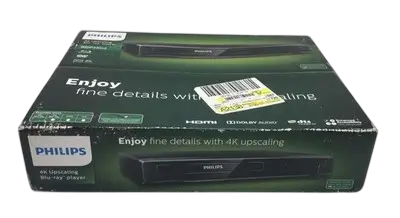
The Philips BDP3502 is a Blu-ray Disc and DVD player that connects to your TV or AV receiver through a single HDMI jack. It plays Blu-ray Discs, DVDs, audio CDs, and finalized recordable discs. It also reads JPEG photos and AVCHD files from supported media, including a USB memory stick. DVDs are upscaled for HDMI output, and the player can output up to 4K resolution. It does not have internet access, so BD-Live and 3D Blu-ray discs are not supported. This page covers setup, playback, settings, care, and common fixes.
Product Specifications
| Item | Detail |
| Signal system | NTSC color |
| Power requirements | 120 V AC, 60 Hz |
| Power consumption | 16 W (standby: 0.5 W) |
| Dimensions (W x H x D) | 11.1 x 1.7 x 8.3 inches (280.0 x 41.0 x 201.0 mm) |
| Weight | 1.0 kg (2.21 lbs.) |
| Operating temperature | 41°F (5°C) to 104°F (40°C) |
| Operating humidity | Less than 80% (no condensation) |
| USB input | Type A |
| HDMI output | HDMI jack x 1 |
| Digital video output | 480p, 720p, 1080i, 1080p, 1080p/24, 4K, 4K/24 |
The player handles BD-video region “A” and DVD-video region “1” or “ALL.” Discs from other regions will not play (p. 18).
What’s in the Box
- Quick Start Guide
- Remote control (NC270MH)
- Two AAA 1.5V batteries
An HDMI cable is not included. A High Speed HDMI cable is recommended for better compatibility (p. 13).
Controls and Connections
The front panel has the disc tray, a power-on indicator, an infrared sensor window, an OPEN/CLOSE button, a STANDBY/ON button, and a USB input. The indicator blinks while the unit starts up and stays lit once the Home Menu appears. The rear panel has the AC power cord and one HDMI OUT jack. There is no TV RF modulator.
On the remote, the main buttons are HOME, TOP MENU, POP MENU, OPTIONS, BACK, and OK. Playback is handled by PLAY/PAUSE, STOP, SKIP, and the fast reverse and fast forward keys. AUDIO, SUBTITLE, and REPEAT have their own buttons. The colored buttons work as shortcuts on some BD-video discs.
Remote control batteries
Insert two AAA batteries with the polarity matching the markings in the compartment. Do not mix old and new batteries, or different battery types. Lithium, ni-cad, and ni-mh rechargeable batteries are not recommended. Remove the batteries if the remote will sit unused for a month or more (p. 11).
The remote works up to about 23 feet (7 m) in a straight line. It also works within 30° either side of center at about 16 feet (5 m). A universal remote is not guaranteed to work with this player.
Safety Instructions
- Leave at least 5.9 inches (15 cm) of space around the unit. Do not place it inside a closed cabinet or cover the vents (p. 5).
- Install it on a stable, horizontal surface. Keep it out of direct sunlight, away from heat sources, and away from dust, strong vibration, and magnetic fields.
- Do not place liquid-filled objects such as vases on the player. Keep it away from dripping or splashing water.
- Do not use a gas duster on the unit. Trapped gas may ignite (p. 5).
- Hold the plug, not the cord, when unplugging. Never handle the cord with wet hands.
- Do not open the cover. This is a Class 1 laser product with no user-serviceable parts, and opening it risks eye injury and voids the warranty.
- Remove the disc and unplug the unit before carrying it.
- If the player moves from a cold place to a warm one, condensation can form inside. Wait at least a few hours before using it.
- Do not touch the inner pins of the rear jacks. Static discharge can permanently damage the unit.
- Unplugging the AC cord is the only way to turn the unit off completely.
Connecting the Player
- Turn off all devices before changing any connections.
- Plug one end of an HDMI cable into the HDMI OUT jack on the player.
- Plug the other end into an HDMI IN jack on your TV.
- To use an AV receiver or amplifier, connect the player’s HDMI OUT to the receiver’s HDMI IN. Then connect the receiver’s HDMI OUT to the TV.
- Turn on the player, then the TV, and select the matching HDMI input on the TV.
The TV and any receiver must support HDCP, or the picture will not display properly. Use a certified HDMI cable. If you hear no sound, make sure the TV input is not an HDMI-DVI terminal.
First-Time Setup
When the player starts for the first time, a language screen appears. Choose English, Français, or Español with the arrow buttons and press OK. If you pick the wrong language, press HOME, open Setup, then Preference Setup, then Menu Language, and choose again.
Playing Discs and USB Media
- Press OPEN/CLOSE and place the disc label side up, aligned with the tray guide.
- Press OPEN/CLOSE again to close the tray. Loading can take a moment.
- Blu-ray, DVD, and audio CD discs start automatically. If one does not, press PLAY/PAUSE.
- For discs with photos or AVCHD files, choose the file type and press OK.
For USB playback, plug a memory stick directly into the front USB port, press HOME, choose Browse USB, and press OK. The player reads FAT16 and FAT32 sticks but not NTFS. Do not use an extension cable, and do not connect a PC, external hard drive, camera, keyboard, or mouse. Never unplug the stick while it is being read.
Pressing STOP once stores a resume point. Press PLAY/PAUSE to continue from there, or press STOP again to clear it. For disc menus, use TOP MENU or POP MENU, though some discs do not respond to them.
Playback Features
Press OPTIONS during playback to open the play menu. From there you can search by title, chapter, or time, repeat chapters or titles, change angles, switch audio and subtitles, and turn Picture Enhancement on or off. For BD-videos with secondary video, the same menu controls PiP.
Fast forward and reverse have five speeds on discs and three on audio CDs. Slow forward has three speeds, entered by pausing and then pressing forward. Step-by-step playback advances one frame per SKIP press while paused. Slow reverse and step reverse are not available. JPEG slide shows advance every 10 seconds.
Useful Settings
Open Setup from the Home Menu to reach the settings.
- HDMI Video: Auto uses the highest resolution your TV supports. Manual choices run from 480p to 4K/24. The setting cannot be changed during BD-video playback (p. 34).
- HDMI Audio: Choose Bitstream or LPCM, depending on what your receiver accepts. It can only be changed when Voice Guide is Off.
- EasyLink: HDMI CEC lets one button turn on the TV and switch inputs. Holding STANDBY/ON for 2 seconds turns off the TV and then the player.
- Parental Control: Set a 4-digit password and a rating level from 1 (Kid Safe) to 8 (Adult). Use any number except 4737 as your first password.
- Software Update: Download the update from philips.com/support onto a blank disc or USB stick, then run it from Advanced Setup. Do not unplug the unit during the update (p. 36).
- Restore default settings: Reset Settings keeps your Parental Control settings. Reset All Settings returns everything to factory defaults, and it cannot be selected with a disc loaded.
The player enters screen saver after 5 minutes of inactivity and standby after 25 minutes.
Cleaning and Maintenance
Wipe the exterior with a soft cloth. Never use solvents, thinner, benzene, or alcohol, and keep insecticide spray away from the unit.
Clean discs from the center outward, not in circles. Avoid solvents, detergents, abrasive cleaners, and anti-static spray made for records. Store discs in their cases. Heart-shaped, octagonal, and other specially shaped discs can damage the player, so do not play them.
If playback still misbehaves after troubleshooting, the laser pickup may be dirty. Have an authorized service center clean it. Do not open the unit yourself.
To test the remote, point a phone or digital camera at it and hold any button. If infrared light shows on the screen, the remote is sending a signal. Some cameras filter IR and will not show it (p. 43).
Troubleshooting
| Problem | What to try |
| No power | Check the AC cord and try another outlet. Unplug for 5 to 10 seconds, then plug back in. |
| No picture or sound over HDMI | Select the correct TV input. Confirm HDCP support and use a certified HDMI cable. Unplug the HDMI cable, turn both devices on, and reconnect it. |
| Remote does not respond | Move closer to the sensor. Check battery polarity and run the camera IR test. |
| Disc will not play | Check the region code and disc type. Make sure recordable discs are finalized. Clean the disc. |
| Playback will not start on a title | Check the Parental Control level. |
| Forgot password | Enter 4737 to clear it. |
| Unit stops responding | Hold STANDBY/ON on the front panel for 10 seconds. Or unplug the cord for 5 to 10 seconds. |
| Disc stuck on “Loading…” | Unplug for 20 seconds, plug back in, and press OPEN/CLOSE on the unit. |
| No surround audio | Turn on the audio system, check its input, and match the Bitstream or LPCM setting to its capabilities. |
Frequently Asked Questions
Which discs can the BDP3502 play?
It plays BD-video, BD-RE and BD-R recorded in BDMV format, DVD-video, finalized DVD-RW and DVD-R in video mode, audio CDs, CD-RW, CD-R, and DTS-CD. It also plays AVCHD files from correctly structured DVDs and JPEG files from supported media.
Why won’t my disc play?
The most common causes are a wrong region code, an unfinalized recordable disc, or a dirty disc. This player accepts Blu-ray region A and DVD region 1 or ALL. It also cannot play CD-ROM, DVD-RAM, DVD-Audio, HD DVD, BDXL, video CD, SVCD, or discs with DivX files. Newer titles sometimes need a software update.
Does it support BD-Live, 3D, or streaming?
No. The player does not connect to the internet, so BD-Live is unsupported. 3D Blu-ray discs are also not supported.
Can I play music or videos from a USB stick?
The USB port is for JPEG photos and for extra content that some BD-ROM discs store. MPEG-2 video from a USB stick will not play. Some BD-videos need a stick with 256 MB or more of free space, formatted on the player itself.
How do I get 4K output?
Set HDMI Video to 4K or 4K/24, and make sure your TV supports the resolution. The 4K setting outputs 2160p/60, and 4K/24 outputs 2160p/24 for 24-frame sources. Auto picks the highest resolution your display supports.
How do I reset the parental control password?
Enter 4737 when asked for the password. This clears your password and sets the rating level to Off. You can then set a new password under Change Password.
Why does the player turn itself off?
To meet ENERGY STAR requirements, the screen saver starts after 5 minutes of inactivity. The unit enters standby after 25 minutes. The Screen Saver setting can be switched on or off in Preference Setup.
What does the warranty cover?
The printed warranty is a 90-day limited warranty for the original purchaser. It covers defects in materials and workmanship and requires proof of purchase from an authorized retailer. Support is available at 1-866-515-1124 in the U.S., Canada, Puerto Rico, and the U.S. Virgin Islands.