
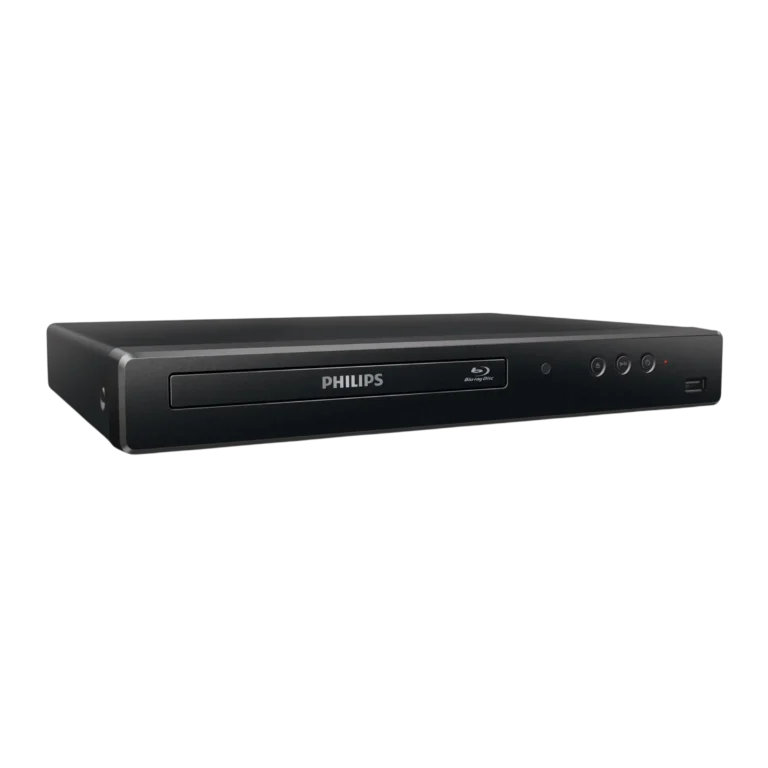
The Philips BDP1502 is a compact Blu-ray Disc and DVD player that connects to a TV or AV receiver through a single HDMI cable. It plays Blu-ray Discs, DVDs, audio CDs, and recordable discs, and it can read photo and music files from discs or a USB memory stick. DVDs are upscaled to as high as 1080p over HDMI. The player also supports BD-Java menus, picture-in-picture (BONUSVIEW) on discs that include it, and HDMI CEC control through EasyLink. It has no analog video output and no TV RF modulator, so an HDMI-equipped TV is required (p. 9).
Product Specifications
| Item | Detail |
| Signal system | NTSC color |
| Power requirements | 120 V AC, 60 Hz |
| Power consumption | 15 W (0.5 W in standby) |
| Dimensions (W x H x D) | 11.1 x 1.7 x 7.9 in (280.0 x 41.0 x 198.5 mm) |
| Weight | 1.0 kg (2.21 lbs) |
| Operating temperature | 41°F to 104°F (5°C to 40°C) |
| Operating humidity | Less than 80%, no condensation |
| USB input | Type A |
| HDMI output | One HDMI jack: 480p, 720p, 1080i, 1080p, 1080p/24 |
What’s in the Box
- Quick start guide
- Remote control (NC098UL)
The remote needs two AAA (1.5 V) batteries, which are not included. An HDMI cable is also required and is not included (p. 6).
Parts and Controls
The front panel has the disc tray, an infrared sensor window, and buttons for open/close, play/pause, and power. It also has a power-on indicator and a USB input. The rear panel has the AC power cord and one HDMI OUT jack.
Only a USB memory stick or USB card reader should go into the USB input. Don’t connect a PC, external hard drive, camera, keyboard, or mouse, and don’t use a USB extension cable (p. 9).
On the remote, the most useful buttons are:
- HOME: opens the home menu.
- OPTIONS: opens the play menu during playback.
- TOP MENU and POP MENU: open disc menus.
- AUDIO and SUBTITLE: switch soundtracks and subtitles.
The remote works up to about 23 feet (7 m) in a straight line. Use alkaline batteries and avoid lithium, ni-cad, or ni-mh types. Don’t mix old and new batteries (p. 11).
Connecting the Player
Turn off all devices before changing connections.
- Plug one end of a certified HDMI cable into the HDMI OUT jack on the player.
- Plug the other end into an HDMI IN jack on your TV.
- Plug the player’s AC cord into an outlet.
For surround sound, connect the player’s HDMI OUT to an AV receiver or amplifier with an HDMI input, then connect the receiver to the TV. A High Speed HDMI cable is recommended. A display that doesn’t support HDCP won’t show a proper picture (p. 13).
Initial Setup
- Press POWER to turn on the player, then turn on the TV.
- Select your language on the setup screen and press OK.
- Choose whether to turn the voice guide on or off, then press OK.
If you picked the wrong language, press HOME and open Setup. Then go to Preference > Menu Language and choose again (p. 15).
Playable Discs and Files
The player handles these formats:
- Blu-ray video, BD-RE (ver. 2.1) and BD-R (ver. 1.1/1.2/1.3) recorded in BDMV format
- DVD-video, plus finalized DVD-RW/-R in video mode
- Audio CD, CD-R, and CD-RW
- AVCHD files from a properly structured DVD-RW/-R or SD card
- JPEG, PNG, FLAC, and WAV files
The player cannot play Ultra HD Blu-ray, Blu-ray 3D, BDXL, DVD-RAM, DVD-Audio, HD DVD, video CD, SVCD, or DivX files. USB sticks must use FAT16 or FAT32, because NTFS isn’t supported (p. 17).
Region codes: Blu-ray discs must be region A. DVDs must be region 1 or ALL (p. 18).
Basic Playback
Playing a Disc
- Press OPEN/CLOSE to open the tray.
- Place the disc label side up, aligned with the tray guide.
- Press OPEN/CLOSE to close the tray.
Most discs start automatically. If one doesn’t, press PLAY. A disc with photo or music files shows a file list first (p. 20–21).
Playing From USB
Connect the memory stick, press HOME, select USB, and press OK. Don’t remove the stick or put the unit in standby while it’s being read (p. 22).
Resume and Special Playback
Pressing STOP puts the player in resume-on-stop mode, and PLAY resumes from that point. Resume stays in effect through power-off for discs but clears when the disc is ejected (p. 21).
- Fast forward/reverse: press FORWARD or REVERSE repeatedly, with five speed levels.
- Slow forward: press PLAY, then FORWARD, with four levels. Slow reverse isn’t available.
- Repeat: press REPEAT or use Repeat in the play menu.
- Search: open the play menu with OPTIONS and choose Search. You can then jump by title, chapter, track, or time.
Key Settings
Open them from HOME > Setup. Defaults are highlighted in the on-screen menus.
- HDMI Video: Auto, 480p, 720p, 1080i, 1080p, or 1080p/24. This setting doesn’t take effect during Blu-ray playback (p. 36).
- HDMI Audio: Bitstream, LPCM, or Re-encode. If the connected device can’t handle bitstream audio, the player falls back to LPCM (p. 14).
- Noise Reduction: Off, Low, Medium, or High.
- EasyLink: lets the TV and player work together, including one-touch play and one-touch standby (p. 35).
- Voice Guide: available only when the menu language is English or Spanish. Turning it on locks HDMI audio to LPCM (p. 39).
Parental Control
The default password is 0000. Change it under Setup > Preference > Change Password. Set the rating limit under Parental Control, from 1 [Kid Safe] to 8 [Adult]. Write down your new password (p. 37).
Software Update
Download the update from philips.com/support to a blank disc or USB stick, writing it to the root directory. Insert it, go to Setup > Advanced > Software Update, and choose Disc or USB. Don’t unplug the player, eject the media, or press POWER while it updates (p. 38).
Safety Instructions
- Keep at least 5.9 inches (15 cm) of clear space around the player. Don’t block the vents or place it inside a closed cabinet.
- Keep it away from heat sources, direct sunlight, dust, strong vibration, and liquids. Don’t set objects filled with liquid on top.
- Never use a gas duster on the unit. Trapped gas can ignite (p. 5).
- Don’t put the player on furniture a child could tip over.
- Don’t handle the power cord with wet hands. Pull the plug, not the cord.
- This is a Class 1 laser product. Don’t open the cover, because there are no user-serviceable parts inside.
- After moving the unit from a cold place to a warm one, let it dry for a few hours before use, because condensation can form inside.
- Remove the disc and unplug the unit before carrying it.
Cleaning and Maintenance
Wipe the exterior with a soft cloth. Don’t use solvents, thinner, benzene, or alcohol, and don’t spray insecticide nearby.
Clean discs from the center outward in straight strokes, not circles. Avoid solvents, detergents, abrasive cleaners, and antistatic sprays. Store discs in their cases. Don’t play heart-shaped or octagonal discs, which can damage the unit (p. 45).
If playback problems continue after troubleshooting, the laser pickup may be dirty. Contact an authorized service center for that, since you shouldn’t attempt it yourself.
Troubleshooting
| Problem | What to try |
| No power | Check the AC cord and try another outlet. Unplug for 5–10 seconds, then plug back in. |
| No picture or sound | Confirm the TV and player are on and the TV is on the correct HDMI input. Make sure the display supports HDCP. Try an HDMI hotplug: disconnect the cable, turn both devices on, and reconnect. |
| Remote doesn’t respond | Move closer, check battery orientation, and test the remote’s IR signal with a phone or digital camera. |
| Disc won’t play | Check the region code, finalize DVD-RW/-R discs, and clean the disc. Newer titles may need a software update. |
| “BD-ROM Data(USB) Check” message | Connect a USB stick first, then insert the disc. |
| Some Blu-rays won’t play | Connect a USB stick with at least 256 MB free, formatted on this unit. |
| Unit freezes or buttons stop working | Hold the front POWER button for 10 seconds, or unplug the AC cord for 5–10 seconds. |
| Disc stuck loading | Unplug for 20 seconds, plug back in, and press OPEN/CLOSE on the unit. |
Don’t repair the player yourself. Have the model and serial number ready when you contact support (p. 43).
Frequently Asked Questions
Does the BDP1502 play 4K Ultra HD or 3D Blu-ray discs?
No. Ultra HD Blu-ray and Blu-ray 3D discs are on the unplayable list, and the troubleshooting table notes that 3D discs aren’t supported.
Why won’t my disc play?
Region mismatch is a common cause. The player accepts region A Blu-rays and region 1 or ALL DVDs. DVD-RW/-R discs must also be finalized. If the disc is a recent release, a software update may fix it.
What USB format does it need?
FAT16 or FAT32. A stick formatted as NTFS won’t be read. The USB port accepts only memory sticks and card readers.
How do I get 1080p/24 output?
Set HDMI Video to 1080p/24. It applies to film-based Blu-ray content on a display that supports it. It isn’t available for AVCHD, and the setting doesn’t change output during Blu-ray playback (p. 36).
Why is there no surround sound from my receiver?
Check that the receiver is on and set to the right input. Then confirm whether it supports Bitstream or LPCM, and match the player’s HDMI Audio setting. Also raise the receiver’s volume (p. 43).
How do I reset the player or restore defaults?
For a frozen unit, hold the front POWER button for 10 seconds. For settings, go to Setup > Advanced > Restore default settings. Reset AV Settings keeps your parental control settings, while Reset All Settings returns everything to factory defaults. Neither can be run while a disc is loaded or the unit is in resume-on-stop mode (p. 40).
Why does the player turn itself off?
To meet ENERGY STAR requirements, the screen saver starts after 5 minutes of inactivity and the player enters standby after 25 minutes (p. 9).
What does the warranty cover?
It’s a 90-day limited warranty for the original purchaser against defects in materials and workmanship. It starts from the purchase date, and proof of purchase from an authorized retailer is required. Customer Care in the U.S., Canada, Puerto Rico, and the U.S. Virgin Islands is 1-833-978-3323 (p. 49).