
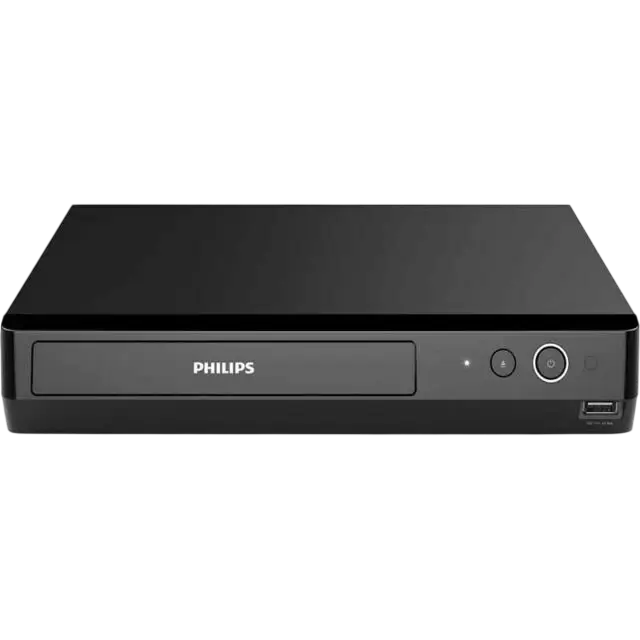
The Philips BDP5502 is a 4K Ultra HD Blu-ray player that also plays standard Blu-ray, Blu-ray 3D, DVD and CD discs, plus photo and music files from a USB memory stick. It connects to a TV or AV receiver over HDMI and has a wired Ethernet port for BD-Live content and software updates. Full Ultra HD Blu-ray playback with HDR depends on the TV, receiver and cable you pair it with, so read the connection section before you set it up. This page covers the BDP5502 and BDP5502/F7.
Product Specifications
| Specification | Detail |
| Signal system | NTSC color |
| Power requirements | 120 V AC, 60 Hz |
| Power consumption | 17 W (standby 0.4 W) |
| Dimensions (W x H x D) | 10.3 x 2.1 x 8.2 inches |
| Weight | 1.3 kg (2.9 lbs) |
| Operating temperature | 41°F (5°C) to 95°F (35°C) |
| Operating humidity | Less than 80% (no condensation) |
| HDMI OUT video | 480p, 720p, 1080i, 1080p, 1080p24, 4K |
| LAN terminal | 10BASE-T / 100BASE-TX |
| USB input | Type A |
The box contains the player, a Quick Start Guide, the remote control (NC277UL) and two AAA 1.5V batteries (p. 6).
Parts and Controls
Front and Rear Panels
The front panel has the disc tray, power-on indicator, OPEN/CLOSE and POWER buttons, the infrared sensor window and a USB input. Connect only a USB memory stick or card reader there, directly and not through an extension cable. PCs, external hard drives, cameras, keyboards and mice are not supported (p. 9).
The rear panel has the AC power cord, LAN terminal, HDMI OUT, HDMI OUT (AUDIO) and OPTICAL jacks. Do not connect a TV to HDMI OUT (AUDIO); it is only for an HDMI-compatible AV receiver or amplifier. Avoid touching the inner pins of the jacks, because static discharge can permanently damage the unit.
Remote Control
Use the supplied remote, since universal remotes are not guaranteed to work. Key buttons include HOME, TOP MENU, POP MENU, OPTIONS (opens the play menu), INFO, AUDIO, SUBTITLE and REPEAT. Pressing the left SKIP button once returns to the start of the current title, chapter or track, and twice goes to the previous one.
The remote works up to about 23 feet (7 m) in a straight line. Do not mix old and new batteries, and remove them if the remote goes unused for a month (p. 11).
Connecting the Player
Turn all devices off before changing connections. There are two HDMI layouts (pp. 13–14):
- One cable: HDMI OUT carries both video and audio to a TV or receiver.
- Two cables: HDMI OUT carries video to the display and HDMI OUT (AUDIO) carries sound to a receiver. EasyLink works only on HDMI OUT.
For Ultra HD Blu-ray, you need a 4K/60p (4:4:4), HDR and HDCP 2.2 compatible display and an 18 Gbps high-speed HDMI cable. If the display lacks HDCP 2.2, 4K/60p or HDR support, HDR signals are converted and output may drop to 2K, and some discs may not play correctly (p. 25). Blu-ray 3D needs a 3D TV, a 3D-compatible HDMI cable and 3D glasses.
For networking, run an Ethernet cable from a router to the LAN terminal. Do not plug a PC into it. Settings configure automatically when the router has internet access (p. 16).
Initial Setup
- Press POWER, then turn on your TV.
- Select your language: English, Français or Español.
- Choose On or Off for voice guide, Quick start and automatic software update.
- Select “Set up now” or “Skip” for home network setup, then “Auto setup” or “Manual setup” if you continue.
If you chose the wrong language, press HOME, open Setup (labeled Instalación or Installation in Spanish or French), then Preferences, then Menu language, and select the correct one (p. 17).
Playing Discs and Files
Press OPEN/CLOSE, place the disc label side up in the tray guide, then press OPEN/CLOSE again. Playback usually starts on its own; if not, press PLAY/PAUSE. After STOP, the next press of PLAY/PAUSE resumes from where you left off.
Playable media (pp. 18–20):
- Ultra HD Blu-ray, BD-video, Blu-ray 3D, BD-RE ver. 2.1 and BD-R in BDMV format
- DVD-video, finalized DVD-RW/-R in video mode, audio CD, CD-RW/-R and DTS-CD
- JPEG, PNG, GIF, FLAC, WAV, Vorbis, AIFF and Monkey’s Audio files
- AVCHD discs with a proper folder structure
Not playable: CD-ROM, DVD-RAM, DVD-audio, HD DVD, video CD, BDXL, unfinalized discs and discs with DivX files.
Blu-ray discs must be region A and DVDs region 1 or ALL; Ultra HD Blu-ray discs have no region codes. USB memory sticks must use FAT16 or FAT32.
Key Settings
Picture and Sound
Under Setup > Video, “HDMI video” is set to Auto and picks the highest resolution your display supports. HDMI audio and digital audio offer Bitstream, LPCM or Re-encode (pp. 37, 44).
Parental Controls
Rating levels run from 1 [Kid Safe] to 8 [Adult], or Off. The default password is 0000; change it under Setup > Preferences > Change password and write the new one down (p. 45).
Voice Guide and EasyLink
Voice guide works only with English or Spanish menus and fixes HDMI and digital audio to LPCM (p. 47). EasyLink adds one-touch play and standby with compatible TVs, though it may not work with every device (p. 43).
Network, BD-Live and Updates
After connecting, run Setup > Network > Network installation > Connection Test. BD-Live needs a USB memory stick with at least 1 GB free that is not write-protected, and some discs require a change to “BD-Live access level” (p. 31).
To update software, go to Setup > Advanced > Software update and choose Network, Disc or USB. Disc and USB updates use files from philips.com/support saved to a blank disc or stick. Never unplug the player, eject the disc or remove the stick mid-update (p. 46).
Safety Instructions
- Leave at least 5.9 inches (15 cm) of space around the unit and never cover the vents or place it in a closed cabinet (p. 5).
- Keep it away from heat sources, direct sunlight, dust, strong vibration and water. Do not place liquid-filled objects on it.
- Use a stable, horizontal surface with nothing on top of or under it, and avoid furniture a child could tip over.
- Never use a gas duster on the unit.
- Do not open the cover. It is a Class 1 laser product with no user-serviceable parts (p. 4).
- Unplug it during lightning storms or long periods of disuse. Pulling the plug is the only way to turn it off completely.
- Pull the plug, not the cord, and never touch it with wet hands.
- After moving the unit from a cold place to a warm one, wait a few hours so condensation can dry.
- 3D viewing can cause headache, dizziness or tiredness. Stop if you feel unwell (pp. 26, 58).
Cleaning and Maintenance
Wipe the cabinet with a soft cloth. Never use solvent, thinner, benzene or alcohol, and keep insecticide spray away from it. Wipe discs from the center outward, not in circles, and avoid solvents, detergents, abrasives and antistatic record spray. Store discs in their cases. Specially shaped discs can damage the player (p. 54).
A dirty laser pickup needs a dealer or authorized service center. To test the remote, point a phone camera at it and press a button; infrared light on screen means it works, though some cameras filter IR (p. 54).
Troubleshooting
| Problem | What to try |
| No power | Check the power cord, try another outlet, or unplug for 5–10 seconds and plug back in |
| No sound or picture | Confirm both devices are on, check the HDMI connection, and make sure the display supports HDCP |
| Disc will not play | Check compatibility and region, finalize DVD-RW/-R, clean the disc, or update the software |
| Disc stuck loading | Unplug for 20 seconds, plug back in, then press OPEN/CLOSE on the unit |
| USB stick unreadable | Confirm FAT16 or FAT32 formatting, then power the unit off and on |
| Cannot connect to network | Check the cables and router power, restart the modem and router for 30 seconds, and enable DHCP |
| BD-Live not working | Confirm the connection, access level and a writable USB stick with 1 GB free |
Do not repair the player yourself. Have the model and serial number ready when you call 1-866-202-5960 (p. 51).
Frequently Asked Questions
Can the BDP5502 play 4K Ultra HD Blu-ray discs?
Yes. Connect it to a 4K/60p (4:4:4), HDR and HDCP 2.2 compatible display with an 18 Gbps high-speed HDMI cable. If a receiver is in the chain, it must also be 4K/HDR compatible. Without that support, HDR signals are converted and the picture may drop to 2K.
Why will my disc not play?
Check the region first: Blu-ray must be A and DVD must be 1 or ALL. Also confirm the disc type is supported, that DVD-RW/-R discs are finalized, and that the disc is clean. Newer titles may need a software update.
Can I play files from a USB drive?
Yes, photo and music files on a FAT16 or FAT32 memory stick work. NTFS, external hard drives and USB extension cables are not supported, and the stick should not be removed while it is being read.
Does BD-Live need anything extra?
It needs an internet connection and a USB memory stick with at least 1 GB free. Features vary by disc, and not every disc includes BD-Live content.
What does the warranty cover?
The limited warranty lasts one year from the original purchase date and covers defects in materials and workmanship. The original sales receipt serves as proof of purchase, and opening the unit or unauthorized repairs void it (pp. 6, 59).
Can it stream from services like Netflix?
Streaming apps are not described. The network connection is documented for BD-Live, software updates and playing music and photo files from home media servers.