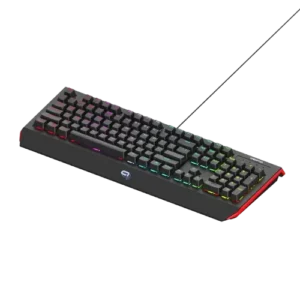
| Document Detail | Information |
| Document Type | User Manual |
| Brand Name | Tzumi |
| Product Name | Viper RGB Gaming Keyboard |
| PDF File Size | Approximately 733 KB |
| Number of Pages | 2 |
| Languages Covered | English |
Alpha Gaming Viper RGB Gaming Keyboard
The Alpha Gaming Viper RGB Gaming Keyboard is a USB-A mechanical computer keyboard designed for Windows PCs. It uses a standard 104-key US layout with a numeric keypad and includes multimedia hotkeys, mechanical keys, a palm rest, full RGB lighting, and dedicated LED controls.
The keyboard supports plug-and-play operation, allowing basic keyboard functions to work without additional software on compatible Windows computers. A downloadable Viper Keyboard software package is available for users who want to change advanced keyboard, LED, and macro settings.
The manual also provides multiple built-in RGB lighting modes that can be selected directly from the keyboard through combinations of the FN key, arrow keys, Delete key, Home key, Windows key, and LED Backlight key.
Main Features
The Viper RGB Gaming Keyboard provides the following features described in the manual:
- USB plug-and-play installation.
- Compatibility with PCs running Windows operating systems.
- Traditional US keyboard layout.
- Full numeric keypad.
- 104 total keys.
- Mechanical keys.
- Multimedia hotkeys.
- Full RGB LED lighting.
- Multiple built-in LED backlight modes.
- Adjustable RGB brightness and animation speed.
- Gaming Mode with four preset key groups.
- Backlight Recording Mode for editing LED settings while Gaming Mode is active.
- Palm rest.
- Downloadable Viper Keyboard software for advanced customization.
Parts and Controls
The diagram on page 2 identifies nine main keyboard parts and controls.
| No. | Part or Control | Description |
| 1 | USB Connection Wire | Connects the keyboard to a compatible computer |
| 2 | Multimedia Hotkeys | Provides multimedia-related keyboard controls |
| 3 | Numeric Keypad | Standard number keypad on the right side |
| 4 | QWERTY Keys | Standard US-layout typing keys |
| 5 | Palm Rest | Front resting area for the user’s hands |
| 6 | Function (FN) Key | Used with other keys to access additional functions |
| 7 | LED Logo | Illuminated Alpha Gaming logo |
| 8 | LED Backlight Mode Button | Controls keyboard backlighting functions and modes |
| 9 | LED Logo Mode Button | Controls LED logo behavior |
Technical Specifications
The manual lists the following technical specifications for the Alpha Gaming Viper keyboard.
| Specification | Value |
| Keyboard Interface / Connection Type | USB-A |
| Dimensions | 19.1 × 8.4 × 1.5 in. |
| Total Keys | 104 |
| Keyboard Layout | Standard US Layout |
| Operating Voltage | 5V |
| Operating Current | 150 mA |
| LED Colors | Full RGB |
| Keys | Replaceable Mechanical Keys |
System Compatibility
The keyboard is designed for use with USB-compatible Windows computers running Windows 7 or later.
The manual also describes the keyboard as compatible with PCs and Windows operating systems.
Setting Up the Alpha Gaming Viper Keyboard
The Viper keyboard uses plug-and-play functionality, so no software installation is required for standard keyboard operation.
Plug-and-Play Setup
- A compatible Windows computer should be powered and ready for use.
- The keyboard’s USB-A connector should be inserted into an available USB port on the computer.
- The keyboard is ready for normal operation after being connected.
The manual specifically identifies compatibility with USB-capable Windows computers running Windows 7 and later.
Additional software is only required when advanced customization of the LEDs, keyboard functions, or macros is desired.
Viper Keyboard Software
Alpha Gaming provides downloadable Viper Keyboard software for advanced customization.
The manual directs users to Tzumi’s Alpha Gaming webpage to download the free software.
The software is intended for changing:
- LED settings.
- Keyboard settings.
- Macro settings.
- Advanced key customization.
Standard typing and basic keyboard operation do not require this software because the keyboard supports plug-and-play use.
RGB LED Backlight Controls
The keyboard includes built-in RGB functions that can be controlled directly through the keyboard.
The FN key is used with specific keys to change lighting colors, speed, brightness, Gaming Mode, and lighting patterns. Page 2 of the manual provides the complete LED Backlight Functions table.
RGB Control Shortcuts
| Keyboard Combination | Function |
| FN + LED Backlight Key | Cycles the LED logo through all colors |
| FN + Left Arrow | Increases LED backlight speed |
| FN + Right Arrow | Decreases LED backlight speed |
| FN + Up Arrow | Increases LED backlight brightness |
| FN + Down Arrow | Decreases LED backlight brightness |
| FN + WIN | Locks or unlocks WINAPP |
| FN + Delete | Enters Gaming Mode with four preset key groups |
| FN + Home | Activates Backlight Recording Mode for editing LED settings while in Gaming Mode |
Windows Lock Indicator
When the FN + WIN shortcut activates the WINAPP lock function, the manual states that a light appears in the upper-right area beneath the W.
Using the shortcut again unlocks the function.
RGB Backlight Modes
Repeated presses of the LED Backlight key while holding FN cycle through the available lighting effects.
| Number of Presses | RGB Lighting Mode |
| 1 | Slow Fade Mode |
| 2 | Line-by-Line Mode |
| 3 | Single Color Mode |
| 4 | Diagonal Swipe Mode |
| 5 | Single Color Pulsing Mode |
| 6 | Rainbow Wave Mode |
| 7 | Rainbow Random Key Mode |
| 8 | Swipe Mode |
| 9 | Random RGB Pulse Mode |
| 10 | Single Color Swipe Mode |
Slow Fade Mode
The first backlight mode is Slow Fade Mode. In this setting, the LEDs slowly transition through all seven colors described by the manual.
Line-by-Line Mode
Pressing the backlight control combination twice selects Line-by-Line Mode.
Single Color Mode
Three presses select Single Color Mode.
Diagonal Swipe Mode
Four presses activate Diagonal Swipe Mode.
Single Color Pulsing Mode
Five presses select Single Color Pulsing Mode.
Rainbow Wave Mode
Six presses select Rainbow Wave Mode.
Rainbow Random Key Mode
Seven presses activate Rainbow Random Key Mode.
Swipe Mode
Eight presses activate Swipe Mode.
Random RGB Pulse Mode
Nine presses select Random RGB Pulse Mode.
Single Color Swipe Mode
Ten presses select Single Color Swipe Mode.
Adjusting RGB Animation Speed
The keyboard allows the speed of compatible LED backlight effects to be changed using the arrow keys.
- FN + Left Arrow increases the LED backlight speed.
- FN + Right Arrow decreases the LED backlight speed.
These controls affect the speed of supported animated backlight modes.
Adjusting RGB Brightness
LED brightness can also be changed directly from the keyboard.
- FN + Up Arrow increases backlight brightness.
- FN + Down Arrow decreases backlight brightness.
Gaming Mode
The keyboard includes a dedicated Gaming Mode.
To activate it, the user presses:
FN + Delete
The manual states that Gaming Mode includes four preset key groups.
Backlight Recording Mode
Backlight Recording Mode allows LED backlight settings to be edited while Gaming Mode is active.
To enter this mode:
- Gaming Mode should first be active.
- The FN + Home keyboard combination should be pressed.
- The keyboard then enters Backlight Recording Mode for editing the LED backlight configuration.
The manual does not provide additional steps for assigning or saving individual recorded lighting patterns, so only the documented activation procedure should be followed.
Multimedia Hotkeys
The Viper keyboard includes multimedia hotkeys as part of its keyboard layout.
These keys are identified in the product diagram as a separate keyboard feature. The manual does not provide a key-by-key multimedia command list, so their individual functions should be identified from the symbols printed on the keyboard itself rather than assumed from another keyboard model.
Important Safety Instructions
The following safeguards are specified for the Alpha Gaming Viper keyboard.
Use the Keyboard Only as Intended
The Viper Keyboard should not be used for purposes other than its intended use.
Keep Away From Children
The keyboard is not a toy and should be kept out of the reach of children.
Do Not Disassemble or Modify the Keyboard
The keyboard should not be disassembled or modified.
The manual also warns that attempting to modify the keyboard or using it with incompatible computers can violate any warranty in place and may cause permanent damage.
Keep Away From Heat and Sunlight
The unit should be kept away from heat sources, including direct sunlight.
Protect the Keyboard From Moisture
The keyboard should not be exposed to:
- Humidity.
- Water.
- Other liquids.
The manual specifically states that the unit is not waterproof or water-resistant.
If the keyboard becomes wet or moist, it should not be operated.
Avoid Extreme Temperatures
The keyboard should not be exposed to extremely hot or extremely cold temperatures or conditions.
Protect the USB Cable
The USB power cord should not be damaged by:
- Bending.
- Twisting.
- Pulling.
- Heating.
Cleaning Precautions
Harsh chemicals and detergents should not be used to clean the keyboard.
The manual specifically lists substances such as:
- Alcohol.
- Benzene.
- Thinners.
- Detergents.
No alternative cleaning procedure is provided in the manual, so additional liquids or cleaning products should not be assumed to be approved.
Frequently Asked Questions
Does the Alpha Gaming Viper keyboard require software?
No software is required for normal keyboard operation. The keyboard supports plug-and-play use when connected to a compatible Windows computer. The downloadable Viper Keyboard software is only needed for advanced LED, keyboard, macro, and key customization.
What computers are compatible with the Viper keyboard?
The manual specifies USB-compatible Windows computers running Windows 7 or later.
How many keys does the Alpha Gaming Viper keyboard have?
The keyboard has 104 keys in a standard US layout and includes a numeric keypad.
How can the RGB brightness be changed?
The FN + Up Arrow combination increases LED backlight brightness, while FN + Down Arrow decreases it.
How can the RGB animation speed be changed?
The FN + Left Arrow combination increases backlight speed, while FN + Right Arrow decreases it.
How is Gaming Mode activated?
Pressing FN + Delete activates Gaming Mode. The manual states that this mode includes four preset key groups.
How can the keyboard’s lighting mode be changed?
The user can hold FN and press the LED Backlight key repeatedly. The keyboard cycles through ten documented effects, including Slow Fade, Line-by-Line, Single Color, Rainbow Wave, Random RGB Pulse, and Single Color Swipe modes.
Is the Alpha Gaming Viper keyboard waterproof?
No. The manual specifically states that the keyboard is not waterproof or water-resistant and should not be operated if it becomes wet or moist.