
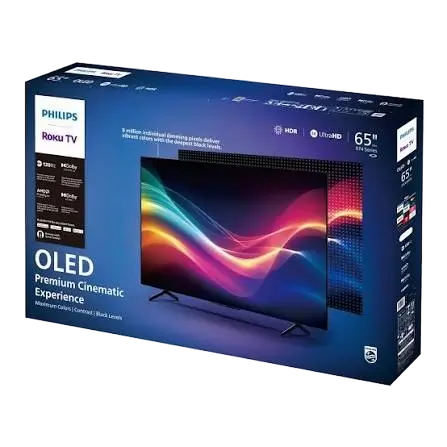
The Philips 65-inch OLED Roku TV is a smart TV built on the Roku TV platform, which pairs a customizable Home screen and thousands of streaming channels with a built-in tuner for antenna or cable broadcasts. The same document covers the 55-, 65- and 77-inch OLED974 models in F6 and F7 versions, and its Roku chapters describe software version 12.0. The TV connects through its internal wireless adapter (some models also have an Ethernet jack), links to a free Roku account during setup, and updates itself automatically. It supports voice search, HDMI ARC audio (eARC on certain models) and carries Dolby Audio, Dolby Vision IQ and Dolby Atmos licensing (p. 173).
Specifications and Placement
| Item | Detail |
| Operating temperature | 41°F to 104°F (5°C to 40°C) |
| Ventilation space | 4 in (10 cm) or more around the TV |
| Wall-mount clearance | Top 11.8 in (30 cm); left and right 5.9 in (15 cm); bottom 3.9 in (10 cm) |
| Recommended bracket | SANUS VLT6-B1 (sold separately) |
| Bracket screws | M6 x 1.378 in (35 mm) |
| Antenna channels (ATSC and NTSC) | VHF 2–13, UHF 14–69 |
| Cable channels (QAM and NTSC) | 2–135 |
| Wired network | RJ-45, 10 Base-T and 100 Base-T (models with an Ethernet jack) |
| Wireless network | Internal adapter only; USB network adapters are not supported |
| Warranty | One-year limited warranty (p. 174) |
Two people are needed to carry and mount this TV, holding the upper and lower frames (p. 5). Place it on a stable, horizontal surface away from direct sunlight, dust and strong vibration. For wall mounting, use a sturdy vertical wall, never a ceiling or slanted wall, use only the specified screw length, and do not mount the TV while it is plugged in or on (p. 3).
Safety Instructions
- Anchor the TV securely. Tipping or rocking can cause injury or death, and tall furniture needs anchoring too (p. 5).
- Never use a gas duster on the TV. Trapped gas can ignite (p. 5).
- Keep vents uncovered, and keep liquids and open flames away.
- Connect all cables before inserting the power cord. The power button only enters standby, so unplug the TV to shut it off completely.
- Unplug the TV before moving it.
- Do not open the TV. No parts are user-serviceable, and opening it voids the warranty (p. 4).
- Replace remote batteries only with the same or an equivalent type, and do not mix battery types.
Connections and Setup
Connect an antenna or cable without a set-top box with a 75-ohm coaxial cable to the ANT/CABLE input. HDMI gives the best picture from consoles, players and boxes. A soundbar or receiver can use HDMI ARC, HDMI eARC (certain models) or optical S/PDIF.
First-Time Guided Setup
- Press POWER on the remote. Guided Setup runs on first startup and repeats only after a factory reset.
- Pick your language. On models with a Roku Voice remote, pairing starts automatically.
- Choose home use. Store use is a retail demo mode with limited features, and leaving it requires a factory reset.
- Connect to your network: select your wireless network and enter the password, or choose wired where offered. On certain models you can connect later.
- Select your time zone if the TV asks.
- Enter your email address, then open Roku’s email on a phone or computer and link the TV to a new or existing Roku account. Roku does not charge for activation support, so beware of scams (p. 38).
- Tell the TV what is plugged into each HDMI input, or choose Nothing for unused inputs.
Remote and Panel Controls
Buttons vary by model. A VOICE or SEARCH button below the directional pad means you have a Roku Voice remote.
| Button | What it does |
| HOME | Returns to the Home screen |
| BACK | Goes back one menu or screen |
| UP / DOWN | Changes channels while watching live TV |
| LEFT | Opens the Live TV Channel Guide while watching live TV |
| STAR | Opens options and the TV settings menu |
| REPLAY | Jumps to the previous channel, or replays a few seconds if Live TV Pause is on |
| GAME MODE | Turns Game mode on or off on HDMI and AV inputs (certain models) |
| SLEEP | Cycles through sleep timer intervals (certain models) |
The panel buttons handle only basic functions. If you cannot see them, check the bottom center behind the status indicator or the back panel near the lower left or right (p. 27).
Watching Live TV
The first time you open the Live TV input, the TV scans for channels, which can take up to 30 minutes.
- Confirm the antenna or cable is connected to ANT/CABLE.
- Select Live TV on the Home screen. If it is missing, add it under Settings > TV inputs.
- Follow the prompts, selecting your time zone if asked, and choose whether to add analog channels 3 and 4.
- Wait for the scan to finish. Repeat it later with STAR on the Live TV tile, then Scan for channels. A rescan unhides every hidden channel.
Pausing Live TV
Live TV Pause is available on certain models. It needs a Roku account and a USB flash drive of at least 16 GB with 15 Mbps read/write speed and USB 2.0 support. Enabling it erases everything on the drive, so back it up first. Use any USB port, but leave other ports empty during setup, and do not use a hub. You can pause up to 90 minutes of digital channels from the ANT input. Changing channels, going Home, switching inputs, turning off the TV or removing the drive resets the buffer (pp. 60–62).
Picture, Sound and Gaming Settings
Press STAR while watching anything to open the TV settings menu. Settings are saved separately for Live TV, each HDMI input and the AV input. Picture settings include Picture mode plus backlight, brightness, contrast, sharpness and color.
Game mode reduces image processing and input lag. On certain models, supported consoles can trigger automatic low-latency mode. Variable refresh rate is off by default and needs VRR turned on for that HDMI input, HDMI mode set to Auto or the HDMI 2.0 setting, Game mode on, and a console that supports it (p. 92).
For sound, Settings > Audio > Audio output lets you choose Auto, ARC, TV speakers or Optical. Optical output requires the TV speakers to be off. Dolby Atmos decoding works only through the built-in speakers, not external ones (p. 96).
Parental Controls and Privacy
Parental controls block rated broadcast programs from the TV tuner only, not other inputs or streaming channels (p. 123).
- Go to Settings > Parental controls and create a four-digit PIN.
- Open TV tuner and make sure Enable parental controls is checked.
- Block by US TV or movie ratings, Canadian ratings, or unrated programs. Blocking one level also blocks all higher levels.
Entering the PIN to watch a blocked program unblocks everything for two hours or until the TV is turned off. Resetting parental controls erases your PIN.
Settings > Privacy > Smart TV experience lets you stop the TV from using information from your inputs, though previously collected information is retained. Under Advertising you can turn off Personalized ads.
Maintenance, Resets and Updates
Clean the TV with a dry cloth only (p. 3). Otherwise maintenance is software: the TV updates itself, or you can use Settings > System > Software update > Check now. Reset options:
- Restart: Settings > System > Power > System restart. It works like unplugging the TV.
- Picture and audio reset: Settings > System > Advanced system settings > Factory reset > Reset TV audio/picture settings, then press PLAY/PAUSE three times.
- Network reset: Advanced system settings > Network connection reset removes saved wireless details but keeps your Roku account link.
- Factory reset everything: returns the TV to its first-use state and requires Guided Setup again (p. 153).
Troubleshooting
| Problem | What to try |
| Remote does not respond | Hold the pairing button for 3 seconds or more, or hold HOME and BACK for 5 seconds, then restart the TV so it pairs. Stay within two to three feet and try fresh batteries (p. 73). |
| Network not listed | Select Scan again, or Private network for a hidden name. A router with MAC filtering needs the TV’s MAC address. |
| Missing channels | Rescan, and reposition the antenna. |
| No picture from an older HDMI device | On 4K models, set that input’s HDMI mode to Compatibility. Standard mode may not work with older devices (p. 138). |
| No sound from soundbar | Check Audio output. With DTS enabled and the TV speakers in use, you will hear nothing. |
| Status light blinks twice, pauses, repeats | The TV was connected to Roku and lost its network connection (p. 51). |
| Menus will not open | Press and hold the recessed RESET button for about 12 seconds with a straightened paper clip, release, then turn the TV on and repeat Guided Setup (p. 153). |
Frequently Asked Questions
Which models does this manual cover?
The wall-mount table lists 55OLED974, 65OLED974 and 77OLED974 in F6 and F7 versions (p. 3).
Do I need internet and a Roku account?
Not for everything. You can choose to connect later and still watch live TV and use connected devices. Without a connection you lose the Roku Channel, the Roku Store, voice search and Live TV Pause, among other features (pp. 164–165). Some models cannot work without a connection.
How do I use a soundbar or receiver?
Connect it through HDMI ARC or eARC, or through an optical cable, then check Settings > Audio > Audio output. ARC needs an HDMI-certified cable.
Does the TV support Apple AirPlay and HomeKit?
Roku states that AirPlay 2 and HomeKit work on all Roku TVs except Hardware IDs beginning with 5 or 6. Your TV’s ID is under Settings > About (p. 16).
Can I use Bluetooth headphones?
On certain models. Pair them under Settings > Remotes & devices > Wireless headphones. While connected, the TV speakers mute. If you do not see that option, your TV has no Bluetooth.
What does the warranty cover?
The one-year limited warranty covers defects in materials and workmanship for the original purchaser, with proof of purchase from an authorized retailer. For help, call Philips customer care at 1-833-978-3323 (p. 174).