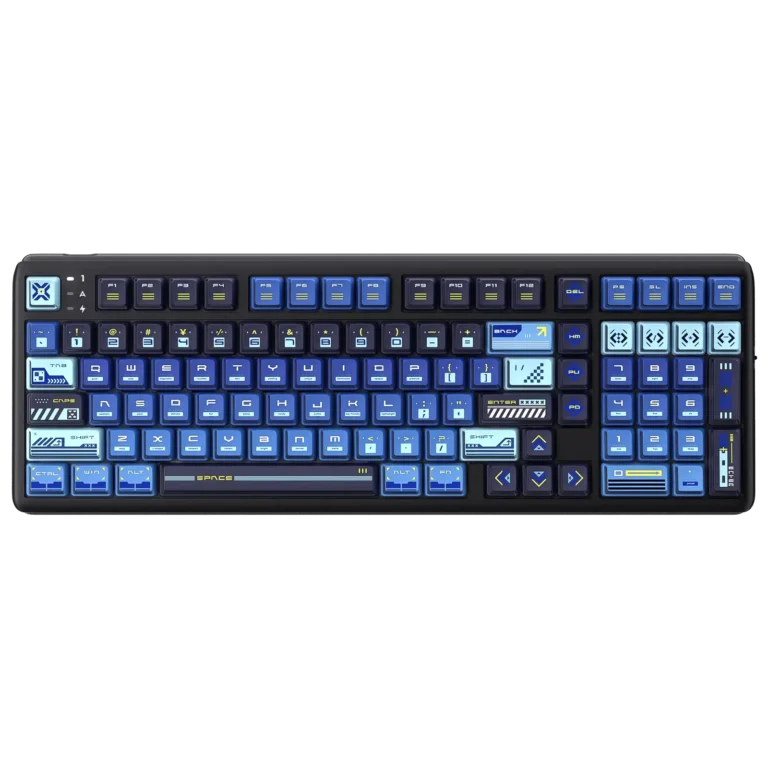
Product Overview
The Royal Kludge R99 is a full-size (100% layout) mechanical keyboard with RGB backlighting and a numeric keypad. It connects three ways: by USB Type-C cable in wired mode, by Bluetooth (BT), or through a 2.4G wireless receiver. A three-position switch selects the connection, and the keyboard can remember three different Bluetooth devices at once.
Most settings are handled with the Fn key. Fn combinations control backlight brightness, speed, color and mode, a separate side light, Windows and Mac operating-system modes, multimedia functions, battery level display and factory reset.
Specifications
| Item | Specification |
|---|---|
| Size | 402 (L) × 140 (W) × 43 (H) ± 2 mm |
| Layout | 100% |
| Backlight | RGB |
| Switch | Mechanical switches |
| Version (connections) | USB / BT / 2.4G |
| Fast charging | Not supported |
Note: This product does not support fast charging.
Indicator Lights
The keyboard has status lights for Num Lock, Caps Lock and charging.
| Indicator | Meaning |
|---|---|
| Num Lock light | Shows the Num Lock state. |
| Caps Lock light | Shows the Caps Lock state. |
| Red light (charging) | Stays on while the keyboard is charging and turns off when it is fully charged. It flashes when the battery is low. |
Important Safety and Usage Information
Using the keyboard comfortably
- Maintain proper posture and avoid excessive force on the keys.
- Take regular breaks to prevent hand fatigue.
- Clean the keyboard regularly to remove dust and dirt.
- Avoid exposing the keyboard to liquids.
- Keep the keyboard in a suitable environment, free from extreme temperatures or humidity.
Battery warnings
Do not expose the battery (battery pack or installed batteries) to excessive heat such as sunshine or fire. The manual lists these specific hazards:
- Replacing a battery with an incorrect type can defeat a safeguard.
- Disposing of a battery in fire or a hot oven, or mechanically crushing or cutting a battery, can result in an explosion.
- Leaving a battery in an extremely high-temperature environment can result in an explosion or the leakage of flammable liquid or gas.
- A battery subjected to extremely low air pressure may result in an explosion or the leakage of flammable liquid or gas.
Connecting the Keyboard
Slide the connection switch to the position for the mode you want: center for wired, B for Bluetooth, or G for 2.4G.
| Switch position | Mode |
|---|---|
| Center | Wired (USB Type-C) |
| B | Bluetooth (BT) |
| G | 2.4G wireless receiver |
Wired mode
- Move the switch to the center position.
- Connect the USB Type-C cable supplied with the product to the Type-C port on the keyboard, and connect the other end to the computer.
Bluetooth connection
- Move the switch to B.
- Press and hold one of the pairing combinations: Fn+Q, Fn+W or Fn+E. For example, hold Fn+Q together. The Q key blinks quickly to show that the keyboard is in pairing mode.
- On the device you want to connect, turn on Bluetooth, search for the keyboard and select the name RK R99.
A slow blink on the Q key (or the W or E key for those slots) indicates linking, according to the manual. Repeat the steps with Fn+Q, Fn+W and Fn+E to store up to three different Bluetooth devices. To switch between stored devices, briefly press Fn+Q, Fn+W or Fn+E.
2.4G connection
- Move the switch to G.
- Press and hold Fn+P to start pairing. The P key flashes rapidly when the receiver is inserted.
- Pairing is successful when the P key stops flashing.
The keyboard and receiver are paired at the factory, so repeat pairing is normally unnecessary.
Checking the Battery Level
In Bluetooth and 2.4G modes, press and hold Fn+Enter to display the battery level on the number row. The manual’s diagram marks the 1 key as 10% and the 2 key as 20%. When the backlight lights keys 1 through 0 at the same time, the battery is at 100%.
The red indicator light flashes when the battery is low.
Backlight and Side Light Controls
Main backlight shortcuts
| Shortcut | Function |
|---|---|
| Fn + ↑ | Backlight brightness + |
| Fn + ↓ | Backlight brightness − |
| Fn + ← | Backlight speed − |
| Fn + → | Backlight speed + |
| Fn + , < | Switch backlight color (some lighting effects are active) |
| Fn + \ | | Backlight mode switching |
| Fn + Esc | Turn lights off/on |
Side light shortcuts
| Shortcut | Function |
|---|---|
| Fn + – _ | Side light brightness − |
| Fn + = + | Side light brightness + |
| Fn + Num − | Side light speed − |
| Fn + Num + | Side light speed + |
| Fn + [ { | Side light to the left (some lighting effects are active) |
| Fn + ] } | Side light to the right (some lighting effects are active) |
| Fn + / ? | Side light monochrome switching (some lighting effects are active) |
| Fn + . > | Side light mode switching |
Custom backlight
Fn+2 and Fn+3 select fixed lighting effects that are not recorded. To record your own lighting:
- Press Fn+1 to select the custom backlight.
- Press Fn+Back (Backspace) to enter backlight recording mode. When the keyboard backlight turns off, recording has started.
- Press each key you want to customize, repeating this step for every key.
- When finished, press Fn+Back again to save the settings and exit recording mode.
Function Key Combinations
Secondary combination keys
| Shortcut | Function |
|---|---|
| Fn + Del | Pause |
| Fn + A | Switch to Windows system |
| Fn + S | Switch to Mac system |
| Fn + Win | Windows Lock |
| Fn + Space bar | Press and hold for three seconds to restore factory settings |
| Fn + Right Shift | Open the driver URL: https://drive.rkgaming.com/ |
Multimedia keys for Windows
Press Fn+A to switch to the Windows system, then use these shortcuts.
| Shortcut | Function |
|---|---|
| Fn + F1 | Computer |
| Fn + F2 | Browser |
| Fn + F3 | Mailbox |
| Fn + F4 | Calculator |
| Fn + F5 | Player |
| Fn + F6 | Stop |
| Fn + F7 | Last song |
| Fn + F8 | Play/pause |
| Fn + F9 | Next song |
| Fn + F10 | Mute |
| Fn + F11 | Volume − |
| Fn + F12 | Volume + |
Multimedia keys for Mac
Press Fn+S to switch to the Mac system, then use these shortcuts.
| Shortcut | Function |
|---|---|
| Fn + F1 | Screen brightness − |
| Fn + F2 | Screen brightness + |
| Fn + F3 | Multi-screen display |
| Fn + F4 | Search |
| Fn + F5 | Keyboard backlight brightness − |
| Fn + F6 | Keyboard backlight brightness + |
| Fn + F7 | Last song |
| Fn + F8 | Play/pause |
| Fn + F9 | Next song |
| Fn + F10 | Mute |
| Fn + F11 | Volume − |
| Fn + F12 | Volume + |
Regulatory Statements
FCC (United States)
The device complies with part 15 of the FCC Rules. Operation is subject to two conditions: it may not cause harmful interference, and it must accept any interference received, including interference that may cause undesired operation. Changes or modifications not expressly approved by the party responsible for compliance could void the user’s authority to operate the equipment.
The equipment was tested and found to comply with the limits for a Class B digital device. If it causes harmful interference to radio or television reception, which can be determined by turning the equipment off and on, try one or more of these measures:
- Reorient or relocate the receiving antenna.
- Increase the separation between the equipment and the receiver.
- Connect the equipment to an outlet on a circuit different from the one the receiver uses.
- Consult the dealer or an experienced radio/TV technician for help.
The equipment complies with FCC radiation exposure limits for an uncontrolled environment. The transmitter must not be co-located or operating in conjunction with any other antenna or transmitter.
ISED (Canada)
The device contains licence-exempt transmitters/receivers that comply with Innovation, Science and Economic Development Canada’s licence-exempt RSS standards. Operation is subject to two conditions: the device may not cause interference, and it must accept any interference, including interference that may cause undesired operation. The equipment complies with ISED RF radiation exposure limits for an uncontrolled environment, and the transmitter must not be co-located or operated with any other antenna or transmitter.
NCC (Taiwan)
Certified low-power radio-frequency devices may not have their frequency changed, power increased or original design characteristics and functions altered without approval. They must not affect flight safety or interfere with legal communications. If interference occurs, stop using the device immediately and resolve the interference before continuing. Low-power devices must also tolerate interference from legal communications or from industrial, scientific and medical radio-wave equipment.
Frequently Asked Questions
How do I pair the R99 with a Bluetooth device?
Move the connection switch to B, then hold Fn+Q, Fn+W or Fn+E until the matching letter key blinks quickly. That fast blink means the keyboard is in pairing mode. Next, turn on Bluetooth on your computer, tablet or phone, search for the name RK R99 and select it.
How many Bluetooth devices can the R99 remember?
The R99 can store three different Bluetooth devices. Pair each one using a different combination (Fn+Q, Fn+W and Fn+E), and the keyboard keeps them in separate slots. Afterward, briefly press the matching combination to jump between devices.
Do I need to pair the 2.4G receiver before first use?
No, because the keyboard and receiver are paired at the factory. If you ever need to pair again, move the switch to G, hold Fn+P and insert the receiver. The P key flashes rapidly during pairing and stops flashing once pairing succeeds.
How can I see how much battery is left?
In Bluetooth or 2.4G mode, hold Fn+Enter and read the number-row lights. When keys 1 through 0 all light up together, the battery is at 100%. The red indicator light flashes when the battery is low, so that is a sign to charge it.
Can I charge the R99 with a fast charger?
No, this keyboard does not support fast charging. While it charges, the red light stays on, and it turns off once the battery is full.
How do I restore the R99 to factory settings?
Hold Fn and the Space bar together for three seconds. This restores the factory settings, so you may want to note any custom backlight you recorded first.
How do I change between Windows and Mac behavior?
Press Fn+A to switch to the Windows system or Fn+S to switch to the Mac system. The Fn+F1 to Fn+F12 multimedia shortcuts change with the mode. For example, Fn+F1 opens Computer in Windows mode but lowers screen brightness in Mac mode.
Where can I find the driver for the R99?
Press Fn+Right Shift to open the driver address, https://drive.rkgaming.com/, in your browser. You can also type that address in manually.