
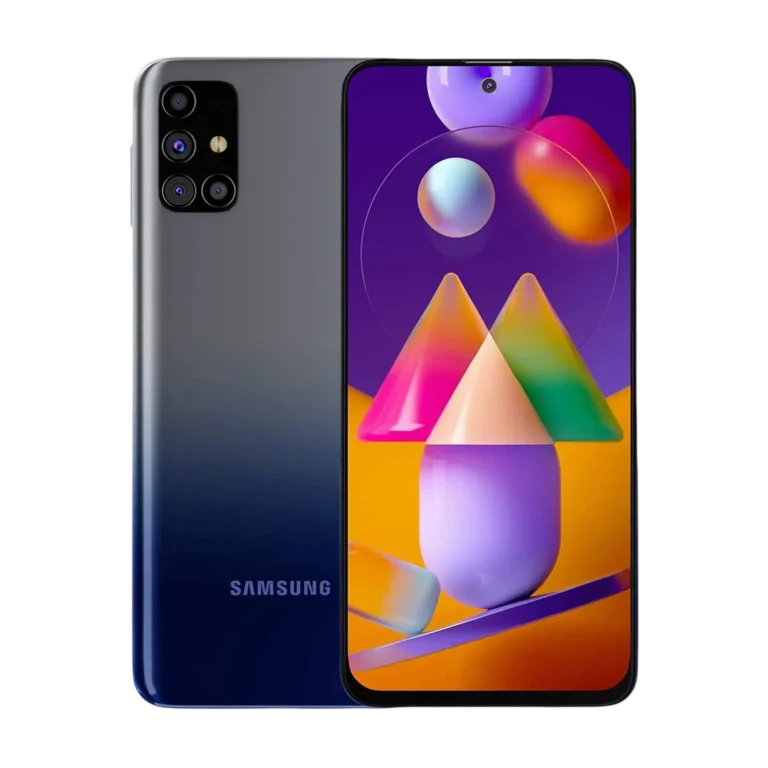
The Samsung SM-M317F/DS is a dual SIM smartphone. It has a USB Type-C port, a 3.5 mm earphone jack, and a fingerprint sensor built into the Side key. On the back are an ultra-wide camera and a standard wide-angle camera. It takes two nano-SIM cards and a microSD memory card, and NFC models also support contactless payments.
The SM-M317F/DSN is covered by the same manual. Below you’ll find the essentials for owners: first setup, charging, biometric security, camera basics, battery and storage care, safety precautions, and fixes for common problems.
Parts and Controls
The front has the touchscreen, front camera, speaker, and light sensor. The right side holds the Volume key and the Side key, which also contains the fingerprint sensor. The SIM/memory card tray is on the side of the phone. The bottom edge has the USB Type-C multipurpose jack, the earphone jack, a microphone, and a speaker. On the back are the rear camera and flash.
Hard Key Functions
| Key | Action |
| Side key | Press and hold to turn the phone on or off. Press to turn on or lock the screen. Press twice to launch the app or feature you set. |
| Side key + Volume Down | Press both at once to take a screenshot. Press and hold both to turn the phone off. |
You can choose what the double press opens in Settings → Advanced features → Side key. The Back, Home, and Recents soft buttons appear at the bottom of the screen when it’s on.
Installation and Setup
Inserting SIM Cards and a Memory Card
The phone takes two SIM or USIM cards, so you can use two phone numbers or two carriers. Use nano-SIM cards only. In some areas, data speeds may be slower with two SIM cards inserted than with one (p. 17).
- Insert the ejection pin into the hole next to the tray to loosen it. Hold the pin straight, perpendicular to the hole, or you could damage the phone.
- Gently pull the tray out of its slot.
- Place the SIM card or microSD card on the tray with the gold contacts facing up.
- Press the card gently into the tray so it sits firmly.
- Slide the tray back into the slot.
The tray must be dry before you insert it, and it should go in all the way to keep liquid out. Taking the tray out turns off the mobile data connection.
Memory cards must use the FAT or exFAT file system. If you insert a card with a different format, the phone will ask to reformat it or won’t recognize it. To avoid compatibility problems, format the card on the phone rather than on a computer. To remove a card safely, go to Settings → Battery and device care → Storage, swipe left to the SD card page, and tap Unmount.
To choose which SIM handles calls or data, open Settings → Connections → SIM card manager. With Auto data switching, the phone uses the other SIM for data if the preferred SIM can’t connect.
Turning On and Initial Setup
Press and hold the Side key for a few seconds to turn the phone on. On first startup, or after a data reset, follow the on-screen setup steps. Connect to Wi-Fi during setup, because some features may not set up without it. To turn the phone off, press and hold the Side key and tap Power off.
Moving Data from Your Old Phone
Smart Switch copies data from your previous phone over Wi-Fi Direct, from external storage such as a microSD card, or from a computer. To start a wireless transfer:
- Open Smart Switch on the old phone. If it isn’t installed, download it from Galaxy Store or Play Store.
- On the new phone, go to Settings → Accounts and backup → Bring data from old device, and place the two phones near each other.
- On the old phone, tap Send data → Wireless.
- On the new phone, tap Receive data, select the old phone’s operating system, and tap Wireless.
- Tap Allow on the old phone, then choose what to transfer on the new phone and follow the on-screen steps.
Charging the Battery
Charge the battery before first use or if the phone hasn’t been used for a long time. Use only Samsung-approved batteries, chargers, and cables. Use only the USB Type-C cable supplied with the phone, because a Micro USB cable can damage the device (p. 14).
To charge, connect the USB cable to the power adapter and plug it into the multipurpose jack. Unplug it once the battery is full. For faster charging, use a charger that supports Adaptive fast charging and turn on Fast charging under Settings → Battery and device care → Battery → More battery settings.
A few charging tips:
- If the battery is completely drained, the phone won’t turn on right away. Let it charge for a few minutes first.
- Charging from a computer can be slower because the current is lower.
- You can use the phone while it charges, but a full charge will take longer.
- Dry the multipurpose jack completely before charging. Charging with a wet jack can damage the phone.
- The phone and charger getting warm during charging is normal. If the battery gets hotter than usual, charging may slow or stop.
Fingerprint and Face Recognition
Registering a Fingerprint
- Go to Settings → Biometrics and security → Fingerprints.
- Read the instructions and tap Continue.
- Set a backup screen lock: a pattern, PIN, or password.
- Place your finger on the Side key, lift it, and repeat until the fingerprint is registered.
- Tap Done, then turn on Fingerprint unlock.
Keep the sensor and your fingers clean and dry, and cover the whole sensor when you scan. Remove any protective film from the sensor first. Wrinkles, scars, or small fingers may make recognition less reliable.
Face recognition is set up under Settings → Biometrics and security → Face recognition. Register your face indoors, out of direct sunlight. It is less secure than a pattern, PIN, or password, and someone or something that looks like you could unlock the phone. Neither biometric method works on the first unlock after a restart, so don’t forget your backup PIN, pattern, or password. Switching the screen lock to Swipe or None deletes all biometric data.
Using the Camera
Open the Camera app. You can also double-press the Side key or drag left on the lock screen. Tap where you want the camera to focus, then tap the shutter button. Swipe left or right on the preview screen to change shooting modes.
- Zoom: Tap .5 for the ultra-wide camera or 1 for the standard wide-angle camera, or pinch to zoom. Zoom works only with the rear camera.
- Video and burst: Tap and hold the shutter button to record video. Swipe the button to the edge of the screen and hold to take burst shots.
- Shooting options: Depending on the mode, you can adjust flash, timer, aspect ratio, resolution, motion photo, super steady stabilization, night hyperlapse, frame rate, filters, and metering.
If photos look blurry, clean the lens. Don’t point the lens at strong light such as direct sunlight, because a damaged image sensor can’t be repaired and will cause spots in your photos (p. 12).
Battery and Device Care
Settings → Battery and device care shows the status of the battery, storage, memory, and security. Tap Optimise now to close background apps, manage abnormal battery use, and scan for crashed apps and malware. You can also schedule Auto optimise daily.
To make the battery last longer:
- Turn on Power saving mode, and limit background battery use for apps you rarely use.
- Lower the screen brightness and the screen timeout.
- Turn off Bluetooth, Wi-Fi, and GPS when you aren’t using them.
- Close unused apps and turn off auto-sync where it isn’t needed.
Check for system updates under Settings → Software update → Download and install.
Safety Instructions
- Overheating: If the phone gets too hot, a warning appears and brightness, performance, and charging are limited. If the temperature keeps rising, a second warning appears and the phone turns off. Don’t use it until it cools down. An emergency call in progress won’t be cut off by this forced shutdown (p. 9).
- Environment: Don’t leave the phone in direct sunlight, in a hot car, on a heating mat, or near heaters, microwaves, or pressure containers.
- Magnets: The phone contains magnets. Keep it away from credit cards and implantable medical devices. If you have an implant, check with your physician.
- Damage: Don’t use the phone if its glass or acrylic body is broken. Have it repaired at a Samsung Service Centre first.
- Battery: Never try to remove the battery yourself. Battery removal must be done by an authorized service center (p. 132).
Troubleshooting
| Problem | What to Try |
| Phone is frozen | Press and hold the Side key and the Volume Down key together for more than 7 seconds to restart. |
| Phone won’t turn on | The battery may be completely drained. Charge it fully. |
| Touchscreen is slow or unresponsive | Remove the screen protector or accessories, clean and dry your hands, restart, and update the software. |
| Others can’t hear you on calls | Make sure the microphone isn’t covered and is close to your mouth. |
| Calls drop or signal is weak | Don’t block the internal antenna, and move to an area with better reception. |
| Camera shows an error | Charge the battery, free up storage, and restart. |
| Bluetooth won’t connect | Stay within 10 m, toggle Bluetooth off and on, or reset network settings. |
| Storage is full | Clear cache with device care, or delete unused apps and files. |
| Home button is missing | Drag up from the bottom of the screen. |
If nothing else works, do a factory data reset: Settings → General management → Reset → Factory data reset → Reset → Delete all. This erases the phone, so back up important data first.
Frequently Asked Questions
Which models does this manual cover?
It covers the SM-M317F/DS and SM-M317F/DSN.
Can I use two SIM cards and a memory card at the same time?
The phone takes two nano-SIM cards and a microSD card on its card tray, and the manual has setup steps for both. It doesn’t say whether all three can be installed at the same time. Data speeds may be slower in some areas when two SIMs are active.
What is the maximum microSD card size?
The PDF doesn’t list it. Samsung says to check its website for the maximum memory card capacity.
How do I enable fast charging?
Use a charger that supports Adaptive fast charging, then turn on Fast charging under Battery and device care → Battery → More battery settings. Charging is faster when the phone or its screen is turned off.
Why can’t I unlock with my fingerprint after restarting?
After every restart, the first unlock must use your pattern, PIN, or password. Fingerprint and face unlock work after that.
How do I restart the phone if it freezes?
Press and hold the Side key and the Volume Down key together for more than 7 seconds.
Why does the battery drain faster than when the phone was new?
The battery is a consumable part, and its useful charge gets shorter over time. Very hot or cold temperatures and heavy use of GPS, games, or the internet also drain it faster. If a Samsung-approved charger won’t charge it properly, a Samsung Service Centre can replace the battery.
Can I replace the battery myself?
No. For safety, battery removal must be done by an authorized service center. Removing it incorrectly can damage the phone or cause injury.