
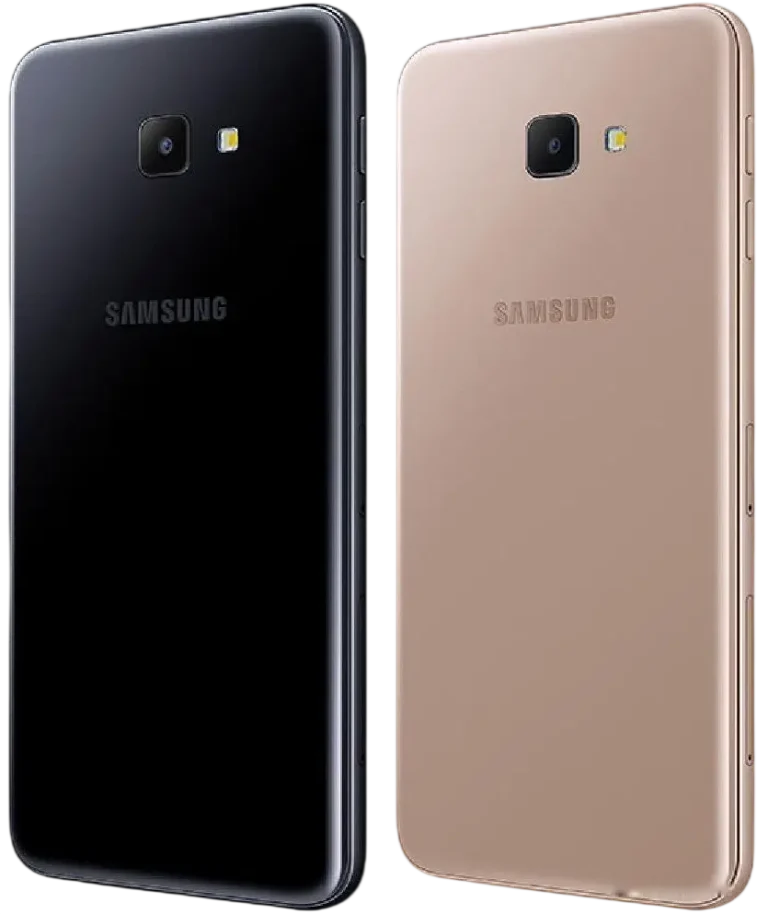
This Samsung smartphone comes in single SIM and dual SIM versions, marked “/DS” in the model number. It handles calls, messaging, web browsing, photos and video, FM radio, and the usual Google apps. It takes a nano-SIM card and an optional microSD memory card. The manual describes the default settings, and some screens may differ by region, service provider, or software version (p. 4).
This article covers the parts most owners need: setup, daily use, connections, safety, and fixes for common problems.
Key Specifications and Limits
The manual gives few hardware specifications. The figures below are the ones it states.
| Item | Detail |
|---|---|
| Covered models | SM-J410F, SM-J410F/DS, SM-J410G, SM-J410G/DS |
| SIM type | Nano-SIM only; the dual SIM models hold two |
| Memory card file systems | FAT and exFAT |
| Bluetooth range | Up to 10 m |
| Forced restart | Hold Power and Volume Down for more than 7 seconds |
| Pattern or PIN lock | At least four dots or four digits |
| Password lock | At least four characters |
The manual does not list the screen size, battery capacity, or internal storage. It points readers to the Samsung website for the maximum memory card size and the available internal storage. The package contents are listed in the separate quick start guide.
Parts and Controls
The front has the touchscreen, front camera, proximity/light sensor, and speaker. The device layout shows the Power key, Volume key, multipurpose jack, earphone jack, microphone, rear camera, flash, and antennas. The SIM card tray is on the device. On single SIM models, the tray holds the SIM and a separate memory card tray is provided. On dual SIM models, the second slot takes either a SIM or a memory card.
Two hard keys control the basics:
- Power key: Press and hold to turn the device on or off. Press once to turn the screen on or lock it.
- Volume key: Adjusts the volume.
Three soft buttons sit at the bottom of the screen: Recents, Home, and Back. Tap and hold Home to launch the Google Assistant. You can change the button order under Settings → Display → Navigation bar.
Some handling points matter for the hardware (p. 11):
- Keep the camera lens away from strong light such as direct sunlight. A damaged image sensor cannot be repaired and causes dots or spots in photos.
- Don’t cover the antenna area with metallic stickers, a metallic case, or your hands during calls or mobile data use.
- Don’t cover the proximity sensor with a screen protector or stickers.
- Keep water off the touchscreen.
Charging and Battery
Charge the battery before first use or after a long idle period. Use only Samsung-approved chargers, batteries, and cables. Unapproved ones can cause the battery to explode or damage the device (p. 12).
- Connect the USB cable to the USB power adaptor.
- Plug the USB cable into the multipurpose jack.
- Plug the adaptor into an electric socket.
- When charging is finished, disconnect the charger from the device, then unplug it from the socket.
The charger has no power switch, so unplug it when you aren’t using it. A few more points from the manual:
- A fully drained battery won’t let the device start right away. Charge it for a few minutes first.
- Charging from a computer is slower because of the lower current.
- If the multipurpose jack is wet, dry it thoroughly before charging.
- If the touchscreen stops responding because of an unstable power supply, unplug the charger.
To extend battery life, turn on power saving mode. Open Settings → Smart Manager → Battery, tap TURN ON MAXIMUM POWER SAVING MODE if you want to adjust the options first, then tap APPLY. Other options are to lower the brightness and backlight time, turn off Wi-Fi and Bluetooth when idle, and close unused apps.
Installing SIM and microSD Cards
Use only a nano-SIM card. Dry the tray before inserting it, because a wet tray can damage the device (p. 19).
- Insert the ejection pin into the hole next to the tray. Keep it perpendicular to the hole or the device may be damaged.
- Pull the tray out gently.
- Place the card on the tray with the gold contacts facing down. On dual SIM models, put the primary SIM in tray 1 and the secondary SIM in tray 2.
- Press the card gently into the tray so it can’t fall out.
- Slide the tray fully back into the slot to keep liquid out.
On dual SIM models, tray 2 holds either a second SIM or a microSD card. Removing the tray disables the mobile data connection.
Before removing a memory card, unmount it. Go to Settings → Smart Manager → Storage → Storage settings → SD card → UNMOUNT. Don’t pull the card while the device is reading or writing to it. If the card was formatted on a computer, format it on the phone: Storage settings → SD card → Format → FORMAT. Back up your data first, because formatting erases it.
Using Two SIM Cards
Open Settings → Connections → SIM card manager. Turn each card on with its switch, rename it, or pick a network mode. Under PREFERRED SIM CARD, choose which card handles calls, text messages, and mobile data. The Dual SIM always on option lets calls come in from the other SIM during a call, and the manual warns it may cause call-forwarding charges depending on your provider.
First-Time Setup
Press and hold the Power key to turn the device on. On first start, or after a data reset, follow the on-screen steps. Choose a language, connect to Wi-Fi, set a screen lock, and select the features you want. If you skip Wi-Fi, some features can’t be set up during this stage. The exact steps vary by software version and region.
To move data from an old phone, use Smart Switch, which you can download from Galaxy Apps or Play Store. You can transfer wirelessly, from a microSD card or other external storage, or through a computer using the desktop version from samsung.com/smartswitch. For a wireless transfer, put the two phones close together and start Smart Switch on both. On the old phone tap WIRELESS → SEND. On this phone tap WIRELESS → RECEIVE, then follow the prompts.
You can also add a Samsung account under Settings → Accounts → Accounts → Add account. Removing the account from the phone also removes data tied to it, such as contacts and events.
Everyday Operation
Screen Basics
Swipe up on the Home screen to open the Apps screen, and swipe down to go back. Press and hold an app to drag it or make a folder by dropping it on another app. To edit wallpapers, widgets, and Home screen settings, tap and hold an empty area or pinch the screen.
The notification panel opens when you drag the status bar down. It holds quick setting buttons, and you can rearrange them from its menu under Button order.
To take a screenshot, press and hold the Volume Down and Power keys together. Screenshots appear in Gallery. Some apps block screenshots.
Turning Off and Restarting
Press and hold the Power key and tap Power off or Restart. If the phone is frozen, hold Power and Volume Down together for more than 7 seconds to force a restart. Follow posted rules in places where wireless devices are restricted, such as aeroplanes and hospitals.
Calls and Messages
Open the Phone app, enter a number, and tap the call icon. On dual SIM models, choose which SIM to call from. For an international call, tap and hold 0 until + appears, then enter the country code, area code, and number. To answer or reject a call, drag the call icon outside the large circle. You can send a quick decline message by dragging the SEND MESSAGE bar up.
Block numbers under Phone → Settings → Block numbers. You can also switch on Block unknown callers. Blocked calls still appear in the call log.
In Messages, tap the compose icon, add recipients, type your message, and send. Roaming may add charges for sending and receiving.
Camera
Open Camera, tap the spot where you want focus, then tap the photo or video button. Spread two fingers to zoom in and pinch to zoom out. To lock focus and exposure, tap and hold the area until the AF/AE frame appears. In Camera settings you can change the picture and video size, show grid lines, set the Volume key as the shutter, and pick a storage location. Turn off Location tags if you don’t want GPS location attached to photos you share online.
The camera has a wide-angle lens, so slight distortion in photos or videos is normal and doesn’t indicate a fault (p. 58). Don’t photograph or record people without permission, or where it is legally prohibited.
Connections and Settings
Wi-Fi: Go to Settings → Connections → Wi-Fi, turn it on, pick a network, and enter the password if there is a lock icon. If you can’t connect, restart the phone’s Wi-Fi or the wireless router.
Bluetooth: Turn it on under Settings → Connections → Bluetooth, select a device from the list, and accept the request on both devices. Samsung notes that your phone is visible to other devices while the Bluetooth settings screen is open.
Mobile hotspot: Open Settings → Connections → Mobile Hotspot and Tethering. Switch on Mobile Hotspot, use Configure Mobile Hotspot to set a password, then connect from the other device’s Wi-Fi list. Bluetooth and USB tethering are also available. Data charges may apply.
Data saver: Turn it on under Settings → Connections → Data usage → Data saver to stop some background apps from using data.
Flight mode: Switches off all wireless functions. Follow airline rules and use flight mode whenever you are allowed to use the device on a plane.
Security and Screen Lock
Set a screen lock under Settings → Lock screen and security → Screen lock type. The options are Swipe, Pattern, PIN, Password, and None. This page also has Find My Device, Secure startup, Smart Lock, and Google Play Protect. The Find My Mobile website is findmymobile.samsung.com. Security updates for your model are listed at security.samsungmobile.com.
Don’t modify the operating system or install software from unofficial sources. The manual says this can cause malfunctions and data loss, and that it voids the warranty (p. 4).
Heat, Safety, and Care
The phone and charger can get warm while charging, especially with wireless or fast charging on models that support them. The manual calls this normal. If the phone gets too hot, the charger may stop charging.
If the device heats up:
- Disconnect the charger and close running apps.
- Let it cool before charging again.
- If the lower part overheats, replace the USB cable with a Samsung-approved one.
- Turn off Wi-Fi, GPS, and Bluetooth when not needed, and lower the screen brightness.
- Keep the software up to date and restart the device.
Heavy tasks such as long gaming sessions, extended video recording, large downloads, and hotspot use can all cause heat. In an extreme case, the phone may limit brightness and performance, stop charging, close apps, and allow only emergency calls until it cools. If a power-off message appears, turn the phone off and wait (p. 8).
Don’t leave the device in direct sunlight, in a hot car, near heaters or microwaves, or on an electric heating mat. Never use a damaged charger or battery. Use the speaker away from your ears.
Troubleshooting
| Problem | What the manual suggests |
|---|---|
| Phone won’t turn on | The battery may be completely discharged. Charge it fully first. |
| Asks for PIN, PUK, or password | PIN comes with the SIM. A PUK, supplied by your provider, is needed if the SIM is blocked after repeated wrong PINs. |
| Network or service errors | Move to a stronger-signal area. Some options need a subscription, so contact your provider. |
| Slow or odd touchscreen | Remove screen protectors or accessories, use clean dry fingers, restart, and update the software. |
| Frozen phone | Restart, then force restart with Power + Volume Down for 7+ seconds. As a last resort, factory reset. |
| Others can’t hear you | Don’t cover the microphone, keep it near your mouth, and check any earphone connection. |
| Echo during a call | Change the volume with the Volume key or move to another area. |
| Battery drains fast | Cold or heat, GPS, games, and internet use all increase drain. The battery is also consumable and loses charge over time. |
| Camera errors | Charge the phone, free memory, and restart. |
| Media files won’t play | Free memory, check file format support, and check for DRM protection. |
| Bluetooth problems | Stay within 10 m, toggle Bluetooth off and on, or reset network settings. |
| No computer connection | Use a compatible USB cable and keep the computer driver updated. |
| Location not found | GPS can fail indoors. Use Wi-Fi or mobile network for location instead. |
| Storage full | Clear cache with Smart Manager or delete unused apps and files. |
For a factory reset, go to Settings → System → Reset → Factory data reset → RESET → DELETE ALL. This erases your data, so back up first (p. 87). If a problem continues after these steps, contact a Samsung Service Centre.
Frequently Asked Questions
What type of SIM card does this phone use?
Only a nano-SIM card fits. Dual SIM models hold two, with the primary card in tray 1 and the secondary in tray 2.
Can I use a microSD card and two SIM cards at the same time?
On dual SIM models, tray 2 holds either a second SIM or a microSD card. The manual shows both options for the same slot, so you choose one. Single SIM models have a separate memory card tray.
How do I restart the phone if the screen freezes?
Press and hold the Power key and Volume Down key together for more than 7 seconds. If that doesn’t help, a factory data reset is the last option. Back up your data first.
How do I take a screenshot?
Press and hold the Volume Down key and Power key at the same time. The image is saved in Gallery. A few apps and features don’t allow screenshots.
Why does the phone get hot while charging?
The phone and charger can warm up while charging, and the manual describes this as normal. If it gets unusually hot, unplug the charger, close apps, and let it cool. Check the USB cable as well, because a damaged cable can overheat the lower part of the phone.
How do I move my old phone’s data to this one?
Use Smart Switch. You can transfer wirelessly, from external storage like a microSD card, or through a computer. Samsung asks you to transfer only content you own or have the right to transfer.
Does the FM radio work without earphones?
No. You must connect a headset first, because it works as the radio antenna. You can then listen through the speaker if you prefer.
Where can I find the battery capacity and screen size?
The manual doesn’t list them. It refers to the Samsung website for specifications such as maximum memory card capacity and internal storage.