
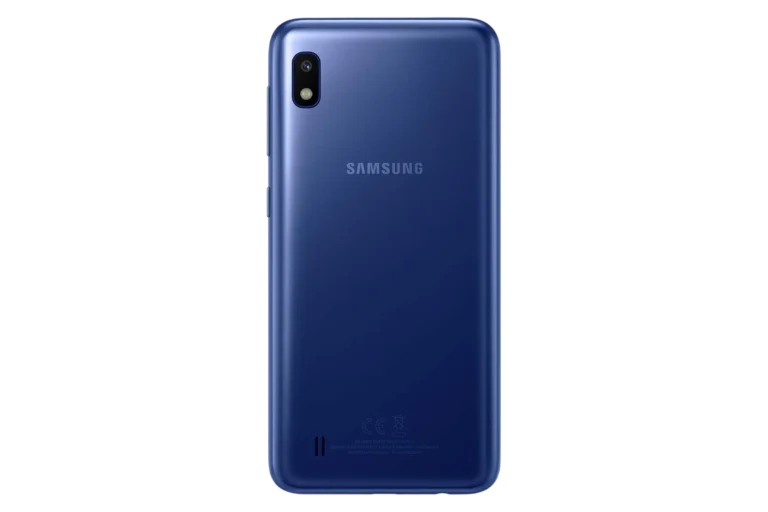
The smartphone covered here is a Samsung touchscreen phone sold under five model codes: SM-A105F, SM-A105F/DS, SM-A105FN/DS, SM-A105G, and SM-A105G/DS. The “/DS” versions are dual SIM models that hold two nano-SIM cards, so you can run two phone numbers or carriers on one device. The phone has front and rear cameras with a flash, a microSD card slot, an earphone jack, an FM radio app, face recognition unlocking, and NFC on NFC-enabled models. This guide covers first-time setup, charging, cards, everyday features, battery care, safety, and troubleshooting.
Parts and Controls
The front of the phone has the touchscreen, front camera, speaker, and proximity sensor. The volume key and Power key sit on the side. The rear houses the camera, flash, and the NFC antenna on NFC-enabled models. Along the edges you’ll find the SIM/memory card tray, the multipurpose jack used for charging, the microphone, a speaker, and the earphone jack.
| Key or Button | Function |
| Power key (press and hold) | Turns the phone on or off |
| Power key (press) | Turns on or locks the screen |
| Power key + Volume Down key | Press together to take a screenshot |
| Recents, Home, Back buttons | On-screen soft buttons that appear at the bottom of the display |
If the navigation bar with the Home button disappears inside an app, drag upward from the bottom of the screen to bring it back.
Installing the SIM Card and Memory Card
Both cards go in the same tray, and the phone accepts only nano-SIM cards.
- Insert the ejection pin into the hole next to the tray to loosen it.
- Gently pull the tray out of its slot.
- Place the SIM card or microSD card on the tray with the gold contacts facing down, then press it gently into place.
- Push the tray back into the slot.
Keep the ejection pin straight (perpendicular to the hole) so you don’t damage the phone. Make sure the tray is completely dry before inserting it, and push it in fully to keep liquid out. Removing the tray also disables the mobile data connection.
On dual SIM models, go to Settings → Connections → SIM card manager to activate each card and choose which one handles calls and other features. In some areas, data speeds may be slower with two SIM cards installed.
Memory Card Tips
The phone supports memory cards formatted in FAT and exFAT. A card in another format will need to be reformatted, and a card formatted on a computer may not work properly, so format it on the phone instead: Settings → Battery and device care → Storage → Advanced → SD card → Format. Back up the card first. Before removing a card, unmount it from the same menu using Unmount, and never pull it out while data is transferring (p. 19).
Charging the Battery
Charge the battery before first use or after the phone has been unused for a long time. Connect the USB cable to the USB power adapter, plug the cable into the multipurpose jack, and disconnect the charger once the battery is full.
Use only a Samsung-approved battery, charger, and cable designed for this phone. Incompatible accessories can cause serious injury or damage, and damage from misuse isn’t covered by the warranty. A few other points worth knowing:
- A completely drained battery needs a few minutes of charging before the phone will turn on.
- Charging from a computer is slower because of the lower electric current.
- You can use the phone while it charges, but charging takes longer.
- Never charge while the multipurpose jack is wet. Dry it thoroughly first.
- The charger has no power switch, so unplug it from the outlet when you’re done.
It’s normal for the phone and charger to get warm while charging. If the battery gets hotter than usual, charging may slow down or stop.
Turning the Phone On and Off
Press and hold the Power key for a few seconds to turn the phone on. To turn it off, press and hold the Power key (or open the notification panel, swipe down, and tap the power icon), then tap Power off. Tap Restart to reboot instead.
If the phone freezes, press and hold the Power key and Volume Down key together for more than 7 seconds to force a restart (p. 20).
Emergency Mode
Emergency mode reduces battery use and restricts some apps while still letting you make emergency calls, share your location, and sound an alarm. Press and hold the Power key and tap Emergency mode to turn it on.
Initial Setup and Data Transfer
When you turn the phone on for the first time, or after a data reset, follow the on-screen setup prompts. Connecting to Wi-Fi during setup is recommended because some features can’t be set up without it.
To move data from an old phone, use Smart Switch at Settings → Accounts and backup → Bring data from old device. You can transfer wirelessly over Wi-Fi Direct by placing both phones near each other and choosing Send data → Wireless on the old device. You can also restore a backup from a microSD card through External storage transfer, or use the Smart Switch computer app with a USB cable.
Face Recognition
You can unlock the phone by looking at the screen.
- Open Settings → Biometrics and security → Face recognition.
- Read the instructions and tap Continue.
- Set a backup screen lock (pattern, PIN, or password).
- Choose whether you’re wearing glasses, then tap Continue.
- Position your face inside the on-screen frame while the camera scans it.
Then turn on the Face unlock switch. Register your face indoors, in good light, and out of direct sunlight. Keep in mind that face recognition is less secure than a pattern, PIN, or password, and someone who looks like you could unlock the phone. After every restart, you’ll need your backup lock the first time.
Camera Basics
Open the Camera app, or press the Power key twice quickly. Tap the preview where you want the camera to focus, then tap the shutter button. Tap and hold the shutter for burst shots, and swipe left or right to switch shooting modes, including Panorama. Zoom works only with the rear camera.
If photos look blurry, clean the lens. Don’t point the lens at strong light sources such as direct sunlight, because a damaged image sensor can’t be repaired.
Useful Settings and Features
- Wi-Fi: Settings → Connections → Wi-Fi. Networks with a lock icon require a password.
- Bluetooth: Settings → Connections → Bluetooth, then select a device to pair.
- Mobile Hotspot: Settings → Connections → Mobile Hotspot and Tethering → Mobile Hotspot. Extra charges may apply.
- Screenshot: Press the Power key and Volume Down key together. Screenshots are saved to Gallery.
- FM Radio: Connect an earphone first, since it serves as the antenna.
- Secure Folder: A separate, protected storage area for private apps and files, set up under Biometrics and security.
- Dual Messenger: Run two accounts for the same messaging app under Advanced features.
- Software update: Settings → Software update → Download and install.
Battery and Device Care
Open Settings → Battery and device care to check the battery, storage, and memory. Tap Optimise now to close background apps, manage abnormal battery use, and scan for crashed apps and malware. You can also schedule automatic optimization under Automation → Auto optimise daily.
To make the battery last longer, turn on power saving mode, lower screen brightness and timeout, close apps you aren’t using, and turn off Bluetooth, Wi-Fi, and GPS when you don’t need them.
Safety and Overheating
The phone may get warm during setup, large downloads, long gaming or video sessions, hotspot use, or in areas with weak signal. If it overheats, close running apps and stop using it for a while. At high temperatures, the phone limits brightness and performance, stops charging, and closes apps. If the temperature keeps rising, it shuts down. Emergency calls stay connected during this process (p. 9).
Other important precautions:
- Don’t store or use the phone in very hot or very cold places, in direct sunlight for long periods, or in a car on a summer day.
- Don’t use a damaged cable, charger, or battery.
- The phone contains magnets. Keep it away from credit cards and implantable medical devices, and consult your physician before use if you have one.
- Don’t use the phone with broken glass or acrylic. Have it repaired at a Samsung Service Centre first.
- Don’t try to remove the battery yourself. Contact an authorized service center (p. 110).
Troubleshooting
| Problem | What to Try |
| Phone won’t turn on | The battery may be fully drained. Charge it completely first. |
| Phone freezes | Hold the Power and Volume Down keys for more than 7 seconds. If problems continue, perform a factory data reset. |
| Touchscreen responds poorly | Remove screen protectors or accessories, use clean, dry hands without gloves, restart, and update the software. |
| Battery drains faster than when new | Extreme temperatures and features like GPS, games, and the Internet use more power. Batteries also lose capacity over time. |
| Bluetooth won’t connect | Stay within 10 m, toggle Bluetooth off and on, or reset network settings. |
| Camera shows errors | Charge the battery, free up storage, and restart the phone. |
| Not enough storage | Clear cache with device care or delete unused apps and files. |
| PUK code requested | The SIM is blocked after repeated wrong PIN entries. Get the PUK from your carrier. |
To factory reset, go to Settings → General management → Reset → Factory data reset → Reset → Delete all. This erases everything on the phone, so back up first.
Frequently Asked Questions
Which models does this guide cover?
It covers the SM-A105F, SM-A105F/DS, SM-A105FN/DS, SM-A105G, and SM-A105G/DS. Models ending in “/DS” support two SIM cards.
What size SIM card does the phone use?
It uses nano-SIM cards only. Dual SIM models accept two.
How large a microSD card can I use?
The maximum card capacity isn’t listed. Samsung directs owners to its website for that figure. The phone supports cards formatted as FAT or exFAT.
How do I take a screenshot?
Press the Power key and Volume Down key at the same time. You’ll find the image in Gallery. Some apps don’t allow screenshots.
Why does the radio need earphones?
The connected earphone works as the radio antenna. Once it’s plugged in, you can still choose to play audio through the speaker.
Can I replace the battery myself?
No. For safety, battery removal must be handled by an authorized service center. Improper removal can damage the phone or cause injury.
What should I do if my phone gets hot while charging?
Unplug the charger, close running apps, and let the phone cool before charging again. If the bottom of the phone overheats, the USB cable may be damaged and should be replaced with a Samsung-approved one.
Does a factory reset affect an encrypted SD card?
Yes. If Encrypt SD card is turned on when you reset, the phone won’t be able to read those encrypted files afterward. Turn the setting off before resetting.