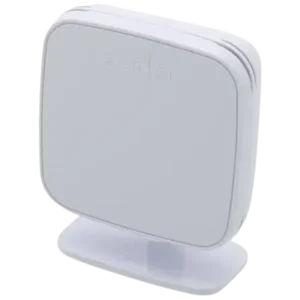
| Brand Name | Sensi |
| Product Name | Sensi Room Sensor |
| Model Number(s) | RS01-SG, RS01-SGB3 |
| File Size | 0.66 MiB |
| Number of Pages | 7 |
| Languages Covered | English |
Sensi Room Sensor RS01-SG
The Sensi Room Sensor RS01-SG and RS01-SGB3 works with the Sensi Touch 2 Smart Thermostat to provide temperature and humidity readings from different rooms in a home. Up to 15 Sensi room sensors can be paired with one Sensi Touch 2 thermostat using the thermostat’s Remote Sensors menu.
Once connected, individual sensors can be named by room, placed or mounted around the home, and selected in the Sensi app to affect the temperature used for heating and cooling. By default, the thermostat and all selected room sensors are averaged together. Users can instead select only specific sensors when they want the HVAC system to focus on certain rooms.
The sensors communicate with the Sensi Touch 2 through low-frequency radio signals rather than Wi-Fi. The official guide recommends keeping a sensor within approximately 45 feet of the thermostat and away from thick walls or other low-frequency devices that could interfere with communication.
Sensi Room Sensor Compatibility
The installation guide specifically describes pairing the room sensors with the:
Sensi Touch 2 Smart Thermostat
Up to 15 Sensi Room Sensors can be connected to one Touch 2 thermostat.
| Feature | Official Guide Information |
| Room Sensor Models | RS01-SG, RS01-SGB3 |
| Compatible Thermostat in This Guide | Sensi Touch 2 Smart Thermostat |
| Maximum Sensors | Up to 15 |
| Battery Type | 2 AAA batteries |
| Reset Button | Inside battery compartment |
| Reset Hold Time | 5 seconds |
| Wireless Connection | Low-frequency radio, not Wi-Fi |
| Radio Frequency Mentioned | Approximately 900 MHz |
| Recommended Maximum Distance | About 45 feet from thermostat |
| Recommended Installation Height | About 5 feet above the floor |
What’s Included for Installation
The installation instructions and the diagram on page 5 show several placement options and the related mounting pieces.
The installation uses:
- Sensi Room Sensor
- Enclosed sensor stand
- Wall-mounting hardware
- Screw and wall anchor for wall installation
The sensor can also simply be placed on a suitable flat surface without using the wall hardware.
The sensor requires two AAA batteries for operation.
Sensi Room Sensor Controls and Status Information
The main physical control described in the guide is the Reset button, located inside the battery compartment.
Reset Button
Hold the Reset button for approximately 5 seconds when:
- A sensor already contains batteries before pairing.
- A sensor was previously paired.
- The thermostat cannot find the sensor.
- A connection attempt fails.
Sensor Information in the Sensi App
Page 4 of the guide shows the Sensors screen and Sensor Details screen in the Sensi app. The app can be used to view the connected sensors, check their status and assign recognizable room names.
The illustrated Sensor Details screen displays information such as:
- Temperature
- Humidity
- Signal strength
- Battery status
- Sensor ID
- Firmware version
This makes the Sensi app useful for checking both environmental readings and the condition of each paired room sensor.
How to Install and Pair a Sensi Room Sensor
The official installation process consists of adding the sensor from the Sensi Touch 2 thermostat, connecting it, naming it in the app, placing it correctly and then choosing which sensors should affect temperature control.
Step 1: Open Remote Sensors on the Sensi Touch 2
At the Sensi Touch 2 thermostat:
- Tap the Menu icon in the upper-left corner.
- Tap Remote Sensors.
- Tap Add Sensor.
The screenshots on page 2 show this exact path from the Touch 2 home screen to the Main Menu and then to the Remote Sensors screen.
Step 2: Insert the Sensor Batteries
Insert the batteries into the room sensor.
After installing them, tap OK on the Sensi Touch 2 screen.
If the Sensor Already Has Batteries
If batteries were already installed or the sensor was previously paired:
- Open the battery compartment.
- Locate the Reset button.
- Press and hold Reset for 5 seconds.
- Return to the pairing process.
Step 3: Select the Sensor on the Thermostat
Compatible sensors appear on the Sensi Touch 2 display.
Tap Connect beside the sensor that should be paired.
When multiple sensors are being installed, the official guide recommends pairing one sensor at a time. This makes it easier to identify which physical sensor is being configured.
Step 4: Wait for Pairing to Complete
The connection can take approximately a minute.
When pairing succeeds, the thermostat displays a green check mark. The user is then prompted to open the Sensi app to rename the sensor.
How to Name a Sensi Room Sensor
Descriptive names make it easier to identify sensors when several are installed.
Examples given in the guide include names such as:
- Living Room
- Kids’ Bedroom
Rename a Sensor in the Sensi App
- Open the Sensi app.
- Select the Sensi Touch 2 thermostat.
- Locate the sensors shown above the room-temperature reading.
- Tap Sensors.
- Tap the i information icon beside the required sensor.
- Select the Sensor Name field.
- Enter a room or location name.
- Tap Save.
The screenshots on page 4 show the sensor list and the Sensor Details page where the custom name is entered.
How to Place or Mount the Sensi Room Sensor
The sensor can be installed in several ways.
Wall Mount
Use the enclosed wall-mounting hardware to attach the room sensor at the desired location.
Use the Sensor Stand
The enclosed stand can be assembled by sliding the sensor onto its base until it snaps into position.
Place It on a Flat Surface
The sensor can also be placed directly on a suitable:
- Table
- Shelf
- Other flat surface
Best Sensi Room Sensor Placement
Sensor location has a direct effect on the temperature reading.
For the best placement, the official guide recommends positioning the sensor approximately:
5 feet above the floor
It should face into the room and be located where air can circulate freely.
Locations to Avoid
Do not position the sensor:
- In direct sunlight
- Near an air vent
- Near a stove
- Near hot-water pipes
- Near radiators
- On or near a window
- On or near an uninsulated wall or surface
- Inside a closet
- Behind books
- Behind wall art
- In another enclosed area with poor airflow
- In a refrigerator
- In a greenhouse
- In another environment outside the sensor’s operating conditions
The sensor should also not be painted or sprayed with another substance, because doing so may stop it from working as expected.
Sensi Room Sensor Wireless Range
Sensi Room Sensors do not use Wi-Fi to communicate with the thermostat.
Instead, the guide states that they use low-frequency radio waves for a secure connection to the Sensi Touch 2 Smart Thermostat.
For reliable communication:
- Keep the sensor within approximately 45 feet of the Sensi Touch 2.
- Reduce thick walls and other significant obstructions between the sensor and thermostat.
- Avoid nearby devices transmitting on a similar low frequency of approximately 900 MHz.
The official guide gives examples of possible nearby interference sources such as:
- Cordless phones
- Baby monitors
How Sensor Prioritization Works
After installation, the Sensi app initially places a check mark beside:
- Each connected room sensor
- The thermostat itself
When all of these devices are selected, the heating and cooling system uses an average reading across the selected devices.
This allows the system to take conditions in multiple rooms into account rather than relying only on the temperature measured at the thermostat.
How to Prioritize One Room or Selected Sensors
To prioritize a specific room:
- Open the sensor controls in the Sensi app.
- Review the selected thermostat and room sensors.
- Leave checked only the sensor or sensors that should affect temperature control.
- Deselect devices that should not be included in the current average.
The temperature and humidity shown at the top of the app represent the average across all currently selected devices.
Example
If the thermostat, Living Room sensor and Bedroom sensor are all selected, the system works from their combined average.
If only the Bedroom sensor is selected, that sensor becomes the reading prioritized by the system.
This selection behavior is useful when comfort in one part of the home is more important at a particular time.
Temperature and Humidity Monitoring
The Sensi app uses room-sensor data for both temperature and humidity.
The guide explains that when several selected sensors are active, the app displays the average temperature and humidity across those devices.
The page 4 Sensor Details screenshot also shows separate Temperature and Humidity fields for an individual sensor.
Installing Multiple Sensi Room Sensors
One Sensi Touch 2 can pair with up to 15 room sensors.
For a multi-sensor installation:
- Add the first sensor through Menu > Remote Sensors > Add Sensor.
- Insert its batteries or reset it if necessary.
- Connect the sensor.
- Wait for the green check mark.
- Rename it in the Sensi app.
- Place it in its intended room.
- Repeat the process for each additional sensor.
The guide recommends completing pairing one sensor at a time to avoid confusing one physical sensor with another during setup.
Sensi Room Sensor Battery Information
The sensor operates with two AAA batteries.
If a sensor will not connect even after a reset, the troubleshooting instructions recommend replacing its batteries with two new AAA batteries.
The Sensi app’s Sensor Details screen also includes battery-status information, allowing the owner to monitor the condition of a paired sensor.
How to Reset the Sensi Room Sensor
The Reset button is inside the battery compartment.
To reset the sensor:
- Open the battery compartment.
- Locate the Reset button.
- Press and hold it for 5 seconds.
- Release it.
- Return to the Sensi Touch 2 pairing screen.
- Attempt the connection again.
A reset is especially relevant when:
- The sensor has already been paired.
- Batteries were installed before pairing began.
- The sensor does not appear during setup.
- Pairing produces a failed message.
Sensi Room Sensor Troubleshooting
Sensor Will Not Connect
If a failed message appears or the sensor does not appear when the thermostat searches for it:
- Press and hold the sensor’s Reset button for 5 seconds.
- Try connecting the sensor again.
- If resetting does not solve the problem, install two new AAA batteries.
- Restart the pairing process.
Sensor Has Lost Connection
If a previously paired sensor loses its connection:
- Remove its batteries.
- Leave the batteries out for approximately 5 to 10 seconds.
- Reinstall them.
- Allow the sensor to reconnect.
This procedure power-cycles the sensor.
Sensor Is Giving an Inaccurate Room Temperature
Placement should be checked before assuming the sensor has failed.
The sensor should be:
- About 5 feet above the floor
- Facing into the room
- In an area with good airflow
- Away from sunlight
- Away from supply or return vents
- Away from heat-producing equipment
- Away from windows and poorly insulated surfaces
- Outside enclosed or stagnant-air locations
These conditions reduce the chance that local heat, cold or poor airflow will distort the temperature reading.
Sensor Keeps Losing Its Wireless Connection
Check the distance and potential sources of interference.
The guide recommends keeping the sensor within approximately 45 feet of the thermostat and avoiding:
- Thick walls
- Similar low-frequency wireless devices
- Cordless phones
- Baby monitors
- Other devices operating around 900 MHz
If connection problems continue, power-cycle the sensor by removing its batteries for 5–10 seconds and reinstalling them.
Sensor Does Not Appear on the Touch 2 Screen
If the thermostat searches but no compatible sensor appears:
- Open the sensor battery compartment.
- Hold Reset for 5 seconds.
- Search again from the Sensi Touch 2.
- Replace the two AAA batteries if the sensor still cannot be detected.
Technical Support
For help connecting or troubleshooting the Sensi thermostat or room sensors, the official guide directs users to:
Sensi Support: sensi.help
Frequently Asked Questions
How many Sensi Room Sensors can connect to a Sensi Touch 2 thermostat?
Up to 15 Sensi Room Sensors can be paired with one Sensi Touch 2 Smart Thermostat.
How do you connect a Sensi Room Sensor to a Sensi Touch 2?
On the thermostat, open Menu > Remote Sensors > Add Sensor. Insert the sensor batteries and tap OK. When the sensor appears, tap Connect beside it. A green check mark appears after successful pairing.
How do you reset a Sensi Room Sensor?
Open the battery compartment and press and hold the Reset button for 5 seconds. The same reset procedure is recommended when a previously paired sensor cannot connect again.
What batteries does the Sensi Room Sensor use?
The sensor uses two AAA batteries. If connection problems remain after resetting the sensor, the official troubleshooting instructions recommend replacing them with two new AAA batteries.
Where should a Sensi Room Sensor be placed?
The guide recommends placing the sensor approximately 5 feet above the floor, facing the room and in an area with good airflow. Avoid direct sunlight, air vents, windows, heat sources, uninsulated surfaces and enclosed spaces.
Does a Sensi Room Sensor connect through Wi-Fi?
No. The room sensor communicates with the Sensi Touch 2 using low-frequency radio waves rather than Wi-Fi. The guide recommends keeping it within approximately 45 feet of the thermostat and minimizing obstacles or interference from other low-frequency devices.
What happens when several Sensi sensors are selected?
When several sensors and/or the thermostat are checked in the Sensi app, the system uses an average reading across all selected devices for heating and cooling. The displayed temperature and humidity also represent the average of those selected devices.
What should be done if a Sensi Room Sensor loses connection?
Remove the batteries for approximately 5–10 seconds, reinstall them and allow the sensor to reconnect. If a sensor cannot be found during pairing, reset it for five seconds and replace its two AAA batteries if necessary.