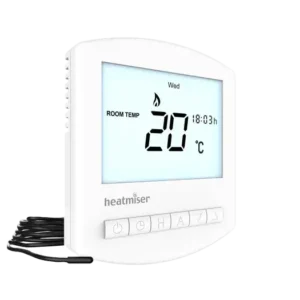
| Field | Details |
| Document Title | Heatmiser Touch-E V2 Instruction Manual |
| Document Type | User Manual |
| Brand Name | Heatmiser |
| Product Name | Electric Floor Heating Thermostat |
| Model Number(s) | Touch-E V2 |
| PDF File Size | 486.3 KB |
| Total Number of Pages | 44 |
| Languages Covered | English |
Heatmiser Electric Floor Heating Thermostat Touch-E V2
The Heatmiser Touch-E V2 is a programmable touchscreen thermostat designed to control electric underfloor heating systems. It combines temperature regulation, heating schedules, floor temperature monitoring, wireless sensor compatibility, and an alternative time clock operating mode.
The Touch-E V2 operates from a 230V AC supply and supports electric underfloor heating mats or cables with a maximum connected load of 16 amps. It can control heating using its built-in air sensor, a connected floor temperature probe, compatible wireless air sensors, or a combination of sensors.
Two operating modes are available:
- Mode 1 – Thermostat: Controls heating according to the selected temperature and programmed comfort levels.
- Mode 2 – Time Clock: Controls a timed output according to programmed ON and OFF switching periods.
The thermostat features an LCD touchscreen, programmable heating schedules, temperature hold, program advance, frost protection, holiday settings, and a four-digit keypad lock.
The Touch-E V2 also supports compatible wireless air sensors and window/door contact sensors. Up to 16 wireless accessories can be paired with one thermostat. An RS485 Modbus interface provides communication with compatible home automation or building management systems.
The thermostat includes an Optimum Start function, automatic heating-rate calculation, floor temperature limiting, a wireless sensor fail-safe function, and a 3V lithium backup battery for clock retention.
Product Overview and Technical Specifications
The Heatmiser Touch-E V2 provides programmable temperature control for electric floor heating installations, with additional time clock and automation functions.
| Specification | Details |
| Brand | Heatmiser |
| Model | Touch-E V2 |
| Product Type | Programmable Electric Floor Heating Thermostat |
| Power Supply | 230V AC |
| Maximum Heating Load | 16 amps |
| Heating Application | Electric underfloor heating mats or cables |
| Display | LCD touchscreen |
| Control Interface | Touch-sensitive navigation and programming keys |
| Installation Type | Flush-mounted |
| Minimum Back Box Depth | 35 mm |
| Operating Modes | Mode 1: Thermostat; Mode 2: Time Clock |
| Default Operating Mode | Thermostat |
| Temperature Display | Celsius (°C) or Fahrenheit (°F) |
| Temperature Sensor Options | Built-in air, wireless remote air, floor, or combined sensing |
| Wired Floor Probe | Supported |
| Wireless Accessories | Up to 16 |
| Wireless Accessory Types | Air sensors and window/door contact sensors |
| Programming Modes | 5/2 Day, 7 Day, 24 Hour, Non-Programmable |
| Comfort Levels | Four or six |
| Default Comfort Levels | Four |
| Switching Differential | 0.5°C, 1°C, 2°C, or 3°C |
| Default Switching Differential | 1°C |
| Output Delay | 0–15 minutes |
| Temperature Adjustment Limit | 0–10°C |
| Floor Temperature Limit | 20–45°C |
| Default Floor Temperature Limit | 28°C |
| Optimum Start | 0–5 hours |
| Daylight Saving Time | Supported |
| Temperature Hold | Supported |
| Program Advance | Supported |
| Frost Protection | Supported |
| Holiday Mode | Supported |
| Keypad Lock | Four-digit PIN |
| Fail-Safe Heating | Supported with specified wireless sensor configurations |
| Communication Interface | RS485 Modbus |
| Modbus Address Range | 01–32 |
| Maximum Modbus Devices | 32 per RS485 adapter |
| Clock Backup Battery | 3V lithium battery |
How the Programmable Thermostat Works
The Touch-E V2 combines a heating programmer with a room thermostat.
The thermostat measures temperature and requests heating when the measured temperature falls below the selected target. When the required temperature is reached, heating demand stops.
The programming function allows different temperature settings to be applied at selected times throughout the day.
Understanding Temperature Settings
Increasing the target temperature does not make a room warm up faster. The heating rate depends on the design and capacity of the heating system.
A higher temperature setting causes heating to continue until the higher target is reached.
Similarly, reducing the target temperature does not make a room cool faster. It changes the temperature the thermostat maintains.
Choosing a Comfortable Temperature
A suitable method of finding a comfortable temperature is to begin with a setting of approximately 18°C and increase it by 1°C each day until the required comfort level is reached.
Once a suitable temperature has been established, the programmed heating schedule can maintain it automatically.
Avoiding unnecessarily high temperature settings can reduce heating energy consumption.
Thermostat Position and Airflow
The thermostat requires unrestricted airflow to measure the surrounding temperature accurately.
It should not be covered by curtains or obstructed by furniture.
Nearby electric heaters, televisions, wall lamps, and table lamps may affect its temperature reading.
Parts, Components, and Touchscreen Controls
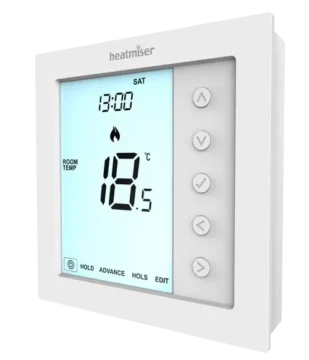
The Touch-E V2 has a large LCD touchscreen with navigation and programming controls displayed along the lower section and within the screen.
The thermostat includes a removable front panel, wall-mounting back plate, retaining screw, electrical terminal connections, and clock backup battery.
Main Components
| Component | Function |
| LCD Touchscreen | Displays temperature, time, operating status, and configuration settings. |
| Power Control | Switches the thermostat on/off and activates Frost Protection. |
| HOLD | Opens Temperature Hold or Timer Override settings. |
| ADVANCE | Activates the next programmed comfort or switching period early. |
| HOLIDAY | Opens Holiday Mode settings. |
| EDIT | Opens heating schedule or switching time programming. |
| SCREEN | Changes available display or screen selections. |
| Up/Down Controls | Increase or decrease temperatures, times, and values. |
| Navigation Arrows | Move between settings and programmed periods. |
| SETUP | Opens advanced configuration options. |
| CLOCK | Opens clock and calendar settings. |
| Front Panel | Contains the touchscreen and controls. |
| Back Plate | Secures the thermostat to the recessed wall back box. |
| Retaining Screw | Secures the front panel to the back plate. |
| Electrical Terminal Block | Provides mains, floor sensor, heating load, and Modbus connections. |
| Backup Battery | Maintains clock time during a loss of mains power. |
Touchscreen Control Functions
| Control | Function |
| Power | Controls thermostat power and Frost Protection. |
| HOLD | Configures a temporary temperature or output override. |
| ADVANCE | Brings the next scheduled period forward. |
| HOLIDAY | Sets a holiday return date and time. |
| EDIT | Changes programmed heating or switching periods. |
| SCREEN | Opens available screen options. |
| CLOCK | Opens time and calendar settings. |
| SETUP | Opens optional settings and accessory configuration. |
| FLOOR | Displays the current floor temperature temporarily. |
| DAY | Selects a day or day group during programming. |
| NEXT | Moves to the next field or confirms a programming step. |
| DONE | Saves the selected settings. |
| CANCEL | Cancels an override or exits an applicable operation. |
| Left/Right Arrows | Move between programmed periods or selections. |
| Up/Down Arrows | Adjust temperature, time, and other values. |
The available controls change depending on the selected menu and operating mode.
Understanding the LCD Display
The LCD displays the current temperature, heating demand, clock, programmed settings, and operating status.
Thermostat Mode Display Indicators
| Indicator | Meaning |
| Holiday Symbol | Appears when Holiday Mode is active. |
| Frost Protection Symbol | Appears when Frost Protection is enabled or activated by a window/door contact. |
| Flame Symbol | Indicates that heating is being requested. |
| Flashing Flame Symbol | Indicates that Optimum Start is active. |
| ADVANCED UNTIL | Indicates that the next programmed comfort level has been activated early. |
| Day Indicator | Shows the current day of the week. |
| HOLD LEFT | Shows the remaining Temperature Hold duration. |
| Clock | Displays time in 24-hour format. |
| Preheat Active | Indicates preheating operation. |
| Sensor Warning | Flashes when communication with a wireless sensor or window/door switch fails. |
| Window Symbol | Indicates that a paired window/door contact has been triggered. |
| Floor Limit Symbol | Appears when the floor probe reaches the configured temperature limit. |
| ROOM TEMP | Identifies the room temperature reading. |
| FLOOR TEMP | Identifies the floor temperature reading. |
| SET TEMP | Identifies the selected target temperature. |
| Program Indicator | Identifies the comfort period being edited. |
| Keypad Lock Symbol | Indicates that the touchscreen is locked. |
| Accessory Low Battery Symbol | Indicates that a paired accessory reports low battery power. |
| Temperature Display | Shows the measured temperature. |
| °C / °F | Identifies the selected temperature unit. |
| Time/Day/Month/Year | Displays clock, calendar, and holiday information. |
Heating Demand Indicator
The flame icon appears when the thermostat requests heating.
When the flame icon is absent, heating is not currently required to maintain the selected temperature.
The flame icon flashes while Optimum Start is active.
Floor Temperature Limit Indicator
The floor temperature limit symbol appears when the floor probe reaches the configured maximum floor temperature.
Wireless Sensor Warning
The sensor warning symbol flashes when the thermostat fails to receive a signal from a wireless air sensor or window/door contact.
Window/Door Contact Indicator
The window icon appears when a paired window or door contact is triggered.
The thermostat activates Frost Protection and heating does not resume while the window indicator remains displayed.
Safety Instructions and Installation Requirements
The Heatmiser Touch-E V2 operates from a 230V AC electrical supply and controls an electric heating load.
Installation must be performed by a qualified electrician and must comply with applicable local electrical installation regulations.
Important Installation Precautions
- Mount the thermostat at eye level.
- Read the installation instructions before use.
- Do not install it near a direct heat source.
- Do not apply excessive pressure to the LCD screen because permanent damage may occur.
- Use a recessed wall back box with a minimum depth of 35 mm.
- Follow the manufacturer’s electrical wiring diagram.
- Use the correct temperature sensor arrangement.
- Do not exceed the maximum connected load of 16 amps.
- Follow the RCD-protected mains supply arrangement illustrated in the wiring diagram.
Electric Underfloor Heating Sensor Requirement
The Air Sensor Only setting must not be used to control electric underfloor heating.
For electric underfloor heating, the thermostat must use:
- Floor Sensor Only, or
- Combined air and floor sensing.
When an air sensor and floor sensor are used together, the floor sensor provides a limiting function to help prevent excessive floor temperature.
Electrical Connections
The thermostat wiring diagram identifies a mains supply, electric heating load, floor temperature probe, and Modbus communication interface.
The correct connections must be completed according to the manufacturer’s diagram.
Installing the Touch-E V2 Thermostat
The Touch-E V2 is designed for flush mounting into a recessed wall back box.
A minimum back box depth of 35 mm is required.
Step 1: Remove the Front Panel
- Locate the retaining screw on the bottom edge of the thermostat.
- Use a small screwdriver to loosen the screw slightly.
- Carefully separate the front panel from the back plate.
- Place the LCD front panel somewhere safe.
Step 2: Connect the Electrical Wiring
The thermostat must be wired according to the manufacturer’s Touch-E V2 wiring diagram.
The diagram identifies connections for:
- 230V AC mains power.
- RCD-protected supply.
- Electric floor heating mat or cable.
- Wired floor temperature probe.
- RS485 Modbus communication.
Step 3: Mount the Back Plate
- Position the back plate against the recessed wall back box.
- Align the mounting holes.
- Screw the back plate securely into the box.
Step 4: Reattach the Front Panel
- Position the front panel against the back plate.
- Align the connecting pins with the matching socket.
- Insert the top edge first.
- Carefully push the lower edge into place.
- Tighten the retaining screw.
Selecting Thermostat or Time Clock Mode
The Touch-E V2 can operate as a thermostat or a time clock.
| Mode | Function |
| Mode 1 | Thermostat |
| Mode 2 | Time Clock |
Thermostat Mode is the factory default.
Mode 1: Thermostat
Mode 1 provides temperature-based heating control.
It supports programmed comfort levels, manual temperature adjustment, floor temperature monitoring, wireless accessories, Temperature Hold, Frost Protection, and Holiday Mode.
Mode 2: Time Clock
Mode 2 controls a timed electrical output according to programmed ON and OFF switching periods.
It operates according to switching times rather than the temperature-based control used in Thermostat Mode.
How to Change the Operating Mode
- Press and hold Power for approximately 3 seconds.
- The display becomes blank except for Power, CLOCK, and SETUP.
- Press and hold SETUP for 10 seconds.
- The thermostat performs a factory reset and displays two operating mode options.
- Use Left and Right to select the required mode.
- Select Mode 1 for Thermostat or Mode 2 for Time Clock.
- Press DONE to confirm.
- Press Power once to restart.
Important: Mode selection resets the configuration parameters entered during setup. Paired wireless air sensors and window/door contacts are excluded from this reset.
Other required settings must be configured again after restarting.
Mode 1: Thermostat Operation
Thermostat Mode controls heating according to the measured temperature and selected target temperature.
The available functions include:
- Room and floor temperature measurement.
- Programmable heating schedules.
- Manual temperature adjustment.
- Temperature Hold.
- Program Advance.
- Frost Protection.
- Holiday Mode.
- Wireless air sensor pairing.
- Window/door contact pairing.
- Floor temperature limiting.
- Keypad locking.
- Optimum Start.
- Modbus communication.
Turning the Thermostat On and Off
How to Turn the Thermostat Off
- Press and hold Power for approximately 3 seconds.
- Continue until the display becomes blank.
The display and heating output are switched off.
How to Turn the Thermostat On
Press Power once.
The thermostat returns to its normal operating display.
Understanding Heating Status
The flame symbol appears when heating is requested.
When the flame symbol is absent, the thermostat remains active but does not currently require heating to maintain the selected temperature.
Setting the Time and Date
The clock and calendar are used for heating schedules and Holiday Mode.
How to Set the Clock
- Press and hold Power for 3 seconds.
- The display becomes blank except for Power, CLOCK, and SETUP.
- Press CLOCK.
- The hour digits begin flashing.
- Use Up and Down to set the hour.
- Press NEXT.
- Use Up and Down to set the minutes.
- Press NEXT.
- Repeat the procedure to set the day, month, and year.
- Press DONE to save the completed settings.
- Press Power to return to the main display.
The clock displays time in 24-hour format.
Room and Floor Temperature Display
The Touch-E V2 can display temperature readings from the selected sensor arrangement.
Room Temperature
When room temperature is displayed, ROOM TEMP appears beside the measured value.
Floor Temperature
When floor temperature is displayed, FLOOR TEMP appears beside the reading.
Combined Air and Floor Sensing
When both air and floor sensors are configured, the room temperature appears by default.
The floor sensor is used for floor temperature limiting.
How to View the Floor Temperature
- Press FLOOR.
- The current floor temperature appears.
- The floor temperature remains displayed for approximately 10 seconds.
- The display returns to the room temperature reading.
Wireless Air Sensors and Window/Door Contacts
The Touch-E V2 supports compatible wireless accessories.
A maximum of 16 wireless accessories can be paired with one thermostat.
Accessory pairing is available in Thermostat Mode.
Compatible Accessory Types
| Accessory | Function |
| Wireless Air Sensor | Provides a remote air temperature measurement. |
| Wireless Window/Door Contact | Detects when a monitored window or door is opened. |
Wireless Air Sensor Operation
When a wireless air sensor is paired, the thermostat automatically calculates an average temperature using the wireless sensor and its built-in sensor.
When several wireless air sensors are connected, their measurements are included in the averaging calculation.
The sensor configuration can also be changed so that the thermostat uses a wireless remote air sensor without the built-in sensor.
Window/Door Contact Operation
When a paired window or door contact is triggered, the thermostat is notified and activates Frost Protection.
The window symbol appears on the display.
Heating does not resume while the window symbol remains visible.
Pairing Wireless Accessories
The accessory pairing function allows compatible wireless air sensors and window/door contacts to be added.
Step 1: Open the Setup Menu
- Press and hold Power for 3 seconds to turn off the display.
- Press SETUP.
- Press Down until the letter P appears at the top of the screen.
- Press NEXT.
Step 2: Start Accessory Pairing
The thermostat starts a 99-second countdown.
Multiple wireless accessories can be added during this period.
Step 3: Activate Pairing on the Accessory
- Locate the Pair/Reset button on the wireless accessory.
- Press and hold the button for 5 seconds.
- The accessory LED illuminates red to indicate pairing.
Step 4: Confirm Pairing
When pairing is successful:
- The accessory LED goes out after a few seconds.
- The thermostat displays 01:P when the first accessory joins.
If the countdown ends before all accessories have been added, the pairing procedure can be started again.
Viewing Paired Accessories
The thermostat provides an accessory information screen for checking connected wireless devices.
How to Open the Accessory Menu
- Press and hold Power for 3 seconds to turn off the display.
- Press SETUP.
- Press Down until the letter A appears at the top of the display.
- Press NEXT.
- Use Up and Down to move through the connected accessories.
Accessory Status Indicators
| Indicator | Meaning |
| Temperature Reading | Current temperature reported by a wireless air sensor. |
| OP | Window or door contact is open. |
| CL | Window or door contact is closed. |
| — | Connection with the accessory has been lost. |
| Battery Warning Symbol | An accessory reports low battery power. |
Wireless Accessory Battery Warning
When a paired accessory reports low battery power, a warning symbol appears.
The battery in the affected accessory should be replaced as soon as possible.
Removing Wireless Accessories
A wireless accessory can be removed using its own Pair/Reset button or through the thermostat’s accessory menu.
Removing an Accessory Using Its Reset Button
- Locate the Pair/Reset button on the sensor or contact.
- Press and hold it for 15 seconds.
- The accessory LED flashes three times to confirm the reset.
The accessory informs the thermostat that it has left the network and is removed from the accessory menu.
Removing an Accessory From the Thermostat
- Open the accessory menu.
- Use Up and Down to select the accessory to remove.
- Press and hold DONE for 10 seconds.
- Continue until the accessory disappears from the menu.
The accessory must also be reset after removal through the thermostat.
Heating Programs and Comfort Levels
The Touch-E V2 supports several heating schedule arrangements.
Available Programming Modes
| Programming Mode | Description |
| 5/2 Day | Separate heating schedules for weekdays and weekends. |
| 7 Day | Individual heating schedules for each day. |
| 24 Hour | One schedule repeated every day. |
| Non-Programmable | Manual temperature control without scheduled comfort periods. |
Default Heating Schedule
The thermostat is supplied with four programmed comfort levels.
| Comfort Period | Starting Time | Temperature |
| WAKE | 07:00 | 21°C |
| LEAVE | 09:00 | 16°C |
| RETURN | 16:00 | 21°C |
| SLEEP | 22:00 | 16°C |
Each comfort period maintains its selected temperature until the next programmed period begins.
Four-Level and Six-Level Programming
The thermostat supports four or six programmable comfort levels.
Four comfort levels are enabled by default.
Six comfort levels can be activated through the Program Type setting in the optional features menu.
5/2 Day Programming
In 5/2 Day Mode, the same four comfort periods apply from Monday through Friday.
A separate set of periods can be configured for Saturday and Sunday.
7 Day Programming
In 7 Day Mode, each day can have its own independently configured comfort periods.
24 Hour Programming
In 24 Hour Mode, the same comfort schedule repeats every day.
Programming the Heating Comfort Levels
The EDIT function allows the programmed starting times and temperatures to be changed.
How to Program Comfort Levels
- Press EDIT.
- Use DAY to select the required day or day group.
- Press NEXT to confirm.
- WAKE begins flashing and its current time and temperature appear.
- Use the upper Up/Down controls to set the hours and minutes.
- Use the central Up/Down controls to set the required temperature.
- Press the Right Arrow to move to LEAVE.
- Repeat the time and temperature settings.
- Continue through RETURN and SLEEP.
- Press DONE to save the heating schedule.
Disabling Unused Comfort Periods
An unused comfort period can be disabled by setting its time to –:–.
The thermostat skips that period and continues to the next programmed level.
Enabling Six Comfort Levels
To enable six comfort levels:
- Open the optional settings menu.
- Select Feature 12, Program Type.
- Change the setting to 01.
- Save the configuration.
The additional comfort levels can then be programmed through EDIT.
Adjusting the Set Temperature
The target temperature can be changed directly using the touchscreen Up/Down controls.
How to Change the Temperature
- Press Up or Down.
- SET TEMP appears with the selected temperature.
- Use Up and Down to change the target.
- Press DONE to confirm.
The thermostat returns to its main display.
Duration of a Manual Temperature Override
During programmed operation, the manually selected temperature remains active until the next scheduled comfort level begins.
The thermostat then returns to the programmed temperature.
How to Cancel a Manual Temperature Override
- Press Up or Down to open the temperature adjustment screen.
- Press CANCEL.
The current override ends.
Temperature Hold Function
Temperature Hold temporarily overrides the programmed heating temperature for a selected duration.
How to Activate Temperature Hold
- Press HOLD once.
- Use Up and Down to select the required hold duration in hours.
- Press NEXT.
- Use Up and Down to select the required minutes.
- Use the temperature Up/Down controls to select the hold temperature.
- Press DONE.
HOLD LEFT appears on the display.
The remaining duration counts down until the thermostat returns to normal programmed operation.
How to Cancel Temperature Hold
- Press HOLD.
- Press CANCEL.
The hold is canceled.
How to Edit an Active Temperature Hold
- Press HOLD.
- Press EDIT.
- Adjust the hold duration and temperature.
- Press DONE to confirm.
Program Advance Function
Advance activates the next programmed comfort level before its normal starting time.
How to Activate Advance
- Press ADVANCE.
- ADVANCED UNTIL appears with the applicable time and target temperature.
- Press DONE to confirm.
The next comfort level becomes active.
Viewing the Advance Temperature
- Press Up or Down once.
- The current target temperature appears.
- Press DONE to exit.
Changing the Advance Temperature
- Press Up or Down.
- Adjust the required temperature.
- Press DONE to confirm.
How to Cancel Advance
- Press ADVANCE.
- Press CANCEL.
The thermostat returns to normal programmed operation.
Multiple consecutive advances are not supported.
Frost Protection Mode
Frost Protection maintains a reduced temperature when normal heating is not required.
How to Activate Frost Protection
- Press Power once.
- The frost protection symbol appears.
The thermostat requests heating only when the measured room temperature falls below the configured frost protection temperature.
When heating is requested, the flame symbol appears.
How to Cancel Frost Protection
Press Power once again.
The frost protection symbol disappears.
Automatic Frost Protection From Window/Door Contacts
Frost Protection can also be activated by a paired window/door contact.
When a monitored window or door opens, the window symbol appears and the thermostat activates Frost Protection.
Heating does not resume while the window indicator remains active.
Locking and Unlocking the Touchscreen
The Touch-E V2 includes a keypad lock controlled by a four-digit PIN.
How to Lock the Touchscreen
- Press and hold HOLD for 3 seconds.
- The display shows 0000.
- Use Up and Down to select the first two digits of the PIN.
- Press NEXT.
- Use Up and Down to enter the remaining two digits.
- Press DONE.
The keypad lock symbol appears on the main display.
How to Unlock the Touchscreen
- Press any key once.
- The display shows 0000.
- Enter the first two digits of the previously configured PIN.
- Press NEXT.
- Enter the remaining two digits.
- Press DONE.
The touchscreen unlocks and returns to the main display.
Holiday Mode
Holiday Mode temporarily changes the thermostat’s normal heating schedule.
In Thermostat Mode, the selected temperature is reduced to the configured frost protection temperature.
The thermostat maintains that temperature throughout the holiday and returns to normal programmed operation afterward.
In Time Clock Mode, Holiday Mode keeps the timed output off.
How to Activate Holiday Mode
- Press HOLIDAY.
- Use Up and Down to select the return hour.
- Press NEXT.
- Select the return minutes.
- Press NEXT.
- Repeat the procedure for the return day, month, and year.
- Press DONE to confirm.
The display indicates that Frost Protection is active during the holiday in Thermostat Mode.
Changing the Holiday Temperature
While Holiday Mode is active:
- Press Up or Down.
- Select the required frost protection temperature.
- Press DONE to confirm.
Advanced Thermostat Settings
The Touch-E V2 provides optional features for heating response, sensor selection, programming, and communication.
Most settings can remain at their factory defaults.
How to Access the Optional Settings
- Press and hold Power for 3 seconds.
- The display becomes blank except for Power, SETUP, and CLOCK.
- Press SETUP.
- Press NEXT.
- The feature number and current setting appear.
- Use the upper Up/Down controls to select a feature.
- Use the central Up/Down controls to change the value.
- Press DONE to save the changes.
- Press Power to return to normal operation.
Optional Features Reference Table
| Feature | Description | Available Settings |
| A | View Accessories | Information only |
| P | Pair Accessories | 99-second countdown |
| 01 | Temperature Format | 00 = °C (Default); 01 = °F |
| 02 | Switching Differential | 00 = 0.5°C; 01 = 1°C (Default); 02 = 2°C; 03 = 3°C |
| 03 | Output Delay | 0–15 minutes; Default: 0 |
| 04 | Temperature Adjustment Limit | 0–10°C; Default: 0 |
| 05 | Sensor Selection | Built-in, wireless remote air, floor, or combined sensing |
| 06 | Floor Temperature Limit | 20–45°C; Default: 28°C |
| 07 | Optimum Start | 0–5 hours; Default: Disabled |
| 08 | Rate of Change | Information only |
| 09 | Programming Mode | 5/2 Day, 7 Day, 24 Hour, Non-Programmable |
| 10 | Daylight Saving Time | 00 = Disabled (Default); 01 = Enabled |
| 11 | Modbus Communications ID | 00 = Disabled; 01–32 = Address |
| 12 | Program Type | 00 = Four Levels (Default); 01 = Six Levels |
Feature 01: Temperature Format
This setting changes the display between Celsius and Fahrenheit.
| Setting | Unit |
| 00 | Celsius (Default) |
| 01 | Fahrenheit |
Feature 02: Switching Differential
Switching Differential determines how far the measured temperature must fall below the selected target before heating starts.
For example, with a target temperature of 20°C:
- A 1°C differential activates heating at 19°C and stops it at 20°C.
- A 2°C differential activates heating at 18°C and stops it at 20°C.
The default is 1°C.
While Optimum Start is active, the switching differential operates at 1°C.
Feature 03: Output Delay
Output Delay helps prevent rapid switching of the heating output.
The adjustable range is 0–15 minutes.
The factory default is 0, meaning no additional delay is applied.
Output Delay is not applied while Optimum Start is running.
Feature 04: Temperature Adjustment Limit
This feature restricts the available temperature adjustment using Up and Down.
The restriction also applies while the thermostat is locked, allowing limited temperature control.
The range is 0–10°C.
Feature 05: Temperature Sensor Selection
The Touch-E V2 supports five sensor configurations.
| Setting | Sensor Configuration |
| 00 | Built-in Sensor with Optional Wireless Remote Air Sensor (Default) |
| 01 | Wireless Remote Air Sensor Only |
| 02 | Floor Sensor Only |
| 03 | Built-in Sensor and Floor Sensor with Optional Wireless Remote Air Sensor |
| 04 | Floor Sensor and Wireless Remote Air Sensor Only |
When both air and floor sensors are used, the floor sensor provides a temperature-limiting function.
Important: Air Sensor Only must not be used for electric underfloor heating. Floor sensing must be enabled.
Feature 06: Floor Temperature Limit
The floor temperature limit protects against excessive floor temperature.
The adjustable range is 20–45°C.
The factory default is 28°C.
The connected floor sensor provides the temperature measurement used for limiting.
Feature 07: Optimum Start
Optimum Start calculates when heating should begin so that the programmed temperature can be reached at the required time.
The thermostat uses its calculated heating rate to estimate the necessary warm-up duration.
| Setting | Optimum Start |
| 00 | Disabled (Default) |
| 01 | 1 Hour |
| 02 | 2 Hours |
| 03 | 3 Hours |
| 04 | 4 Hours |
| 05 | 5 Hours |
Feature 08: Rate of Change
Rate of Change represents the number of minutes the thermostat calculates are required to increase temperature by 1°C.
The thermostat uses this value for Optimum Start.
This feature is information only and cannot be adjusted manually.
Feature 09: Programming Mode
| Setting | Mode |
| 00 | 5/2 Day |
| 01 | 7 Day |
| 02 | 24 Hour |
| 03 | Non-Programmable |
Feature 10: Daylight Saving Time
Daylight Saving Time adjusts the thermostat clock for seasonal time changes.
| Setting | Function |
| 00 | Disabled (Default) |
| 01 | Enabled |
When enabled, the clock moves forward or backward by one hour for daylight saving changes.
Feature 11: Modbus Communications ID
This setting assigns the thermostat an address for Modbus communication.
| Setting | Function |
| 00 | Disabled |
| 01–32 | Communications Address |
Feature 12: Program Type
The Program Type setting selects the number of heating comfort levels.
| Setting | Program Type |
| 00 | Four Comfort Levels (Default) |
| 01 | Six Comfort Levels |
Wireless Sensor Fail-Safe Operation
The Touch-E V2 includes a fail-safe function for installations that depend on a single wireless remote air sensor.
The function applies when the built-in sensor is disabled and the thermostat relies on the wireless sensor for temperature measurement.
How Fail-Safe Works
- The thermostat loses communication with the wireless remote air sensor.
- Error code E2 appears.
- Fail-safe operation becomes active.
- Approximately 12 minutes later, the thermostat enables the heating source.
- Heating operates for an initial 12-minute period.
- The heating cycle repeats every hour.
- Fail-safe operation continues until communication with the wireless sensor is restored.
Modbus Communication
The Touch-E V2 supports Modbus communication through an RS485 interface.
This allows communication with compatible home automation and building management systems.
Modbus Connection Requirements
- A maximum of 32 devices can connect to one RS485 adapter.
- Foil twisted-pair (FTP) cable is recommended.
- Modbus devices should use a daisy-chain wiring arrangement.
- Star wiring arrangements should not be used.
- Each device can be assigned a communications ID.
Modbus Terminal Connections
| Terminal | Function |
| A | RS485 Modbus connection |
| B | RS485 Modbus connection |
Modbus Communications ID
The Modbus address is configured through Feature 11.
Available addresses are 01–32.
Setting 00 disables the communications ID.
Modbus Termination
If the Touch-E V2 is the last Modbus device at the end of the communication chain, the toggle switch on the back of the front panel must be moved to ON.
This activates the termination arrangement specified by the manufacturer.
Recalibrating the Thermostat
The Touch-E V2 is factory calibrated and normally does not require adjustment.
How to Recalibrate the Temperature
- Press and hold Power for 3 seconds.
- The display becomes blank except for SETUP and CLOCK.
- Press and hold Power again for 10 seconds.
- The current temperature appears.
- Use Up and Down to set the required calibration temperature.
- Press DONE to confirm.
- The display becomes blank.
- Press Power once to turn the thermostat on.
Error Codes and Troubleshooting
The Touch-E V2 displays error codes when temperature sensor faults or wireless sensor communication problems are detected.
Error Code Reference
| Error Code | Meaning |
| E0 | Internal temperature sensor fault |
| E1 | Floor temperature probe disconnected, incorrectly wired, or faulty |
| E2 | Wireless air sensor not paired, disconnected, or faulty |
Error E0: Internal Sensor Fault
E0 indicates that the thermostat’s internal temperature sensor has developed a fault.
Technical assessment is required.
Error E1: Floor Temperature Probe Fault
E1 indicates a problem with the wired floor temperature probe.
Possible conditions include:
- The floor probe is disconnected.
- The floor probe is wired incorrectly.
- The floor probe is faulty.
The probe and its wiring require checking by an appropriate qualified professional.
Error E2: Wireless Air Sensor Fault
E2 indicates a problem with a wireless air sensor.
Possible conditions include:
- The sensor has not been paired correctly.
- The sensor has lost communication with the thermostat.
- The sensor battery requires checking.
- The wireless sensor is faulty.
If the thermostat relies on a single wireless sensor with its built-in sensor disabled, E2 can activate the fail-safe heating function.
Common Operating Problems and Checks
| Symptom or Indicator | Meaning or Recommended Check |
| Flame icon is absent | Heating is not currently required to maintain the target temperature. |
| Flame icon flashes | Optimum Start is operating. |
| Frost icon appears | Frost Protection is active. |
| Window symbol appears | A paired window/door contact has been triggered. |
| Sensor warning flashes | Communication with a wireless accessory has failed. |
| Accessory status shows — | The wireless accessory has lost connection. |
| Battery warning appears | A wireless accessory reports low battery power. |
| HOLD LEFT appears | Temperature Hold or Timer Override is active. |
| ADVANCED UNTIL appears | The next programmed period has been activated early. |
| Keypad lock symbol appears | The touchscreen is locked. |
| Floor limit symbol appears | The floor temperature limit has been reached. |
| E0 appears | Internal temperature sensor fault. |
| E1 appears | Wired floor probe connection or sensor fault. |
| E2 appears | Wireless air sensor pairing, communication, or sensor fault. |
Checking an Unexpected Heating Schedule
When heating does not follow the expected schedule:
- Check the selected operating mode.
- Review the configured comfort levels.
- Check whether Temperature Hold is active.
- Check whether Program Advance is active.
- Check whether Frost Protection or Holiday Mode is active.
- Review any displayed sensor fault code.
Checking Wireless Accessories
When a wireless accessory stops responding:
- Open the accessory menu.
- Select the affected accessory.
- Check its status.
- Review any low-battery warning.
- Check whether the display shows –, indicating a lost connection.
Touch-E V2 Electrical Wiring Diagram
The manufacturer’s wiring diagram shows the Touch-E V2 connected to a 230V AC mains supply, electric floor heating mat or cable, floor temperature probe, and Modbus interface.
All electrical wiring must be completed by a qualified electrician in accordance with the manufacturer’s diagram and local regulations.
Electrical Terminal Identification
The terminal strip is labeled:
A — B — – — RT1 — N — N — LOAD — L
| Terminal | Function |
| A | Modbus communication connection |
| B | Modbus communication connection |
| – | Floor sensor common connection |
| RT1 | Floor temperature sensor connection |
| N | Neutral connection |
| N | Additional neutral connection for the load arrangement |
| LOAD | Switched heating load output |
| L | Live mains supply |
Mains Supply Connection
The diagram shows a 230V AC mains supply connected through an RCD.
The thermostat receives mains power through the Live and Neutral connections.
Electric Underfloor Heating Connection
The electric heating mat or cable connects to the appropriate load connections shown in the manufacturer’s diagram.
Maximum Heating Load
| Specification | Value |
| Power Supply | 230V AC |
| Maximum Connected Heating Load | 16 amps |
| Heating Load | Electric underfloor heating mat or cable |
| Temperature Sensor Requirement | Floor sensing enabled |
Floor Temperature Probe Connection
The wired floor probe uses the RT1 and sensor common terminals.
The floor temperature reading is used according to the selected sensor configuration.
Modbus Connections
The A and B terminals are used for RS485 Modbus communication.
The manufacturer recommends foil twisted-pair cable for these connections.
Wiring Diagram Location
The electrical wiring diagram is illustrated on PDF page 33 (printed manual page 32).
The original diagram must be followed for exact conductor connections and terminal positions.
Mode 2: Time Clock Operation
The Touch-E V2 can also operate as a programmable time clock.
In this mode, the timed output operates according to scheduled ON and OFF periods rather than temperature-based control.
Time Clock Functions
Time Clock Mode provides:
- Programmable switching schedules.
- 5/2 Day programming.
- 7 Day programming.
- 24 Hour programming.
- Timer Advance.
- Timer Override.
- Holiday Mode.
- Keypad locking.
- Daylight Saving Time.
- Modbus communication.
Time Clock LCD Display
The display changes when the Touch-E V2 is configured in Time Clock Mode.
Time Clock Display Indicators
| Indicator | Meaning |
| Holiday Symbol | Indicates Holiday Mode. |
| ADVANCED UNTIL | Indicates that the next switching period has been activated early. |
| Day Indicator | Displays the current day. |
| HOLD LEFT | Shows the remaining timer override duration. |
| Clock | Displays time in 24-hour format. |
| SET | Appears when changing a setting. |
| Program Indicator | Identifies the switching period being edited. |
| Navigation Controls | Used to configure time clock settings. |
| Keypad Lock Symbol | Indicates that the touchscreen is locked. |
| TIMER ON | Indicates that the timed output is on. |
| TIMER OFF | Indicates that the timed output is off. |
| Time/Day/Month/Year | Displays clock and calendar information. |
Time Clock Programming Modes
The Touch-E V2 supports three scheduled time clock programming modes.
| Mode | Description |
| 5/2 Day | Four ON/OFF periods for weekdays and four separate periods for weekends. |
| 7 Day | Four independently configured periods for each day. |
| 24 Hour | The same four ON/OFF periods repeat every day. |
The factory default is 5/2 Day programming.
Programming Time Clock Switching Times
The time clock provides four ON/OFF switching periods for each day or day group.
These periods are identified as WAKE, LEAVE, RETURN, and SLEEP.
Switching Periods
| Period | Settings |
| WAKE | ON and OFF times |
| LEAVE | ON and OFF times |
| RETURN | ON and OFF times |
| SLEEP | ON and OFF times |
How to Set the Switching Times
- Press EDIT.
- Use DAY to select the required day or day group.
- Press NEXT.
- WAKE begins flashing and its current ON time appears.
- Use the upper Up/Down controls to set the ON hours and minutes.
- Press NEXT.
- The current OFF time appears.
- Use the upper Up/Down controls to set the OFF hours and minutes.
- Press the Right Arrow to move to LEAVE.
- Repeat the procedure for the remaining switching periods.
- Press DONE to save the schedule.
Disabling Unused Switching Periods
Unused periods can be disabled by setting their time to –:–.
The time clock ignores the disabled period.
Timer Advance Function
Timer Advance activates the next programmed switching period before its scheduled time.
How to Activate Timer Advance
- Press ADVANCE.
- ADVANCED UNTIL appears with the corresponding time and output status.
- Press DONE to confirm.
The next programmed switching state becomes active.
How to Cancel Timer Advance
- Press ADVANCE.
- Press CANCEL.
The time clock returns to its normal schedule.
Multiple consecutive advances are not supported.
Timer Override Function
Timer Override temporarily changes the timed output state for a selected duration.
How to Activate Timer Override
- Press HOLD.
- Use Up and Down to select the required override duration in hours.
- Press NEXT.
- Use Up and Down to select the minutes.
- Use the central Up/Down controls to select the required output state.
- Press DONE to confirm.
HOLD LEFT appears with the remaining override time.
When the countdown ends, the time clock returns to normal programmed operation.
How to Cancel Timer Override
- Press HOLD.
- Press CANCEL.
The timer override ends.
Holiday Mode in Time Clock Operation
Holiday Mode keeps the timed output off for the selected holiday period.
At the end of the holiday, the time clock returns to normal programmed operation.
How to Activate Holiday Mode
- Press HOLIDAY.
- Use Up and Down to set the return hour.
- Press NEXT.
- Set the return minutes.
- Press NEXT.
- Repeat the procedure for the return day, month, and year.
- Press DONE.
The timed output remains off during the selected holiday period.
Advanced Time Clock Settings
Time Clock Mode provides settings for programming mode, Daylight Saving Time, and Modbus communication.
Optional Settings Table
| Setting | Available Values |
| Programming Mode | 00 = 5/2 Day (Default); 01 = 7 Day; 02 = 24 Hour |
| Daylight Saving Time | 00 = Disabled (Default); 01 = Enabled |
| Modbus Communications ID | 00 = Disabled; 01–32 = Device Address |
Programming Mode
The programming mode determines how switching times are assigned throughout the week.
Daylight Saving Time
When enabled, the clock adjusts by one hour for seasonal daylight saving changes.
Modbus Communications ID
A Modbus address can be configured for connection to a compatible building management system.
How to Change Time Clock Settings
- Press and hold Power for 3 seconds.
- SETUP and CLOCK appear.
- Press SETUP.
- Use the upper Up/Down controls to select the required feature.
- Use the central Up/Down controls to change its value.
- Press DONE.
- Press Power to return to the main display.
Factory Reset Instructions
The Touch-E V2 includes a factory reset function within its Mode Select procedure.
How to Factory Reset the Touch-E V2
- Press and hold Power for approximately 3 seconds.
- The display becomes blank except for Power, CLOCK, and SETUP.
- Press and hold SETUP for 10 seconds.
- The thermostat performs a factory reset.
- The operating mode selection screen appears.
- Use Left and Right to select the required mode.
- Select Mode 1 for Thermostat or Mode 2 for Time Clock.
- Press DONE.
- Press Power to restart.
The thermostat restarts in the selected mode.
Settings After Factory Reset
The reset clears previously entered setup parameters.
Paired wireless air sensors and window/door contacts are excluded from the Mode Select reset.
Other required settings must be configured again.
Replacing the Clock Backup Battery
The Touch-E V2 includes a 3V lithium battery that maintains correct clock time during power interruptions.
The battery normally does not require frequent replacement when the thermostat has a continuous electrical supply.
The manufacturer recommends that lithium battery replacement be completed by a qualified professional.
Backup Battery Function
The battery maintains the clock during a loss of mains power.
It does not replace the normal 230V AC operating supply.
How to Remove the Battery
- Access the battery holder.
- Use a small flat-head screwdriver or fingertip to push back the brass retaining bracket.
- The battery releases from the holder.
How to Install the Replacement Battery
- Position the replacement 3V lithium battery with the positive side facing upward.
- Insert one edge beneath the holding clips.
- Push the opposite edge downward against the brass retaining bracket.
- Secure the battery in the holder.
Battery Holder Components
| Component | Function |
| Holding Clips | Retain one side of the battery. |
| Brass Retaining Bracket | Secures the other side and releases the battery when moved. |
| 3V Lithium Battery | Maintains correct clock time during a power interruption. |
Customer Support Information
Heatmiser provides product information and technical assistance through its official support channels.
| Information | Details |
| Brand | Heatmiser |
| Support Telephone | +44 (0)1254 669090 |
| Official Website | https://www.heatmiser.com |
| facebook.com/thermostats |
Additional technical specifications and product information are available through the official Heatmiser website.
Frequently Asked Questions
1. How is the Heatmiser Touch-E V2 thermostat programmed?
Press EDIT, select the required day or day group using DAY, and press NEXT.
Set the starting time and temperature for WAKE, LEAVE, RETURN, and SLEEP.
Use the upper Up/Down controls for time and the central Up/Down controls for temperature.
Press DONE to save the program.
2. How is the Touch-E V2 factory reset?
Press and hold Power for approximately 3 seconds until SETUP and CLOCK appear.
Press and hold SETUP for 10 seconds.
The thermostat resets and displays the operating mode selection screen.
Choose Mode 1 or Mode 2, press DONE, and press Power to restart.
The reset clears setup parameters but excludes paired wireless air sensors and window/door contacts.
3. What does error E2 mean on the Touch-E V2?
E2 indicates a problem with a wireless air sensor.
The sensor may not be paired correctly, may have lost communication, may require a battery check, or may be faulty.
When the thermostat depends on a single wireless sensor with its built-in sensor disabled, E2 can also activate the fail-safe heating function.
4. How is the Touch-E V2 touchscreen unlocked?
Press any key once.
The display shows 0000.
Enter the previously configured four-digit PIN using Up and Down.
Press NEXT after the first two digits, enter the remaining two digits, and press DONE.
The touchscreen unlocks.
5. What is the maximum electric underfloor heating load supported by the Touch-E V2?
The manufacturer specifies a maximum connected load of 16 amps.
The thermostat operates from a 230V AC mains supply and controls a connected electric heating mat or cable through its heating load output.
6. Can the Touch-E V2 use wireless air sensors and window/door contacts?
Yes. The Touch-E V2 supports compatible wireless air sensors and window/door contact sensors.
Up to 16 accessories can be paired with one thermostat.
Wireless air sensors provide remote temperature readings, while window/door contacts can activate Frost Protection when triggered.
7. Can the Touch-E V2 connect to a building management system?
Yes. The Touch-E V2 supports Modbus communication through an RS485 interface.
A maximum of 32 devices can connect to one RS485 adapter.
The manufacturer recommends foil twisted-pair cable and a daisy-chain wiring arrangement.
Each thermostat can be assigned a communications ID from 01 to 32.
8. Can the Touch-E V2 control electric underfloor heating using only the air sensor?
No. The manufacturer explicitly states that Air Sensor Only must not be used for electric underfloor heating.
Floor Sensor Only or a combined air and floor sensor configuration must be selected.
The floor temperature sensor provides the required floor temperature measurement or limiting function.