
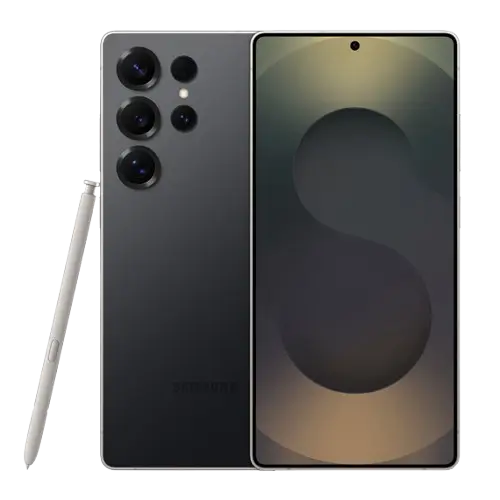
How do I force restart a frozen Galaxy S25 Ultra?
Press and hold the Side button and the Volume Down button at the same time for more than 7 seconds. The phone restarts even when it is frozen and unresponsive. For a normal restart, hold the Side button and Volume Down together (or open the quick settings panel and tap the Power off icon), then tap Restart and tap Restart again.
If a forced restart does not fix the problem, the last option is a factory data reset. Open Settings, tap General management, tap Reset, tap Factory data reset, tap Reset, and then tap Delete all. A factory reset removes data from the phone, so back up anything important first. If the problem continues after that, contact a Samsung Service Centre or an authorized service centre.
How do I charge the Galaxy S25 Ultra, and what should I do if fast charging does not work?
Connect the USB cable to a USB power adapter and plug the cable into the phone’s multipurpose jack (USB Type-C), or place the center of the phone’s back on the center of a wireless charger. For the Galaxy S25 Ultra, the included USB cable supports up to 3A charging, but no charger is included in the box. For best charging performance on the Galaxy S25 Ultra and Galaxy S25+, use an official Samsung 45W charger and a compatible cable, sold separately.
If fast charging does not work, open Settings, tap Battery, tap Charging settings, and confirm the feature you want is turned on. Also check that the USB cable and power adapter are connected properly. Charging is quicker when the phone or its screen is off, and you can check the charger’s connection status in the Battery settings. Charging from a source such as a computer can be slower because it delivers less current.
Why is wireless charging slow, interrupted, or not working?
Wireless charging is sensitive to what sits between the phone and the charger. Do not place a credit card or an RFID card, such as a transit or key card, between the back of the phone and its cover. Keep metal objects and magnets out from between the phone and the charger. A cover or accessory can also interfere, so for stable charging, separate the cover or accessory from the phone. Samsung-approved wireless chargers are recommended, since other chargers may not charge properly.
Line the center of the phone’s back up with the center of the charger. If you charge in an area with weak network signal, you may lose network reception. If your charger has an internal fan, it can make noise during fast wireless charging. You can add a routine in Modes and Routines that turns off fast wireless charging at a preset time, which reduces the fan noise and the charger’s indicator light.
How do I charge another device from my Galaxy S25 Ultra?
Use Wireless power sharing. Open Settings, tap Battery, tap Wireless power sharing, and turn the switch on. Then place the other device on the center of your phone with the two backs facing each other. When it has charged enough, simply remove it.
Remove any cover or accessory from your phone first, because they can stop the feature from working properly. Do not use headphones while sharing power, as this may affect nearby devices. Only devices that support wireless charging can be charged this way, and the other device may receive less power than your phone shares. Avoid moving or using either device during charging. To stop sharing automatically when your own battery runs low, open Settings, tap Battery, tap Wireless power sharing, tap Battery limit, and set the level.
What should I do if the Galaxy S25 Ultra will not charge or turn on?
A fully discharged battery will not let the phone turn on immediately when the charger is connected. Let it charge for a few minutes before turning it on. Also make sure the charger is connected properly, because a badly connected charger can cause serious damage that the warranty does not cover. If the multipurpose jack is wet, dry it thoroughly before charging, since charging a wet jack can damage the phone.
If the power supply is unstable while charging, the screen may not respond, and unplugging the charger is the fix. The phone and charger can warm up while charging, which is normal, but if the battery gets hotter than usual the charger may stop charging. If it still will not charge with a Samsung-approved charger, visit a Samsung Service Centre or an authorized service centre to have the battery replaced, and bring the charger and USB cable you use. For wireless charging problems, bring the wireless charger too.
What should I do when the Galaxy S25 Ultra gets hot?
Warmth during charging, fast or wireless charging, or heavy use is normal and does not affect the phone’s lifespan or performance. If it becomes uncomfortable, stop using the phone. Disconnect the charger, close running apps, and let the phone cool before charging again. If the lower part overheats, a damaged USB cable may be the cause, so replace it with a new one, preferably Samsung-approved. For heat during use, restart the phone, update the software, turn off Wi-Fi, GPS and Bluetooth when not needed, close background apps, delete unused files or apps, and lower the screen brightness.
When the phone heats up, screen brightness, refresh rate and performance speed are limited to bring the temperature down, and charging may slow. At a certain temperature a warning message appears, running apps close, and calling and other features are limited except emergency calls. If a second message appears, the phone turns off, so wait until the temperature is back within the recommended operating range of 0 °C to 35 °C. If it keeps overheating, contact a Samsung Service Centre or an authorized service centre.
How do I insert a SIM card or add an eSIM on the Galaxy S25 Ultra?
For a physical card, insert the ejection pin straight into the hole on the SIM tray to loosen it, pull the tray out gently, and place the nano-SIM on the tray with the gold-colored contacts facing up. Press it gently into the tray and push the tray back into the slot. Use only a nano-SIM card. Keep the pin perpendicular to the hole to avoid damaging the phone, make sure the card sits firmly in the tray, and make sure the tray is dry and fully inserted so liquid cannot get in.
For an eSIM, open Settings, tap Connections, tap SIM manager, and tap Add eSIM, then follow the on-screen instructions. If your carrier gave you a QR code, tap Scan QR code and scan it. eSIM availability depends on region, carrier and model. On dual SIM models, the SIM manager also lets you choose which SIM handles voice calls and set data switching, which may cost extra.
How do I set up fingerprint unlock, and why does it sometimes fail?
Open Settings, tap Security and privacy, tap Screen lock and biometrics, tap Fingerprints, and follow the on-screen instructions. To use it for unlocking, unlock the screen with your current method, tap Fingerprints, and turn on the Fingerprint unlock switch. The sensor is at the bottom center of the screen.
Recognition problems usually come from the finger or the screen surface. Make sure the sensor area and your finger are clean and dry, and press so your fingertip covers a wide area of the sensor, because a bent finger or fingertip may not be recognized. Wrinkles, scars, and small or thin fingers can also cause trouble. A thick protective film can affect performance, so use a screen protector labeled compatible with the on-screen fingerprint sensor.
After the phone is turned on, the fingerprint cannot unlock it the first time. Use the pattern, PIN, or password you set. If you forget that code, you cannot use the phone unless you reset it. Changing the screen lock method to Swipe or None deletes all your biometric data.
How do I set up and use Secure Folder?
Secure Folder is a separate, protected storage area for private apps and content. Open Settings, tap Security and privacy, tap More security settings, tap Secure Folder, and follow the on-screen instructions. When a pop-up asks about resetting the Secure Folder lock type with your Samsung account, tap Allow. If you skip it, you cannot reset the lock type after forgetting it.
To control when it locks, open the Secure Folder app, tap the More options icon, tap Settings, and tap Auto lock Secure Folder. To add files, tap the More options icon, tap Add files, pick the content, and choose Move or Copy. You can also add apps and accounts inside it, and hide the shortcut from the Apps screen.
Data in Secure Folder cannot be transferred to other devices through unapproved methods such as USB or Wi-Fi Direct. Customizing the operating system or modifying the software locks Secure Folder automatically and makes it inaccessible, so back up its data elsewhere first. If you uninstall it, tick Move media files out of Secure Folder to keep your media. Notes in Samsung Notes are not backed up.
How do I take a screenshot or record the screen?
For a screenshot, press the Side button and the Volume Down button at the same time. Alternatively, swipe the edge of your hand across the screen to the left or right, after turning on Palm swipe to capture in Settings, under Advanced features, then Motions and gestures. Some apps do not allow screenshots. Afterward, the toolbar lets you capture a long page with the scroll capture icon, draw on or crop the image, tag it, or share it. If the toolbar does not appear, open Settings, tap Advanced features, tap Screenshots and screen recordings, and turn on Show toolbar after capturing. Screenshots are saved in Gallery.
To record the screen, open the quick settings panel, tap the Expand icon, and tap Screen recorder. Choose a sound setting, tap Start recording, and after the countdown it begins. You can draw on screen, add a selfie video overlay, or show the S Pen pointer when the S Pen is detached. Tap the Stop icon to finish, and find the video in Gallery.
How do I use the S Pen to write notes without turning on the screen?
Use Screen off memos. When the screen is off, detach the S Pen, or double tap the screen while pressing and holding the S Pen button, and start writing. If the feature is off, open Settings, tap Advanced features, tap S Pen, and turn on the Screen off memos switch. Tap Save, or put the S Pen back in its slot, and the memo is saved to Samsung Notes. You can also pin a memo to the Always On Display with the Pin to Always On Display icon, though a pinned memo is not saved yet.
To detach the S Pen, press its end to release it, then pull it out. To store it, push it back until it clicks. This applies to the Galaxy S25 Ultra and Galaxy S24 Ultra. Do not bend it or press hard on the screen, as this can deform the nib. A magnet near the phone can stop some S Pen actions, so keep magnets away. If the S Pen is not working properly, take it to a Samsung Service Centre or an authorized service centre.
What should I do if my Galaxy S25 Ultra gets wet?
The phone carries an IP68 rating, tested in fresh water at 1.5 m for 30 minutes under the IEC 60529 standard. If it is exposed to unclean liquids such as soapy water, oil, perfume, sunscreen, hand cleaner, cosmetics, or alcohol-containing liquids, rinse it with still fresh water, wipe it with a soft clean cloth, and dry it thoroughly. Do not connect a charger or accessory until the multipurpose jack is completely dry, because connecting one to a wet jack can damage the phone. If the microphone or speaker is not fully dry, sound on calls may be unclear.
Avoid swimming pool or sea water, water moving with force, and saunas or steam rooms, where sudden temperature changes can damage water resistance. An external shock or damage can also lower it. Resistance is not permanent and can diminish over time from normal wear and tear.