
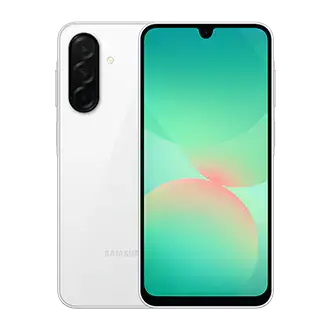
How do I insert a SIM card in the Galaxy A26 5G?
Use the ejection pin to open the tray on the side of the phone, place a nano-SIM or USIM card on it, and slide the tray back in. Push the ejection pin into the hole on the tray, perpendicular to the hole, to loosen the tray, then pull it out gently. Set the card on the tray with the gold-colored contacts facing down, press it gently into place, and insert the tray fully so liquid cannot enter the device. Only nano-SIM cards fit, and a card that is not seated firmly can fall out of the tray. Make sure the tray is dry before reinserting it, because a wet tray can damage the phone. The dual SIM tray illustration labels positions for Nano-SIM card 1, Nano-SIM card 2 and a microSD card, so check it before loading cards. On dual SIM models, open Settings and tap Connections → SIM manager to activate cards, choose preferred SIMs for features such as voice calls, and set data switching. Data switching may cost extra.
How do I safely remove or format a microSD card?
Unmount the card in Settings before pulling the tray, and format it on the phone rather than on a computer. To unmount, open Settings, tap Device care → Storage, swipe left to the SD card page, tap the More options icon, and tap Unmount. To format, follow the same path and tap Format instead. Back up anything important first, because formatting erases the card and the warranty does not cover data lost through user actions. The phone supports the FAT and exFAT file systems. A card in another file system will prompt a reformat or go unrecognized. Do not remove the card while the phone is transferring or accessing data. Removing the tray also disables the mobile data connection. If the phone cannot recognize or format the card, contact the card manufacturer or a Samsung Service Centre.
How do I turn off, restart or force restart my Galaxy phone?
Press and hold the Side button and the Volume Down button together, then tap Power off → Power off, or tap Restart → Restart. You can also open the quick settings panel and tap the Power off icon. If you want a long press of the Side button alone to open the power menu, open Side button settings and choose Long press → Power off menu. When the phone is frozen and unresponsive, hold the Side button and Volume Down button together for more than 7 seconds and it will restart. If that does not solve the problem, a factory data reset is the next step: open Settings and tap General management → Reset → Factory data reset → Reset → Delete all. A reset wipes the phone, so back up important data first.
Why is my Galaxy A26 5G not charging or charging slowly?
Start by checking that the USB cable and power adapter are connected properly, then open Settings → Battery → Charging settings to confirm the charging feature you want is turned on. Use a Samsung-approved charger and the supplied USB Type-C cable. A Micro USB cable can damage the phone. A computer’s USB port supplies less current, so charging is slower. Charging is also faster with the screen or device off. If the multipurpose jack is wet, dry it thoroughly before charging. A fully drained battery needs a few minutes of charging before the phone will turn on. The phone and charger can warm up while charging, and the charger may stop if the battery gets hotter than usual. A charger is not included in the box. If it still does not charge, take the phone, charger and cable to a Samsung Service Centre or authorised service centre.
What should I do if my Galaxy A26 5G gets hot?
Disconnect the charger, close running apps, and stop using the phone until it cools down. Mild warmth while charging, downloading large files, recording long videos or playing demanding games is normal. If the lower part of the phone overheats, a damaged USB cable may be the cause, so try a Samsung-approved cable. Updating software, restarting, turning off Wi-Fi, GPS and Bluetooth when unused, and lowering screen brightness also help. When heat rises, the phone may limit screen brightness, refresh rate and performance. At a certain temperature a warning appears and running apps close, with only emergency calls still available. If the temperature keeps climbing, a second warning appears and the phone turns off. The recommended operating temperature is 0 °C to 35 °C. If overheating continues, contact a Samsung Service Centre or authorised service centre.
How do I take a screenshot on the Galaxy A26 5G?
Press the Side button and the Volume Down button at the same time. Alternatively, swipe the edge of your hand left or right across the screen. If that does not work, open Settings → Advanced features → Motions and gestures and turn on Palm swipe to capture. After a capture, the toolbar lets you scroll-capture long pages such as webpages, draw or crop, add tags, or share. If the toolbar does not appear, open Settings → Advanced features → Screenshots and screen recordings and turn on Show toolbar after capturing. Screenshots are saved in Gallery. Some apps and features block screen capture.
How do I set up fingerprint unlock on the Galaxy A26 5G?
Open Settings → Security and privacy → Screen lock and biometrics → Fingerprints and follow the prompts. You must set a screen lock method first. The sensor is built into the Side button, so cover it fully with your finger and keep both clean and dry. After registering, unlock the screen with the preset method, tap Fingerprints and turn on Fingerprint unlock. Turn on Fingerprint always on to scan with the screen off. After restarting the phone, the first unlock must use your pattern, PIN or password, so do not forget it. Switching the lock method to Swipe or None deletes all biometric data. Stickers over the sensor can lower recognition.
Is the Galaxy A26 5G water resistant?
Yes, the Galaxy A26 5G has an IP67 water and dust resistance rating, tested in 1 m of fresh water for 30 minutes without moving. Other models in this guide are not described as water resistant. Avoid pool or sea water, water moving with force, and saunas or steam rooms. After exposure to soapy water, oil, sunscreen, alcohol-based liquids or similar, rinse with still fresh water and dry with a soft clean cloth. Dry the microphone and speaker thoroughly, or sound may be unclear on calls. Do not connect a charger or accessories until the multipurpose jack is completely dry. A shock or damage can reduce resistance, and it diminishes over time from normal wear.
How do I transfer data from my old phone to the Galaxy A26 5G?
Use Smart Switch: open Settings, tap Accounts and backup → Transfer data for device setup, and follow the on-screen instructions. You can transfer by USB cable, wirelessly, or from external storage or a computer. Tap the External storage icon for external storage, and tap the More options icon → Transfer result to see what moved. The feature may not be supported on some devices or computers, so check www.samsung.com/smartswitch. Transfer only content you own or have the right to transfer. To restore from Samsung Cloud, open Settings → Accounts and backup, tap Restore data, choose a device, tick items and tap Restore.
How do I use the Galaxy A26 5G as a mobile hotspot?
Open Settings → Connections → Mobile Hotspot and Tethering → Mobile Hotspot and turn on the switch. A hotspot icon appears in the status bar. On the other device, pick your phone from the Wi-Fi list, or tap QR code and scan it. You can change the network name and password. If the other device cannot find it, set Band to 2.4 GHz, tap Advanced, and turn off Hidden network. Auto Hotspot lets devices signed in to your Samsung account use your connection. This may incur data charges, and hotspot use can heat the phone.
How can I make the battery last longer?
Turn on power saving mode and lower brightness and screen timeout. Other steps from the guide: close unnecessary apps, turn off Bluetooth when unused, turn off auto-sync, optimize with device care, and press the Side button to turn off the screen. In Settings → Battery, use Power saving, Background usage limits, Auto dim screen, and Battery protection, which stops charging when full or limits charge to a preset level. Choosing Standard under Settings → Display → Motion smoothness also conserves power. Very hot or cold temperatures reduce charge, and the battery is a consumable that loses useful charge over time.
What can I do if the touchscreen is slow or unresponsive?
Restart the phone, then check the usual causes. Touch may fail with a screen protector or accessory, gloves, dirty hands, sharp objects, or damp conditions. If you use a screen protector, try Settings → Display → Touch sensitivity. Make sure software is up to date. If frozen, force restart (Side + Volume Down for over 7 seconds). A scratched or damaged screen needs a Samsung Service Centre or authorised service centre. Touches near screen edges, outside the input area, may not register.