| Brand Name | Keychron |
| Product Name | K2 Bluetooth Mechanical Keyboard |
| Model Number | K2 |
| File Size | 0.77 MiB |
| Number of Pages | 89 |
| Languages Covered | English, Czech, Slovak, Hungarian, German |
Keychron K2 Bluetooth Mechanical Keyboard
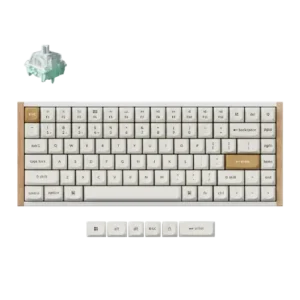
The Keychron K2 is a Bluetooth and wired mechanical keyboard designed for use with Windows, Android, macOS and iOS devices. It has a built-in 4000 mAh battery, USB Type-C charging, selectable operating-system modes and support for pairing with up to three Bluetooth devices. Keychron-K2-Bluetooth-Pairing-H… Keychron-K2-Bluetooth-Pairing-H…
The keyboard can be switched between Bluetooth and cable operation using its side mode switch. A separate OS switch changes the keyboard layout behavior between Windows/Android and Mac/iOS. Keychron-K2-Bluetooth-Pairing-H…
The manual also covers backlighting, multimedia and F1-F12 functions, battery-saving behavior, key remapping, factory reset, Bluetooth troubleshooting and warranty information.
What’s Included in the Box
The package contents listed in the manual are:
| Item | Quantity |
| Keychron K2 Bluetooth Mechanical Keyboard | 1 |
| Type-C cable | 1 |
| User manual | 1 |
| Quick Start Guide | 1 |
| Extra keycap set | 1 |
The extra keycaps are intended to help configure the keyboard for the appropriate Mac or Windows layout. Keychron-K2-Bluetooth-Pairing-H…
Keychron K2 Parts and Controls
The keyboard overview identifies five main hardware controls and indicators. Keychron-K2-Bluetooth-Pairing-H…
| No. | Component | Function |
| 1 | Bluetooth Indicator | Shows pairing, switching and connection status |
| 2 | Charging Port | USB Type-C connection for charging and wired use |
| 3 | Battery Indicator | Shows low battery, charging and full-charge status |
| 4 | Windows/Android – Mac/iOS Switch | Selects the operating-system layout |
| 5 | BT / OFF / Cable Switch | Selects Bluetooth, power-off or wired mode |
The overview diagram on page 10 places both switches and the charging port along the side of the keyboard. Keychron-K2-Bluetooth-Pairing-H…
Technical Specifications
| Specification | Manual Value |
| Product | K2 Bluetooth Mechanical Keyboard |
| Number of keys | 84 |
| Switch type | Mechanical / Optical Switch |
| Battery | 4000 mAh |
| Working time | Around 70 hours with backlight on |
| Charging time | Around 3 hours |
| Charging port | USB Type-C |
| Operating modes | Bluetooth / Wired |
| Bluetooth operating distance | Within 10 meters in open space |
| Bluetooth device name | Keychron K2 |
| Operating environment | -10°C to 50°C |
| Recommended charging input | 5V, 1A |
| Maximum supported charging input | 5V, 1A |
The specification section states 84 keys, a 4000 mAh battery and about 70 hours of operation with the backlight on. Keychron-K2-Bluetooth-Pairing-H…
Document note: Some quick-start illustrations label the keyboard as an 87-key layout, while the written specification table states 84 keys. The article uses the explicit specification-table value rather than changing it based on the illustration. Keychron-K2-Bluetooth-Pairing-H… Keychron-K2-Bluetooth-Pairing-H…
LED Indicator Meanings
The Keychron K2 has separate battery and Bluetooth status indicators.
| Indicator | Status | Meaning |
| Battery indicator | Blinking red | Battery below 15% |
| Battery indicator | Solid red | Charging |
| Battery indicator | Solid green | Fully charged |
| Bluetooth indicator | Fast blinking | Bluetooth pairing mode |
| Bluetooth indicator | Off | Successfully paired |
| Bluetooth indicator | Slow blinking | Switching Bluetooth devices |
Keychron-K2-Bluetooth-Pairing-H…
Before First Use
Before using the keyboard:
- Check that the keyboard, USB Type-C cable, manual, Quick Start Guide and extra keycaps are present.
- Install the appropriate Windows or Mac keycaps if required.
- Charge the keyboard if the battery is low.
- Set the operating-system switch for the connected device.
- Select either Bluetooth or Cable mode. Keychron-K2-Bluetooth-Pairing-H…
For charging, the manual recommends a 5V 1A adapter or USB 3.0 port for best performance. Keychron-K2-Bluetooth-Pairing-H…
How to Pair the Keychron K2 With Bluetooth
Step 1: Select Bluetooth Mode
Move the side mode switch to Bluetooth.
The keyboard backlight turns on when Bluetooth mode is activated. Keychron-K2-Bluetooth-Pairing-H…
Step 2: Enter Bluetooth Pairing Mode
Press and hold:
Fn + 1
for approximately 4 seconds.
The Bluetooth indicator begins flashing quickly. It remains in pairing mode for approximately three minutes. Keychron-K2-Bluetooth-Pairing-H…
Step 3: Open Bluetooth Settings on the Device
On the computer, phone or tablet:
- Open Bluetooth settings.
- Turn Bluetooth on.
- Search for nearby devices.
Step 4: Select Keychron K2
Choose:
Keychron K2
from the Bluetooth device list.
After pairing succeeds, the Bluetooth indicator turns off. Keychron-K2-Bluetooth-Pairing-H…
How to Pair the Keychron K2 With Up to Three Devices
The K2 can store Bluetooth connections for as many as three devices.
The three Bluetooth slots use:
- Fn + 1
- Fn + 2
- Fn + 3
To pair another device, choose an unused slot and hold the corresponding shortcut for about four seconds to enter pairing mode. Keychron-K2-Bluetooth-Pairing-H…
For example:
- Laptop → Fn + 1
- Tablet → Fn + 2
- Phone → Fn + 3
Each device must first be paired to its assigned slot.
How to Switch Between Bluetooth Devices
After all required devices have been paired, a long press is no longer needed when switching.
Short-press the required combination:
- Fn + 1
- Fn + 2
- Fn + 3
The keyboard then switches to the device stored in that Bluetooth slot. Keychron-K2-Bluetooth-Pairing-H…
The Bluetooth indicator blinks slowly during device switching. Keychron-K2-Bluetooth-Pairing-H…
How the Keychron K2 Reconnects
When Bluetooth mode is selected, the keyboard attempts to connect automatically to the last connected device.
The normal reconnection sequence is:
- Move the switch to Bluetooth.
- The Bluetooth indicator flashes for about four seconds.
- The keyboard reconnects to the most recently paired device.
- If the indicator has gone out and the keyboard appears inactive, press any key to attempt the connection again. Keychron-K2-Bluetooth-Pairing-H…
The keyboard must already have been paired with that device for automatic reconnection to work.
How to Use the Keychron K2 in Wired Mode
The K2 can also operate as a wired USB keyboard.
Connect With the USB-C Cable
- Move the mode switch to Cable.
- Connect the supplied cable to the keyboard.
- Connect the other end to the computer.
- The keyboard backlight turns on.
Cable mode functions only while the USB cable is connected. Keychron-K2-Bluetooth-Pairing-H…
Battery Saver Mode does not operate while the keyboard is being used in wired mode. Keychron-K2-Bluetooth-Pairing-H…
How to Turn Off the Keychron K2
Move the mode switch to:
OFF
to turn the keyboard off. Keychron-K2-Bluetooth-Pairing-H…
Charging the Keychron K2
The K2 charges through its USB Type-C port.
How to Charge
- Connect the USB cable to a USB port or compatible power adapter.
- Connect the USB-C end to the keyboard.
- Check the battery indicator.
During charging:
- Blinking red means the battery is below 15%.
- Solid red means the battery is charging.
- Solid green means charging is complete. Keychron-K2-Bluetooth-Pairing-H…
Keychron K2 Charging Time
A full charge takes approximately 3 hours. Keychron-K2-Bluetooth-Pairing-H…
The keyboard can be charged while it is:
- In Bluetooth mode
- Turned on
- Turned off Keychron-K2-Bluetooth-Pairing-H…
Recommended Charger
For best charging performance, the manual recommends:
- 5V 1A adapter, or
- USB 3.0 port
The product supports a maximum charging voltage of 5V and charging current of 1A. Keychron-K2-Bluetooth-Pairing-H…
Battery Life
The manual lists approximately 70 hours of working time with the backlight turned on. Keychron-K2-Bluetooth-Pairing-H…
Actual operating time can vary with backlight use and operating conditions.
Auto Sleep and Battery Saver Mode
While operating over Bluetooth, the keyboard automatically enters a power-saving state after approximately 10 minutes of inactivity.
Press any key to wake it. Keychron-K2-Bluetooth-Pairing-H…
How to Disable Auto Sleep
Press and hold:
Fn + S + O
for approximately 4 seconds.
To turn automatic sleep back on, hold the same combination for another four seconds. Keychron-K2-Bluetooth-Pairing-H…
Backlight Controls
The K2 includes a dedicated Light Effect key.
Change the Lighting Effect
Press the Light Effect key to move through the available lighting patterns. Keychron-K2-Bluetooth-Pairing-H…
Change RGB Color
On the RGB version:
- Fn + Left Arrow
- Fn + Right Arrow
changes the backlight color. Keychron-K2-Bluetooth-Pairing-H…
Turn Off the Backlight
The default instructions are:
- Mac: Press F5.
- Windows: Press Fn + F5.
The backlight can also be switched off using:
Fn + Light Effect key. Keychron-K2-Bluetooth-Pairing-H… Keychron-K2-Bluetooth-Pairing-H…
Windows and Android Mode
When the keyboard is connected to Windows or Android, set the OS toggle to:
Windows / Android
In this mode, the appropriate keys operate as Windows and Alt keys. Keychron-K2-Bluetooth-Pairing-H…
Mac and iOS Mode
When connected to a Mac or iOS device, move the OS switch to:
Mac / iOS. Keychron-K2-Bluetooth-Pairing-H…
The box also includes alternative keycaps that can be installed to match the required operating-system layout. Keychron-K2-Bluetooth-Pairing-H…
Switching Between Multimedia Keys and F1-F12 on Windows
The K2 allows Windows users to change the behavior of the top row between multimedia controls and standard function keys.
Press and hold:
Fn + X + L
for approximately 4 seconds to switch modes. Keychron-K2-Bluetooth-Pairing-H…
Using F1-F12 on Mac
For macOS, the manual instructs users to open:
System Settings > Keyboard
and enable standard function-key behavior. Keychron-K2-Bluetooth-Pairing-H…
F5 and F6 Function-Key Switching
To use F5 and F6 as function keys, press:
Fn + K + C
for approximately 3 seconds.
Use the same shortcut again to switch back. Keychron-K2-Bluetooth-Pairing-H…
iOS Input Method Shortcuts
For iOS:
Ctrl + Space switches the input method.
The manual also refers to enabling the Caps Lock language-switch option under the hardware-keyboard settings when that behavior is required. Keychron-K2-Bluetooth-Pairing-H…
Android Input Method Shortcuts
For Android, the manual lists:
- Shift, or
- Shift + Space
for switching input methods. Keychron-K2-Bluetooth-Pairing-H…
Some multimedia functions may vary according to the operating-system version, device brand and installed drivers. Keychron-K2-Bluetooth-Pairing-H…
Key Remapping
The manual states that there was no official Keychron remapping software available for this version when the document was produced.
It suggests:
- Karbiner for Mac
- SharpKeys for Windows
The Light Effect key is excluded from this remapping guidance. Keychron-K2-Bluetooth-Pairing-H…
The manual also references a Keychron Linux Group on Facebook for Linux users. Keychron-K2-Bluetooth-Pairing-H…
How to Factory Reset the Keychron K2
If the keyboard behaves unexpectedly, the manual recommends a factory reset.
Press and hold:
Fn + J + Z
for approximately 4 seconds. Keychron-K2-Bluetooth-Pairing-H…
This is the manual’s primary reset procedure for unexplained keyboard problems.
Keychron K2 Troubleshooting
Keychron K2 Will Not Pair With Bluetooth
If pairing fails:
- Confirm that the computer, phone or tablet supports Bluetooth.
- Restart the device.
- Move the K2 to Bluetooth mode.
- Hold Fn + 1, Fn + 2 or Fn + 3 for four seconds to enter pairing mode.
- Search for Keychron K2 and try connecting again. Keychron-K2-Bluetooth-Pairing-H…
On Windows, make sure the computer is configured to:
- Allow Bluetooth devices to find it.
- Allow Bluetooth devices to connect.
- Display an alert when a Bluetooth device requests a connection. Keychron-K2-Bluetooth-Pairing-H…
Windows Pairing Appears Complete but the Keyboard Is Not Ready
The manual notes that a new Windows Bluetooth connection may require additional software updates even after Windows reports that pairing has completed.
It recommends waiting at least 20 minutes after pairing before restarting the computer so those updates can finish. Keychron-K2-Bluetooth-Pairing-H…
Keychron K2 Keyboard Is Not Working
The troubleshooting instructions recommend:
For the Keyboard
- Turn the keyboard off.
- Turn it back on.
For Windows
- Turn Bluetooth off.
- Restart the computer.
For the Connected Device
- Open Bluetooth settings.
- Remove or forget the keyboard.
- Restart the device.
- Turn Bluetooth back on.
- Pair the K2 again. Keychron-K2-Bluetooth-Pairing-H…
Bluetooth Keeps Disconnecting
The K2 has a stated Bluetooth range of up to 10 meters in open space. Keychron-K2-Bluetooth-Pairing-H…
If the connection drops even within that distance, check whether the keyboard is sitting on a metal surface, which can interfere with the Bluetooth signal. Keychron-K2-Bluetooth-Pairing-H…
Fn or Multimedia Keys Are Not Working
Some Fn and multimedia-key functions may not work as expected with certain Windows or Android versions, hardware brands or drivers.
The manual recommends keeping the operating system and device drivers current. Keychron-K2-Bluetooth-Pairing-H…
Third-Party Input Software Problems
Third-party input tools may have compatibility issues with some Windows and Android systems.
If such software behaves incorrectly:
- Check for operating-system updates.
- Update relevant drivers.
- Confirm compatibility with the connected device. Keychron-K2-Bluetooth-Pairing-H…
@urtechdaddy Could this be best keyboard for 2025? The keychron k2 HE is such a aesthetically pleasing design and really makes my keyboard the center piece of my setup. I don’t think these will last long so grab one if you can. #mechkeys #mechkeebs #mechkeyboards #keebs #keebtok #mechanicalkeyboards #mechanicalkeyboard #typingasmr #keyboardasmr #thockykeyboard #creamykeyboards #creamykeyboard #budgetkeyboard #creamybudgetkeyboard #satistyingvideo #keychronk2he ♬ Cyberpunk/Dystopia(1436381) – PRIDASK
Bluetooth Indicator Is Fast Blinking
Fast blinking means the keyboard is in Bluetooth pairing mode.
After pairing successfully, the indicator turns off. Keychron-K2-Bluetooth-Pairing-H…
Bluetooth Indicator Is Slow Blinking
Slow blinking means the keyboard is switching between paired Bluetooth devices. Keychron-K2-Bluetooth-Pairing-H…
Battery Indicator Is Blinking Red
A blinking red battery indicator means the battery level has fallen below approximately 15% and the keyboard should be charged. Keychron-K2-Bluetooth-Pairing-H…
Safety Instructions
The manual gives three main safety precautions:
- Keep the product, accessories and packaging components away from children to reduce accident and choking risks.
- Keep the keyboard dry to prevent corrosion.
- Do not expose the keyboard to temperatures below -10°C (5°F) or above 50°C (131°F) because extreme temperatures can affect the keyboard and battery. Keychron-K2-Bluetooth-Pairing-H…
Operating and Storage Temperature
The specification table lists an operating environment of:
-10°C to 50°C. Keychron-K2-Bluetooth-Pairing-H…
Keeping the keyboard dry and within this temperature range can help protect its electronics and internal battery.
Warranty Information
The English-language manual states that a new product purchased through the Alza.cz sales network is covered by a 2-year warranty.
An original proof of purchase showing the purchase date is required when requesting repair or service under that warranty. Keychron-K2-Bluetooth-Pairing-H…
Warranty Exclusions
The listed warranty conditions may exclude claims involving:
- Use outside the product’s intended purpose.
- Failure to follow maintenance, operation or service instructions.
- Natural-disaster damage.
- Unauthorized service or intervention.
- Mechanical damage caused by the purchaser.
- Natural wear of components such as batteries.
- Harmful external conditions such as liquids, electromagnetic fields, overvoltage or electrostatic discharge.
- Incorrect power input or polarity.
- Unauthorized changes or modifications.
- Use of non-original components. Keychron-K2-Bluetooth-Pairing-H…
This warranty section relates specifically to products purchased through the Alza sales network rather than establishing a separate worldwide Keychron warranty.
Customer Support
The English section lists:
Support website: www.alza.co.uk/kontakt
Telephone: +44 (0)203 514 4411
Importer:
Alza.cz a.s.
Jankovcova 1522/53
Holešovice
170 00 Praha 7 Keychron-K2-Bluetooth-Pairing-H…
The translated sections contain additional regional Alza contact information for the markets covered by those editions.
EU Compliance Information
The document includes an EU Declaration of Conformity referring to:
- Directive 2014/53/EU
- Directive 2011/65/EU, including amendment 2015/863/EU Keychron-K2-Bluetooth-Pairing-H…
There is an internal model-reference inconsistency in these translated declaration sections. The main manual, specifications and product title consistently identify the keyboard as K2, while some EU declaration pages show K8 and others show K2. For product setup and operating instructions, the manual itself is clearly presented as the Keychron K2 guide. Keychron-K2-Bluetooth-Pairing-H… Keychron-K2-Bluetooth-Pairing-H…
WEEE Disposal Information
The keyboard should not be disposed of with normal household waste where EU WEEE rules apply.
The document instructs users to return the product to the place of purchase or take it to an appropriate collection point for recyclable electrical and electronic waste. Keychron-K2-Bluetooth-Pairing-H…
Frequently Asked Questions
How do you put the Keychron K2 into Bluetooth pairing mode?
Move the mode switch to Bluetooth, then hold Fn + 1 for approximately four seconds. The Bluetooth indicator flashes quickly for up to three minutes. On the computer, phone or tablet, select Keychron K2 from the Bluetooth device list. Keychron-K2-Bluetooth-Pairing-H…
How many Bluetooth devices can the Keychron K2 connect to?
The keyboard can store pairings for up to three devices using Fn + 1, Fn + 2 and Fn + 3. Short-press the corresponding shortcut to switch between already paired devices. Keychron-K2-Bluetooth-Pairing-H…
How do you reset a Keychron K2?
Press and hold Fn + J + Z for approximately four seconds to perform the factory-reset procedure described in the manual. Keychron-K2-Bluetooth-Pairing-H…
How long does a Keychron K2 take to charge?
The manual states that a full charge takes approximately 3 hours. A solid red indicator means it is charging, while solid green means charging is complete. Keychron-K2-Bluetooth-Pairing-H…
What does a blinking red light mean on the Keychron K2?
A blinking red battery indicator means the battery charge has dropped below approximately 15%. The keyboard should be connected to a suitable USB power source. Keychron-K2-Bluetooth-Pairing-H…
How do you switch the Keychron K2 from Bluetooth to wired mode?
Move the side mode switch to Cable, then connect the keyboard to the computer with the USB Type-C cable. Cable mode works only while the USB cable is attached. Keychron-K2-Bluetooth-Pairing-H…
How do you disable sleep mode on the Keychron K2?
Hold Fn + S + O for four seconds. Press the same combination for four seconds again to restore automatic sleep mode. By default, Bluetooth battery saving activates after about 10 minutes of inactivity. Keychron-K2-Bluetooth-Pairing-H…
Why won’t the Keychron K2 connect to Bluetooth?
Check that the device supports Bluetooth, restart it, confirm the keyboard is in Bluetooth mode and repeat pairing. On Windows, make sure Bluetooth discovery and connection permissions are enabled. If necessary, forget the keyboard in Bluetooth settings and pair it again. Keychron-K2-Bluetooth-Pairing-H…