
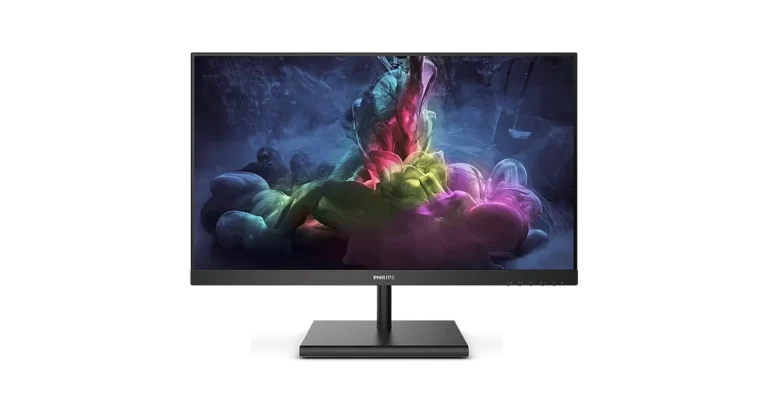
The Philips 272E1 is a 27-inch gaming monitor with a VA panel, a 1920 x 1080 native resolution and a vertical refresh range of 48Hz to 144Hz. It supports AMD FreeSync Premium and offers HDMI 1.4 and DisplayPort 1.2 inputs. This manual covers two versions. The 272E1GSJ has no built-in speakers. The 272E1GAJ adds a pair of 3 W speakers, and its joystick adjusts volume instead of brightness. Beyond that, the two share the same panel, menus and connections. The sections below cover setup, the on-screen menu, gaming features, specifications, care and troubleshooting.
Package Contents
The box includes the monitor, a base stand, an AC/DC adapter, a Quick Start guide and the user’s manual. A CD with drivers is also listed. The DP and HDMI cables and the CD vary by region. Use only the adapter made for your model: Philips ADPC1945EX for the 272E1GSJ, or Philips ADPC2065 for the 272E1GAJ.
Installation and Setup
Attaching the Stand
- Lay the monitor face down on a soft, smooth surface so the screen doesn’t get scratched.
- Hold the base with both hands and push it firmly into the base column.
- Tighten the screw at the bottom of the base. On the 272E1GSJ, tighten it by hand first. Then use a screwdriver to secure the base to the column.
Connecting to a PC
The back panel has an AC/DC power input, an HDMI input, a DisplayPort input, an audio out jack and a Kensington anti-theft lock slot.
- Connect the power cord to the back of the monitor firmly.
- Turn off your computer and unplug its power cable.
- Connect the signal cable to the video output on your computer.
- Plug the computer and the monitor into a nearby outlet.
- Turn on the computer and the monitor. If an image appears, installation is complete.
Tilt and Mounting
The stand tilts from -5° to +20°. Don’t let the monitor tilt downward by more than -5°. Panel peeling from the bezel can result, and damage from exceeding that angle isn’t covered by warranty (p. 1, 9). When adjusting the angle, hold the bezel and don’t press on the screen.
The monitor accepts a 100 x 100 mm VESA mount with M4 screws. To remove the stand, loosen the base screw and take off the base. Pull off the hinge cover with your fingers, then unscrew the arm from the monitor body. Buy a wall mount that leaves enough room behind the monitor for the signal cable. The manual recommends contacting the manufacturer for wall-mount installation.
Controls and On-Screen Display
A single toggle button on the back of the bezel works like a joystick. Move it in four directions to navigate and press it to select. Its functions are:
- Power on and off
- Open the OSD menu and confirm settings
- Adjust brightness (272E1GSJ) or speaker volume (272E1GAJ)
- Change the input source
- Go back one menu level
- Open SmartImage
The main OSD menus are:
| Menu | What it covers |
| Input | HDMI 1.4 or DisplayPort |
| Picture | MPRT, Picture Format (Wide Screen or 4:3), Brightness, Contrast, Sharpness, SmartResponse (Off, Fast, Faster, Fastest), SmartContrast, SmartFrame, Gamma, Pixel Orbiting, Over Scan |
| Audio | Volume, Mute |
| Color | Color Temperature, sRGB, User Define (red, green and blue, 0 to 100) |
| Language | 21 languages, including English, Spanish, French and German |
| OSD Setting | Position, transparency, timeout |
| Setup | Resolution Notification, Reset, Information |
The monitor works best at its native 1920 x 1080. At any other resolution it shows a message telling you to use 1920 x 1080. You can turn that message off in the Setup menu.
Gaming and Image Features
SmartImage
Toggle left to open SmartImage, then toggle up or down to choose a preset. The options are FPS, Racing, RTS, Gamer 1, Gamer 2, LowBlue Mode, EasyRead and Off.
- FPS improves black-level detail in dark scenes.
- Racing gives the fastest response time and high color saturation.
- RTS lets you highlight part of the screen through SmartFrame.
- Gamer 1 and 2 store your own preferences.
- LowBlue Mode reduces shortwave blue light.
- EasyRead improves text readability for PDFs and ebooks.
SmartContrast
SmartContrast analyzes what’s on screen in real time and adjusts the backlight to improve contrast. It brightens the backlight for brighter images and dims it for dark scenes.
MPRT
MPRT reduces motion blur by strobing the LED backlight in step with the refresh rate. It needs a refresh rate of 75Hz or higher. It can’t run at the same time as AMD FreeSync Premium. While it’s on, you can’t adjust brightness or SmartImage. Brightness may also change noticeably. The manual recommends turning MPRT off when you’re not gaming.
AMD FreeSync Premium
FreeSync lets the graphics card update the monitor the moment a new frame is ready. This removes tearing without the lag of v-sync. The manual lists Windows 10, 8.1, 8 and 7, along with AMD Radeon R9 290/300 series and R7 260 series cards. It also lists A-series APUs from the A6-7400K up to the A10-7890K.
Technical Specifications
| Item | Specification |
| Panel | 27″ VA, W-LED backlight, 16:9 |
| Native resolution | 1920 x 1080 @ 60Hz (maximum 1920 x 1080 @ 144Hz) |
| Pixel pitch | 0.311 x 0.311 mm |
| Contrast ratio (typ.) | 3,000:1 |
| Viewing angle | 178° horizontal / 178° vertical |
| Colors | 16.7 million |
| Refresh rate | 48Hz to 144Hz |
| Inputs | HDMI 1.4 x 1, DisplayPort 1.2 x 1 |
| Audio | Audio out (272E1GAJ adds 3 W x 2 speakers) |
| Power consumption (typ.) | About 28 W normal operation |
| Standby | 0.5 W (272E1GSJ), 0.3 W (272E1GAJ) |
| Off mode | 0.3 W |
| Power supply | External, 100-240VAC, 50-60Hz |
| Size with stand (W x H x D) | 613 x 461 x 195 mm (272E1GSJ); 613 x 461 x 205 mm (272E1GAJ) |
| Weight with stand | 4.12 kg (272E1GSJ); 4.07 kg (272E1GAJ) |
| Operating conditions | 0°C to 40°C, 20% to 80% humidity |
| Storage conditions | -20°C to 60°C, 10% to 90% humidity |
The monitor supports Plug and Play on Windows 10/8.1/8/7 and Mac OS X. The power LED is white when the monitor is on and blinks white in standby. At full power, maximum consumption is 46.64 W.
Safety and Care
- Keep the monitor away from direct sunlight, strong light and heat sources. Don’t block the ventilation holes.
- Use only the specified power supply and the approved Philips power cord. Don’t disassemble the adapter.
- If you unplug the power cord to turn the monitor off, wait 6 seconds before reconnecting it.
- Don’t pull, bend or place heavy objects on the cables.
- When lifting the monitor, grip the frame. Never put your hand or fingers on the LCD panel.
- For cleaning, unplug the monitor first. Wipe the screen with a dry cloth when it’s off. Don’t use alcohol or ammonia-based liquids.
- If water or a foreign object gets inside, turn the power off, unplug the cord and send the monitor to a service center.
- Only qualified service personnel should open the casing.
- Take a 5-10 minute break after 50-60 minutes of continuous screen use.
Preventing Burn-in
LCD panels can show ghost images when a still image stays on screen for a long time. Use a moving screen saver whenever you leave the monitor unattended. Use a periodic screen refresh application if the screen will show static content. Severe burn-in may not go away and isn’t covered by warranty (p. 3).
Troubleshooting
No picture, power LED off. Check that the power cord is secure at both the outlet and the monitor. Then turn the power button off and on again.
No picture, power LED white. Confirm the computer is on and the signal cable is firmly connected. Check the cable for bent pins. The monitor may also be in energy-saving mode, and moving the mouse or pressing a key should wake it.
Image vibrates. Check that the signal cable is securely connected to the graphics card or PC.
Blurry, indistinct or too dark image. Adjust brightness and contrast in the OSD.
Distorted image or fuzzy text. Set the PC to the native 1920 x 1080 resolution.
Colored or dark dots on screen. A small number of dots is normal for LCD technology. Philips allows up to 3 bright dots, 5 black dots and 5 dots in total before a panel qualifies for repair or replacement under warranty (p. 22).
Smoke or sparks. Don’t try to troubleshoot. Disconnect the monitor from the mains right away and contact Philips customer service.
Warranty and Support
Warranty length depends on your region. It’s listed in the Important Information manual, which you can download from the Philips support page. Extended coverage of +1, +2 or +3 years can be bought through a Certified Service Center. It must be purchased within 30 calendar days of the original purchase, and you need proof of purchase. Support details are at www.philips.com/support.
Frequently Asked Questions
What should I do if the screen says “Cannot display this video mode”?
Set the PC resolution to 1920 x 1080. Reconnect the monitor you used before and open the display settings in Windows. Set the resolution to 1920 x 1080 and the refresh rate to 60Hz. Then restart the computer, shut it down, reconnect the Philips monitor and turn both on.
What refresh rate should I use?
The manual recommends 60Hz for LCD monitors in general. If the screen flickers or is disturbed, try 75Hz. This monitor supports up to 144Hz at 1920 x 1080 for gaming.
Can I use FreeSync and MPRT together?
No. AMD FreeSync Premium and MPRT can’t be enabled at the same time, and MPRT also locks out brightness and SmartImage adjustments.
How do I reset the monitor if I get lost in the menu?
Open the OSD, then go to Setup and select Reset. This restores the original factory settings.
How should I clean the screen?
For normal cleaning, use a clean, soft cloth. For heavier cleaning, use isopropyl alcohol. Don’t use ethyl alcohol, ethanol, acetone, hexane or similar solvents.
Does the monitor work with Mac computers and workstations?
Yes. Philips LCD monitors are compatible with standard PCs, Macs and workstations. A cable adapter may be needed for some Macs, so contact your Philips sales representative if you aren’t sure.
Can I change the color settings?
Yes. In the Color menu, you can pick a color temperature, sRGB or User Define. A setting near 6500K looks warmer and more red-white. A setting near 9300K looks cooler and more blue-white. User Define lets you set red, green and blue values yourself.
Does the 272E1GSJ have built-in speakers?
No. Built-in 3 W stereo speakers are listed only for the 272E1GAJ. The 272E1GSJ has an audio out jack for external speakers or headphones.