
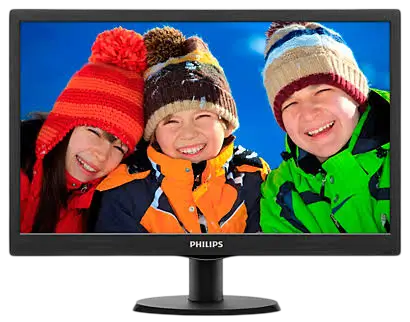
This Philips Important Information Manual covers the safety, regulatory, warranty and service details for Philips LCD monitors. It is not an operating guide, and it lists no model number, screen size or technical specification. Many entries apply only to “applicable models” because the booklet is shared across the range. Below you will find safe use, anti-tipping steps, remote battery handling, energy labels, warranty terms, spare parts and service contacts.
Safety Precautions and Operating Conditions
Using controls, adjustments or procedures other than those described in the documentation can expose you to shock, electrical hazards or mechanical hazards (p. 3).
- Power: Use only the specified power supply. The wrong voltage can cause a malfunction, fire or electric shock.
- Ventilation: Do not block the ventilation holes on the cabinet. Remove anything that could fall into them or stop the electronics from cooling.
- Moisture and dust: Keep the monitor away from dust, rain, water and excessive moisture.
- Grounding: If the power cord has a 3-pin plug, use a grounded 3-pin outlet. Do not defeat the grounding pin, for example with a 2-pin adapter.
- Building circuit: The building’s distribution system should provide a circuit breaker rated 120/240 V, 20 A at most.
- Outlet access: On models without an AC switch, the outlet should be near the monitor and easy to reach.
- USB Type-C: On applicable models, connect the USB Type-C port only to equipment with a fire enclosure that complies with IEC 62368-1 or IEC 60950-1.
- Long periods off: Switch the monitor off when you will not use it for a long time.
Operating Environment
| Condition | Range |
| Temperature | 0 °C to 40 °C (32 °F to 104 °F) |
| Humidity | 20% RH to 80% RH |
| Altitude | 0 m to 5,000 m (0 ft to 16,404 ft) |
If this table and your model’s own user manual disagree, follow the user manual.
Headphone Volume
Excessive sound pressure from earphones and headphones can cause hearing loss. Setting an equalizer to maximum raises the output voltage and the sound pressure level. Avoid listening at high volume for long periods.
Preventing the Monitor From Tipping
A monitor that falls can cause serious injury or death, and children are most at risk (p. 4). The product must be securely attached to the floor or wall according to the installation instructions. Follow these rules:
- Use only cabinets, stands or installation methods the manufacturer recommends.
- Use furniture that can safely support the monitor, and never let it overhang the edge.
- Never place it on tall furniture, such as a bookcase, unless both are anchored to a suitable support.
- Never put cloth or other material between the monitor and the furniture under it.
- Keep toys and remote controls off the monitor and its furniture, and route cables so nobody can trip over or grab them.
- Teach children not to climb furniture to reach the monitor.
Securing the Monitor With a Cord or Chain
Fasten the LCD to a wall with a cord or chain that can support the monitor’s weight (p. 76). The figure shows an M4 or M6 screw.
- Models with a VESA mount: Fit screws with a ring into the VESA mount holes, then tie the cord or chain to the wall.
- Other models: Tie the cord or chain to the stand, then fix it to the wall.
A qualified technician should do the installation. For models with a net weight of 7 kg or more, choose the anti-tipping method that suits the monitor.
Wall Mounting
The package contains no wall-mount spare parts. If you need to mount the monitor on a wall, contact the manufacturer (p. 5). On applicable models, the mount specifications are:
| Item | Specification |
| Hole spacing | 75 × 75 mm, 100 × 100 mm, 200 × 100 mm or 200 × 200 mm |
| Number of screws | 2 or 4 |
| Screw size | M4 or M6 |
| Thread depth | 8 mm, 10 mm or 12 mm |
Check your model’s specifications for the values that apply.
Remote Control Batteries
Where a remote control is supplied, it may use a coin or button cell, and swallowing one is a serious emergency. A swallowed cell can cause severe internal burns in as little as 2 hours and can lead to death (p. 4).
- Keep new and used batteries, and the remote, away from children.
- If the battery compartment does not close securely, stop using the product and keep it away from children.
- If you think a battery may have been swallowed, get medical attention immediately.
Installing or Replacing Batteries
- Press the cover, then slide it open.
- Align the batteries with the (+) and (–) marks inside the compartment.
- Put the cover back on.
Match the (+) and (–) signs on each AAA battery to those in the compartment. Do not mix battery types, and do not combine new and used batteries, which shortens life or causes leaks. Remove dead batteries right away, and remove the batteries if you will not use the remote for a long time. Do not touch exposed battery acid, which can damage your skin.
Used batteries must not go in household waste. In the EU, use the separate battery collection system; in Switzerland, return them to the point of sale; elsewhere, ask your local authority (p. 5).
Energy and Environmental Labels
These labels apply only to certain models.
- ENERGY STAR: Qualifying models meet the standard in their default settings. Changing the factory picture settings or turning on other features can raise power use above the ENERGY STAR limits (p. 87).
- TCO Certified: This third-party certification follows ISO 14024. On applicable models, User Define mode is used for TCO Certified compliance. Reset the monitor first, and if a message appears, select “Proceed” (pp. 81–82).
- EPEAT: For registered models, firmware updates are available for 8 years after the product leaves the market (p. 83). Contact your local service center if an update fails.
Warranty
The warranty period depends on where you live (p. 100). Regions not listed follow their own local warranty statement.
| Region | Product category | Warranty period |
| USA, Canada | All monitors | 4 years |
| USA, Canada | Refurbished monitors | 90 days |
| Mexico, Chile, Peru | All monitors | 3 years |
| Brazil | EPEAT-registered models | 3 years |
| China, Asia Pacific, MEA | All monitors | 3 years |
| Europe | C, E lines and B, M, S, X, P, V lines | 3 years |
TCO Certified Generation 10 models can carry a 5-year warranty, with at least the first year free of charge. Extended warranty costs up to 15% of the product’s MSRP for each year. TCO Certified Generation 10 models that run an operating system receive security, corrective and functionality updates for 5 years after the end of market placement (p. 122).
Spare Parts and Repair
Spare parts are repairable or replaceable but not upgradeable (p. 126). For EPEAT-registered products they stay available for at least 5 years after sale or 2 years after production ends, whichever is later. For other products the minimum is 3 years after sale or 1 year after production ends, whichever is later.
| Component | Replaceable | Repairable |
| Connectivity cables | Yes | No |
| Power cables | Yes | No |
| External power supply (where fitted) | Yes | Yes |
| Display panel or assembly | Yes | Yes |
| Internal power supply | Yes | Yes |
| System board | Yes | Yes |
Cables can be swapped by hand without tools, but confirm the specification with your dealer or local service center first. Contact the service center for the other components.
Regulatory and Plug Notes
In the U.S., the monitor was tested to FCC Class B digital device limits. To reduce interference, reorient the receiving antenna, move the equipment farther from the receiver, or use a different circuit. Connect the monitor to a computer only with the RF-shielded cable supplied with it (p. 94).
In the U.K., the appliance must be earthed and comes with a 13A moulded plug. Replacement fuses should be BS 1362, 5A, and any cut-off plug must be destroyed (p. 99).
Service Contacts
Register your product and get support at www.philips.com/welcome and www.philips.com/support. Consumer care numbers include:
| Country | Number |
| U.S.A. | (+1) 877 835-1838 |
| Canada | (+1) 800 479-6696 |
| United Kingdom | (+44) 207 949 0069 |
| Australia | (+61) 1300 360 386 |
More numbers are listed for other regions (pp. 133–136).
Frequently Asked Questions
Does this manual explain how to set up and operate the monitor?
No. It focuses on safety, regulatory notices, warranty, spare parts and service contacts. Setup and operating steps belong in the user manual for your specific model.
How do I stop my monitor from falling over?
Secure it to a wall with a cord or chain strong enough to hold its weight. On VESA-mount models, tie the cord to ring screws in the VESA holes; on others, tie it to the stand and then to the wall. A qualified technician should install it.
What temperature and humidity can the monitor handle?
Use it between 0 °C and 40 °C (32 °F to 104 °F), at 20% to 80% relative humidity, and at altitudes up to 5,000 m (16,404 ft).
What should I do if a child swallows a remote control battery?
Get medical attention immediately. A swallowed coin or button cell can cause severe internal burns within 2 hours.
How long is the warranty?
In the USA and Canada it is 4 years for all monitors, and refurbished units get 90 days. Most other listed regions get 3 years. Qualifying TCO Certified Generation 10 models can have 5 years, with at least 1 year free.
Where do I find the model number and specifications?
They are not stated in this document. Check the user manual for your specific model.