
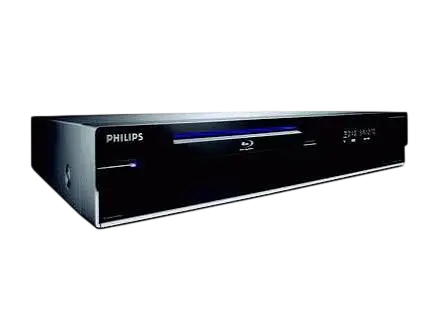
The Philips BDP9000 is a Blu-ray Disc player built for high-definition TVs. It plays video up to 1080p and upconverts standard DVDs to as high as 1080p over HDMI. It also plays audio CDs and handles MP3 music and JPEG pictures from discs or memory cards through a built-in card reader. A universal remote (RC4380) ships with it and can also control a TV, amplifier, set-top box or DVD player/VCR.
Product Specifications
| Item | Detail |
| Dimensions (W x D x H) | 16.9 x 12.8 x 3.1 in |
| Weight | 9.3 lbs (4.2 kg) |
| Power | AC 120 V, 60 Hz |
| Power consumption | 51 W (under 10 W in standby) |
| Operating temperature | 41 to 104 °F (5 to 40 °C) |
| Operating humidity | 10 to 75%, non-condensing |
| HDMI output | 480p, 720p, 1080i, 1080p |
| Analog audio | 5.1-channel and 2-channel |
| Digital audio | Optical and coaxial (S/PDIF), plus HDMI |
| Signal-to-noise ratio | 110 dB |
| Dynamic range | 100 dB |
| Total harmonic distortion | 0.004% |
Playable Discs
- Blu-ray: BD-ROM, BD-R and BD-RE (region A).
- DVD: DVD-Video, DVD-R and DVD-RW. DVD+R and DVD+RW work with limited functionality. Region code must be All or 1.
- CD: Audio CD, CD-R and CD-RW.
- Not playable: HD-DVD and any other format (p. 37).
Playable Memory Cards
The reader accepts CF Type I, MD, SM, MS PRO and SD cards. MS Duo, MMC, RS-MMC and Mini SD cards work only with an adapter (p. 38).
What’s in the Box
The box contains the player, the RC4380 remote and its user manual, a quick start guide, the BDP9000 user manual, a product registration card, an HDMI cable, a component video cable and an audio cable. A composite video cable, S-Video cable, HDMI-DVI cable, optical cable and coaxial cable are not supplied (p. 6).
Parts and Controls
The front panel has a standby/on button and light. The light is off with no power, red in standby and blue when on. Next to it are the disc tray, the open/close button and a front display. Behind the cover buttons, a user access panel hides the playback buttons, the video output button with its indicator lights, and the memory card readers.
The rear panel provides these outputs:
- HDMI
- Component video (Y, Pb, Pr)
- Composite video
- S-Video
- Coaxial digital audio
- Optical digital audio
- 5.1-channel analog audio
- Stereo analog audio
Safety Instructions
Heed these points from pages 8 and 9:
- Keep the player away from water, radiators and other heat sources. Do not expose it to dripping or splashing, and do not place liquid-filled objects or lit candles on it.
- Leave at least 4 inches (10 cm) of free space behind the rear panel and do not block the vents.
- Clean it with a dry cloth only.
- Do not remove the cover. A laser is inside, and servicing belongs to qualified personnel.
- Turn off the player and every other component before connecting equipment.
- Do not put your hand in the disc tray.
- Load only playable discs with regular shapes. Do not move the player during playback.
- Unplug it during lightning storms or long periods of non-use.
- Check that the voltage on the type plate matches your outlet.
- Do not insert an MS Duo, RS-MMC or Mini SD card without an adapter.
Connecting the Player
Connect only with everything switched off, then plug in the power cable. The standby light turns red.
Connecting to the TV
- HDMI (best quality): Run the supplied HDMI cable from HDMI OUT to the TV. No separate audio cable is needed.
- HDMI-DVI (best quality): Use an HDMI-DVI cable, then connect the supplied audio cable from AUDIO-L/R to the TV.
- Component video (good quality): Connect Y, Pb and Pr to the TV with the supplied cable, plus the audio cable. The output is disabled when a BD with an Image Constraint Token or Digital Only Token plays.
- Composite or S-Video (standard quality): Use the matching video cable plus the audio cable. The output is disabled when a Blu-ray disc plays.
Connecting to an Audio System
For HDMI, connect the player’s HDMI port to the audio system’s HDMI input, then run another HDMI cable from the system’s output to the TV. Other options are optical or coaxial digital, 5.1-channel analog, or stereo analog (pp. 15–17).
Setting Up
- Turn on the TV and select the correct external input.
- Press STANDBY/ON. The light turns blue.
- Open the user access panel and press the video output button until the light matches your connection (HDMI, COMPONENT, or CVBS/S-VIDEO).
- Follow the on-screen instructions.
- Turn on your audio system, if you use one, and select its input.
Press the Home button on the remote and choose Settings to open the menus.
Language Setup
You can set separate languages for audio, subtitles, the disc menu and the player menu. If the disc lacks your language, English is used.
Audio Setup
- Digital output: PCM or Bitstream.
- PCM downsampling: On converts 96 kHz PCM to 48 kHz.
- Dynamic compression: On or Off.
- Speaker setup: Choose large or small for the front, center and rear speakers. The subwoofer option is available only when the front speakers are set to large.
Display Setup
- TV shape: 4:3 Letterbox, 4:3 Panscan or 16:9 Widescreen.
- Black level: On or Off. This applies only to composite or S-Video connections.
- Resolution: Options depend on the connection and disc (p. 24).
- HDMI format: TV or Monitor.
- Screen message and front display brightness: Adjustable (Automatic, Dim or Bright for the display).
Supported output resolutions:
| Connection | BD (no token) | BD with ICT or DOT | DVD |
| HDMI | 720p, 1080i, 1080p | 720p, 1080i, 1080p | 480p, 720p, 1080i, 1080p |
| Component | 720p, 1080i | Not supported | 480i, 480p |
| Composite/S-Video | Not supported | Not supported | 480i |
If you pick a resolution your TV cannot show, remove any disc and hold the Next/Forward button on the front panel for 5 seconds to restore factory settings (p. 24).
Parental Control
The default PIN is 0000. Under Parental control you can turn the PIN on or off, change it, and set a rating level from 3 to 8. At level 6, for example, discs rated 7 and 8 will not play (p. 26).
Playing Discs, Music and Pictures
Loading and Playing Video
- Turn on the player and press OPEN/CLOSE.
- Place the disc in the tray and press OPEN/CLOSE again.
- Choose Video from the Home menu, select a title and press OK.
If the disc has its own menu, use that menu instead. The INFO button lets you jump by title, chapter or playing time. Other remote controls cover scene search, repeat, repeat A-B, bookmarks, slow motion, frame-by-frame play, and audio and subtitle language. Audio is muted during searching, slow motion and frame-by-frame play. For BD, only forward frame stepping and forward slow motion are available (pp. 28–31).
Music and Pictures
Choose Music or Pictures from the Home menu after loading a disc or inserting a card. Press REPEAT once to repeat the track, twice to repeat the disc, and three times for random order. In Pictures, INFO opens slideshow, rotate and zoom options (pp. 31–32).
Standby
Press STANDBY/ON to enter standby. The player still draws power in standby, so unplug it to switch it fully off (p. 33).
The Universal Remote
The RC4380 has five modes: BD, TV, AMP, SAT and DVD (the last covers DVD players, recorders and VCRs). It takes two AA batteries and works from up to 30 ft (10 m). To program a TV, select its mode, hold keys 1 and 3 until the light flashes twice, then enter a code from the manual’s brand list. An automatic search is also available (pp. 7–9). Copied functions are limited to six keys. A factory reset clears them.
Replace batteries within 5 minutes without pressing any key, or the programmed settings revert to defaults. Never mix old and new, or different types of, batteries (p. 14).
Troubleshooting
| Problem | What to try |
| Remote does nothing | Connect the player to power, aim the remote at it, check battery orientation, install new batteries. |
| No video on TV | Turn on the TV, select the right input, pick the correct video output, change the resolution, or reset with the Next/Forward button. |
| No HD over component | The disc or TV may not support HD. |
| No sound from TV | Assign the TV’s audio input to the matching video input. |
| No sound from audio system | Power it on, select the right input, raise the volume. |
| No 5.1 audio | The disc, card or system may not support it. Try setting Digital output to PCM. |
| Disc won’t play | Check the disc type and region (BD: A; DVD: All or 1), finalize DVD+R discs, clean the disc. |
| JPEG or MP3 won’t play | Use UDF, ISO9660 or JOLIET format. MP3s need 56–320 kbps and 32, 44.1 or 48 kHz. |
| File not listed | Only the first 1,500 files per folder appear. Extensions must be .jpg/.jpeg or .mp3. |
| Red cross on screen | That operation is not possible. |
| No response to controls | Hold STANDBY/ON for 5 seconds. |
Frequently Asked Questions
What is the best way to connect the BDP9000 to my TV?
HDMI gives the best picture and needs no separate audio cable. Component video is rated good quality. Composite and S-Video are standard quality.
Why is there no picture on my TV?
Check that the TV is on the right input and the player’s video output light matches your cable. If you chose a resolution the TV can’t display, remove the disc and hold the Next/Forward button for 5 seconds to reset.
Can it play HD-DVD discs?
No. HD-DVD is not supported. Blu-ray (region A) and DVDs coded All or 1 will play.
Does it upscale DVDs?
Yes. Over HDMI, standard DVDs can be upconverted to as high as 1080p.
What is the default parental control PIN?
- You can change it under Parental control.
Why won’t my Blu-ray play over component or composite video?
Blu-ray output is disabled over composite and S-Video. Over component, discs with an Image Constraint Token or Digital Only Token are blocked, and other BDs are limited to 720p or 1080i.
Does standby turn the player completely off?
No. Standby still uses some power. Unplug the cord to turn it off.
What does the warranty cover?
Philips gives a one-year limited warranty to the original purchaser against defects in materials and workmanship, and a receipt is needed as proof. Philips may repair, replace or refund. Misuse, unauthorized repair, commercial use and shipping damage are excluded (pp. 39–41). In the U.S. and Canada, call 1-888-744-5477 for help.