
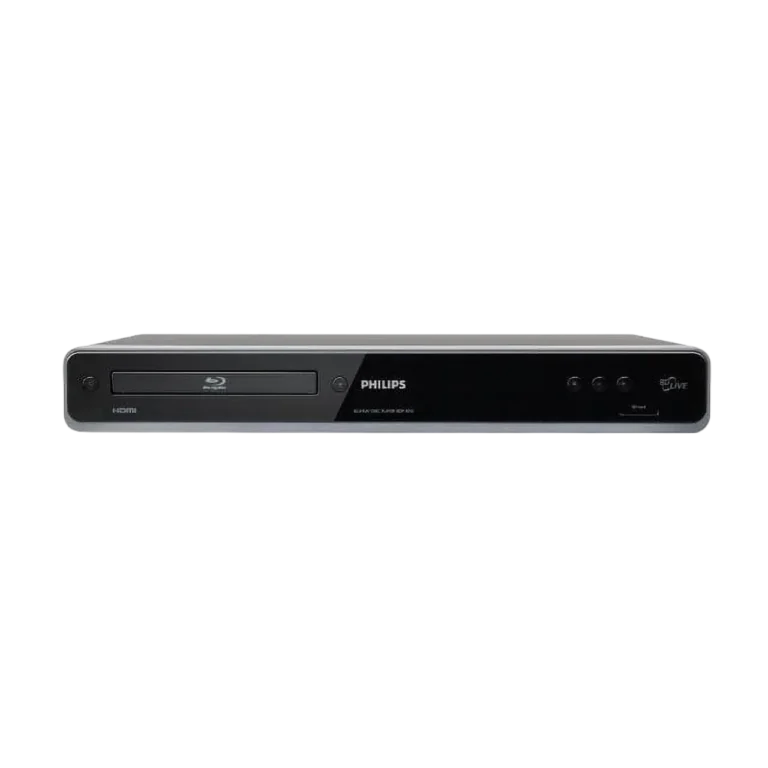
The Philips BDP5012 is a Blu-ray Disc player that outputs up to 1080p over HDMI. It plays Blu-ray discs, DVDs, audio CDs, and DivX, Windows Media Audio, and JPEG files from discs or SD cards. DVDs are upscaled to as high as 1080p over HDMI, and the player supports BD-Live, BONUSVIEW picture-in-picture, and EasyLink control with Philips TVs. It is built for the U.S. market, so it reads region A Blu-ray discs and region 1 or ALL DVDs in NTSC.
Product Specifications
| Item | Detail |
| Power | 120 V AC, 60 Hz |
| Power consumption | 22 W (standby 0.7 W) |
| Dimensions (W x H x D) | 17.2 x 2.5 x 11.9 in (435 x 65 x 303 mm) |
| Weight | 6.8 lbs (3.1 kg) |
| Operating temperature | 41°F to 104°F (5°C to 40°C) |
| Operating humidity | Less than 80%, no condensation |
| HDMI output | 480p, 720p, 1080i, 1080p |
| Other video outputs | Component (Y 1 Vp-p, PB/PR 700 mVp-p); composite 1 Vp-p |
| Analog audio | 2-channel RCA and 5.1-channel RCA |
| Digital audio | Coaxial and optical |
| Network | LAN, 10BASE-T/100BASE-TX |
| Front slot | SD card |
What’s in the Box
- Remote control with two AAA batteries
- User manual and Quick Start Guide
- Registration card
- RCA audio/video cables
- High Speed HDMI cable
Component video, optical, coaxial, 5.1-channel, and LAN cables are not included.
Connecting the Player
Connecting to a TV
HDMI gives the best picture, with support for 1080i, 1080p, and 1080p/24, and it carries audio on the same cable. Component video supports up to 1080i and needs a separate RCA audio cable. Composite video is limited to 480i. Connect the player directly to the TV. A VCR in the path can distort the picture because of copy protection (p. 12).
After connecting, turn on the player and the TV, then select the TV’s external input (it may be labeled SOURCE, AV, or SELECT). The Philips splash screen or home menu confirms you’re on the right input (p. 18).
HDMI also requires HDCP support on the display. Press [HDMI] to step through 480p, 720p, 1080i, and 1080p. The button does nothing during Blu-ray playback or in the settings menu. If the screen stays blank, hold [PLAY] on the front panel for 5 seconds to restore the default resolution (p. 14).
Connecting an Audio System
You can use 2-channel analog, 5.1-channel analog, optical or coaxial digital, or HDMI to a receiver. Switch off all devices before changing connections. For optical cable, keep it 9.8 feet (3 m) or shorter and coil it in loops of at least 6 inches (15 cm) when storing it (p. 15). Don’t touch the inner pins of the rear jacks, because static can permanently damage the unit (p. 7).
Using the Player
Inserting and Playing a Disc
- Press [OPEN/CLOSE] to open the tray.
- Place the disc label side up, aligned with the tray guide.
- Press [OPEN/CLOSE] again. Loading can take a while.
- If playback doesn’t start by itself, press [PLAY].
[STOP] saves a resume point. Pressing [PLAY] continues from there, while [OK] restarts from the beginning. The resume point is cleared when you eject the disc, and it isn’t available for BD Java discs (p. 22).
Special Playback
| Feature | How |
| Fast forward/reverse | [FFW] / [REW]; 5 speeds for BD and DVD |
| Slow forward | Pause, then [FFW]; 3 speeds |
| Step forward | In pause, press [PAUSE] repeatedly |
| Zoom | [ZOOM]; not available during BD-video |
| Repeat / A-B repeat | [REPEAT] / [REPEAT A-B] |
| Picture-in-picture | [BONUSVIEW (PiP)] on supported BDs |
| Subtitles, audio, angle | [SUBTITLE], [AUDIO], [ANGLE] |
| Time search | [INFO], then enter the time |
Disc menus vary. Use [TOP MENU] or [DISC MENU / POP-UP MENU], and expect some discs to restrict these controls.
Supported Discs, Files, and Cards
The player handles BD-video, BD-R/RE recorded in BDMV format, DVD-video, finalized DVD-R/RW (video mode), CD, CD-R/RW, and DTS-CD. It will not play CD-ROM, DVD-RAM, DVD-audio, HD DVD, video CD, SVCD, or unfinalized discs. On a Super Audio CD, only the standard CD layer is heard (p. 20).
SD cards (8 MB–2 GB) and SDHC cards (4–8 GB) work, as do miniSD and microSD cards with adapters. Cards must use FAT12/FAT16 (SDHC: FAT32). NTFS isn’t supported, and a card formatted on a computer may need reformatting in the player (p. 19).
- DivX: up to 720 x 480 at 30 fps or 720 x 576 at 25 fps, and files over 2 GB won’t play. External subtitles (.smi, .srt, .sub, .ass, .ssa, .txt) must share the video’s file name and folder (p. 26).
- WMA: constant bit rate of 48–192 kbps; DRM-protected files won’t play.
- JPEG: up to 2,560 x 1,900 (4:4:4), with a 5 MB maximum per picture.
Key Settings
Press [HOME], choose Settings, then Advanced Setup (p. 32).
- HDMI Video Resolution: Auto, 480p, 720p, 1080i, or 1080p.
- HDMI 1080p/24: outputs film-rate video only when the display supports it and the resolution is 1080p.
- TV Shape: 4:3 Normal, 4:3 Crop, 16:9 Widescreen, or 16:9 Squeeze.
- Digital Out and HDMI Audio: with an HDMI cable connected, set HDMI Audio to Off before changing Digital Out or Analog Audio (p. 34).
- Blu-ray Disc Audio: Mix Audio Output or Primary Audio Only.
- Auto Standby: turns the player off 25 minutes after the screen saver starts, or after 30 minutes if the screen saver is off.
- Ratings Lock: sets a 4-digit PIN and a rating level from 1 (Kid Safe) to 8 (Adult). “4737” can’t be used as a PIN (p. 42).
BD-Live and Network Setup
Connect a LAN cable to a broadband router or hub that supports 10BASE-T/100BASE-TX, and don’t plug the player directly into a PC. Don’t insert anything but a LAN cable into the LAN port (p. 17).
Go to Settings > Advanced Setup > Others > Network Connection and run Connection Test, or choose Enable (Easy), which uses automatic DHCP settings. Use Enable (Custom) if the test fails or your provider requires specific values (p. 43).
BD-Live needs an SD card in the slot. A card of 1 GB or more formatted in the player is recommended, and it must stay in during use. Your provider may charge for data use, and player or disc IDs may be sent to the content provider (p. 29). BD-Live Setting can be Allow, Limited Allow, or Prohibit.
Updating the Firmware
Choose Settings > Advanced Setup > Others > Software Upgrade, then pick Disc Upgrade or Network Upgrade. Never unplug the power cord, or the LAN cable during a network upgrade. The tray opens by itself when the update finishes, and your settings are kept (p. 46). Firmware files are available at www.philips.com/support.
Safety, Cleaning, and Care
- Don’t open the cabinet, since there are no user-serviceable parts and the laser can injure eyes (p. 3).
- Keep the player away from rain, dripping liquids, and objects filled with liquid.
- Leave ventilation openings clear and place the unit level on stable furniture, away from heat. Don’t put anything on top or underneath (p. 3).
- Pull the plug, not the cord, and don’t handle the cord with wet hands.
- After moving the player from cold to warm, wait a few hours before using it, because condensation may form inside (p. 3).
- Before carrying the unit, remove the disc and unplug it.
- Clean the cabinet with a soft, slightly damp cloth. Never use solvent, thinner, benzene, or alcohol.
- Wipe discs from the center outward, not in circles. Don’t play heart-shaped or octagonal discs (p. 4).
- Batteries: don’t mix old and new, match polarity, and remove them if unused for a month or more (p. 9).
Troubleshooting
| Problem | What to try |
| Remote doesn’t respond | Check the power connection, aim at the sensor, check polarity, or fit new batteries |
| No picture | Turn on the TV, select the correct input, press [HDMI], or hold front [PLAY] for 5 seconds |
| No HD picture | Confirm the disc and TV both support high definition |
| No 5.1 audio | Confirm disc and audio system support 5.1; set HDMI Audio to Off |
| Disc won’t play | Check disc type and region (BD A; DVD ALL or 1), finalize DVD-R/RW, clean the disc |
| SD card unreadable | Format or card type isn’t compatible; turn the unit off and on |
| Can’t connect to network | Check the LAN cable, router power, network settings, and BD-Live Setting |
| BD-Live fails | Insert a correctly seated SD card with at least 1 GB |
If problems continue, have the model and serial number ready and call 1-866-309-0866 (p. 52).
Frequently Asked Questions
What region discs does the BDP5012 play?
Blu-ray discs must be region A, and DVDs must be region 1 or ALL. Discs must also be NTSC. Other regions won’t play.
Why is there no picture after changing the HDMI resolution?
The screen may briefly go blank. If it stays blank, press [HDMI] repeatedly, or hold [PLAY] on the front panel for 5 seconds to reset to the default.
Can I use an SD card for anything besides photos and music?
Yes. It stores extras for some Blu-ray discs and is required for BD-Live. Use one of 1 GB or more formatted in the player.
How do I reset a forgotten Ratings Lock PIN?
Enter 4737 at the PIN prompt. This clears the PIN and Ratings Lock settings, and you can then create a new PIN (p. 42).
Does Factory Default erase everything?
Resetting “Settings” restores defaults except Ratings Lock and Network Connection. Network, SD card formatting, and local storage can be reset separately (p. 46).
How do I completely shut the player off?
[STANDBY-ON] only enters standby. Unplug the AC power cord to shut it down fully (p. 7).
What does the warranty cover?
A one-year limited warranty covers defects in materials and workmanship for the original purchaser, with a receipt as proof. Commercial or institutional use, such as rental, is excluded. Call 1-866-309-0866 for service in the U.S. or Canada (p. 52).