
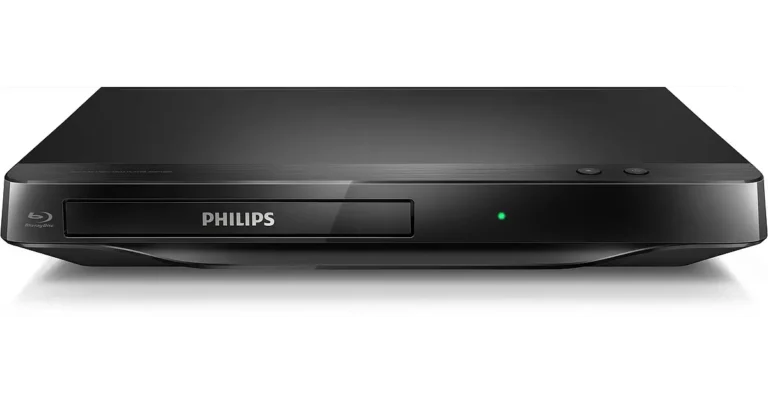
The Philips BDP5320 is a network-ready Blu-ray Disc player that also handles DVDs, audio CDs, and music, photo, and video files from discs and SD cards. It sends video over HDMI at up to 1080p, upscales standard DVDs to as high as 1080p, and offers 1080p/24 output for Blu-ray movies on compatible TVs. A LAN port and a supplied USB wireless adapter give it access to BD-Live, Netflix (U.S. only), CinemaNow, Blockbuster, and vTuner Internet radio. The BDP5320/F7 is the U.S. and Canada version, the /F8 is the Mexico version, and the cover also lists the BDP5010. It uses the NTSC color system.
Product Specifications
| Item | Detail |
| Power requirements | 120 V AC, 60 Hz |
| Power consumption | 16 W (standby: 0.5 W) |
| Dimensions (W x H x D) | 17.2 x 2.0 x 8.5 in (435 x 50 x 215 mm) |
| Weight | 5.07 lb (2.3 kg) |
| Operating temperature | 41°F to 104°F (5°C to 40°C) |
| Operating humidity | Less than 80% (no condensation) |
| HDMI output | 480p, 720p, 1080i, 1080p, 1080p/24 |
| Audio outputs | Analog L/R (2 Vrms), coaxial digital, HDMI |
| Video outputs | HDMI, component, composite |
| Network | LAN: 10BASE-T / 100BASE-TX; Wireless: IEEE 802.11 b/g/n |
What’s in the Box
The package includes the remote control, two AAA (1.5 V) batteries, RCA audio/video cables, the USB wireless LAN adapter (PH2010A), a user manual, a Quick Start Guide, a registration card, and a Netflix insert (p. 6).
Parts and Controls
Front and Rear Panels
The front panel has standby/on, stop, pause, play, and open/close buttons, plus the disc tray, display, infrared sensor, and SD card slot. Play and open/close can also turn the player on. Hold standby/on for 10 seconds to shut the unit down. It enters standby by itself after 25 minutes of inactivity, and only unplugging the cord switches it off completely.
The back panel has the LAN terminal, HDMI OUT, analog AUDIO OUT, COMPONENT VIDEO OUT, VIDEO OUT, COAXIAL DIGITAL OUT, Wireless LAN terminal, and AC power cord.
Remote Control
Match the + and – ends of the two AAA batteries to the compartment marks. Range is about 23 feet (7 m) straight ahead and 16 feet (5 m) within 30° either side. Strong sunlight or fluorescent light on the sensor can interfere. Do not mix old and new batteries, and remove them if the remote goes unused for a month or more. The HDMI button changes the HDMI output mode.
Connections and Setup
Connecting to a TV
- HDMI (best): Supports up to 1080i, 1080p, and 1080p/24, and carries audio too. A certified High Speed HDMI cable is recommended.
- Component video plus analog audio (better): Supports up to 1080i.
- Composite video plus analog audio (basic): Supports 480i only. Connect straight to the TV, not through a VCR, or copy protection may distort the picture.
Connecting Audio
Use the analog AUDIO OUT jacks for a stereo system, DIGITAL OUT (COAXIAL) for a receiver with a coaxial input, or HDMI OUT for a receiver with an HDMI input. Turn all devices off before changing connections.
Connecting to the Network
For a wired connection, run a LAN cable from a router or hub that supports 10BASE-T / 100BASE-TX to the LAN terminal. Use only a LAN cable in that port, and do not connect a PC directly to the player.
For wireless, plug the supplied USB adapter into the Wireless LAN terminal while the player is in standby or off. The router must support IEEE 802.11 b/g/n in Infrastructure mode, since Ad-hoc is not supported. Wired is recommended for streaming, Internet radio, and software upgrades (p. 20-21).
Finding the Viewing Channel
- Press Standby/On on the player and turn on the TV.
- Select the TV input the player is connected to, often labeled SOURCE, AV, or SELECT.
- When the Philips splash screen or home menu appears, you are on the right input.
Playing Discs and Files
Compatible Media
The player handles BD-video, DVD-video, audio CD, DTS-CD, and recordable discs holding AVCHD, DivX, MP3, Windows Media Audio, or JPEG files, plus SD and SDHC cards. Discs must match the player’s region and NTSC color system:
- BDP5320/F7 (USA/Canada): BD region A, DVD region ALL or 1
- BDP5320/F8 (Mexico): BD region A, DVD region ALL or 4
CD-ROM, DVD-RAM, DVD-audio, video CD, HD DVD, SVCD, and unfinalized discs will not play (p. 24).
Playing a Disc
- Press Open/Close and place the disc label side up, aligned with the tray guide.
- Press Open/Close again to close the tray. Loading can take a while.
- Playback may start automatically. If not, press Play.
- Stop saves a resume point, and Play continues from there. Press OK instead to start over.
For MP3, DivX, WMA, or JPEG files, select Disc Tray on the home menu, choose Video, Music, or Pictures, then pick a folder or file.
Using an SD Card
Cards must use FAT12/FAT16 (SDHC: FAT32); NTFS is not supported. Only the first 8 characters of a file name display. Do not remove the card or enter standby during playback. If a computer-formatted card will not read, reformat it in the player.
Streaming and Online Features
- BD-Live: Needs an Internet connection and an SD card (1 GB or more recommended). Do not remove the card during use.
- Netflix: U.S. only. Join at netflix.com/Philips, select NETFLIX on the home menu, choose “yes – activate instant streaming from Netflix,” then enter the on-screen code at netflix.com/activate on a PC.
- CinemaNow / Blockbuster: Create an account on a PC, get an activation code, then enter it under Settings (CinemaNow) or Configure (Blockbuster).
- vTuner: Select vTuner on the home menu. Only MP3 and WMA stations play.
Settings
Open Settings from the home menu. Key options include:
- HDMI Video Resolution: Auto, 480p, 720p, 1080i, or 1080p. If the screen stays blank after a change, press HDMI on the remote, or hold Play on the front panel for 5 seconds to restore the default.
- TV Shape: 4:3 Normal, 4:3 Crop, 16:9 Widescreen, or 16:9 Squeeze.
- Ratings Lock: Blocks discs above your chosen rating level unless a PIN is entered.
- EasyLink (HDMI CEC): Links the player with Philips EasyLink TVs.
- Software Upgrade: By disc or network. Never unplug power, the LAN cable, or the wireless adapter mid-upgrade (p. 58).
- Factory Default: Resets settings except Ratings Lock and network, and can also format an SD card, reset network settings, or deactivate Netflix.
Safety Instructions
- Do not open the cabinet. The laser can cause eye injury, nothing inside is user-serviceable, and opening it voids the warranty.
- Place the unit level and stable, away from heat, direct sunlight, dust, vibration, and water. Do not block ventilation or stack anything on or under it.
- Do not place it on furniture a child could tip over.
- Handle the power cord by the plug, never with wet hands. Unplug the player during lightning storms or long periods of non-use.
- After moving it from cold to warm, wait a few hours before use so condensation dries.
- Remove the disc and unplug the cord before carrying the unit.
Cleaning and Maintenance
Wipe the cabinet with a soft cloth. Never use solvent, thinner, benzene, or alcohol, and keep insecticide spray away. Clean discs with a cleaning cloth, wiping from the center outward rather than in circles, and avoid solvents, abrasives, and antistatic spray. Do not play heart-shaped or octagonal discs. If playback is still poor, the laser pickup may be dirty, which an authorized service center should inspect.
Troubleshooting
| Problem | What to try |
| Remote does nothing | Point it at the player, insert batteries correctly, or fit new ones. |
| No picture | Turn on the TV and select the correct input. Choose a resolution with the HDMI button. |
| No picture or sound over HDMI | Reconnect the HDMI cable with both devices powered on, and use a certified cable. |
| No sound from the TV | Assign the TV’s audio input to the video input, and check speakers and mute. |
| Disc will not play | Check region code and color system. Finalize DVD-R/-RW. Clean the disc. |
| MP3, WMA, JPEG, or DivX file will not play | Check file extension, bit rate, sample rate, and disc format (p. 27, 60). |
| Buttons stop responding | Hold Standby/On for 10 seconds, or unplug the cord for 5 to 10 seconds. |
| Cannot connect to the network | Check cables, router or modem power, and network settings. |
| BD-Live fails | Insert a formatted SD card (1 GB or more) and check the BD-Live Setting. |
Frequently Asked Questions
Which region discs can it play?
BD-video must be region A. DVDs must be ALL or 1 on the BDP5320/F7, or ALL or 4 on the BDP5320/F8, and all discs must be NTSC.
Can I use any USB Wi-Fi adapter?
No. Only the supplied adapter works. The player also cannot play files from a USB flash drive.
Why is my TV screen blank after changing the HDMI resolution?
The TV may not support the chosen resolution. Press HDMI on the remote, or hold Play on the front panel for 5 seconds to restore the default.
Does Netflix work outside the United States?
No. Netflix on this player is available only in the United States, and accounts cannot be created on the player.
How do I completely reset a frozen player?
Hold Standby/On on the front panel for 10 seconds, or unplug the power cord for 5 to 10 seconds.
What does the warranty cover, and how do I get support?
The One Year Limited Warranty covers defects in materials and workmanship, with proof of purchase from an authorized retailer. In the U.S., Canada, Puerto Rico, and the U.S. Virgin Islands, call Philips at 1-866-309-0866. In Mexico, call 01 800 504 62 00. Have the model and serial number ready.