
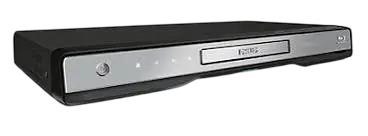
The Philips BDP7320 plays Blu-ray discs, DVDs, audio CDs and several file types from discs or SD cards. It sends up to 1080p video over HDMI, upscales standard DVDs to high definition, and also has component, composite, coaxial digital and 7.1-channel analog outputs for older TVs and receivers. A LAN port and a USB wireless adapter add BD-Live, DLNA media servers, Netflix (U.S. only), CinemaNow, Blockbuster, vTuner internet radio and firmware updates. It comes in two regional versions: the BDP7320/F7 for the U.S. and Canada and the BDP7320/F8 for Mexico. Third-party streaming services can be interrupted or discontinued at any time (p. 71).
Product Specifications
| Item | Detail |
| Signal system | NTSC color |
| Power | 120 V AC, 60 Hz |
| Power consumption | 17 W (standby 0.5 W) |
| Dimensions (W × H × D) | 17.2 × 2.0 × 8.5 in (435 × 50 × 215 mm) |
| Weight | 5.07 lb (2.3 kg) |
| Operating temperature | 41°F to 104°F (5°C to 40°C) |
| HDMI output | 480p, 720p, 1080i, 1080p, 1080p/24 |
| Component video | Y: 1 Vp-p; PB/CB and PR/CR: 700 mVp-p (75 Ω) |
| Composite video | 1 Vp-p (75 Ω), 480i/60 only |
| Analog audio output | 2 Vrms (2-channel and 7.1-channel); subwoofer 1.15 Vrms |
| Digital audio (coaxial) | 500 mVp-p (75 Ω) |
| Network | LAN 10BASE-T / 100BASE-TX; wireless IEEE 802.11 b/g/n (2.4 GHz) with the supplied adapter |
| Region codes | BD: A. DVD: ALL or 1 (F7); ALL or 4 (F8) |
What’s in the Box
The package includes the remote control, two AAA batteries, the user manual, a quick start guide, a registration card, a Netflix insert, RCA audio/video cables, a USB wireless LAN adapter (PH2010A) and a 2 GB SD card. HDMI and LAN cables are not included.
Parts and Controls
Player
The front panel has touch controls for standby/on, stop, pause, play and open/close, plus a display, an infrared sensor window and an SD card slot. The standby button glows red in standby and goes dark when the player is on. The rear panel carries the LAN port, HDMI OUT, analog audio, component and composite video jacks, a coaxial digital output, 7.1ch audio outputs, the wireless LAN terminal and the AC cord. Do not touch the inner pins of the rear jacks, because static discharge can permanently damage the unit (p. 11). There is no RF modulator.
Remote Control
Insert two AAA batteries matching the polarity marks. The remote reaches about 23 feet (7 m) straight ahead, 16 feet (5 m) within 30° to either side or within 15° above, and 10 feet (3 m) within 30° below. Strong sunlight or fluorescent light on the sensor can make it unreliable.
The HDMI button changes video resolution, and INFO shows playback details.
Connecting the Player
Turn off every device before changing connections.
TV Connection
- HDMI (best): Supports up to 1080i, 1080p and 1080p/24. A certified High Speed HDMI cable is recommended, and no separate audio cable is needed.
- Component (better): Supports up to 1080i. Use an RCA component cable plus the RCA audio cable.
- Composite (basic): Supports 480i only. Use the supplied RCA video and audio cables, and connect directly to the TV rather than through a VCR, or copy protection can distort the picture (p. 16).
Audio System
A receiver or amplifier can connect through the coaxial digital output, the 2-channel or 7.1-channel analog outputs, or HDMI.
Network
A wired connection is recommended for DLNA, streaming, internet radio and updates, since wireless can be disturbed by other radio devices. Use a 10BASE-T / 100BASE-TX router, and never connect a PC directly to the player’s LAN port.
For wireless, use only the supplied USB adapter and plug it in while the player is in standby or off. The router must support IEEE 802.11 b/g/n and run in Infrastructure mode, because Ad-hoc mode is not supported (p. 22).
Getting Started and Basic Playback
- Make all connections, then press the standby/on button.
- Turn on the TV and select the external input (often labeled SOURCE, AV or SELECT) until the Philips splash screen or home menu appears.
- Press the open/close button, place the disc label side up in the tray guide, and press open/close again to close it.
- Playback may start by itself. If not, press Play.
- Press Stop to stop. The next press of Play resumes from that point, while OK starts from the beginning. Resume is cleared when you eject the disc.
For video, music or photo files, choose Disc Tray (or SD Card) on the home menu, then pick Video, Music or Pictures.
Compatible Discs and Region Codes
The player handles BD-video, BD-RE (ver. 2.1) and BD-R in BDMV format, DVD-video, finalized DVD-RW/-R, audio CDs, CD-RW/-R, Kodak Picture CD and DTS-CD. It will not play CD-ROM, DVD-RAM, DVD-audio, HD DVD, video CD, SVCD, unfinalized discs or BDAV-format recordings. Only NTSC discs work, and each disc must match the player’s region code (p. 25).
SD cards must be SD (8 MB to 2 GB) or SDHC (4 GB to 8 GB) in FAT12/16/32. miniSD and microSD need an adapter, and NTFS, miniSDHC and microSDHC are not supported.
Special Playback and Online Features
- Playback tools: Fast forward and reverse, zoom, repeat, A-B repeat and title, chapter or time search are available, though some depend on the disc. Slow and step playback only go forward, and zoom does not work during BD-video.
- BD-Live: Needs an internet connection and an SD card of 1 GB or more. Do not remove the card during use, and note that communication charges may apply (p. 36).
- DLNA: Choose Home Network on the home menu. The player and server must share the same access point (p. 32).
- Netflix: U.S. only. Select NETFLIX, choose the activation option, then enter the on-screen code at netflix.com/activate on a computer (p. 40).
Key Settings
Open Settings from the home menu, then Advanced Setup.
- HDMI Video Resolution: Auto, 480p, 720p, 1080i or 1080p. If the screen stays blank after a change, press HDMI, or hold Play on the front panel for 5 seconds to restore the default (p. 52).
- HDMI Audio and Digital Out: To change “Digital Out” or “Analog Audio,” set “HDMI Audio” to “Off” first (p. 47).
- Ratings Lock: Sets a 4-digit PIN and a rating level from 1 [Kid Safe] to 8 [Adult] (p. 56).
- Software Upgrade: Update by disc or network, and do not unplug the AC cord during an upgrade (p. 63).
- Factory Default: Resets all settings except Ratings Lock and Network Connection.
Safety Instructions
- The player contains a laser. Do not open the cover or attempt service, because of possible eye injury (p. 3).
- Keep it away from rain and moisture, and do not set liquid-filled objects such as vases on top.
- Leave ventilation openings clear and keep it away from heat sources.
- Use stable furniture that a leaning child cannot tip over (p. 4).
- Handle the power cord by the plug, never with wet hands, and unplug the unit during lightning storms or long periods of non-use.
- Remove the disc and unplug the cord before moving the player.
- After moving it from a cold place to a warm one, wait a few hours before use, because condensation can form inside.
- Do not mix old and new remote batteries, and do not recharge, heat or disassemble them.
- Specially shaped discs, such as heart-shaped ones, can damage the player.
Cleaning and Maintenance
Wipe the cabinet with a soft cloth. Never use solvent, thinner, benzene or alcohol, and do not spray insecticide nearby. Clean a dirty disc with a cleaning cloth, wiping from the center outward rather than in circles, and avoid solvents, commercial cleaners and antistatic spray. Store discs in their cases.
If the player still misbehaves after troubleshooting, the laser pickup may be dirty. Contact your dealer or an authorized service center, since no parts are user serviceable and opening the unit voids the warranty (p. 5).
Troubleshooting
| Problem | What to try |
| Remote does nothing | Check the power connection, aim at the sensor, and insert fresh batteries correctly. |
| No picture | Turn on the TV, select the correct input, press HDMI to change resolution, or hold Play on the front panel for 5 seconds. |
| No picture or sound over HDMI | Disconnect and reconnect the HDMI cable at both ends while powered on, and use a certified cable. |
| No 7.1-channel audio | Confirm the disc and audio system support 7.1, and set “HDMI Audio” to “Off.” |
| Disc will not play | Check the disc type and region code, finalize DVD-RW/-R discs, and clean the disc. |
| Wireless does not work | Use only the supplied adapter, and wait 30 seconds after power-on before using network features. |
| Cannot connect to the network | Check cables, power on the modem or router, review the network settings and the “BD-Live Setting.” |
Frequently Asked Questions
What discs can the BDP7320 play?
It plays Blu-ray video, DVDs, audio CDs and discs holding DivX, MP3, Windows Media Audio, JPEG or AVCHD files. Region matters: BD region A, plus DVD regions ALL or 1 on the F7, or ALL or 4 on the F8.
Can I use any USB Wi-Fi adapter?
No. Only the supplied adapter is supported, and commercially available adapters are not (p. 22).
How do I reset a frozen player?
Hold the standby/on button on the front panel for 10 seconds, or unplug the AC cord for 5 to 10 seconds (p. 66).
What if I forget my Ratings Lock PIN?
Enter “4737” at the PIN prompt. This clears the PIN and the Ratings Lock settings, and you can then set a new PIN. “4737” itself cannot be used as a PIN (p. 57).
Why won’t BD-Live work?
Confirm the player is online and the “BD-Live Setting” allows access. Insert an SD card of 1 GB or more, formatted in this player, with its write-protect switch off (p. 66).
Does the player have a warranty?
It comes with a one-year limited warranty for the original purchaser, with the sales receipt serving as proof of purchase (p. 72). In the U.S., Canada, Puerto Rico and the U.S. Virgin Islands, call Philips Customer Care at 1-866-309-0866. In Mexico, call 01 800 504 62 00.