
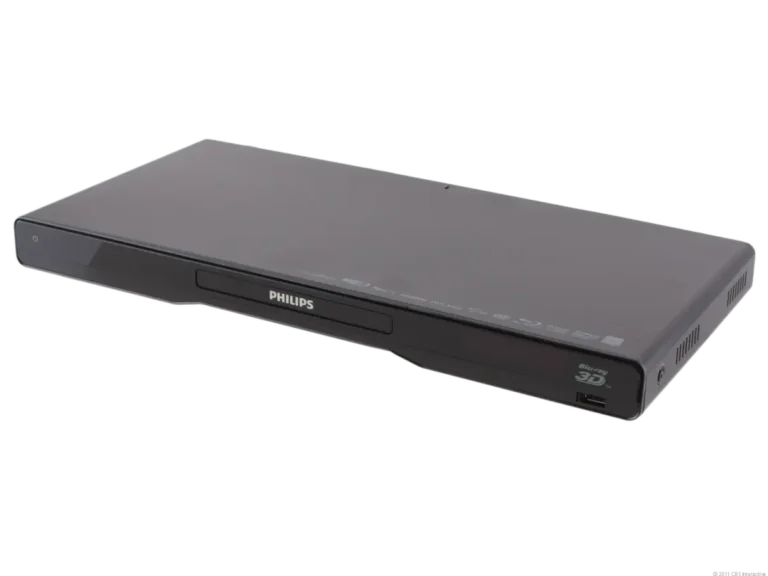
The Philips BDP7520 is a network-ready Blu-ray Disc player that handles Blu-ray 3D, BD-video, DVD-video, audio CDs, and discs or SD cards holding AVCHD, DivX, MP3, Windows Media Audio, and JPEG files. It upscales standard DVDs to as high as 1080p over HDMI and has internal Wi-Fi (IEEE 802.11 b/g/n) and a LAN port. It also supports BD-Live, DLNA home media servers, and the Netflix, CinemaNow, Blockbuster, and VUDU services. Two versions are covered: the BDP7520/F7 for the USA and Canada and the BDP7520/F8 for Mexico. Netflix streaming is available only in the United States.
Product Specifications
| Item | Detail |
| Power requirements | 120 V AC, 60 Hz |
| Power consumption | 17 W (standby: 0.5 W) |
| Dimensions (W x H x D) | 17.2 x 2.0 x 8.5 inches (435 x 50 x 215 mm) |
| Weight | 4.6 lbs (2.1 kg) |
| Operating temperature | 41°F (5°C) to 104°F (40°C) |
| Operating humidity | Less than 80% (no condensation) |
| Signal system | NTSC color |
| HDMI output | 480p, 720p, 1080i, 1080p, 1080p/24 |
| Component video output | Y: 1 Vp-p; PB/CB and PR/CR: 700 mVp-p (75 Ω) |
| Composite video output | 1 Vp-p (75 Ω), 480i only |
| Digital audio output | Coaxial, 500 mVp-p (75 Ω) |
| Network | LAN 10BASE-T/100BASE-TX; internal Wi-Fi 802.11 b/g/n |
What’s in the Box
- Remote control with two AAA (1.5 V) batteries
- User manual and Quick Start Guide
- Quick Set-up sheet for Philips Wireless MediaConnect
- Registration card and box inserts
- RCA audio/video cables
No HDMI or LAN cable is supplied, so buy those separately.
Compatible Discs and Memory Cards
The player is built for NTSC discs only. It plays BD-video with region “A” and DVD-video with region “ALL” or “1” on the BDP7520/F7. The BDP7520/F8 plays “ALL” or “4” DVDs (p. 24). DVD-RW and DVD-R discs must be finalized.
It will not play CD-ROM, DVD-RAM, DVD-audio, HD DVD, video CD, SVCD, or unfinalized discs. Heart-shaped or octagonal discs can damage the unit (p. 5).
The front slot takes SD cards (8 MB to 2 GB) and SDHC cards (4 GB to 8 GB), plus miniSD and microSD cards with an adapter. SD cards need FAT12/FAT16 and SDHC cards need FAT32. NTFS is not supported (p. 23).
Connecting the Player
TV Connections
| Connection | Maximum output | Audio |
| HDMI | 1080i, 1080p, 1080p/24 | Carried over HDMI |
| Component video | 1080i | RCA audio cable |
| Composite video | 480i | RCA audio cable |
HDMI is the best option. A certified High Speed HDMI cable is recommended, and 3D playback needs an HDMI 1.4 cable. Connect the player straight to the TV, because a VCR in between can distort the picture through copy protection (p. 16).
Audio System Connections
Use the coaxial DIGITAL OUT jack for a receiver with a digital coaxial input, the analog L/R jacks for a stereo system, or HDMI. To change “Digital Out,” set “HDMI Audio” to “Off” (p. 48).
Network Connections
A wired LAN connection is recommended for streaming, DLNA, and software upgrades (p. 20). Use a router that supports 10BASE-T/100BASE-TX, and never connect a PC directly to the player’s LAN terminal. For Wi-Fi, set the router to Infrastructure mode, since Ad-hoc mode is not supported (p. 21).
First-Time Setup
Install the Remote Batteries
- Open the battery cover.
- Insert two AAA batteries, matching the + and – marks.
- Close the cover.
Don’t mix old and new batteries. The remote works up to about 23 feet (7 m) in a straight line.
Find the Viewing Channel
- Press Standby/On on the player.
- Turn on the TV.
- Select the TV’s external input (often labeled SOURCE, AV, or SELECT).
- Look for the Philips splash screen or the home menu.
Basic Playback
- Press Open/Close and place the disc label side up, aligned with the tray guide.
- Press Open/Close again to close the tray. Loading can take a while.
- Press Play if playback doesn’t begin by itself.
Pressing Stop saves a resume point, and Play restarts from there. Pressing OK instead starts from the beginning. The resume point survives power-off but is cleared when you eject the disc (p. 26).
For audio CDs and file discs, choose “Play Disc,” pick Video, Music, or Pictures, and select a file.
Handy controls:
- Fast forward/reverse: Press the Forward or Reverse button repeatedly.
- A-B repeat: Press REPEAT A-B at the start point and again at the end point.
- Subtitles and audio: Press SUBTITLE or AUDIO during playback.
- Zoom: Press ZOOM. It does not work during BD-video playback (p. 34).
The player enters standby after 25 minutes of inactivity (p. 11).
Key Settings
Open the home menu, choose “Settings,” and press OK.
- HDMI resolution: Press HDMI to cycle 480p, 720p, 1080i, and 1080p. This doesn’t work during BD-video playback. If the screen stays blank, press and hold Play on the front panel for 5 seconds to restore the default (p. 18).
- 3D Output: Leave it on “Auto” to switch between 2D and 3D automatically. Blu-ray 3D-only discs cannot be played in 2D (p. 29).
- Ratings Lock: Set a four-digit PIN and a rating level from 1 [Kid Safe] to 8 [Adult] (p. 56).
- Factory Default: Resets settings but keeps “Ratings Lock” and “Network Connection” (p. 63).
Network Services and Updates
After connecting, run “Connection Test” under “Network Connection.” Netflix, CinemaNow, Blockbuster, and VUDU each need an account created on a PC, plus an activation code entered online. VUDU recommends at least 8 Mbps (p. 43).
BD-Live requires an SD card, preferably 1 GB or more and formatted in this player (p. 36).
Software updates run from a disc or over the Internet through Settings > Others > Software Upgrade. Don’t unplug the power cord during an update. Your settings are kept (p. 62).
Safety Instructions
- Keep the player away from rain, moisture, and liquid-filled objects such as vases.
- Don’t open the cover. The unit contains a laser, and only qualified service personnel should service it (p. 3).
- Don’t block ventilation openings or place the unit near heat sources.
- Use a stable, level surface. Never put it on furniture a child could tip over (p. 4).
- Handle the power cord with dry hands, and pull the plug, not the cord.
- Unplug the unit during lightning storms, and remove the disc and unplug the cord before moving it.
- If the player moves from cold to warm air, wait a few hours before use because of condensation.
- Watching 3D can cause headache, dizziness, or tiredness. The 3D health notice advises against it for children under 6 (p. 71).
Cleaning and Maintenance
Wipe the exterior with a soft cloth. Never use solvent, thinner, benzene, alcohol, or insecticide spray near the unit (p. 5).
Clean discs from the center outward, not in circles, and avoid solvents, abrasive cleaners, and antistatic sprays.
If problems persist after troubleshooting, the laser pickup may be dirty. Ask an authorized service center to clean it.
Troubleshooting
| Problem | What to try |
| Remote does nothing | Check power, aim at the player, insert batteries correctly, or fit new ones |
| No picture | Turn on the TV, select the right input, press HDMI, or hold Play for 5 seconds |
| No HDMI picture or sound | Unplug and reconnect the HDMI cable at both ends while powered on; use a certified cable |
| No 3D | Use a 3D TV, HDMI 1.4 cable, “Auto” 3D Output, and charged, synced glasses |
| Disc won’t play | Check disc type, region code, finalization, and cleanliness |
| Unit frozen | Hold Standby/On for 10 seconds, or unplug for 5–10 seconds |
| Can’t reach the network | Check cables, power on the modem and router, review settings and “BD-Live Setting,” or power-cycle the modem |
| Wi-Fi not ready | Wait 30 seconds after turning on the player |
| MP3 files won’t play | Use UDF, ISO9660, or Joliet format, 112–320 kbps, and 32, 44.1, or 48 kHz |
Don’t attempt repairs yourself. Contact Philips Customer Care at 1-866-309-0866 in the USA, Canada, Puerto Rico, or the U.S. Virgin Islands, or 01 800 504 62 00 in Mexico. Have the model and serial number ready.
Frequently Asked Questions
What is the difference between the BDP7520/F7 and BDP7520/F8?
The F7 is for the USA and Canada, and the F8 is for Mexico. The only difference listed is DVD region support: “ALL” or “1” for the F7 and “ALL” or “4” for the F8. Both play BD region “A.”
Why won’t my disc play?
Check the disc type, region code, and color system first. The player reads only NTSC discs, and unfinalized DVD-RW/-R discs, HD DVD, and DVD-audio are not supported. Cleaning the disc also helps.
Can this player play 3D Blu-ray discs?
Yes, with a 3D-capable TV, an HDMI 1.4 cable, 3D glasses, and a Blu-ray 3D disc. Keep “3D Output” on “Auto” or “3D.” On a non-3D TV, some discs fall back to 2D.
Does it have built-in Wi-Fi?
Yes. It has internal 802.11 b/g/n Wi-Fi on the 2.4 GHz band. Go to Settings > Network Connection > Wireless Connection, choose your network, and enter the key. Wired is still recommended for streaming and updates.
Can I use Netflix outside the United States?
No. Netflix is available only in the United States. You must also create the account on a PC, not on the player.
What do I need for BD-Live?
You need an Internet connection and an SD card, ideally 1 GB or more and formatted in the player, with its write-protect switch off. Don’t remove the card during use. Some discs also need “BD-Live Setting” to allow access.
I forgot my Ratings Lock PIN. What now?
Open “Ratings Lock,” enter 4737, and the PIN and lock settings are cleared. You can then create a new PIN. The code 4737 can’t be used as a new PIN.