
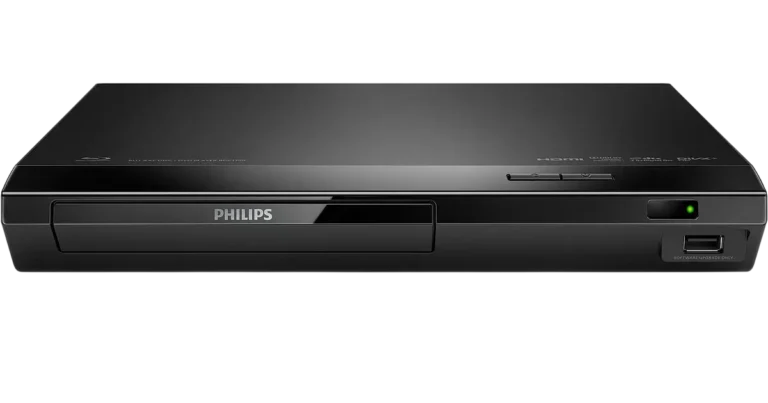
The Philips BDP3306 is a Blu-ray Disc player that also plays DVDs, audio CDs and SD cards. This page covers BDP3306/F7 for the United States and Canada and BDP3306/F8 for Mexico. It outputs video up to 1080p over HDMI and upscales standard-definition DVDs toward high definition. It also plays AVCHD, MP3, WMA and JPEG files, supports BD-Live and BONUSVIEW picture-in-picture on compatible discs, and has a LAN port plus built-in Wi-Fi for software updates and online services. Netflix, Film Fresh, Blockbuster, VUDU and Pandora are available only in the United States. EasyLink lets the player work together with Philips TVs that have the same feature.
Product Specifications
| Item | Detail |
| Signal system | NTSC color |
| Power | 120 V AC, 60 Hz |
| Power consumption | 15 W (standby 0.4 W) |
| Dimensions (W x H x D) | 14.2 x 1.6 x 8.5 in (360 x 38.9 x 213.7 mm) |
| Operating temperature | 41°F to 104°F (5°C to 40°C) |
| HDMI output | 480p, 720p, 1080i, 1080p, 1080p/24 |
| Network | LAN 10BASE-T / 100BASE-TX; Wi-Fi IEEE 802.11 b/g/n (2.4 GHz) |
What’s in the Box
The player ships with a remote control, two AAA batteries, a user manual, a Quick Start Guide, a registration card, box inserts and audio/video cables. HDMI, coaxial digital audio and LAN cables are not included (pp. 6, 15–16, 20).
Parts and Controls
Front and Rear Panels
The front has the disc tray, infrared sensor, open/close, stop and play buttons, standby/on and the SD card slot. Standby only puts the player into standby, so unplug the AC cord to turn it off completely. If it stops responding, hold standby for 10 seconds.
The rear has the AC cord, LAN terminal, HDMI OUT, AUDIO OUT (L/R), DIGITAL OUT (COAXIAL) and VIDEO OUT jacks. Do not touch the inner pins of the rear jacks, because static can permanently damage the unit (p. 11).
Remote Control
Dedicated buttons cover TOP MENU, DISC MENU / POP-UP MENU, OPTION (play menu), SUBTITLE, AUDIO, ANGLE, HDMI, BONUSVIEW (PiP) and Net-TV. The TV volume, channel and mute keys work only with Philips TVs. Range is about 23 feet (7 m) straight ahead. Never mix old and new batteries, and remove them if the remote will sit unused for a month or more (p. 13). To test it, point it at a phone camera and look for an infrared flash (p. 5).
Connecting the Player
Turn off all devices before changing connections.
- HDMI: the best option, carrying picture and sound over one cable. Use a certified cable (High Speed recommended). A display without HDCP will not show the picture properly.
- Composite video and analog audio: the supplied cables work, but only at 480i. Connect directly to the TV, not through a VCR, which can distort the picture.
- Audio systems: use AUDIO OUT for a stereo system, DIGITAL OUT (COAXIAL) for a receiver with a coaxial input, or HDMI OUT for a receiver with HDMI.
- Network: wired is recommended for streaming, Pandora and updates, since Wi-Fi can be disrupted by other radio devices. Connect a LAN cable to a router or hub, never directly to a PC. For Wi-Fi, use an 802.11 b/g/n router in infrastructure mode; ad-hoc mode is not supported (pp. 15–21).
Initial Setup
- Turn on the player and the TV.
- Select the TV input the player uses (often SOURCE, AV, AUX or SELECT) until the Philips splash screen appears.
- On the welcome screen, select Next, then choose English, Español or Français.
- Choose a Quick Start mode, an Auto software update mode and the network type, Wired or Wireless (p. 22).
Playing Discs and SD Cards
What Plays
- Discs: BD-video, BD-RE (ver. 2.1) and BD-R in BDMV format, DVD-video, finalized video-mode DVD-RW/-R, audio CD, CD-RW/-R and DTS-CD.
- Files: AVCHD, MP3, WMA and JPEG on supported discs or SD cards.
- Cards: SD (up to 2 GB) and SDHC (4–32 GB), with miniSD/microSD needing an adapter. SDXC is not supported. Cards must be FAT12/16 (SD) or FAT32 (SDHC), not NTFS.
Not playable: CD-ROM, DVD-RAM, DVD-audio, HD DVD, video CD, SVCD, DivX files and DRM-protected Windows Media files. On a Super Audio CD, only the CD layer plays. Region codes must match: Blu-ray region A, and DVD region ALL or 1 for the BDP3306/F7 (ALL or 4 for the BDP3306/F8) (pp. 23–24).
Basic Playback
- Press open/close, place the disc label side up in the tray guide, and press open/close again.
- Most discs start on their own; otherwise press Play.
- On discs with mixed file types, choose Music, Photo or AVCHD.
- For an SD card, insert it, press Home and select Browse SD Card.
- Press stop to stop. On video discs, Play then resumes from that spot, while OK restarts from the beginning.
Do not remove an SD card, or switch to standby, while it is being read (p. 28).
While Playing
Press OPTION for the play menu: Search (title, chapter or time), Audio, Subtitle, Repeat, Black Level, Noise Reduction and Virtual Surround. Fast forward and reverse have five speeds on video discs and three on audio. Slow motion and frame stepping work forward only. Black Level has no effect on HDMI output. Photo slide shows advance every 10 seconds, and progressive JPEG files cannot play (pp. 27–34).
BD-Live needs an internet connection and a formatted SD card of at least 1 GB, which must stay in place during use. Data charges may apply (pp. 30–31).
Key Settings
Press Home, select Setup and press OK (p. 37).
- HDMI Video: Auto, 480p, 720p, 1080i, 1080p or 1080p/24. The HDMI button on the remote also changes it, except during Blu-ray playback. While HDMI outputs 1080p/24, the VIDEO OUT jack shows no picture (p. 40).
- Network Installation: select Start, then Wired or Wireless. For wired, choose Auto Setup. For Wi-Fi, note your network name and key first, then use Auto Scan, or Easy Connect if your router supports push-button or PIN setup. Run Connection Test afterward, and wait 30 seconds after activating Wi-Fi before opening network features (pp. 41–45, 51).
- Parental Control: limits playback by rating level (Kid Safe to Adult) behind a 4-digit password (p. 47).
- Quick Start Mode: speeds startup but raises standby power use (p. 39).
Software can be updated over the network, or from a disc or SD card. Do not unplug the player or remove the card mid-update (pp. 47–48).
Safety Instructions
- Keep the player away from water, and do not set liquid-filled objects on it.
- Leave at least 3.9 inches (10 cm) around it, do not block vents, and keep it away from heat sources.
- Place it on a stable, horizontal surface a child cannot tip over. A falling unit can cause serious injury or death.
- Handle the power cord with dry hands, and pull the plug, not the cord.
- Do not open the unit. It contains a Class 1 laser, and only qualified service personnel should remove covers.
- After moving the player from a cold place to a warm one, wait a few hours before use because condensation can form inside.
- Unplug it during lightning storms and before carrying it, with the disc removed (pp. 3–4).
Cleaning and Maintenance
Wipe the cabinet with a soft cloth; solvents, thinner, benzene, alcohol and insecticide spray can damage it. Clean discs with a cleaning cloth, wiping from the center outward, not in circles. Never play heart-shaped or octagonal discs. If the player still misbehaves after troubleshooting, the laser pickup may be dirty and should be cleaned by an authorized service center (pp. 4–5).
Troubleshooting
| Problem | What to try |
| Remote does not respond | Check power, aim at the sensor, check battery polarity, or fit new batteries. |
| No picture | Turn on the TV, select the right input, press HDMI to change resolution, or hold the front Play button for 5 seconds to restore the default. |
| No picture or sound over HDMI | Reconnect the cable with both devices powered on, and use a certified cable. |
| Disc will not play | Check disc type, region code and finalization, and clean the disc. |
| Cannot connect to the network | Check cables, power the router or modem, review settings, and power cycle a directly connected modem. |
(pp. 49–51)
Frequently Asked Questions
Why won’t my disc play?
Check the region code first. The BDP3306/F7 plays Blu-ray region A and DVD region ALL or 1, while the BDP3306/F8 plays region A and DVD region ALL or 4. Also confirm the disc type is supported, DVD-RW/-R discs are finalized, and the disc is clean.
What if the screen goes blank after I change the resolution?
Press HDMI on the remote to cycle resolutions. If that fails, hold the Play button on the front panel for 5 seconds to restore the default. Your TV must support the resolution you choose.
Which SD cards work?
SD cards up to 2 GB and SDHC cards from 4 GB to 32 GB. SDXC is not supported. If a computer-formatted card is not read, format it in the player under Advanced Setup > Restore default settings > Format SD Card (unavailable while a Blu-ray disc is inside).
How do I reset a forgotten parental control password?
On the password screen, enter 4, 7, 3, 7. That clears the password and sets the rating level to Off, so you can set a new one (p. 47).
Why does the player turn itself off?
To meet ENERGY STAR requirements, it enters standby after 25 minutes of inactivity (p. 11).
What does the warranty cover?
A one-year limited warranty covers defects in materials and workmanship for the original purchaser with proof of purchase from an authorized dealer. Opening the unit or unauthorized repairs can void it. In the U.S., Canada, Puerto Rico and the U.S. Virgin Islands, call Philips at 1-866-309-0866 (p. 58).