
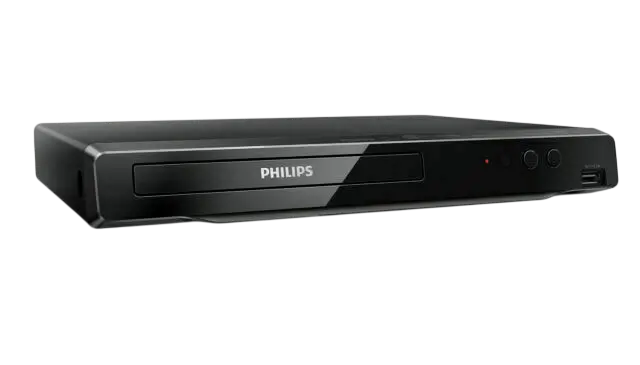
The Philips BDP2501 is a Blu-ray Disc and DVD player built for connecting to a TV over HDMI. It plays Blu-ray Disc, DVD, and CD media, and it reads photo and music files from discs and USB memory sticks. DVDs are upscaled to as high as 1080p over HDMI. Built-in wireless LAN supports BD-Live, software updates, and Netflix, VUDU, and YouTube. It has an HDMI output but no TV RF modulator, and HDMI is its only video connection. The player is sold under Funai Corporation’s responsibility and is intended for US-region discs (page 20).
Product Specifications
| Item | Specification |
| Signal system | NTSC color |
| Power requirements | 120 V AC, 60 Hz |
| Power consumption | 15 W (standby 0.5 W) |
| Dimensions (W x H x D) | 11.1 x 1.7 x 7.9 in (280.0 x 41.0 x 198.5 mm) |
| Weight | 1.0 kg (2.21 lbs) |
| Operating temperature | 41°F to 104°F (5°C to 40°C) |
| Operating humidity | Less than 80% (no condensation) |
| HDMI output | 1 jack; 480p, 720p, 1080i, 1080p, 1080p/24 |
| USB input | Type A |
| Wireless LAN | Internal, IEEE 802.11 b/g/n, 2.4 GHz |
What’s in the Box
The package includes a quick start guide and the remote control (NC458UL). The two AAA batteries for the remote are not included. An HDMI cable is also not included, and you need one to connect to a TV.
Parts and Controls
The front panel has the disc tray, an infrared sensor window, and OPEN/CLOSE, PLAY/PAUSE, and POWER buttons. It also has a power-on indicator and a USB input. The OPEN/CLOSE and PLAY/PAUSE buttons can also turn the unit on. The back has the AC power cord and the HDMI OUT jack (page 10).
The remote has Home, Top Menu, Pop Menu, Options, Info, Audio, Back, and OK buttons. It also has arrow keys, playback keys, and color buttons for disc shortcuts. Dedicated Netflix, VUDU, and YouTube buttons launch those services directly.
Batteries go in matching the polarity marks. Don’t mix old and new batteries or different types. The manual doesn’t recommend lithium or rechargeable batteries (page 12). Remove the batteries if you won’t use the remote for a month or more. Operating range is about 23 feet (7 m) straight on, with shorter ranges to the sides and above and below.
Safety Instructions
- Leave at least 5.9 inches (15 cm) of space around the player. Don’t put it in a closed cabinet or cover the vents (page 5).
- Keep it away from heat sources, direct sunlight, dust, and strong vibration. Place it on a stable, horizontal surface.
- Don’t expose it to dripping or splashing, and don’t set liquid-filled objects such as vases on it.
- Never use a gas duster on the unit, because trapped gas can ignite.
- Don’t open the cover. The laser is a Class 1 product, and servicing is for qualified personnel only.
- Hold the plug, not the cord, when unplugging. Unplug during lightning storms or long periods of non-use.
- After moving the unit from a cold place to a warm one, wait a few hours before use because of dew condensation.
- Before carrying the unit, remove the disc and unplug the power cord.
Connecting the Player
TV connection
Connect the player’s HDMI OUT jack to an HDMI input on your TV. The manual recommends a certified High Speed HDMI cable. Don’t tilt the connector as you insert it. A display that doesn’t support HDCP won’t show a proper picture (page 14).
Audio system
Turn off all devices before changing connections. To use an AV receiver, run HDMI from the player to the receiver, then from the receiver to the TV. Under Setup > Audio > HDMI audio, choose Bitstream, LPCM, or Re-encode. With Bitstream, only the primary audio of a BD-Video is output, so secondary audio and button sounds are lost (page 15).
Network
Wireless setup needs an 802.11 b/g/n router. The player works in infrastructure mode and does not support ad-hoc mode. The manual’s network diagram also shows an Ethernet cable path, but the specifications list no wired LAN jack, so rely on the wireless setup.
Initial Setup
- Press POWER on the remote, then turn on your TV.
- Choose your on-screen language and press OK.
- Turn Voice Guide on or off.
- Choose whether to check for software updates automatically.
- Select “Set up now” or “Not now” for network service.
If you pick the wrong language, press HOME, open the first Setup item, then go to Preference > Menu Language (page 17).
Playing Discs and Files
Place the disc label side up and close the tray. Blu-ray, DVD, AVCHD, and audio CD playback usually starts automatically. If it doesn’t, press PLAY/PAUSE.
Region codes: The player handles Blu-ray region A and DVD region 1 or ALL only (page 20).
Playable discs: BD-Video, BD-RE and BD-R in BDMV format, DVD-Video, finalized DVD-RW and DVD-R (video mode), CD-DA, CD-RW, CD-R, and DTS-CD.
Not playable: 3D Blu-ray, BDXL, HD DVD, DVD-RAM, DVD-Audio, Video CD, SVCD, CD-ROM, and discs with DivX files (page 20). Unfinalized discs fail too, as do Blu-ray discs or USB sticks holding AVCHD files.
Files: The player reads JPEG, PNG, MP3, AAC, FLAC, and WAV files. The first four can come from discs, USB sticks, or SD cards in a USB card reader. It also reads AVCHD from DVD-RW/-R, but stand-alone AVCHD video files aren’t supported. Progressive JPEGs won’t play. Use a USB stick formatted FAT16 or FAT32, since NTFS is not supported. Plug the stick directly into the USB port with no extension cable, and connect only USB sticks or card readers (page 19).
Pressing STOP puts the player in resume-on-stop mode, so the next press of PLAY continues from where you stopped.
Playback Features
Press OPTIONS during playback to open the play menu. From there you can search by title, chapter, track, or time, and switch audio, subtitles, and camera angles. The menu also holds repeat modes, shuffle and random play, and PiP secondary video where a disc offers it. Fast forward and reverse have five speed levels. Slow forward has four levels, and slow reverse isn’t available. Step-by-step advance works in pause mode.
BD-Live needs an internet connection and a USB stick with at least 1 GB free. Don’t remove the stick during use (page 28). BD-Live access is adjustable under Setup > Network > BD-Live Setting.
Network Services
Netflix, VUDU, and YouTube open from the home menu or the remote’s dedicated buttons. Each needs a working network connection, and Netflix needs a membership. VUDU is available only in the United States. Services can be switched off under Setup > Network > Deactivation. Availability depends on the providers, not the player (page 34).
Wireless setup
Run the connection test after any network change (Setup > Network > Network installation). Three methods are available:
- Easy Connect: Choose Push Button Method, then press the router’s WPS/PBC button within 2 minutes. It doesn’t work with WEP security.
- Auto Scan: Pick your network and enter its key.
- Manual Entry: Type the SSID, then set the IP, DNS, and proxy details if needed.
Useful Settings
- HDMI video: Auto, 480p, 720p, 1080i, 1080p, or 1080p/24. This setting doesn’t work during BD-Video playback (page 45).
- EasyLink (HDMI CEC): Enables one-touch play and one-touch standby. Holding POWER for 2 seconds turns off the TV first, then the player.
- Parental control: Eight rating levels plus Off. The default password is 0000 (page 46).
- Voice Guide: Works only with English or Spanish menus. It locks HDMI audio to LPCM.
- Software update: Updates run from a disc, a USB stick, or the network. Don’t unplug the player or press POWER during an update (page 47).
- Restore defaults: Reset Settings keeps the parental and network settings. Reset All Settings returns the unit to factory defaults (page 49).
The unit starts its screen saver after 5 minutes of inactivity and enters standby after 25 minutes.
Cleaning and Maintenance
Wipe the cabinet with a soft cloth. Never use solvent, thinner, benzene, or alcohol, and don’t spray insecticide near the unit. Wipe a dirty disc from the center outward, not in circles. Avoid solvents, detergents, abrasive cleaners, and antistatic spray. Store discs in their cases. Heart-shaped or octagonal discs can damage the unit (page 56).
If the player still misbehaves, the laser pickup may be dirty. Have an authorized service center inspect and clean it. The unit has no user-serviceable parts.
Troubleshooting
| Problem | What to try |
| No power | Check the cord, try another outlet, or unplug for 5–10 seconds and retry. |
| No picture or sound | Turn on both devices, check HDMI connections, and confirm the display supports HDCP. |
| Remote doesn’t respond | Move closer, check battery polarity, or test the IR signal with a camera. |
| Disc won’t play | Check the region code, finalize DVD-RW/-R discs, and clean the disc. |
| “BD-ROM Data(USB) Check” message | Connect a USB stick first, then insert the disc. |
| Buttons do nothing | Hold POWER on the front panel for 10 seconds, or unplug the cord for 5–10 seconds. |
| Disc stuck loading | Unplug for 20 seconds, plug back in, then press OPEN/CLOSE on the unit. |
| Can’t connect to network | Check the modem and router, confirm DHCP is on, and review the network settings. |
| No YouTube sound | Set HDMI audio to LPCM. |
Frequently Asked Questions
What discs can the BDP2501 play?
It plays region A Blu-ray discs and region 1 or ALL DVDs, along with audio CDs and finalized recordable discs. It does not play 3D Blu-ray, DVD-Audio, or HD DVD.
Does it play 3D Blu-ray discs?
No. The troubleshooting section states that 3D Blu-ray discs are not supported.
What video resolution does it output?
HDMI output goes up to 1080p, with 1080p/24 available for Blu-ray film content. DVDs are upscaled up to 1080p. Leave the setting on Auto to match your display.
Can I connect an external hard drive or camera to the USB port?
No. Use only a USB memory stick or USB card reader. PCs, external hard drives, digital cameras, keyboards, and mice are not supported (page 10).
Why won’t BD-Live work?
Confirm the network connection passes its test. Then check the BD-Live setting and insert a USB stick with at least 1 GB free that isn’t write-protected before loading the disc.
How do I reset a forgotten parental password?
The manual gives no recovery method. The default password is 0000, and it advises recording any new password. Contact Philips support at 1-866-202-5960 if you’re locked out.
How do I fully turn the player off?
The POWER button only switches between on and standby. To shut the unit off completely, unplug the AC power cord.
What warranty comes with the player?
A 90-day limited warranty applies, based on the original purchase date from an authorized dealer (page 61). Keep the original sales receipt. For help, call the Philips Customer Care Center at 1-866-202-5960.