
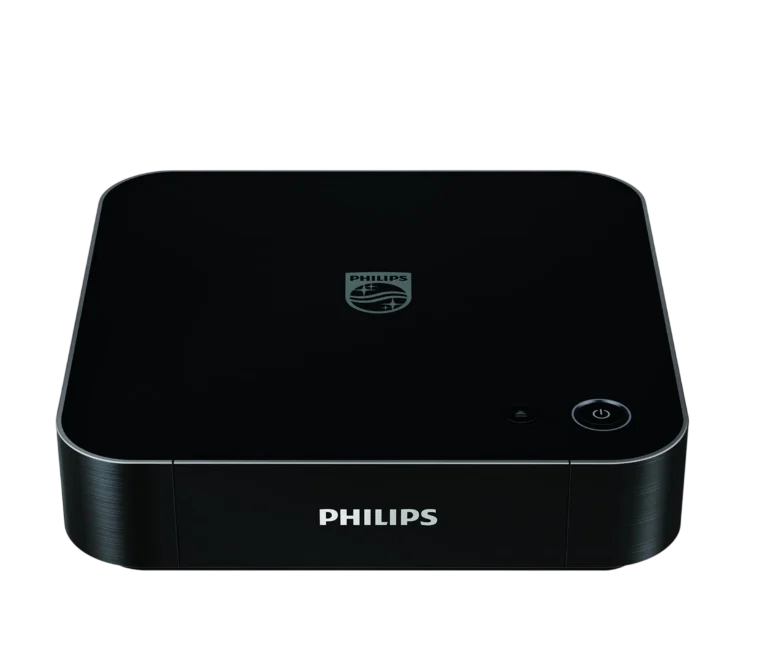
The Philips BDP7501 is a 4K Ultra HD Blu-ray player that plays Ultra HD Blu-ray, Blu-ray 3D, Blu-ray, DVD and audio CD discs, plus music, photo and video files from a USB drive. Over HDMI it upscales Blu-ray discs to 4K on a 4K Ultra HD TV, and DVDs can be upscaled up to 4K too. It supports HDR, BD-Live, Netflix, YouTube and DLNA home media servers, and it connects by wired LAN or built-in Wi-Fi. A second HDMI port carries audio only, so sound can go to an AV receiver while video goes straight to the TV.
Product Specifications
| Item | Detail |
| Signal system | NTSC color |
| Power requirements | 120 V AC, 60 Hz |
| Power consumption | 26 W (standby 0.2 W) with the included N1070UH adapter |
| Dimensions (W x H x D) | 220 x 59.5 x 220 mm (8.7 x 2.4 x 8.7 in) |
| Weight | 3.53 lb (1.6 kg) |
| Operating temperature | 41 °F (5 °C) to 95 °F (35 °C) |
| Operating humidity | Less than 80%, no condensation |
| USB input | Type A, USB 3.0, bus power 900 mA max |
| HDMI OUT | 480p, 720p, 1080i, 1080p, 1080p24, 4K video plus audio |
| HDMI OUT (AUDIO) | Audio only |
| LAN | 10BASE-T / 100BASE-TX / 1000BASE-T |
| Wireless LAN | IEEE 802.11 b/g/n/ac, 2.4/5 GHz (p. 45, p. 57) |
What’s in the Box
The package includes a Quick Start Guide, remote control NC280UH, two AAA 1.5 V batteries, an HDMI cable and AC/DC adapter N1070UH. A LAN cable and a USB card reader are not supplied (p. 6, p. 17, p. 21).
Playable Discs and Files
The player reads Ultra HD Blu-ray, BD-video, Blu-ray 3D, BD-RE and BD-R (BDMV format), DVD-video, finalized VR-mode DVD-RW/-R, audio CD, CD-R/RW and DTS-CD. From supported discs and USB devices it also plays AVCHD, MP3, AAC, FLAC, WAV, MP4, MPEG-2 and JPEG files (p. 20).
Blu-ray discs must be region A, and DVDs must be region ALL or 1. Ultra HD Blu-ray discs have no region codes. CD-ROM, DVD-RAM, DVD-Audio, HD DVD, video CD, SVCD, unfinalized discs and DivX files will not play, and oddly shaped discs can damage the unit (p. 5, p. 21).
USB drives can use FAT16, FAT32, NTFS or exFAT, and SD cards work through a card reader. Up to 10,000 folders and files can be displayed (p. 21).
Parts and Controls
The front panel has the open/close button, the standby/on button with its LED, the disc tray and the infrared sensor. The rear panel has the DC IN jack, LAN port, HDMI OUT (AUDIO), HDMI OUT and USB port (p. 11).
Plug only a USB storage device or card reader into the USB port. PCs, external hard drives, cameras, USB hubs and extension cords are not allowed (p. 11).
On the remote, Home opens the menu, OPTIONS opens the play menu, and INFO shows playback information. The -10s and +60s buttons jump back or forward, and the NETFLIX and YouTube buttons launch those apps (p. 12).
Connecting the Player
Turn off every device before changing connections (p. 14).
HDMI
- One cable: Connect HDMI OUT to your TV or AV receiver for both video and audio.
- Two cables: Connect HDMI OUT to the TV for video and HDMI OUT (AUDIO) to an AV receiver for sound. EasyLink works only through HDMI OUT.
Ultra HD Blu-ray needs a 4K/HDR-compatible TV (and receiver, if used) and an 18 Gbps high-speed HDMI cable. Blu-ray 3D needs a 3D-compatible TV and HDMI cable (p. 14).
Network
A wired connection is recommended for Netflix, YouTube and updates. Use shielded LAN cable and never connect a PC directly to the player’s LAN port (p. 17). For Wi-Fi, use an 802.11 b/g/n/ac router in Infrastructure mode, since Ad-hoc mode is not supported. On a 2.4 GHz router, a USB 3.0 device can destabilize the connection, so 5 GHz is recommended (p. 18).
Installation and Setup
- Press the standby/on button, then turn on your TV.
- Switch the TV to the right input. It may be labeled SOURCE, AV, AUX or SELECT.
- If the TV is 4K-compatible, follow the 4K/60p Output prompts and confirm the picture when asked.
- Set Quick Start to On or Off. On starts the player faster but uses more standby power.
- Pick Wired or Wireless in Easy Network Setting. For Wi-Fi, select your network, enter the password and choose Finish.
- Run Connection Test under Setup > Player Settings > Network > Network Settings > IP Address/DNS Settings. “Pass” means you are ready for BD-Live, Netflix, YouTube and updates (p. 19, p. 43).
How to Use the Player
To play a disc, press open/close, place the disc label side up in the tray guide, and close the tray. Blu-ray and DVD discs usually start automatically. If not, press Play (p. 24, p. 25).
During playback, press OPTIONS and choose “Operation Menu” to change the soundtrack, subtitles, camera angle or repeat mode. Fast forward and reverse run at five speeds, and pausing then pressing the right arrow steps frame by frame (pp. 30-34).
Ultra HD Blu-ray. You need a 4K/60p (4:4:4), HDCP 2.2 and HDR-compatible TV. If the TV lacks HDCP 2.2, HDR signals are converted and output in 2K, and some discs may not play correctly (p. 26).
USB. Plug in the drive and choose Play Video, View Photos or Play Music. Don’t remove it or switch to standby while it is being read (p. 28).
BD-Live. Insert a USB drive of at least 1 GB, keep it in place and make sure the player is online. Data charges may apply (p. 32).
Key Settings
Open Home, then Setup > Player Settings.
| Setting | Options and notes |
| HDMI Resolution | Auto, 480p, 1080i, 1080p, 4K |
| 4K/60p Output | 4K/60p (4:4:4), 4K/60p (4:2:0), Off |
| High Dynamic Range Output | Auto or Off. Off outputs 2K, so try it if the picture looks wrong (p. 42) |
| EasyLink | On or Off; works with Philips TVs (p. 47) |
Parental controls cover BD-video and DVD-video, and you create a four-digit password when you first set a limit (p. 48). To update firmware, go to System > Firmware Update > Update Now, and do not unplug power or the LAN cable during the update (p. 49).
Safety Instructions
- Never open the cover. There are no user-serviceable parts, and opening it can void the warranty (p. 2, p. 5).
- Keep the player away from rain and splashing, and don’t set liquid-filled objects on it.
- Leave at least 5.9 inches (15 cm) around the unit, don’t block ventilation, and never use a gas duster on it (p. 4).
- The AC/DC adapter is for indoor, dry-location use only and may get hot (p. 2).
- Never use mixed old and new batteries, and remove them if the remote will sit unused for a month or more (p. 13).
- 3D viewing can cause headache or dizziness and is not recommended for pregnant women or young children. See p. 58.
Cleaning and Maintenance
Wipe the cabinet with a soft cloth. Never use solvents, thinner, benzene or alcohol (p. 4). Clean discs with a cleaning cloth, wiping from the center outward and not in circles, and store them in their cases (p. 4, p. 5).
If the player misbehaves after troubleshooting, the laser lens may be dirty. Don’t clean it yourself. Take it to your dealer or an Authorized Service Center (p. 5).
Troubleshooting
| Problem | What to try |
| Remote does nothing | Check power, aim at the player, check battery polarity, try new batteries |
| No picture | Turn on the TV, select the right input, and make sure the TV is not on HDMI OUT (AUDIO) |
| No picture or sound over HDMI | Reconnect the HDMI cable at both ends while powered on, and use a certified cable |
| No Ultra HD picture | Confirm the TV is 4K/HDR capable, use an 18 Gbps cable and set 4K/60p Output to 4K/60p (4:4:4) |
| Disc won’t play | Check disc type, region code and finalization, then clean the disc |
| Can’t connect to the network | Check cables and settings. Unplug the player and router for 30 seconds, then restart them (pp. 51-52) |
If the problem remains, check the FAQ at www.philips.com/support or call Philips Customer Care at 1-866-202-5960 in the U.S., Canada, Puerto Rico or the U.S. Virgin Islands. Have the model and serial number ready (p. 53). The player carries a one-year limited warranty from the date of purchase at an Authorized Dealer (p. 59).
Frequently Asked Questions
Do I need a special TV for Ultra HD Blu-ray discs?
Yes. You need a 4K/HDR-compatible TV with HDCP 2.2 and an 18 Gbps high-speed HDMI cable. With a TV that lacks these features, the player converts HDR and outputs 2K, and some discs may not play correctly.
Why is there no picture from HDMI OUT (AUDIO)?
That port carries audio only. Connect your TV to HDMI OUT, and use HDMI OUT (AUDIO) just for a receiver or amplifier.
Can I watch Netflix and YouTube?
Yes. Connect the player to the Internet and press the NETFLIX or YouTube button. Netflix is available only in the United States and requires a Netflix membership.
How do I turn the player off completely?
The standby button only switches it to standby. To cut power fully, unplug the AC/DC adapter.
What USB devices can I connect?
Use a single USB storage device or card reader plugged directly into the USB port, formatted as FAT16, FAT32, NTFS or exFAT.
What if I forget my parental lock password?
With no disc inserted, press Next, then 1, 2 and 3 on the remote to enter Special mode. The standby LED blinks. Press 2 to reset the parental lock. The player exits Special mode after two minutes without a button press (p. 50).