
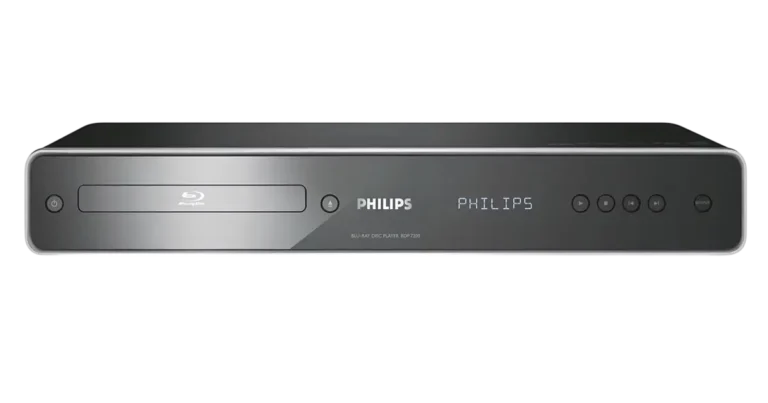
The Philips BDP7200 is a Blu-ray Disc player that outputs video up to 1080p over HDMI. It plays BD-video, DVD-video, audio CDs, and discs holding DivX, MP3, Windows Media Audio, or JPEG files, and it upconverts standard DVDs to as high as 1080p over HDMI. It also supports BD Java discs, picture-in-picture (BONUSVIEW) on discs that offer it, pop-up menus, 1080p/24 output for BD, and HDMI Deep Color. Rear outputs cover HDMI, component, composite, 5.1-channel analog, stereo analog, and coaxial and optical digital audio. That makes it easy to connect to anything from a basic TV to an AV receiver.
Product Specifications
| Item | Detail |
| Signal system | NTSC color |
| Power requirements | 120V AC, 60Hz |
| Power consumption | 30W (standby: 0.8W) |
| Dimensions (W x H x D) | 17.2 x 2.8 x 13.8 inches (435 x 70 x 348mm) |
| Weight | 9.1 lbs (4.1kg) |
| Operating temperature | 41°F (5°C) to 104°F (40°C) |
| Operating humidity | Less than 80% (no condensation) |
| HDMI output | 480p, 720p, 1080i, 1080p |
| Component video output | Y: 1Vp-p; PB/CB and PR/CR: 700mVp-p (75Ω) |
| Composite video output | 1Vp-p (75Ω) |
| Analog audio output | 2-channel L/R, plus 5.1-channel (2Vrms; subwoofer 1.15Vrms) |
| Digital audio output | Coaxial (500mVp-p, 75Ω) and optical |
The specifications are on page 41, and the manual notes they can change without notice.
What’s in the Box
- Remote control with two AA batteries
- RCA audio/video cables
- AC cord
- User manual
- Quick start guide
- Registration card
Parts and Controls
The front panel has the standby-on button, disc tray, open/close, play, stop, previous, next, and an OUTPUT button for changing HDMI resolution. The OUTPUT button does not work during BD-video playback or while the settings menu is open. The infrared sensor window sits on the front as well.
Around the back you’ll find the HDMI OUT, component video, composite VIDEO OUT, stereo AUDIO OUT, 5.1ch analog audio, coaxial and optical digital outputs, and the AC IN terminal. The unit has no RF modulator. Avoid touching the inner pins of the rear jacks, since static discharge can permanently damage the player (p. 9).
The remote adds HOME, cursor and OK buttons, BACK, the color buttons, TOP MENU, DISC MENU/POP-UP MENU, INFO, SUBTITLE, AUDIO, ANGLE, ZOOM, PIP, and both repeat buttons. Its volume, mute, and channel buttons work only with Philips TVs. Its range is about 23 feet (7m) in a straight line, and it is less reliable in strong sunlight or fluorescent light shining on the sensor.
Connections and First-Time Setup
The manual lists four ways to connect to a TV, in order of picture quality:
- Composite (standard picture): RCA video plus RCA audio.
- Component (better picture): component video plus RCA audio.
- HDMI (best audio and picture): one HDMI cable carries both. Philips recommends an HDMI 1.3 (category 2), or High Speed, cable.
- HDMI-to-DVI (best picture): needs a separate analog audio connection.
For sound through a receiver or amplifier, use stereo RCA, the 5.1-channel analog outputs, or a coaxial or optical digital cable. Keep optical cables 9.8 feet (3m) or shorter, and coil them in loops of at least 6 inches (15cm) when storing them.
Turn off all devices before changing connections. Connect the AC cord last, and make sure the plugs are fully seated, because loose plugs cause noise (p. 16).
Then:
- Press STANDBY-ON.
- Turn on the TV.
- Select the TV’s external input (often labeled SOURCE, AV, or SELECT) until the Philips splash screen or home menu appears.
HDMI and HDCP matter here. To play BD or DVD video over HDMI, both the player and the display must support HDCP. With an incompatible display, the picture won’t show properly. Some HDMI devices, such as projectors, don’t output audio at all.
Playing Discs and Files
Playable Discs and Region Codes
The player handles BD-video, BD-R and BD-RE (version 3), DVD-video, DVD±R/RW (video mode, finalized), audio CD, CD-R/RW, and DTS-CD. It plays BD-video region “A” and DVD-video region “1” or “ALL,” and only NTSC discs (p. 18). Unsupported types include DVD-RAM, DVD-audio, Video CD, SVCD, HD DVD, CD-ROM, and unfinalized discs. On a Super Audio CD, only the CD layer is audible.
Basic Playback
- Press OPEN/CLOSE and place the disc label side up, aligned with the tray guide.
- Press OPEN/CLOSE to close the tray. Loading can take a while.
- If playback doesn’t start automatically, press PLAY.
Press STOP to enter Resume-On-Stop mode, so the next PLAY press continues from that point. Press OK instead to start from the beginning. Resume stays in effect after power-off but is canceled when you eject the disc, and it isn’t available for BD Java.
For DivX, MP3, WMA, or JPEG discs, choose “Disc Tray” on the home menu, pick Video, Music, or Pictures, then select a folder or file. DivX files must be .avi or .divx, no larger than 2 GB, and within 720 x 480 at 30 fps or 720 x 576 at 25 fps. JPEG files are limited to 5 MB. MP3 files should use 112–320 kbps at 32, 44.1, or 48 kHz.
Special Playback
Fast forward and reverse (FFW/REW), slow forward and step-by-step (via PAUSE), A-B repeat, repeat modes, zoom, slide show, and time or chapter search through INFO are all available. ZOOM doesn’t work during BD-video playback. Subtitles, audio tracks, and camera angles change through their remote buttons.
Settings
Press HOME, choose Settings, then Advanced Setup. Key options include:
| Setting | What it does |
| TV Shape | 4:3 Letter Box, 4:3 Pan & Scan, 16:9 Widescreen, 16:9 Squeeze |
| HDMI Video Resolution | Auto, 480p, 720p, 1080i, 1080p |
| HDMI 1080p/24 | Outputs 24-frame film material when the display supports it |
| Component Output | 480i, 480P, 720P, 1080i |
| HDMI Audio | Normal, PCM, or Off |
| Digital Out | Bitstream or PCM |
| Night Mode | Compresses the gap between soft and loud sounds |
| Auto Standby | Turns the unit off after 25 minutes of inactivity once the screen saver starts (30 minutes if the screen saver is off) |
| EasyLink (HDMI CEC) | Links with Philips EasyLink TVs |
With an HDMI cable connected, set HDMI Audio to Off before changing Digital Out or Analog Audio. Component Output then offers only 480i and your selected HDMI resolution.
Parental Control
Under Parental, enter a four-digit PIN, then choose a rating level from 1 [Kid Safe] to 8 [Adult], or All to switch the lock off. “4737” can’t be used as a PIN (p. 37).
Factory Default
Home menu, Settings, Factory Default resets all settings except Parental. The separate Local Storage option reformats the BD Java storage area.
Safety Instructions
Read the safety instructions on pages 2–4 before use. The main points:
- Keep the unit away from rain, moisture, and liquid-filled objects such as vases.
- Don’t remove the cover. There are no user-serviceable parts, and the laser can cause eye injury. Don’t stare into the beam.
- Don’t block the ventilation holes on the sides. Keep the unit away from heat sources, direct sunlight, and strong magnetic fields, and put nothing on top of it.
- Protect the power cord from being walked on or pinched, and don’t defeat the polarized plug.
- Unplug the unit during lightning storms or long periods of non-use.
- Remove the disc and unplug the AC cord before carrying the unit.
- After moving it from a cold place to a warm one, wait at least 2 hours before use, since condensation can form inside.
- Don’t mix old and new batteries, or different types. Remove batteries if the remote won’t be used for a month or more.
- Heart-shaped, octagonal, and other specially shaped discs can damage the unit and cannot be played.
Cleaning and Maintenance
Wipe the cabinet with a soft, slightly damp cloth. Never use solvent, thinner, benzene, or alcohol, and don’t spray insecticide near the unit. Clean discs with a cleaning cloth, wiping from the center outward, never in circles, and avoid solvents, detergents, abrasive cleaners, and antistatic spray. Store discs in their cases. If the player still misbehaves after you’ve checked the troubleshooting steps, the laser pickup may be dirty. Take it to a dealer or authorized service center rather than cleaning it yourself.
Troubleshooting
| Problem | What to try |
| Remote does nothing | Check power, aim at the sensor, insert batteries correctly, or replace them |
| No picture | Turn on the TV, select the right input, press OUTPUT on the front panel, or hold PLAY for 5 seconds to restore default resolution |
| No picture or sound over HDMI | An unauthorized display device may block the signal |
| No high-definition picture | Confirm both the disc and the TV support it |
| No TV speaker sound | Match the TV’s audio input to the video input |
| No 5.1 sound | Confirm the disc and audio system support it, and set HDMI Audio to “Off” |
| Disc won’t play | Check disc type, region code (BD: A; DVD: ALL or 1), finalization, and cleanliness |
| MP3, WMA, DivX, or JPEG won’t play | Check format, bit rate, sample rate, file extension, and folder limits |
Frequently Asked Questions
What discs and files can the BDP7200 play?
It plays BD-video, BD-R/RE, DVD-video, finalized DVD±R/RW, audio CDs, and DTS-CD. It also plays DivX, MP3, Windows Media Audio, and JPEG files on CD-R/RW and DVD recordable discs. It cannot play DVD-RAM, HD DVD, Video CD, or DVD-audio.
Why does my disc say it can’t play or show nothing?
The usual causes are region or color-system mismatches. This player accepts BD region “A,” DVD region “1” or “ALL,” and NTSC only. Unfinalized recordable discs and dirty discs also fail.
The screen went blank after I changed the HDMI resolution. What now?
The screen normally blanks briefly after a change. If the picture doesn’t return, press OUTPUT repeatedly, or hold PLAY on the front panel for 5 seconds to restore the default. This also resets Component Output to 480i.
How do I get 5.1-channel sound?
Use the 5.1ch analog outputs to a multi-channel receiver, or a digital connection with Digital Out set to Bitstream. The disc and the receiver both need to support 5.1. Over HDMI, available audio formats depend on the connected device.
What if I forget my parental PIN?
Enter “4737” at the PIN prompt. That clears the current PIN, and you can then create a new one.
Does the player remember where I stopped?
Yes. After STOP, pressing PLAY resumes from that point, and pressing OK starts from the beginning. The resume point survives power-off but is erased when you eject the disc.
Can I show external subtitles with DivX files?
Yes, if the subtitle file has the same name as the video and sits in the same folder. Supported extensions are .smi, .srt, .sub, .ass, .ssa, and .txt, though .sub and .txt files may not be recognized. Highlight the video and press Green to pick a subtitle file.
What does the warranty cover?
It’s a one-year limited warranty for the original purchaser against defects in materials and workmanship, and proof of purchase is required. Support in the U.S. is available at 1-888-PHILIPS (1-888-744-5477).