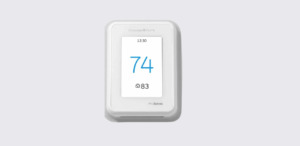
This Honeywell T10 Pro smart thermostat getting started guide helps you complete the initial setup, connect the thermostat to Wi-Fi, pair wireless sensors, and understand smart comfort controls.
The guide focuses on first-time configuration and user onboarding, enabling you to begin using advanced smart thermostat features quickly and safely.
About Honeywell T10 Pro
The Honeywell T10 Pro is a professional smart thermostat designed for connected home climate control. It supports wireless indoor temperature sensors, mobile app integration, and intelligent comfort prioritization.
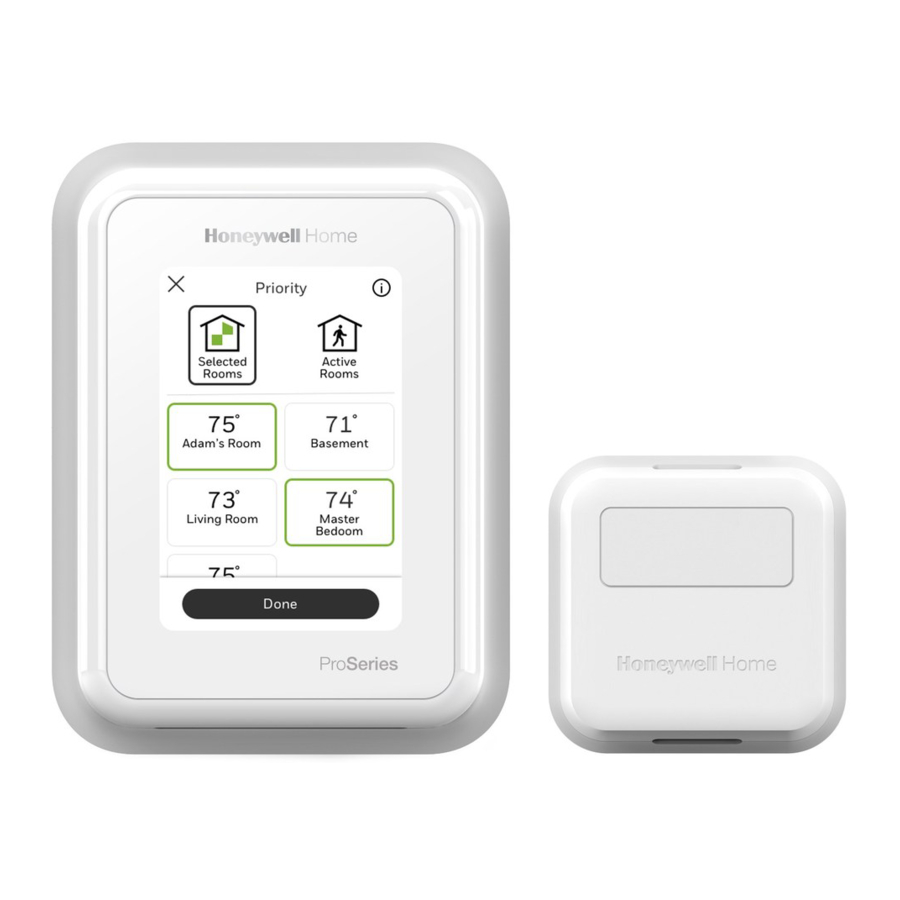
Key Features at a Glance
- Wi-Fi enabled smart thermostat control
- Compatible with mobile app remote access
- RedLINK™ wireless sensor ecosystem
- Smart home integration capability
- Touchscreen interface with humidity monitoring
These features allow users to manage room-level comfort and energy efficiency effectively.
Step 1 — Connect the Thermostat to Wi-Fi
To unlock smart features, connect your thermostat to your home wireless network.
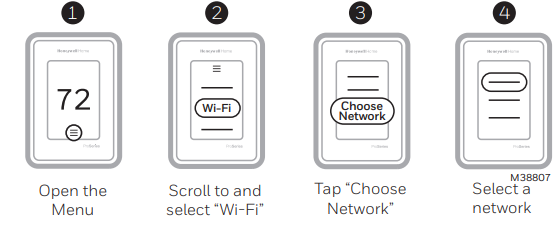
How to Connect
- Tap the thermostat display to wake the screen.
- Navigate to Menu → Wi-Fi Settings.
- Select your home network from the available list.
- Enter the Wi-Fi password.
- Wait for the connection confirmation message.
A successful connection enables remote control, scheduling updates, and smart alerts.
Step 2 — Install the Mobile App and Create an Account
The thermostat works with the First Alert by Resideo mobile application, which allows full remote access and automation.
Setup Process
- Download the app from the Apple App Store or Google Play Store
- Create a new user account or sign in
- Select Add New Device
- Follow the guided pairing instructions
After pairing, you can adjust temperature, schedules, and sensor settings remotely.
Step 3 — Apple HomeKit Smart Home Integration
The Honeywell T10 Pro supports Apple HomeKit automation.
Pairing with Apple Home
- Open thermostat Menu → Smart Home Integration.
- Select Apple HomeKit.
- Scan the setup code using the Apple Home app.
- Assign the thermostat to a room.
This allows voice control and automation through Apple ecosystem devices.
Honeywell T10 Pro Smart Thermostat Installation Guide
Step 4 — Add and Position Wireless Indoor Sensors
Wireless sensors help maintain balanced comfort throughout your home.
Sensor Placement Guidelines
- Install sensors about 5 ft (1.5 m) above the floor
- Mount on interior walls for accurate readings
- Avoid direct sunlight exposure
- Keep away from vents, doors, or heat sources
Correct placement improves temperature averaging and occupancy detection accuracy.
Pairing a Sensor
- Press and hold the sensor connect button
- Access thermostat menu → Devices & Sensors
- Follow on-screen pairing instructions
@hvacjess Honeywell T10 #thermostat #heating #cooling ♬ original sound – uhurayedits
Understanding Smart Priority Comfort Mode
The thermostat includes a Priority Mode feature that intelligently adjusts temperature based on selected rooms or occupancy detection.
Manual Priority
- Users select specific rooms to influence temperature
- Ideal for bedrooms or frequently used areas
Activity-Based Priority
- Sensors detect motion
- Thermostat automatically prioritizes occupied rooms
This functionality ensures personalized comfort and improved energy efficiency.
Thermostat Display and Interface Overview
The T10 Pro features a modern touchscreen interface.
Main Screen Elements
| Display Element | Function |
| Current temperature | Shows indoor ambient reading |
| Set temperature arrows | Adjust heating or cooling setpoint |
| Menu button | Access settings and scheduling |
| Humidity indicator | Displays indoor humidity level |
| System status | Shows heating or cooling activity |
Touching the center of the display wakes the screen for quick interaction.
Basic Temperature Adjustment
To change temperature manually:
- Tap the up or down arrows on the main screen.
- Set desired heating or cooling temperature.
- The thermostat updates system operation automatically.
Manual adjustments override programmed schedules temporarily.
Honeywell X2S Smart Thermostat RTH2SMC Installation Guide
Support, Help, and Environmental Information
For troubleshooting or setup assistance, contact Honeywell Home support:
Official Support Website:
https://www.honeywellhome.com
Customer Support Phone:
1-800-633-3991
Manufacturer:
Resideo Technologies Inc.
1985 Douglas Drive North
Golden Valley, Minnesota, USA
Follow local regulations when disposing of electronic thermostat devices to protect the environment.