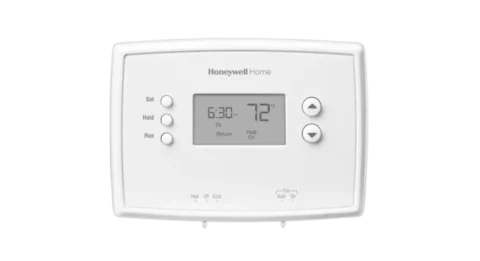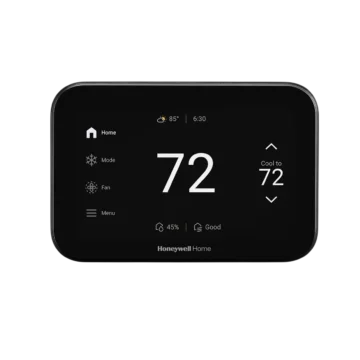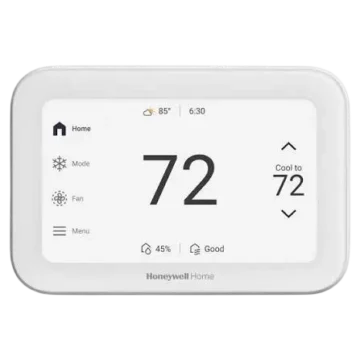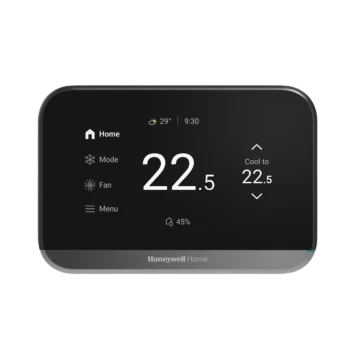
- Time needed: 30 to 60 minutes for a full setup (including wiring and programming)
- What you need: Your model number, a screwdriver, wire labels, and your Wi-Fi password (for smart models)
- Key steps: Mount and wire the thermostat, power it on, configure system type, set your schedule, and connect to Wi-Fi if applicable
- Safety first: Always turn off power at the breaker before touching any wiring
What You Need Before You Start
Gather the following before you begin:
- Model number of your Honeywell thermostat (found on the back of the unit, in the manual, or in the Honeywell Home app)
- System type: know whether you have heat only, cool only, heat + cool, or a heat pump
- Screwdriver (flathead and Phillips)
- Wire labels or tape to mark existing wires before disconnecting
- Wi-Fi password (for smart/Wi-Fi models)
- Smartphone with the Resideo app installed (for smart models)
Common Honeywell thermostat models and their setup method:
| Model | Type | Setup Method |
| T4 Pro | Programmable | On-device buttons |
| T6 / T6 Pro | Programmable | On-device touchscreen |
| T6 Pro Wi-Fi | Smart | On-device + Resideo app |
| T9 / T10 | Smart | Resideo app required |
| RTH series (RTH7560E, RTH9585WF) | Programmable / Wi-Fi | On-device buttons |
| Home Pro Series | Programmable / Wi-Fi | On-device + Resideo app |
Not sure which model you have?
The model number is usually printed on a sticker inside the battery compartment or on the back of the thermostat.
Step 1: Identify Your Honeywell Thermostat Model
Why it matters: Setup steps vary significantly between models. Identifying your model first saves time and prevents errors.
How to find your model number:
- Remove the thermostat from the wall plate — the model number is on the back
- Check inside the battery compartment
- Look at the original box or manual
- Open the Resideo app if already connected — the device name is listed there
Basic vs. app-based setup:
- Basic models (T4, T6, RTH series): configured entirely using physical buttons or the touchscreen on the device
- Smart models (T6 Pro Wi-Fi, T9, T10, Home Pro Series): initial setup is done on the device, but full configuration and scheduling are best handled via the Resideo app
Step 2: Install or Mount the Thermostat
Safety first
Turn off power at the breaker before touching any wires. Turning off only the thermostat is not enough, the HVAC system remains live.
Wiring tips
- Take a photo of your existing wiring before disconnecting anything
- Label each wire with the terminal letter it was connected to (R, G, Y, W, C, etc.)
- Disconnect the old thermostat and remove the old wall plate
- Thread the wires through the new wall plate and mount it level on the wall
- Connect each labeled wire to the matching terminal on the new thermostat
Common wire terminals:
| Terminal | Function |
| R / RH / RC | Power (24V) |
| W / W1 | Heat |
| Y / Y1 | Cooling |
| G | Fan |
| C | Common (required for Wi-Fi models) |
| O / B | Heat pump reversing valve |
Wall mounting tips
- Use a level to ensure the thermostat sits straight (important for older mercury-based models)
- Secure the wall plate with the provided screws
- Snap the thermostat body onto the wall plate firmly
Step 3: Power On and Initial Setup
Once wired and mounted, restore power at the breaker. The thermostat will power on and walk you through an initial setup sequence.
Typical first-boot steps:
- Select language (English, French, Spanish on most models)
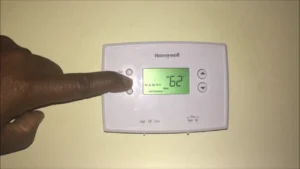
- Set the date and time — use the arrow buttons or touchscreen to adjust
- Select your system type:
- Heat only
- Cool only
- Heat + Cool
- Heat pump (with or without auxiliary heat)
Tip: If you are unsure of your system type, check your HVAC equipment manual or look at the wires connected, a heat pump typically uses an O or B wire.
On the T6 Pro and similar models, you access the installer setup by touching and holding the MENU button, then selecting DEVICE SETUP when it appears on screen.
Step 4: Program Your Schedule
Honeywell thermostats support several schedule types. Choose the one that fits your routine.
Schedule types (Honeywell Home Pro Series)
| Schedule Type | Description |
| 7-day | Different settings for every day of the week |
| 5-1-1 | One schedule for weekdays, separate ones for Saturday and Sunday |
| 5-2 | One schedule for weekdays, one for the weekend |
| No schedule | Manual control only (use “Hold” mode) |
How to set a schedule
- Press Menu or Schedule on the thermostat
- Select the schedule type
- For each time period (Wake, Away, Home, Sleep), set the time and target temperature
- Save and exit
There are typically four time periods per day: Wake, Away, Home, and Sleep.
Using “Hold” mode instead of a schedule
If you prefer not to program a schedule, use Hold mode:
- Temporary Hold: Keeps a set temperature until the next scheduled period
- Permanent Hold: Keeps a set temperature indefinitely until you cancel it
Hold mode is ideal if your schedule changes frequently or if you are away for an extended period.
Step 5: Configure Advanced Settings
Calibrate your Honeywell thermostat temperature
If the displayed temperature feels off compared to the actual room temperature, you can apply a temperature offset.
How to calibrate:
- Place an accurate thermometer next to the thermostat and wait 15 to 30 minutes
- Note the difference between the two readings
- On the thermostat, go to Menu > Preferences > Indoor Display Offsets (or Advanced Settings > Temperature Calibration on some models)
- Use the up/down arrows to set the offset (positive to read higher, negative to read lower)
- Save your changes
Tip: A difference of 1 to 2 degrees between the thermostat and a reference thermometer is normal. If the gap is 3 degrees or more, applying a calibration offset will improve comfort.
Fan settings
- Auto: Fan runs only when heating or cooling is active — most energy-efficient
- On: Fan runs continuously — improves air circulation but uses more energy
- Circulate (some models): Fan runs approximately 33% of the time to keep air moving
Temperature limits
Most Honeywell models let you set minimum and maximum temperature limits to prevent accidental extreme settings. Find this under Menu > Preferences or Advanced Settings.
Display settings
Adjust brightness, Fahrenheit vs. Celsius, and backlight timeout from the Preferences or Display menu.
Step 6: Connect to Wi-Fi (Smart Models Only)
Which models support Wi-Fi?
- T6 Pro Wi-Fi
- T9, T10
- RTH9585WF, RTH9580WF
- Home Pro Series (Wi-Fi variants)
Download the app
The Honeywell Home app (now rebranded as the Resideo app) is used to pair and control Wi-Fi thermostats.
- iOS: Search “Resideo” in the App Store
- Android: Search “Resideo” in the Google Play Store
Note: The Honeywell Home app name changed to Resideo in 2023. If you already have the app, there is no need to reinstall — it updates automatically.
Pairing steps
- On the thermostat, go to Menu > Wi-Fi Settings
- The thermostat will scan for available networks
- Select your home Wi-Fi network and enter the password
- Open the Resideo app, log in or create an account
- Tap + Add Device and follow the in-app prompts to complete pairing
Important: Most Honeywell thermostats only support 2.4 GHz Wi-Fi networks, they do not connect to 5 GHz bands. Check your router settings if the connection fails.
How to Test Your Setup
Once everything is configured, verify that your system responds correctly.
Test heating:
- Set the thermostat to Heat mode
- Raise the set temperature 3 to 5°F above the current room temperature
- Wait up to 5 minutes — you should hear the furnace or heat pump start
Test cooling:
- Set the thermostat to Cool mode
- Lower the set temperature 3 to 5°F below the current room temperature
- Wait up to 5 minutes — you should hear the air conditioner start
If the system does not respond:
- Check that the breaker is on
- Verify all wires are firmly seated in their terminals
- Confirm the correct system type was selected during setup
- Check for a “Waiting for Equipment” message — this is a normal 5-minute delay to protect the compressor
FAQs
How long does it take to set up a Honeywell thermostat?
Most homeowners complete the full setup, including wiring, initial configuration, and schedule programming, in 30 to 60 minutes. Connecting to Wi-Fi and the Resideo app adds another 10 to 15 minutes for smart models.
Can I set up a Honeywell thermostat without a C-wire?
Wi-Fi Honeywell thermostats require a C-wire (common wire) to provide continuous 24V power. If you do not have a C-wire, you have two options: use an unused wire in your thermostat cable and connect it to the C terminal at both the thermostat and the HVAC control board, or purchase a C-wire adapter (sold separately by Honeywell/Resideo). Some newer Wi-Fi models include a C-wire adapter in the box.
How do I reset my Honeywell thermostat to factory settings?
The steps vary by model:
- T5 / T6: Hold the Menu button, navigate to Reset, then select Factory Reset
- T9 / T10: Open Menu > Settings > Reset > Factory Reset
- Home Pro Series: Press Menu, scroll to Reset, tap it, and choose the reset type (Schedule, Wi-Fi, or Factory)
- Older battery-powered models: Remove the batteries, wait 30 seconds, then reinsert them
Always note your schedule settings before performing a factory reset, all saved data will be erased.
Why is my Honeywell thermostat not reaching the set temperature?
Common causes include:
- A dirty air filter restricting airflow, check and replace if needed
- The thermostat is placed near a heat source, cold draft, or in direct sunlight, causing inaccurate readings
- The temperature calibration offset needs adjustment (see Step 5)
- The HVAC system itself needs maintenance (low refrigerant, blocked vents, etc.)
What is the difference between “Hold” and “Run Schedule”?
- Run Schedule: The thermostat follows the programmed time/temperature schedule automatically
- Temporary Hold: Overrides the schedule at a specific temperature until the next scheduled period begins
- Permanent Hold: Keeps a fixed temperature indefinitely, ignoring the schedule entirely, until you manually cancel it
Useful Sources
- Honeywell Home Thermostat Support Center — installation guides, programming help, and troubleshooting
- Honeywell Home Thermostat Manuals — find the manual for your specific model
- Honeywell Home: Everything You Need to Know About a C-Wire — official C-wire guide and adapter info
- Honeywell Home: How to Reset Your Device — model-specific reset instructions
- Resideo App (iOS) — download the Resideo app for iPhone
- Resideo App (Android) — download the Resideo app for Android
- Honeywell Home Compatibility Checker — verify which thermostat works with your wiring