
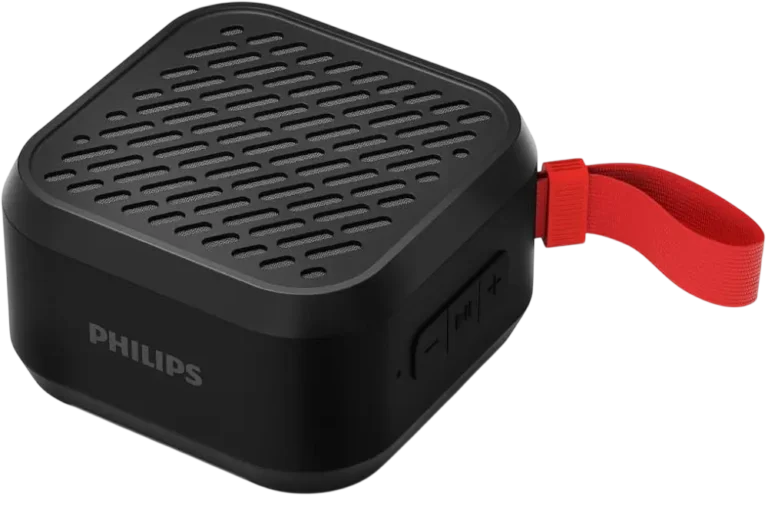
The Philips TAS1000 is a compact wireless speaker with a built-in rechargeable lithium battery. It plays audio from Bluetooth devices over Bluetooth 5.4 and charges through a USB-C port. It also supports Auracast™, so you can pair two identical speakers for stereo sound, broadcast your audio to other compatible speakers, or listen to someone else’s broadcast. The free Philips Entertainment app adds source selection, Bass+, light modes, ambient sound options, and firmware update alerts. The speaker comes with an attached lanyard, and its Bluetooth name is “Philips S1000”.
Product Specifications
| Item | Specification |
| Output power (RMS) | 5 W (THD 1%) |
| Maximum input power | 10 W |
| Driver | Full range, 45 × 45 mm |
| Impedance | 4 Ω |
| Frequency response | 90 Hz – 20 kHz |
| Signal-to-noise ratio | >82 dB |
| Bluetooth version | 5.4 |
| Bluetooth frequency range | 2402 – 2480 MHz |
| Bluetooth range | Up to 30 m (99 ft) in open area; stereo pairing up to 10 m |
| Maximum transmission power | ≤10 dBm |
| Bluetooth profiles | A2DP, AVRCP, HFP |
| Battery | Built-in lithium, 1500 mAh |
| Charging | USB-C, 5V 1A |
| Dimensions (W × H × D) | 75 × 41.6 × 75 mm |
| Weight | 167 g |
| Operating temperature | 0 °C to 40 °C |
The output rating follows the IEC 60268 standard and was not tested under the FTC standard (p. 10). Specifications can change without notice.
What’s in the Box
- Speaker with attached lanyard
- Quick start guide, safety sheet, and warranty sheet
Parts and Controls
Four buttons sit on the top edge and three on the side. The charging port and microphone are on the back (p. 3).
| Control | Function |
| Power button | Turns the speaker on or off |
| Bluetooth button | Press and hold to enter pairing mode or disconnect a connected Bluetooth device |
| Auracast button | Press to enter Auracast receiver mode or rescan; press twice to enter or exit stereo (“TWS”) mode; press and hold for 3 seconds to start or stop an Auracast broadcast |
| Volume + / – | Raises or lowers the volume |
| Play/pause button | Controls playback and calls |
| Power / Bluetooth / Charging LED | Shows power, Bluetooth, and charging status |
| Auracast LED | Shows Auracast status |
| Microphone | Used for calls |
| USB-C port | Charging |
Charging and Power
Fully charge the battery before first use. Use only the USB cable supplied with the speaker or one specified by the manufacturer.
- Connect the speaker’s USB-C port to a 5V 1A outlet with the cable.
- The Power LED turns red while charging.
- When charging is complete, the Power LED goes off.
The charger’s output should be at least 5 W, and a maximum of 15 W gives the fastest charging. For fire safety, use only an external power source that meets PS1 (under 15 W output capacity) (p. 12).
When you unplug the cable, pull the plug and never the cable. Make sure the supply voltage matches the voltage printed on the back or underside of the speaker.
Below 20% battery, a voice prompt plays once every 60 seconds. At under 2%, the speaker powers off.
To turn the speaker on or off, press the power button. You will hear a prompt sound each time. The speaker also switches itself off after 15 minutes without an audio signal from Bluetooth or Auracast.
Connecting by Bluetooth
Keep Bluetooth turned on for your phone or tablet, and stay within 30 meters in open space. Other electronic devices nearby can cause interference.
- Press the power button. The speaker enters pairing mode automatically, and the LED blinks blue slowly. You can also press and hold the Bluetooth button to start pairing.
- Turn on Bluetooth on your device and select “Philips S1000” from the list.
- Play audio on your device.
Bluetooth LED Meanings
| LED | Status |
| Blinking blue, fast | Reconnecting to the last connected device |
| Blinking blue, slow | Ready for pairing |
| Solid blue | Connected |
Playback and Calls
During music playback:
- Press the play/pause button once to pause or resume.
- Press twice for the next track, or three times for the previous track.
- Press volume + or – to change one level. Hold to change continuously.
During a phone call, press the play/pause button to answer or end the call. Press and hold it to reject a call.
Auracast™ and Stereo Mode
Pairing Two Speakers for Stereo
Two identical Philips S1000 speakers can pair for stereo sound. Connect one speaker to your Bluetooth device first. It becomes the primary speaker.
- Double press the Auracast button on both speakers.
- A prompt sound plays. The Auracast LED blinks white while pairing and turns pink once connected.
- To exit, double press the Auracast button on either speaker.
In stereo mode, playback, volume, and light mode controls are synchronized, and you can use either speaker.
Broadcasting Your Audio
- Press and hold the Auracast button for 3 seconds, or choose Setup PartyLink mode under General Settings in the app.
- The Auracast LED turns purple for a Public broadcast or amber for a Personal one, and a prompt sound plays.
- To stop, hold the button for 3 seconds again or select Unlink in the app.
The default setting is Public, an unencrypted broadcast. For a Personal (encrypted) broadcast with a password, go to Philips Entertainment app > General Settings > Auracast™ Broadcaster.
Listening to a Broadcast
Press the Auracast button, or switch to Auracast Receiver under Source Control in the app. The LED turns cyan and the speaker searches for nearby broadcasts. It connects automatically to the unencrypted broadcast with the strongest signal. Press the button again to rescan. To leave the broadcast, hold the button for 3 seconds or choose another source in the app.
Philips Entertainment App
The app lets you select a source, control playback and Bass+, change light modes, and check battery life (p. 7).
- Scan the QR code on page 7 or search “Philips Entertainment” in the Apple App Store or Google Play.
- Turn on Bluetooth on your phone, open the app, and tap “Add device +” to find Philips S1000.
- On first connection, confirm the pairing on the speaker when prompted.
Under Source Control, you can switch between Bluetooth and Auracast receiver. You can also pick sound options grouped as Relaxation, Concentration, and Masking, or Generative, Ambient, and Nature. The app notifies you when new firmware is available. To use PartyLink with additional speakers, follow the in-app steps. Other Auracast-compatible Philips speakers can join as well.
Safety Instructions
Read these points before first use (pp. 2–3):
- Use the speaker only indoors, between 0 °C and 40 °C.
- Do not expose it to dripping or splashing, and keep liquid-filled objects and lit candles away from it.
- Keep it away from direct sunlight, open flames, and heat.
- Place it on a flat, hard, stable surface, never on other electrical equipment.
- Leave enough free space around it for ventilation.
- Use only attachments and accessories specified by the manufacturer.
- Never remove the casing or lubricate any part.
- Do not charge the speaker while it is wet. After a spill or rinse, wait until it is completely dry and clean. Charging while wet can damage the speaker.
- Chemicals, salt, or foreign particles from pools or the ocean can damage the waterproof seals or the connector surface if not rinsed off after use.
Battery warnings: A battery that is replaced with the wrong type can explode. Replace it only with the same or an equivalent type. Do not expose the battery to fire, strong sunshine, or other excessive heat, and do not crush or cut it. Extreme temperatures or very low air pressure can cause explosion or leakage of flammable liquid or gas.
Cleaning and Maintenance
Clean the speaker with a microfiber cloth only. Lithium batteries slowly lose charge capacity through self-discharge. If you won’t use the speaker for a long time, charge the battery to around 50% every six months.
Do not try to repair the speaker yourself, because that can void the warranty.
Troubleshooting
| Problem | What to try |
| No power | Charge the speaker fully and check that the USB cable is properly connected. |
| No sound | Raise the volume on the speaker and on the connected device. Make sure the device is within range. |
| No response | Restart the speaker. It may also have shut off automatically after 15 minutes without audio. |
| Poor Bluetooth reception or audio quality | Move the device closer or remove obstacles between the two. |
| “Philips S1000” not found | Turn on Bluetooth on your device. Press and hold the Bluetooth button for 3 seconds to enter pairing mode, then try again. |
| Cannot connect | The speaker may not be in pairing mode, or may already be connected to another device. Disconnect that device and try again. |
If the problem continues, visit www.philips.com/support. Have the speaker, model number, and serial number ready when you contact Philips.
Frequently Asked Questions
How long should I charge the TAS1000 before first use?
The manual says to charge the battery fully first but gives no charge time or battery life figure. The LED turns red during charging and goes off when the battery is full.
Why does the speaker turn off by itself?
It shuts down automatically after 15 minutes with no audio signal from Bluetooth or Auracast. It also powers off when the battery drops below 2%.
How do I pair it with a new phone?
Hold the Bluetooth button until the LED blinks blue slowly. Then choose “Philips S1000” in your phone’s Bluetooth list. If the speaker is still connected to another device, disconnect that device first.
Can I use two TAS1000 speakers for stereo?
Yes, if both are identical Philips S1000 speakers. Connect one to your Bluetooth device, then double press the Auracast button on both. The LED turns pink once they are paired. Stereo pairing works up to 10 meters.
What is the difference between Public and Personal Auracast broadcasts?
Public is the default and is unencrypted, so nearby compatible speakers can join. Personal is encrypted and uses a password that you set in the Philips Entertainment app.
Can I answer calls on the speaker?
Yes. It supports the HFP profile and has a built-in microphone. Press the play/pause button to answer or end a call, or hold it to reject one.
Is the speaker waterproof?
The manual does not state a water resistance rating. It says to use the speaker indoors only and keep it away from water, moisture, dripping, and splashing. Never charge it while it is wet.
Where can I get support or update the firmware?
Register your product and get support at www.philips.com/support. The Philips Entertainment app will tell you when new firmware is available.