
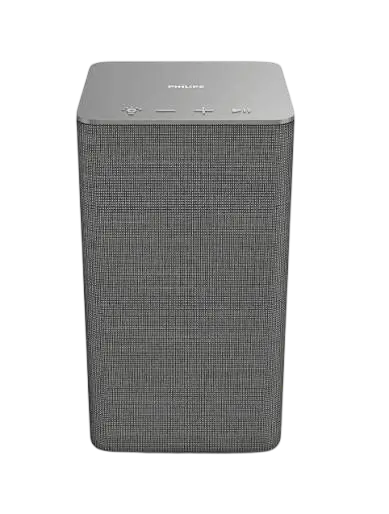
The Philips TAW6205 is a Wi-Fi and Bluetooth speaker for the home. It plays music through the Philips Sound app, which is powered by DTS Play-Fi. You can also stream over Bluetooth, use Spotify Connect, or plug in a player with a 3.5 mm cable. A built-in LED light is part of the design. It can follow the colors of a compatible Philips Ambilight TV, pulse with the music, or stay on as a static mood light. The speaker runs on AC power only and has no battery. It should be used indoors.
Product Specifications
| Item | Detail |
| Amplifier output | 40 W RMS |
| Drivers | 1 × 3.5″ woofer, 1 × 1″ tweeter, 2 × passive radiators |
| Driver power | 30 W (woofer), 10 W (tweeter) |
| Frequency response | 20–20,000 Hz |
| Dimensions (W × H × D) | 115 × 212 × 116 mm |
| Weight | 1.79 kg |
| Power supply | 100–240 V AC, 50/60 Hz |
| Power consumption | 30 W (semi-standby: 6 W) |
| Wi-Fi | 802.11 a/b/g/n/ac |
| 2.4 GHz Wi-Fi | 2412–2472 MHz, 12±2 dBm |
| 5 GHz Wi-Fi | 5725–5825 MHz, 20±2 dBm |
| Bluetooth | Version 4.2, A2DP profile, 2402–2480 MHz, 3 dBm |
| Bluetooth range | About 20 m (66 ft) |
| Operating temperature | 0°C to 45°C |
Philips notes that specifications can change without notice (page 15).
What’s in the Box
- Speaker
- Power cable
- Quick start guide
- Safety sheet
- Worldwide warranty
Parts and Controls
Top panel
- Light button: shows status. Press it to cycle the LED light mode. Hold it for 3 seconds to start pairing with an Ambilight TV.
- Volume − / +: adjust the volume.
- Play/Pause: play, pause, or resume Bluetooth and Play-Fi playback.
- Wi-Fi LED indicator (white): double blink means WPS mode. Blink means Wi-Fi Access Point (AP) mode. Constant on means connected or paired.
Back panel
- Wi-Fi setup button: starts Wi-Fi setup for Play-Fi.
- Service USB socket: for speaker software upgrades only. It cannot play music.
- AC IN socket: power connection.
- Bluetooth button: starts pairing or disconnects the paired device.
- RESET: hold with a sharp object for 5 seconds to restore factory defaults.
- AUX IN: 3.5 mm audio input.
Installation and Setup
Connect the supplied power cable to the AC IN socket and plug it into an outlet. Check that your household voltage matches the voltage on the rating label on the underside of the unit. A mismatch can damage the product (page 6).
The manual lists the outlet rating as 19 V 2.1 A. The speaker switches off by itself after 15 minutes with no playback or operation. To turn it off completely, unplug the power cable.
Connect to Wi-Fi with the Philips Sound App
Your phone or tablet and the speaker need to be on the same Wi-Fi network.
- Connect your phone or tablet to the home Wi-Fi network you want the speaker to use. Make sure the router is on and working.
- Install the Philips Sound app powered by DTS Play-Fi on your device.
- Hold the Wi-Fi button on the back for 8 seconds. Release it after the speaker makes a second tone.
- Wait for the Wi-Fi light to change from a fast blink to a slow pulse. This means the speaker is in Wi-Fi setup mode.
- Open the app and follow its instructions to join the speaker to your network.
- Optionally, rename the speaker. You can pick a preset name or choose Custom Name.
A solid Wi-Fi light means the connection succeeded. While connecting, the speaker’s LED turns around in blue for up to 20 seconds. A red blink for 5 seconds means the connection failed.
The speaker may download a software update after its first connection. Don’t unplug it, switch off your device, or leave the network during the update. It can take several minutes. Without the update, not every feature is available (page 9).
iPhone note: the iPhone’s Wi-Fi may need to be switched temporarily to the speaker’s Play-Fi network. Go to Settings > Wi-Fi, select the Play-Fi device, then return to the Philips Sound app to continue (page 8).
Connect with WPS
If your router supports Wi-Fi Protected Setup, you can skip the password.
- Press the WPS button on your router.
- Hold the speaker’s Wi-Fi button until you hear a tone and the Wi-Fi light double-blinks. Page 4 says to hold for 3 seconds. Page 9 says 4 seconds.
- Wait for the connection. Press the Wi-Fi button once to exit WPS, or wait for it to time out after 2 minutes.
Not every router has WPS. If yours doesn’t, use the standard app setup above.
Using the Speaker
Play over Bluetooth
- Hold the Bluetooth button on the back for 8 seconds to enter pairing mode.
- Turn on Bluetooth on your phone or other device.
- Select “Play-Fi Device (XXXXXX)-BT” from the list.
- Start playing audio on your device.
Keep the device within 20 meters and away from other electronics that could cause interference. When powered on, the speaker tries to reconnect to the last device it connected to. To disconnect a device, hold the Bluetooth button for 2 seconds until the LED blinks blue quickly. To clear the pairing information, hold it for 2 seconds until the LED blinks blue slowly three times (page 13).
| Bluetooth LED | Meaning |
| Blinking blue slowly | Ready for pairing, or reconnecting to the last device |
| Solid blue | Connected |
Other Ways to Play
- Play-Fi: use the Philips Sound app after Wi-Fi setup.
- Spotify: use your phone, tablet, or computer as a Spotify remote. Instructions are at spotify.com/connect.
- External player: connect an MP3 player to AUDIO IN with a 3.5 mm stereo cable, then play from the player.
- AirPlay 2: controlling the speaker this way requires iOS 11.4 or later (page 20).
LED Light Modes
Press the light button on top to move through three modes: Work with Ambilight, Mood Light, and Off.
| Mode | What the light does |
| Follow Ambilight TV | Matches the color of a paired Philips Ambilight TV |
| Follow Music | Varies with the rhythm of the music |
| Mood Light (Lounge mode) | Static color, with or without audio playback |
To change the color style in Follow Music or Mood Light, hold the light button and press the Play/Pause button once to step to the next style. To change brightness, hold the light button and press + or − once.
Follow Music styles are Warm white, Hot Lava (red), Deep Water (blue), Green Nature, Orange, Lemon, and Lavender. Mood Light offers the same seven options as static colors. Mood Light needs the power connected but no Wi-Fi or Bluetooth connection.
Pair with a Philips Ambilight TV
- Put the speaker and TV on the same Wi-Fi network, then turn on the TV.
- On the TV, go to Settings > Ambilight > Ambilight extension > Ambilight+Philips Wireless Home Speakers > Configure.
- Follow the on-screen prompts. When asked, hold the speaker’s light button for 3 seconds. The LEDs blink yellow while the speaker is open for pairing.
- Once paired, the speaker light follows the TV.
Pairing times out after 2 minutes. If no TV is linked or the TV disconnects, the speaker switches to Follow Music during playback. The manual lists the supported 2019 and 2020 Ambilight TV series for Europe and Asia Pacific on page 10. Check that list before you buy or pair.
Safety Instructions
- Never remove the casing. There is a risk of electric shock, and repairing the product yourself voids the warranty.
- Keep the speaker away from dripping or splashing. Don’t place liquid-filled objects or lit candles on it.
- Leave enough free space around it for ventilation.
- Use it between 0°C and 45°C, indoors, away from direct sunlight, flames, and heat.
- Place it on a flat, hard, stable surface, never on other electrical equipment.
- Use only attachments and accessories specified by the manufacturer.
- Never lubricate any part of the speaker.
- In the 5150–5350 MHz Wi-Fi band, operation is for indoor use only (page 3).
Firmware Updates
You can update the firmware over the air through the Philips Sound app. Go to Settings > PS Fine Tune and press the Upgrade icon if an update is available. This works once the speaker is on Wi-Fi.
The other route is USB. Find your model at philips.com/support under “Software and drivers”, download the firmware to a USB flash drive, and follow the upgrade instructions. The USB socket on the speaker is for software upgrades only (page 14).
Troubleshooting
| Problem | What to try |
| No power | Check the outlet and the AC IN connection. The speaker also powers down after 15 minutes without a signal. |
| No sound | Raise the volume on the speaker and on the connected device. In AUDIO IN mode, make sure Bluetooth playback is stopped. Keep your Bluetooth device in range. |
| Speaker doesn’t respond | Restart the speaker. |
| Wi-Fi won’t connect | Confirm the WLAN is up, move the router closer, check the password, and reboot the modem and router. |
| Poor Bluetooth audio | Move the device closer and remove obstacles. |
| Bluetooth name not visible | Make sure Bluetooth is on and re-pair the unit. |
| Can’t connect via Bluetooth | Confirm Bluetooth is on, the speaker is in pairing mode, and it isn’t already connected to another device. |
| App can’t find the speaker | Make sure your device is on Wi-Fi. |
| Play-Fi music won’t play | If first-time setup failed, close and restart the app. If the speaker is in a Stereo Pair or Surround group, disconnect it in the app before using it alone. |
Frequently Asked Questions
How do I reset the TAW6205 to factory settings?
Press the RESET opening on the back with a sharp object and hold for 5 seconds. This restores factory defaults.
How do I switch the speaker to a different Wi-Fi network?
Setup has to be repeated. Hold the Wi-Fi button for 8 seconds to reset the Wi-Fi connection, restart the app, and run setup again (page 9).
Does the speaker have a battery?
No. It is powered by AC input only. Unplugging the power cable is how you turn it off completely.
What is the Bluetooth range?
About 20 meters (66 feet). Other electronics nearby can interfere with the signal.
Why does the speaker turn off by itself?
It’s a power-saving feature. The speaker shuts off after 15 minutes without a user action or music playback.
Can I play music from the USB port?
No. The USB socket is only for speaker software upgrades and has no playback function. Use Bluetooth, Wi-Fi, Spotify, or the AUX IN socket instead.
Will the light work without a TV or a connection?
Yes. Mood Light mode gives a static color with or without audio and needs no network or Bluetooth connection, only power.
Is the first software update required?
The manual says an upgrade is needed after initial setup. Without it, not all product features are available.