
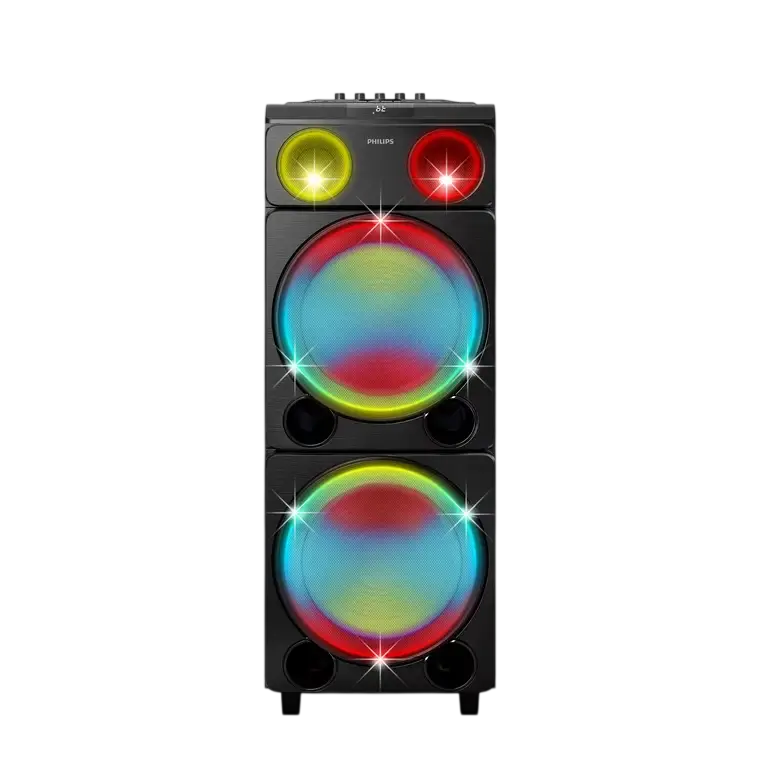
The Philips TAX5509 is a large floor-standing party speaker from the 5000 Series. It plays music over Bluetooth 5.3, from USB sticks and TF cards, from FM radio, or from any device connected to its Audio in socket. It also has karaoke-style features: a microphone input, a 6.3 mm guitar input, echo, a voice changer, a vocal fader, DJ sound effects, and eight light modes. Output is rated at 130W RMS (260W max). Two units can be paired as a stereo set, and the speaker can record microphone or guitar audio to a USB drive or TF card.
What’s in the Box
- Main unit (1)
- AC power cord (1)
- Remote control (1) with 2 AAA batteries
- Quick start guide (1)
- Safety sheet (1)
- Warranty card (1)
A microphone, a guitar cable, and an audio cable for the Audio in socket are not supplied.
Product Specifications
| Item | Specification |
| Power supply | AC 100–240V, 50/60 Hz |
| Power consumption (off) | 0.5W or less |
| Output power | 260W max / 130W RMS |
| Frequency response | 20Hz–20kHz, ±3dB |
| Signal-to-noise ratio | 80 dB or higher |
| Total harmonic distortion | 10% or less |
| Speaker impedance | Bass 3Ω, Mid 4Ω, Tweeter 8Ω |
| Sensitivity | Bass 89 dB, Mid 103 dB, Tweeter 107 dB (±3 dB/m/W) |
| Bluetooth | Version 5.3, 2.402–2.480 GHz, range 10 m (30 ft) in free space |
| USB | USB 2.0 Full Speed, 5V 1.0A |
| Dimensions (W x H x D) | 400 x 1105 x 345 mm |
| Weight | 19.00 kg |
| Operating temperature | 0°C to 45°C |
The manual notes that the power rating is not tested under the FTC standard.
Parts and Controls
Top Panel
The top panel has the power button, source button, and knobs for microphone volume, echo, guitar volume, treble, bass, and master volume. It also has an LED display, the Audio in, USB, and TF sockets, and the Guitar and MIC jacks. The playback, previous/next, DBB, Bluetooth, TWS, vocal fader, voice changer, DJ sound, and light buttons are here too.
- Power: Long press to turn the speaker on or off.
- Source: Cycles through Bluetooth, FM radio, Aux, USB, and TF.
- Bluetooth button: Press to switch to Bluetooth mode. Long press to disconnect the current Bluetooth device.
- DBB: Cycles DBB1, DBB2, and DBB off. The default is DBB2.
The AC IN socket is on the rear panel.
Remote Control
The remote repeats most top-panel functions. It also adds a few controls found only on the remote: MUTE, microphone treble and bass (M.TRE and M.BAS), M.PRI, REC, R-DEL, and 0–9 number buttons. Unlike the top-panel button, the remote’s power button is a short press.
Its range is about 19.7 feet (6 m). Obstacles, or other infrared devices nearby, can interfere with it (p. 7). To fit the batteries, slide off the compartment cover, insert two AAA 1.5V batteries with the (+) and (–) ends matching the markings, and slide the cover back. Do not mix old and new batteries or different battery types. Remove the batteries if you won’t use the remote for a long time, since leakage can cause injury or damage.
Installation and Setup
Complete all other connections before connecting AC power.
- Check that your outlet voltage matches the voltage printed on the back or underside of the unit.
- Plug the AC power cord into the AC IN socket on the rear panel.
- Plug the other end into a power outlet.
- Long press the power button on the top panel to turn the speaker on.
When unplugging, pull the plug, never the cord. The model and serial numbers are on the back of the unit, and you’ll need them if you contact Philips support.
How to Use the Speaker
Play Music over Bluetooth
Before pairing, check your device’s own manual for Bluetooth compatibility.
- Press the source or Bluetooth button to switch to Bluetooth mode. The display shows “bt” and the Bluetooth logo blinks.
- On your phone or tablet, turn on Bluetooth and select Philips TAX5509.
- A prompt sound confirms the connection. The Bluetooth indicator stays solid and the speaker light glows blue for 2 seconds.
- Play audio on your device.
To disconnect, long press the Bluetooth button. You’ll hear a prompt, and the speaker light blinks blue three times. Disconnect the current device before connecting another one. If a device stays out of range for 3 minutes, the speaker disconnects it and returns to pairing mode.
Play from USB or a TF Card
Insert the USB drive or TF card, and the speaker switches to that mode automatically. Press the previous/next buttons to change tracks, or press play/pause to pause and resume. On the remote, the number buttons jump straight to a track.
Only MP3 files are supported. File systems can be FAT, FAT12, FAT16, FAT32, or exFAT, and USB devices must be USB 2.0. Drives and cards larger than 128 GB may not play or record correctly (p. 14).
Listen to FM Radio
Press the source button until the display shows an FM frequency. Long press play/pause to scan and save stations automatically. The first saved station plays when the scan finishes, and you can press play/pause to step through the saved stations. To tune manually, use the previous/next buttons.
Use an External Device
- Press the source button until the display shows “AUX”.
- Connect an audio cable (not supplied) from the Audio in socket to your device’s headphone jack.
- Start playback on the device.
Sing, Play Guitar, and Add Effects
- Microphone: Plug a microphone (not supplied) into the MIC jack. Use the Mic vol knob for volume and the Echo knob for echo.
- Voice changer: Cycles Voice 1 to 4, then off.
- Vocal fader: Turns the vocal-reduction effect on or off.
- Microphone priority (M.PRI): A short press on the remote lowers the music whenever the microphone picks up your voice. It only works with a microphone connected.
- Guitar: Connect a guitar with a 6.3 mm (1/4″) connector (not supplied) to the Guitar jack, and set its level with the Guitar knob.
- DJ sounds: Press one of the three DJ buttons for sounds 1–3. Hold a button for three seconds for sounds 4–6.
- Lights: Press the light button to step through light modes 1–8 and off. Long press it to switch the strobe on or off.
Stereo Pairing (TWS)
You can link two TAX5509 speakers for stereo sound.
- Turn both speakers on. Both enter Bluetooth mode automatically.
- Pick one as the primary speaker and connect it to your phone over Bluetooth.
- Long press the TWS button on the primary speaker first, then on the secondary speaker.
- Both displays show “b ON,” you hear a prompt, and the lights blink purple three times.
- When pairing finishes, the primary shows “bt” and the secondary shows “btbt.”
To exit, long press the TWS button on either speaker. The display shows “b OFF” and both return to Bluetooth mode.
Volume, bass, treble, DBB, track skipping, play/pause, and light mode should be changed on the primary speaker. The secondary speaker follows. The vocal fader, voice changer, recording, and M.PRI are unavailable while TWS is active (p. 11).
Record Your Voice or Guitar
Recording uses the remote and needs a USB drive or TF card plus a microphone or guitar connected.
- Press REC to start recording. Press it again to stop and return to your current source.
- Press play/pause to pause or resume recording.
- Long press REC to play back recordings.
- During playback, press R-DEL to delete the recording.
Recordings are saved in a folder named “Rec.” In AUX mode, the recording includes the AUX audio. In FM mode, it includes the radio. In USB or TF mode, it captures only the microphone or guitar. Recording does not work in Bluetooth mode (p. 10).
Safety Instructions
- Do not remove the casing, lubricate any part, or place the speaker on other electrical equipment.
- Keep it away from water, dripping or splashing liquids, direct sunlight, open flames, and heat sources such as radiators.
- Do not put liquid-filled objects, such as vases, or lit candles on it.
- Keep the power cord and plug easy to reach, and protect the cord from being walked on or pinched.
- Unplug the speaker during lightning storms or long periods of non-use.
- Use only the stands, carts, and accessories the manufacturer specifies. Other carts or stands can make it unstable.
- Keep the speaker at least 20 cm from your body when it’s operating (p. 3).
- Have a qualified technician service it if the cord is damaged, liquid or objects get inside, or it has been dropped or won’t work normally.
Damage caused by ignoring the instructions isn’t covered by the warranty.
Cleaning and Maintenance
Wipe the cabinet with a soft cloth lightly moistened with mild detergent solution. Avoid alcohol, spirits, ammonia, and abrasives. To save power, the speaker switches itself off after 15 minutes without an audio signal in Audio in, USB, Bluetooth, or TF mode.
Troubleshooting
| Problem | What to try |
| No power | Check that the plug is firmly connected and the outlet has power. The unit also goes to standby 15 minutes after playback ends with no control used. |
| No sound | Adjust the volume. |
| No response from the unit | Unplug the AC plug, reconnect it, and turn the speaker on again. |
| Bluetooth device can’t connect | Make sure Bluetooth is enabled on the device. Also check that the speaker isn’t already connected to another device. |
| Poor audio quality or constant disconnections over Bluetooth | Move the device closer and remove obstacles. Some devices turn off Bluetooth automatically to save power, which is not a fault. |
| USB device not supported | The drive may be incompatible. Try another one. |
| Some files don’t show on the USB device | The files may be in an unsupported format, or the drive has more folders or files than the unit can handle. |
Do not try to repair the speaker yourself, or you may void the warranty. If the problem continues, go to www.philips.com/support with your model and serial numbers ready.
Frequently Asked Questions
What is the Bluetooth name of the TAX5509?
It appears as “Philips TAX5509” in your device’s Bluetooth list. Switch the speaker to Bluetooth mode first so it’s ready to pair.
How far can I be from the speaker over Bluetooth?
The range is about 10 meters (30 feet) in open space. Walls and other obstacles shorten it.
Which audio files can the TAX5509 play from USB or TF?
It plays MP3 files only. Drives and cards should be formatted FAT, FAT12, FAT16, FAT32, or exFAT, and no larger than 128 GB.
Can I record what I’m playing over Bluetooth?
No. Recording is unavailable in Bluetooth mode. It works in AUX, FM, USB, and TF modes, and needs a USB drive or TF card plus a microphone or guitar.
Why won’t the voice changer or recording work with two speakers linked?
While TWS stereo mode is active, the vocal fader, voice changer, recording, and M.PRI are all disabled on both speakers. Exit TWS mode to use them.
Does the speaker turn itself off?
Yes. It switches off after 15 minutes with no audio signal in Audio in, USB, Bluetooth, or TF mode.
Does the box include a microphone or guitar cable?
No. The microphone, 6.3 mm guitar cable, and Audio in cable are all sold separately.