
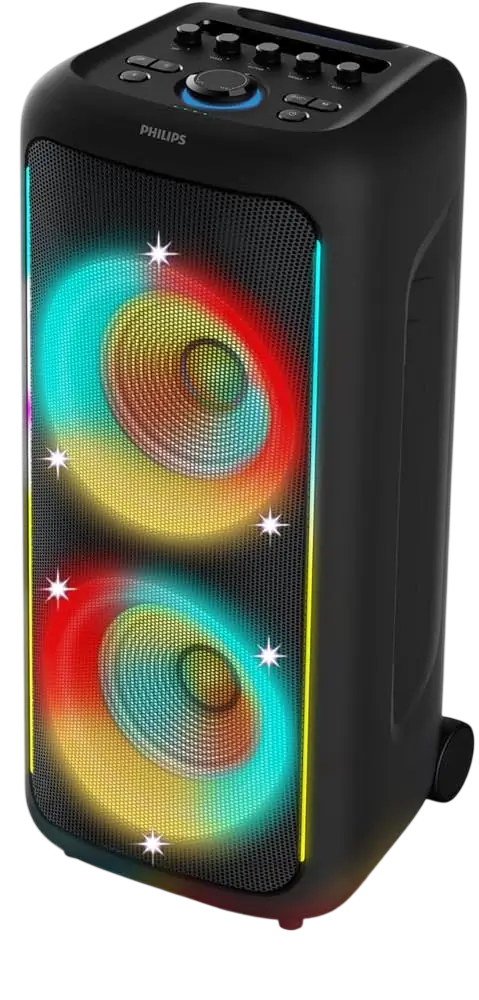
The Philips TAX5000 is a floor-standing Bluetooth party speaker with a built-in battery, two microphone inputs, and a guitar input. It plays music from Bluetooth devices, USB drives, and a wired audio source. It also supports Auracast broadcasting and a paired stereo mode with a second TAX5000. Light effects and a Bass+ boost add to the party setup. The Philips Entertainment App can control playback, sources, lighting, and karaoke settings from your phone.
What’s in the Box
- Main unit (1)
- AC power cord (1)
- Quick start guide (1)
- Safety sheet (1)
- Warranty card (1)
Microphones, guitar cables, and audio cables are not supplied.
Parts and Controls
Top Panel
- Power: turns the speaker on or puts it in standby.
- Bluetooth button: hold for 3 seconds to disconnect the current device, or press twice to enter TWS pairing mode.
- Light button: cycles through light modes 1–13, then Off.
- Auracast button: press once for Auracast receive mode. Hold for 3 seconds to start or exit Auracast transmit mode.
- Bass+ button: press briefly to turn Bass+ on or off. Holding it for 5 seconds performs a factory reset and reboots the speaker.
- Play/pause: works in Bluetooth and USB sources.
- Knobs: MIC volume, ECHO, GUITAR volume, treble, bass, and main VOL.
- Battery indicator: four LEDs show charge level.
Rear Panel
The rear panel has AC IN, MIC1 and MIC2 inputs, a GUITAR input, a USB port, and an AUDIO IN socket. The model and serial number are printed on the back. Note them down before you contact support (p. 6).
Getting Started
Finish all other connections before you connect AC power.
- Plug the AC power cord into the AC IN socket on the rear panel.
- Plug the other end into a wall outlet. Plug shapes vary by region.
- Press the power button on the top panel to turn the speaker on.
Check that your outlet voltage matches the voltage printed on the speaker. When unplugging, pull the plug, never the cable (p. 6).
The speaker contains a built-in lithium battery, and its capacity declines over time. If you store the speaker unused, charge the battery to about 50% every 6 months (p. 2).
Playing Music
Bluetooth
- Turn on the speaker, or press the Bluetooth button to enter pairing mode.
- On your phone or tablet, turn on Bluetooth and select Philips X5000 from the list. That is the name the manual gives for pairing.
- When connected, the Bluetooth button backlight turns solid blue and the speaker lights glow blue for 3 seconds. You will also hear a prompt tone.
- To disconnect, hold the Bluetooth button for 3 seconds.
Range is about 10 meters (30 feet) in open space. Obstacles and nearby electronics can shorten it. Only one device can be connected at a time, so disconnect the current one before connecting another. If a device moves out of range, the speaker disconnects and returns to pairing mode (p. 7).
USB
Insert a USB drive and the speaker switches to USB mode automatically. Press the play/pause button to pause or resume. Supported audio formats are MP3 and WAV. The drive must be USB 2.0, formatted as FAT16, FAT32, or exFAT, and no larger than 128 GB. Larger drives may not play correctly (p. 16).
Wired Audio
Connect a cable (not supplied) from the headphone jack of your player or phone to the AUDIO IN socket, then start playback on that device.
Stereo Mode (TWS)
True wireless stereo works only with two identical TAX5000 speakers (p. 7).
- Turn on both speakers.
- Press the Bluetooth button twice on each one.
- When TWS connects, both buttons blink slowly in white for 3 seconds. The primary speaker’s button then turns solid blue and the secondary’s turns solid white.
- To exit, press the Bluetooth button twice on either speaker.
In TWS mode, light mode, volume, play/pause, and Bass+ are synchronized on both speakers. The primary speaker can switch to another source while the secondary stays in TWS mode. If you power on a speaker that was previously paired, it tries to reconnect for 1 minute and then times out (p. 8).
Auracast
Auracast lets the TAX5000 send or receive audio broadcasts (pp. 8–9).
To broadcast (transmit): play audio from Bluetooth, USB, or Audio In. Hold the Auracast button for 3 seconds, or trigger it from the app. The button blinks white, the lights blink three times, and a tone sounds. Other Auracast-capable speakers can then pick up the broadcast. Hold the button for 3 seconds again to stop.
To receive: press the Auracast button, or select the Auracast receiver source in the app. On first use, or when the station list is empty, the speaker scans automatically. It connects to the unencrypted broadcast with the strongest signal. A phone that supports Auracast can act as the broadcaster. For an encrypted broadcast, enter the password in the app.
If nothing is found or no action is taken within 10 seconds, the speaker stops scanning and goes idle. Press the button to rescan. Press it to move to the next unencrypted broadcast, or press it twice to clear stored encrypted-broadcast information. To leave Auracast receive mode, switch to another source.
Karaoke and Guitar
Microphones
Plug a microphone (not supplied) into the MIC1 or MIC2 input. Use the MIC knob to set the microphone volume and the ECHO knob to set the echo level.
Guitar
Connect a guitar with a 6.3 mm (1/4″) connector (not supplied) to the GUITAR input. Set its level with the GUITAR knob.
Settings in the App
The virtual remote control in the Philips Entertainment App adds:
- Microphone priority (M.PRI): lowers the music volume when the mic picks up your voice, or turns that behavior off.
- Vocal fader: turns on or off.
- Voice changer: Female, Male, Child, Senior, or Normal.
- Mic treble and bass: adjustable with sliders in Karaoke Control.
Light Effects
Press the light button to step through light modes 1–13 or turn the lights off. In the app, you can turn the flashlight on or off, pick a mode, and choose which light modes are included in the cycle.
Philips Entertainment App
Download it from the Apple App Store or Google Play by searching “Philips Entertainment”, or use philips.to/entapp. To pair:
- Make sure the speaker is on and connected to your phone by Bluetooth.
- Open the app and follow the prompts.
- If the app stalls at the last prompt, tap Cancel and try again.
The app covers sound control, light control, karaoke control, source switching, general settings, and a user guide. Software updates are delivered through the app. When one is available, a red number appears on the update icon. Tap it, then choose Download & Upgrade (p. 15).
Specifications
| Item | Specification |
| Power supply | AC 100–240 V, 50/60 Hz |
| Power consumption (off) | ≤ 0.5 W |
| Output power (RMS) | 100 W (IEC 60268; not tested to FTC standard) |
| Dimensions (W × H × D) | 320 × 730 × 320 mm |
| Weight | 11.9 kg |
| Frequency response | 20 Hz–20 kHz, ±3 dB |
| Signal-to-noise ratio | ≥ 80 dB |
| Total harmonic distortion | ≤ 10% |
| Speaker impedance | Bass 4 Ω, Tweeter 4 Ω |
| Bluetooth | Version 6.0, 2.402–2.480 GHz, 10 m range |
| USB | 2.0 Full Speed, 5 V 1.0 A charging |
| Operating temperature | 0 °C–45 °C |
Safety Instructions
- Never remove the casing, and never lubricate any part of the unit.
- Keep the speaker away from water, rain, and moisture. Do not place liquid-filled objects such as vases on it.
- Keep it away from direct sunlight, open flames, and heat sources such as radiators and stoves.
- Do not place it on other electrical equipment.
- Keep the power cord, plug, or adapter easily accessible so you can disconnect power quickly. Protect the cord from being walked on or pinched.
- Unplug the unit during lightning storms or when it will go unused for long periods.
- Use only attachments and accessories specified by the manufacturer.
- Have a qualified technician service the unit if it is damaged, exposed to liquid, dropped, or not working normally.
- Keep the product at least 20 cm from people while it operates (p. 3).
Damage caused by not following the instructions is not covered by the warranty (p. 2).
Cleaning and Maintenance
Wipe the cabinet with a soft cloth lightly moistened with mild detergent solution. Do not use solutions containing alcohol, spirits, ammonia, or abrasives. Do not try to repair the system yourself, as that can void the warranty.
Troubleshooting
| Problem | What to try |
| No power | Check that the AC plug is connected properly and that the outlet has power. |
| No response from the unit | Unplug the AC plug, plug it back in, and turn the unit on again. |
| No sound | Raise the volume. |
| Poor audio quality over Bluetooth | Move the device closer or remove obstacles between them. |
| Cannot connect to a device | Make sure Bluetooth is on for the device. Disconnect any other device already connected, then try again. |
| Device connects and disconnects repeatedly | Improve reception by moving closer. Some devices drop Bluetooth automatically to save power, which is not a fault. |
| Some USB files will not play | The folder or file count may exceed a limit, or the file formats are unsupported. |
| USB device not supported | Try a different USB device. |
If the problem remains, visit www.philips.com/support and have the model and serial number ready.
Frequently Asked Questions
Why does the speaker turn off by itself?
It shuts off automatically after 15 minutes without an audio signal in Audio In, USB, Auracast, or Bluetooth mode. This is normal.
What Bluetooth name should I look for?
Look for “Philips X5000” in your device’s Bluetooth list. Turn the speaker on, or press the Bluetooth button, so it is in pairing mode first.
Can I pair two different speakers in stereo mode?
No. TWS works only with two identical TAX5000 speakers. Other Auracast-enabled speakers can receive a broadcast from the TAX5000 through Auracast instead.
What USB drives and file types can I play?
Use USB 2.0 flash memory or flash players, formatted FAT16, FAT32, or exFAT, up to 128 GB. The supported audio formats are MP3 and WAV.
How do I reset the speaker?
Hold the Bass+ button for 5 seconds. The speaker performs a factory reset and reboots.
Can I use the speaker while it is plugged in?
Yes. The manual describes AC power for operation and includes charging LED indicators for the built-in battery. It does not state battery runtime or full charge time.
How do I update the speaker’s software?
Connect the speaker to the Philips Entertainment App. When an update is available, tap the update icon and choose Download & Upgrade.