
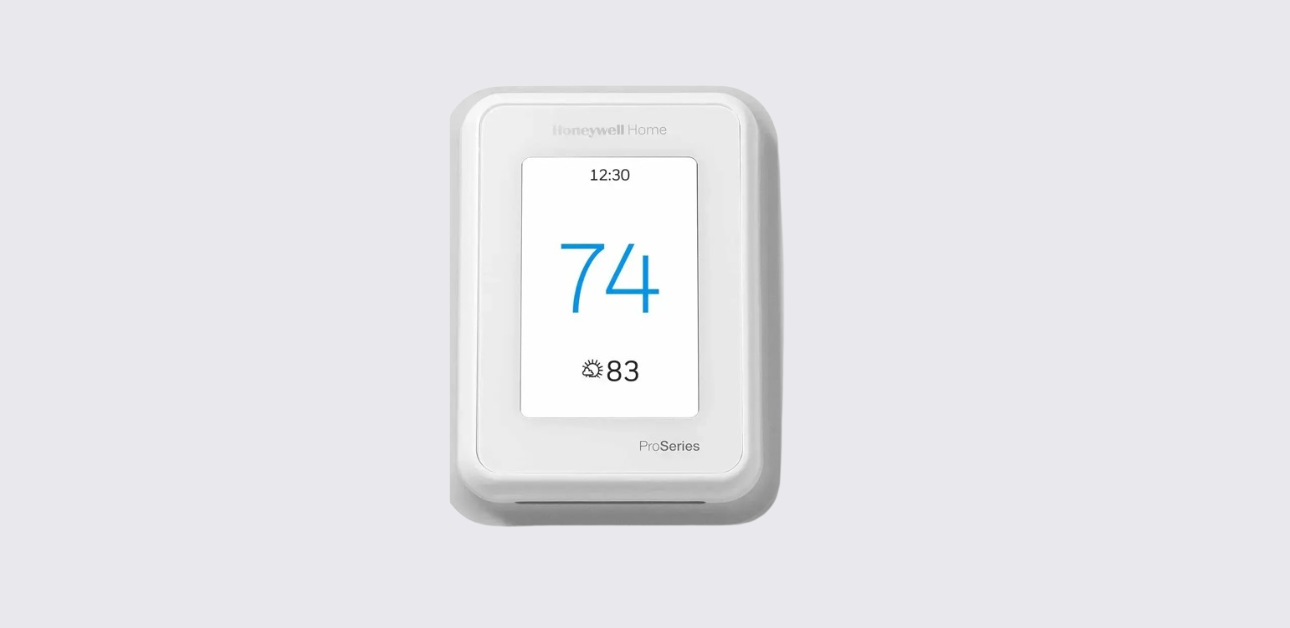
This Honeywell T10 Pro Smart Thermostat installation guide provides step-by-step instructions to help HVAC professionals and advanced homeowners install, wire, and configure the thermostat safely and correctly.
The guide explains mounting procedures, terminal wiring, sensor pairing, system compatibility, and troubleshooting workflows based on the official installation documentation.
Product Overview
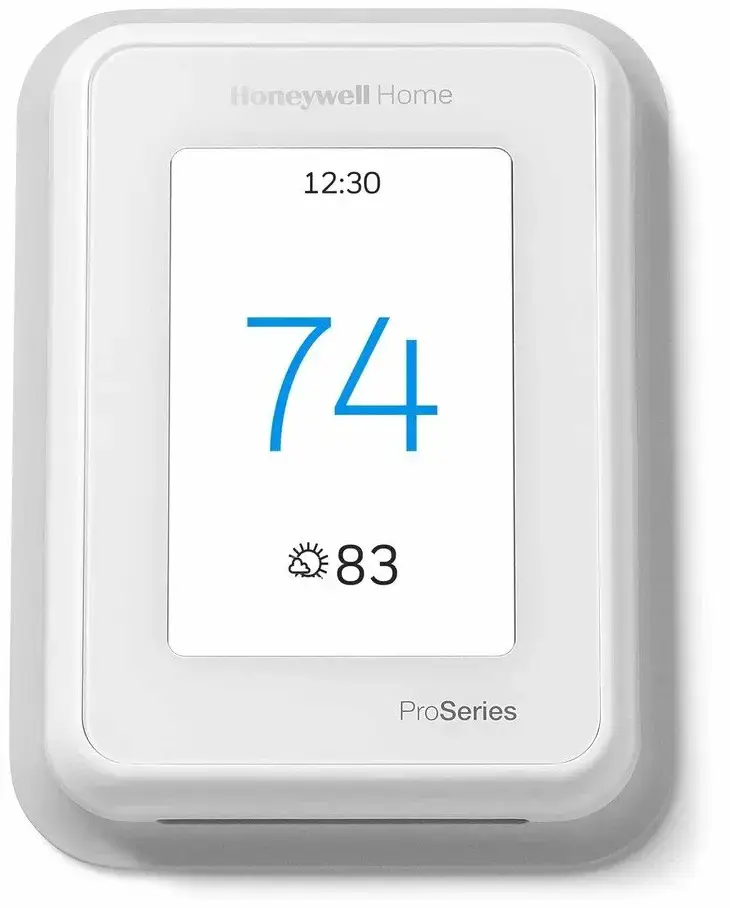
The Honeywell T10 Pro is a professional-grade smart thermostat designed for advanced heating and cooling system control. It supports RedLINK™ wireless indoor sensors, multi-stage HVAC systems, and energy efficiency programs.
Key Installation Highlights
- Requires 24VAC common wire (C-wire) for operation
- Compatible with most conventional HVAC and heat pump systems
- Not compatible with line-voltage electric baseboard systems (120–240V)
- Requires smartphone or tablet for smart configuration
These compatibility requirements must be verified before starting installation.
Package Contents
Before beginning installation, confirm all components are included:
- T10 Pro Smart Thermostat
- UWP™ Universal Mounting System
- Standard installation (junction box) adapter
- Medium decorative cover plate
- RedLINK wireless indoor air sensor
- Screws and wall anchors
- Professional installation guide and getting started guide
These accessories ensure flexibility during retrofit or new installations.
Honeywell T10 Pro Smart Thermostat Getting Started Guide
System Compatibility Check
Supported Systems
- Conventional heating and cooling systems
- Heat pump HVAC systems
- Multi-stage compressors
- Auxiliary and emergency heating
Unsupported Systems
- Electric baseboard heating (120–240V line voltage)
- Millivolt systems
Confirm compatibility before proceeding to avoid equipment malfunction.
Tools Required for Installation
- Drill and drill bits
- Screwdrivers (Phillips and flat-head)
- Wire stripper or needle-nose pliers
- Level and pencil
- Smartphone for configuration
Using proper tools ensures accurate mounting and wiring alignment.
Step-by-Step Installation Process
Step 1 — Turn Off HVAC Power
Before removing the old thermostat:
- Switch off power at the circuit breaker or HVAC service switch.
- Confirm the system does not activate when changing temperature settings.
This prevents electrical shock or equipment damage during installation.
Step 2 — Install the UWP Mounting Plate
- Position the UWP mounting plate on the wall.
- Use a level to mark hole locations.
- Drill holes and insert supplied wall anchors.
- Pull thermostat wires through the wiring opening.
- Secure the mounting plate using supplied screws.
Avoid overtightening screws to prevent mounting plate distortion.
Optional Cover Plate Installation
Install the decorative cover plate when:
- Mounting over an electrical junction box
- Covering paint gaps from the previous thermostat
Attach the junction adapter first, then snap the cover plate into position.
Step 3 — Identify and Connect Wiring Terminals
The thermostat supports advanced HVAC wiring configurations.
Common Terminal Functions
| Terminal | Function |
| R / Rc | Heating and cooling transformer power |
| C | 24VAC common wire |
| Y / Y2 | Compressor stages |
| W / W2 | Heating stages |
| G | Fan relay |
| O/B | Heat pump changeover |
| AUX / E | Backup or emergency heat |
| U | Humidifier or ventilator relay |
Correct terminal mapping ensures accurate system performance.
Using the C-Wire Adapter
If only four wires are available:
- Use the C-wire adapter kit
- Connect K terminal as instructed
- Convert unused wire into common power supply
This enables smart thermostat power stability.
Step 4 — Mount the Thermostat Display
- Align the thermostat with the UWP mounting plate
- Press gently until it snaps into place
- Restore HVAC power
The thermostat screen should activate automatically.
Wireless Indoor Sensor Setup
The T10 Pro uses RedLINK wireless sensors for room-based temperature control.
Pairing Procedure
- Press and hold the sensor Connect button for 15 seconds
- Navigate to thermostat menu → Devices & Sensors
- Follow on-screen pairing instructions
Sensor communication improves comfort zoning accuracy.
Honeywell T9 Smart Thermostat User Guide
Initial System Testing
After installation:
- Verify heating and cooling operation
- Check fan activation
- Confirm sensor communication
- Observe compressor protection delay
The thermostat may delay system restart by about 5 minutes to protect compressor components.
Technical Specifications
Operating Conditions
| Parameter | Range |
| Heating Setpoint | 40°F to 90°F |
| Cooling Setpoint | 50°F to 99°F |
| Operating Temperature | 32°F to 120°F |
| Relative Humidity | 5% to 90% non-condensing |
Electrical Data
- Power consumption approx. 3 VA
- 20–30 VAC terminal voltage ratings
These specifications define safe operating limits.
Safety Precautions
- Disconnect power before wiring
- Avoid rapid compressor cycling
- Follow mercury thermostat disposal regulations
- Use authorized recycling facilities for electronic waste
Following safety practices protects both installer and HVAC equipment.
Honeywell T5+ Smart Thermostat Quick Install Guide
Manufacturer Support and Contact Details
For technical support, installation guidance, or warranty service:
Website:
https://www.honeywellhome.com
Customer Support Phone:
1-800-633-3991
Manufacturer:
Resideo Technologies Inc.
1985 Douglas Drive North
Golden Valley, Minnesota, USA
These support resources help resolve installation or system configuration issues.